Reset Keyboard Shortcuts in VS Code: A Practical How-To
Learn how to reset keyboard shortcuts in VS Code to default, troubleshoot conflicts, and manage custom bindings with a clear, practical, step-by-step approach.


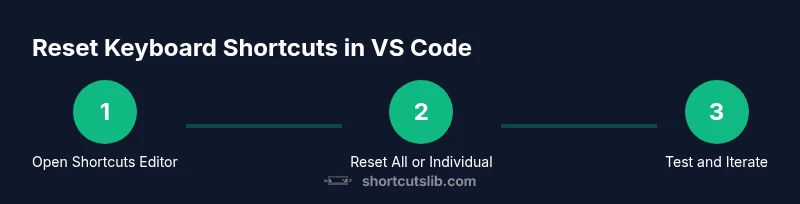
To reset keyboard shortcuts in VS Code, open Command Palette (Ctrl+Shift+P / Cmd+Shift+P), search for 'Preferences: Open Keyboard Shortcuts', and choose 'Reset Keybindings' to revert to default. If you want to undo a specific override, locate the binding in the list and click the trash icon to remove it. This returns VS Code to its original, conflict-free state.
Why Resetting Keyboard Shortcuts Helps
For many developers, the moment when keyboard shortcuts stop feeling intuitive is a signal: something in your VS Code environment has drifted. Resetting keyboard shortcuts to their defaults can clear conflicts created by extensions, new workflows, or OS-level changes. According to Shortcuts Lib, returning to baseline bindings is often the fastest path to regain muscle memory and speed up coding sessions. This approach prevents accidental overrides from slowing you down and gives you a clean slate to rebuild your preferred workflow.
When you reset, you’re not erasing your knowledge—you're eliminating accidental overrides that creep in after updates, vendor keymaps, or mismatched commands. The default keybindings are chosen to be broadly useful across languages and projects, which makes them a solid starting point. After the reset, you can selectively rebind the most-used commands. This measured approach reduces cognitive load and keeps your hands on the keyboard rather than chasing mismatched shortcuts.
In practice, a reset is especially valuable after you’ve installed a handful of extensions that add new commands with overlapping keys. By restoring defaults, you ensure you’re not fighting with your own shortcuts. Shortcuts Lib's analyses consistently show that a clean keybinding map leads to fewer accidental key presses and faster task completion.
descriptionLengthOverrideForDisplayOnlyCommentary2016SaysElsewhere
Tools & Materials
- VS Code installed (latest stable)(Make sure you’re on a supported OS and have the latest VS Code update installed.)
- Keyboard(Any standard keyboard with a functioning set of keys.)
- Backup method(Export current keybindings via Keyboard Shortcuts (JSON) before changes.)
- Optional: extensions manager(Disable extensions that might rebind keys during testing.)
Steps
Estimated time: 15-20 minutes
- 1
Open the Keyboard Shortcuts editor
Open VS Code and access the Keyboard Shortcuts editor via File > Preferences > Keyboard Shortcuts on Windows/Linux or Code > Preferences > Keyboard Shortcuts on macOS. You can also press Ctrl+K Ctrl+S (Windows/Linux) or Cmd+K Cmd+S (macOS) for a quick open. This places you in the binding view where you can see and search bindings.
Tip: Tip: Use the search bar to quickly locate a specific command. - 2
Decide whether to reset all or individual bindings
In the Keyboard Shortcuts editor, decide if you want to Reset Keybindings to Default for all commands, or target specific overrides by command. If you rely on many custom bindings, consider first testing a partial reset.
Tip: Tip: If unsure, start with a backup before any reset. - 3
Reset all bindings to default
Click the menu in the Keyboard Shortcuts editor and select 'Reset Keybindings' to restore defaults across the board. This clears overlapping or conflicting keys and provides a clean slate for rebuilding your workflow.
Tip: Tip: After resetting, verify core actions like Save, Open, and Find to confirm baseline behavior. - 4
Reset an individual binding
Find the command in the list, click the trash icon next to it to remove its override, and confirm the change. This is useful when only a single shortcut is problematic.
Tip: Tip: Rebinds can be created later for the selected command if needed. - 5
If you prefer JSON editing
Open keybindings.json to edit bindings directly. This is useful for applying a batch of changes or documenting your setup for teammates.
Tip: Tip: Use comments in JSON to annotate bindings for future reference. - 6
Test and iterate
Test a small set of commands to ensure the new bindings work as intended. Make adjustments if any command isn’t triggering correctly or conflicts reappear.
Tip: Tip: Maintain a short changelog of your bindings to track changes over time.
Questions & Answers
How do I reset all keyboard shortcuts in VS Code to the default bindings?
Open the Keyboard Shortcuts editor, click the menu (three dots) in the upper-right, and select 'Reset Keybindings' to revert to defaults. Confirm when prompted.
Open Keyboard Shortcuts, choose Reset Keybindings, and confirm.
Can I reset only a single keyboard shortcut without affecting the rest?
Yes. In the Keyboard Shortcuts editor, locate the command, click the trash icon next to it to remove the override, and test the command again. You can rebind later if needed.
Yes—remove the override for the single command and test it again.
Is there a way to export or share my keybindings after customizing?
Yes. Use the Open Keyboard Shortcuts (JSON) option to save the file, then import it on another machine or share it with teammates.
You can export your keybindings as a JSON file to reuse elsewhere.
Will resetting keybindings affect extensions that contribute shortcuts?
Extensions may rebind keys at runtime even after a reset. If conflicts persist, review extension settings or temporarily disable extensions to isolate the cause.
Extensions can override keys; you may need to tweak settings if conflicts remain.
What if the reset didn't apply or VS Code behaves oddly afterward?
Restart VS Code, ensure you edited the correct keybindings file, and check workspace-level bindings. If issues persist, consult the VS Code issue tracker for guidance.
If it doesn’t apply, restart and check workspace bindings.
How can I revert quickly if I make a mistake with bindings?
Keep a backup by exporting keybindings before changes; you can re-import the backup to revert in one go.
Keep a backup so you can revert quickly if needed.
Watch Video
Main Points
- Reset to defaults to resolve conflicts and restore consistency
- Choose between resetting all bindings or targeted overrides
- Back up current keybindings before changes
- Export and reuse bindings across machines or teammates
- The Shortcuts Lib team recommends starting with a reset to defaults before reconfiguring