How to Edit Keyboard Shortcuts in VS Code: A Practical Guide
Learn to edit keyboard shortcuts in VS Code with a step-by-step method, covering keybindings.json, the built-in editor, conflict resolution, and syncing across devices for a tailored workflow.


You're going to learn how to edit keyboard shortcuts vs code to tailor VS Code for your workflow. You’ll explore user and workspace bindings, locate and edit keybindings.json, and use the Keyboard Shortcuts editor to map commands you use most. Expect faster editing, fewer menu clicks, and a setup that matches how you work.
Why customize VS Code keybindings matters
According to Shortcuts Lib, mastering how to edit keyboard shortcuts vs code can dramatically improve how you code, test, and debug. For many developers, the default bindings feel foreign or inefficient, causing mental overhead and slower navigation. Custom shortcuts align the editor with your mental model: a few keystrokes replace multi-step menus, reduce context switching, and help you stay in flow. In this section, we examine why customization matters, what you can customize (and what to avoid), and how to approach it methodically. We'll also discuss the difference between global (keyboard) shortcuts and editor-specific bindings, so you know when to apply changes at the user level versus the workspace level. By the end, you'll understand the philosophy: tailor VS Code to your tasks, not the other way around.
First, think about the tasks you perform most: jumping between files, searching for symbols, running tests, or formatting code. If you can reach those actions faster, your overall development time drops. Shortcuts are a form of cognitive scaffold; they reduce the mental effort required to locate a command, recall syntax, or navigate menus. A well-chosen binding becomes almost invisible, letting you stay in the problem space rather than the tool. This is especially important in keyboard-centric workflows, where the time saved compounds over hours and days. The goal isn't to memorize hundreds of bindings but to identify a few high-leverage mappings that unlock frequent actions. We'll guide you through that discovery process, then show you how to implement and test changes safely. Finally, we’ll provide best practices for maintaining your custom bindings across devices and VS Code updates.
How VS Code stores and applies keybindings
VS Code supports two primary scopes for keybindings: User (global across all workspaces) and Workspace (specific to the project). The editor uses a JSON file named keybindings.json to store custom mappings, with a separate per-workspace variant when you opt into a project-specific setup. Shortcuts in this file follow a simple schema: {"key": "<shortcut>", "command": "<commandId>", "when": "<condition>"}. The VS Code UI also offers a Keyboard Shortcuts editor (accessible via File > Preferences > Keyboard Shortcuts or the shortcut you already know) to add, modify, or delete bindings without editing JSON directly. This separation—UI vs JSON—lets you prototype in the editor and then lock in configurations in the file. Shortcuts Lib analysis shows that teams who document and back up their keybindings.json consistently experience fewer onboarding frictions when onboarding new developers or upgrading VS Code.
Using the Keyboard Shortcuts Editor vs keybindings.json directly
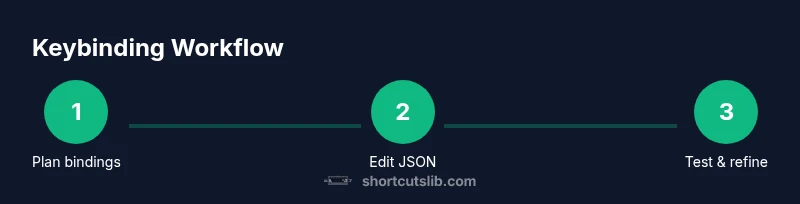
The Keyboard Shortcuts editor provides a visual, filterable catalog of actions and their current bindings. It’s ideal for discovering which commands you use most and trying out bindings before committing them to disk. When you’re comfortable, you can switch to the JSON view to hand-edit or export the exact binding entries. Editing in JSON gives you precise control, batch-editing capabilities, and an auditable history of your customizations. The UI and JSON views are synchronized, so changes in one reflect in the other. If you’re workflow-focused, start in the UI for discovery, then move to JSON for hard-won customizations that you’ll reuse across devices.
Step-by-step approach to editing shortcuts safely
A careful approach to editing shortcuts minimizes disruption. Begin with a backup of your current keybindings.json, then test any new binding in a controlled scope. Prefer non-conflicting, mnemonic keys (e.g., a two-part chord or a command that’s easy to remember) and avoid overwriting OS-level shortcuts unless you’re certain the change will improve your workflow. Document each change in a short log so you can revert if needed. Finally, validate across the workspace and, if using Settings Sync, ensure the changes propagate to other devices without overwriting local preferences. This method keeps you productive while preserving a safety net for unintended outcomes.
Practical examples and common commands that benefit from customization
In day-to-day coding, you often perform a small set of actions repeatedly. Common targets for customization include opening, saving, or navigating files, toggling comments, and executing frequently used commands like formatting, searching, or running tests. Start by listing your top five actions and map them to you preferred key sequences. If a chosen key is already bound, consider a chord (two-key sequence) or a leader key approach (the first key initiates a sequence). Always prefer bindings that are easy to type and hard to collide with other tools. Remember that the goal is to reduce friction, not to memorize every available shortcut.
Testing, exporting, and syncing your keybindings
After applying changes, test each binding in a real workflow to ensure it behaves as expected in all contexts. Use the Keyboard Shortcuts editor’s search to verify there are no conflicting mappings, then open a representative project and perform the main tasks with your new bindings. Export an external copy of keybindings.json for backup or sharing with teammates, and consider enabling Settings Sync to keep bindings consistent across devices. If your editor updates or extensions introduce new commands, schedule a periodic review of your bindings to keep them aligned with your evolving workflow.
Authority sources
- https://code.visualstudio.com/docs/getstarted/keybindings
- https://code.visualstudio.com/docs/editor/userdefinedsnippets
- https://learn.microsoft.com/
Tools & Materials
- VS Code installed(Ensure you have the latest stable release for best keybinding support and UI behavior.)
- Access to keybindings.json(Located in your user settings folder; know how to reach the file path on your OS.)
- Backup copy of current keybindings.json(Store a local copy before making changes to revert if needed.)
- Optional: Keyboard for testing(A comfortable keyboard helps when testing chorded bindings or long sessions.)
Steps
Estimated time: 25-40 minutes
- 1
Open keybindings.json
Open VS Code, then use the Command Palette (Ctrl/Cmd+Shift+P) and select 'Preferences: Open Keyboard Shortcuts (JSON)' to view or edit the JSON file directly. You can also access the UI by choosing 'Keyboard Shortcuts' from the menu. The goal is to identify the exact binding you want to modify.
Tip: Use the UI first to identify intended commands before editing JSON directly. - 2
Back up existing bindings
Copy the current keybindings.json to a safe location. This backup lets you revert quickly if a new binding interferes with your workflow.
Tip: Keep a dated backup to track changes over time. - 3
Decide on the target command
Pick the command you perform most often or one that currently requires too many steps. Check the exact command ID in the UI or the JSON file to ensure correct mapping.
Tip: Prefer commands with stable IDs and minimal OS-level conflicts. - 4
Add or modify the binding
In keybindings.json, add an entry like {"key": "<your-key>", "command": "<commandId>", "when": "<context>"}. Save the file to apply the change.
Tip: If a binding already exists, update the existing entry instead of adding a duplicate. - 5
Resolve conflicts
Search for overlapping bindings using the UI or by scanning key combinations. If conflicts exist, decide which context should win using the 'when' clause.
Tip: Avoid overriding OS shortcuts unless it clearly improves your workflow. - 6
Test the new shortcut
Run through a representative workflow to confirm the binding triggers as intended. If it doesn’t work, check for syntax errors or conflicts that surfaced after saving.
Tip: Test in multiple folders or workspaces to ensure consistent behavior. - 7
Sync and share the config
If you use Settings Sync or work across devices, enable syncing for the keybindings.json. Share your bindings with teammates using an exported file.
Tip: Document any non-obvious bindings so teammates can adapt quickly. - 8
Review periodically
Schedule a quarterly review of bindings to accommodate new commands from extensions or VS Code updates.
Tip: Keep a changelog so you can revert if a major update changes behavior.
Questions & Answers
How can I revert to the default keybindings?
You can reset individual bindings in the Keyboard Shortcuts editor or delete custom entries in keybindings.json to revert to VS Code defaults. A full reset is possible by clearing your user keybindings.json, but keep a backup first.
To revert, reset bindings in the editor or delete your custom entries; backup first in case you want to restore later.
What is the difference between User and Workspace keybindings?
User keybindings apply globally across all projects, while Workspace keybindings are limited to the current project. Use Workspace bindings to tailor a project without affecting your other work.
User bindings are global; workspace bindings are project-specific. Use workspace bindings for project-focused tweaks.
How do I export or share my keybindings?
Keybindings are stored in a keybindings.json file. You can copy this file to back up, export, or share your bindings with teammates.
Copy your keybindings.json to back it up or share with teammates.
How can I resolve conflicts between shortcuts?
Look for overlapping keys and use the 'when' context to disambiguate. Prefer non-conflicting chords or adjust the scope to minimize disruption.
Check for overlaps and use conditional contexts to avoid conflicts.
Can I sync keybindings across devices?
Yes. Enable Settings Sync in VS Code to keep your keybindings.json consistent on all devices where you sign in.
Enable Settings Sync to keep your bindings consistent across devices.
Are there risks in changing essential shortcuts?
Changing essential shortcuts can disrupt muscle memory if you rely on default OS shortcuts. Test changes in a controlled workflow and avoid removing critical system bindings.
Be careful with OS-level shortcuts; test changes before adopting them.
Watch Video
Main Points
- Identify high-impact bindings first
- Use UI for discovery, JSON for precision
- Back up before editing
- Test in real workflows and sync across devices