How to Open Keyboard Shortcuts in VS Code
Learn to access, customize, and manage keyboard shortcuts in Visual Studio Code. This guide covers opening the shortcuts panel, editing keybindings, testing changes, and cross-platform considerations to boost productivity.


In this guide you will learn how to open and customize keyboard shortcuts in VS Code, from accessing the shortcuts panel to editing keybindings and testing changes. You’ll discover the built-in shortcut palette, how to bind new keys, and per-platform considerations to keep your workflow fast and consistent. By following these steps, you can speed up editing, navigation, and overall coding flow with confidence.
how to open keyboard shortcuts in vs code
According to Shortcuts Lib, mastering keyboard shortcuts in VS Code is less about memorizing every hotkey and more about choosing a small, reliable set that matches your workflow. The journey begins with understanding where VS Code stores shortcuts and how to access the built-in palette that lists every command with its current binding. By using this central hub, you can both learn defaults and experiment with your own bindings without leaving the editor. In this section, we’ll outline the general philosophy of shortcut usage, how to approach learning them in layers, and why a consistent approach across projects matters for speed and accuracy. Expect practical steps, platform-aware notes, and examples you can apply immediately.
Opening the Shortcuts UI and Basic Access
The fastest way to view and modify bindings is to open the Keyboard Shortcuts editor. On Windows/Linux you can press Ctrl+K then Ctrl+S; on macOS use Cmd+K then Cmd+S. This opens a searchable, two-pane view: the command list and the keybindings list. If you prefer the JSON route, you can switch to the raw keybindings.json file from the same panel. Start by exploring the top search bar to filter commands, and scan essential defaults like Save, Copy, Paste, and Find to understand how VS Code maps core actions to keys. Remember, the shortcuts UI also shows conflicts when two commands try the same binding, which helps prevent accidental overrides.
How to Use the Command Palette as a Shortcut Atlas
Beyond the dedicated shortcuts editor, the Command Palette (Ctrl+Shift+P or Cmd+Shift+P) provides a quick way to discover and execute commands, often revealing the exact keystroke associated with an action. Typing a command’s name filters results and displays its current binding, if any. You can rebind commands from the palette by selecting a command and choosing Change Keybinding, which redirects you to the appropriate binding in the editor. This approach minimizes context switching and helps you map forgotten actions to memorable keys, accelerating day-to-day tasks.
Core Shortcuts You’ll Likely Use Daily
A practical shortcut set focuses on editing, navigation, and pane management. In VS Code, you’ll frequently use shortcuts to save time when switching between files (Ctrl+Tab / Cmd+Tab), split editors (Ctrl+\ / Cmd+), and focus the terminal (Ctrl+ / Cmd+). The keyboard shortcuts editor also shows default bindings for Find (Ctrl+F / Cmd+F) and Replace (Ctrl+H / Cmd+H). Keeping these core bindings predictable across projects minimizes friction and makes it easier to learn new workflows quickly.
Customizing Shortcuts: Keybindings.json and Settings
To create durable, shareable bindings, you’ll want to edit keybindings.json. From the Keyboard Shortcuts editor, click the Open Keyboard Shortcuts (JSON) button to edit raw JSON. This file lets you override defaults, create combinations across commands, and define platform-specific bindings using the when clause. We recommend starting with a small, high-reward change—bind a couple of actions you perform most often, and test them in a few representative tasks. As you gain confidence, extend bindings gradually and keep a backup of your file to prevent loss during migrations or resets.
Cross-Platform Considerations: Windows, macOS, Linux
Shortcuts often differ across platforms due to OS conventions. For example, many editor actions use Ctrl on Windows/Linux and Cmd on macOS. VS Code supports platform-specific rules in keybindings.json, enabling you to tailor bindings per OS while maintaining a consistent mental model. If you share projects across teammates, consider creating a minimal, platform-aware subset of bindings that avoids conflicts with system shortcuts. This approach keeps your workflow predictable whether you’re on Windows, macOS, or Linux.
Testing and Troubleshooting Shortcuts in Real Scenarios
After binding or updating a shortcut, test it in a real task: write code, search for a symbol, or switch panes. If a binding doesn’t work, check for OS-level overrides that steal the keystroke, verify the scope (user vs workspace), and ensure no conflicting bindings exist. VS Code also shows conflicts in the Shortcuts editor, which makes validation straightforward. When you encounter a stubborn issue, a quick restart of VS Code or reloading the window can clear transient state that blocks updates or extensions from applying.
Best Practices for Memorization and Consistency
Rather than attempting to memorize everything at once, adopt a two-step learning plan. Start with 5–7 high-frequency commands that fit your current work pattern, then expand gradually as you gain confidence. Maintain a living cheatsheet—either a printable document or a private wiki—so you can review bindings during breaks and reinforce recall. Finally, aim for platform-consistent bindings where possible and document any deviations to keep teams aligned.
Keeping Shortcuts Organized and Shareable
A practical strategy is to treat keybindings as code: version them, comment them, and share them with teammates when useful. Store your keybindings.json in a project’s .vscode folder or alongside personal settings, and consider exporting/importing bindings when moving between machines. Shortcuts Lib recommends documenting the rationale for each customization so future you (or a teammate) understands why a particular binding exists, reducing the chance of unnecessary rework during updates.
Tools & Materials
- Visual Studio Code(Installed and updated to the latest stable version)
- Keyboard and mouse(All essential keys available; some keys may be OS-bound)
- Keybindings.json file(Located in ~/.config/Code/User or $HOME/.config/Code/User/keybindings.json (path varies by OS))
- Optional cheatsheet(Printable quick-reference for your top shortcuts)
- Documentation reference(VS Code Keyboard Shortcuts page for deeper dives)
Steps
Estimated time: 20 minutes
- 1
Open the Keyboard Shortcuts UI
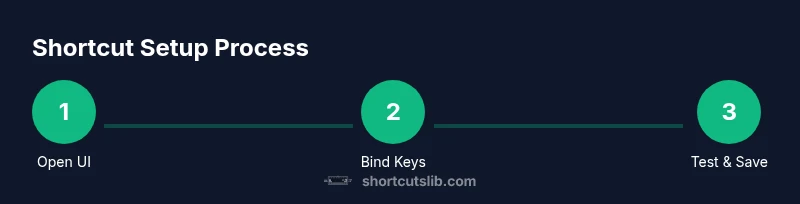
Press Ctrl+K followed by Ctrl+S (Windows/Linux) or Cmd+K followed by Cmd+S (macOS) to open the editor. This panel lists all commands with current bindings and shows conflicts when duplicates exist.
Tip: If the panel won’t open, check for conflicting extensions that override keys and disable them temporarily to test bindings. - 2
Search for a command and review its binding
Use the search bar to filter by action (e.g., 'save', 'find') and observe the right-hand column showing the binding. If there’s no binding, proceed to bind a new one.
Tip: Use exact command names for precise results; press Enter to jump to the binding row. - 3
Change or add a binding in the UI
Click the pencil/edit icon next to a command, then press the desired key combination to assign it. If the combo is taken, VS Code will highlight the conflict.
Tip: Prefer non-conflicting, memorable combinations; avoid system-level shortcuts that could be consumed by the OS. - 4
Open keybindings.json to edit raw JSON
Click 'Open Keyboard Shortcuts (JSON)' to edit directly. Add or adjust bindings using the standard JSON structure, and validate syntax with the editor’s hints.
Tip: Back up the file before large changes; use a small, incremental approach to avoid syntax errors. - 5
Test the new binding in a real task
Try the new shortcut in a typical flow like editing, searching, or navigating between files. Ensure the action triggers as expected and no OS shortcuts interfere.
Tip: If it doesn’t work, reload the window (Developer: Reload Window) to apply changes. - 6
Organize by workspace vs. user scope
Decide whether a binding should apply globally (user) or only to a specific workspace. Workspace bindings override user bindings when both exist.
Tip: Document scope choices to avoid confusion across machines and teammates. - 7
Cross-platform alignment
Review bindings for Windows, macOS, and Linux. Use platform-specific sections in keybindings.json to tailor actions per OS.
Tip: Label platform-specific bindings clearly to prevent cross-platform drift. - 8
Maintain and share your bindings
Keep a small changelog or versioned copy of keybindings.json; share with teammates or keep a personal backup to speed migration across devices.
Tip: Consider a lightweight repository or notes page to track rationale for changes.
Questions & Answers
How do I access keyboard shortcuts in VS Code?
Open the Keyboard Shortcuts editor with Ctrl+K Ctrl+S (Windows/Linux) or Cmd+K Cmd+S (macOS). You can search, view defaults, and edit bindings from this panel.
Open the Keyboard Shortcuts editor with the platform shortcut shown, then search and adjust any bindings you want.
Can I customize shortcuts per workspace or per user?
Yes. VS Code supports both user-level and workspace-level keybindings. Workspace bindings override user bindings when both exist, so plan accordingly.
Yes—bindings can be set for the whole user or for a specific workspace; workspace settings take precedence when both exist.
What if a shortcut conflicts with an OS shortcut?
If a binding clashes with an OS shortcut, you can change the binding in VS Code or reconfigure the OS shortcut to free the key.
Conflicts can be resolved by changing the binding in VS Code or adjusting the OS shortcut.
How do I reset bindings to default?
Remove your overrides in keybindings.json or reset via the Keyboard Shortcuts editor, then reload VS Code to ensure defaults are restored.
Remove overrides in keybindings.json or reset from the editor, then reload.
Can I export or share my keybindings?
Bindings are stored in keybindings.json; you can copy this file to share or migrate to another machine. There’s no separate export feature, but you can back up and import the file.
You can copy keybindings.json to share or move across machines; there isn’t a one-click export feature.
What are some recommended core shortcuts for productivity?
Commonly productive bindings include quick file navigation, search, find/replace, and pane management. Start with 5 core actions and expand gradually as you grow confident.
Start with a small set of core actions and grow your bindings over time for better recall.
Watch Video
Main Points
- Open the shortcuts UI with the correct platform shortcuts
- Bind high-frequency actions first and test
- Use keybindings.json for durable customizations
- Account for cross-platform differences to stay consistent
- The Shortcuts Lib team recommends keeping bindings organized and documented