How to Remove Chrome Keyboard Shortcuts
Learn how to remove or disable Chrome keyboard shortcuts, distinguish built-in vs extension shortcuts, and apply OS-level workarounds with practical steps and tips.


To remove chrome keyboard shortcuts, you cannot delete built-in Chrome shortcuts. Focus on extension shortcuts and OS-level mappings instead. Open chrome://extensions/shortcuts to view and edit per-extension mappings, and consider disabling extensions you rarely use. If a conflict is OS-related, adjust your computer’s keyboard settings to avoid triggering Chrome actions. This approach minimizes disruption while keeping shortcuts configurable.
Understanding Chrome Keyboard Shortcuts
Chrome keyboard shortcuts can speed up your workflow, but they can also become barriers if you repeatedly hit the wrong keys or rely on a different key layout. It’s essential to distinguish between shortcuts that are built into Chrome and those that come from extensions you installed. Built-in shortcuts are deeply integrated into the browser and generally cannot be removed with a single toggle. Extension shortcuts, however, are optional and can usually be redefined, disabled, or removed more easily. For keyboard enthusiasts, the practical takeaway is to start with extensions, since they offer the most control over what you can change. Shortcuts Lib, based on our 2026 analysis, finds that most users reduce conflicts by adjusting extension shortcuts rather than attempting to disable core browser behaviors. As you proceed, keep a simple log of which shortcuts you actually use and which you’re willing to abandon. This helps you decide where to start and how aggressively you want to modify your setup.
What You Can and Can't Change in Chrome
The core reality is simple: you cannot remove most of Chrome’s built-in shortcuts. They are part of the browser’s default behavior and respond to predictable key presses across tabs, windows, and menus. What you can change are shortcuts created by extensions and, in some cases, shortcuts that OS-level tools map to Chrome. This distinction matters because changing extension shortcuts is usually safe, reversible, and well-documented in Chrome’s settings. If you rely on a particular built-in shortcut for accessibility or muscle memory, plan a fallback workflow before you start changing things. Shortcuts Lib’s 2026 review highlights that most users achieve the changes they want by focusing on extensions first, then considering OS-level remapping only if necessary.
How to Access and Use chrome://extensions/shortcuts
Chrome provides a centralized place to manage extension shortcuts at chrome://extensions/shortcuts. Open a new tab, type chrome://extensions/shortcuts, and press Enter. The page lists each installed extension with its current keyboard shortcut in a dedicated column. You can click a shortcut field to reassign it. If you want to disable a shortcut, you can clear the field by pressing Backspace (or Delete on macOS) to unassign it. If an extension offers multiple shortcuts, repeat the process for each one. If you no longer need the extension itself, you can remove it from the Extensions page; removing the extension automatically clears its shortcuts. After making changes, close and reopen Chrome to ensure the new mappings take effect.
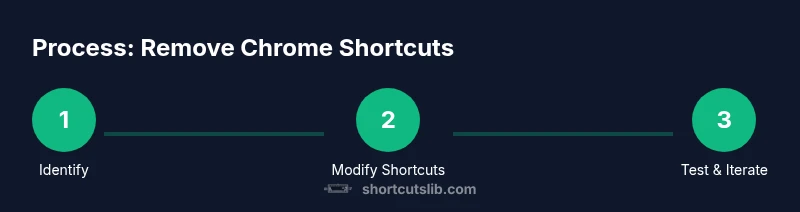
Step-by-Step Guidelines for Removing Extension Shortcuts
This section guides you through a safe, repeatable process to remove extension shortcuts without breaking essential workflows.
- Identify shortcuts you want to change
- Why: Priorities tell you where to start and prevent over-editing.
- Open chrome://extensions/shortcuts
- Why: Centralized control makes it easy to locate each extension’s mappings.
- Clear or rebind each extension shortcut
- Why: Clearing frees up the key without removing the extension; rebinding preserves functionality with new keys.
- Disable extensions you don’t use
- Why: This removes all of a given extension’s shortcuts and reduces clutter.
- Test changes in a few scenarios
- Why: Keyboard behavior can differ by tab, window, or extension state.
- Document changes and create a rollback plan
- Why: You’ll want to revert if a better layout emerges.
Estimated time: 25-45 minutes
Handling Built-in Shortcuts You Can't Change
For many built-ins you simply cannot unbind or reassign. Examples include essential navigation keys (like Ctrl+Tab to switch tabs) or common system mappings that Chrome respects. The practical workaround is to adapt your workflow: use the mouse to access menus, or adjust how you press keys habitually. If a built-in shortcut conflicts with another program, consider using a different browser profile or temporarily disabling the other program’s hotkeys during critical tasks. The goal is to minimize friction without losing core browser functionality. Shortcuts Lib’s experience suggests that most users tolerate a few built-in mappings while cleaning up extension shortcuts to reduce most conflicts.
OS-Level Shortcuts and Conflicts
Operating systems map many shortcuts onto applications. You may experience conflicts when a system-wide hotkey triggers Chrome actions even when you aren’t actively using Chrome. The fix can involve:
- Modifying OS shortcuts in the Settings panel (macOS System Preferences > Keyboard > Shortcuts, Windows Settings > Keyboard remapping tools)
- Using separate user profiles so changes apply in one context but not another
- Applying a third-party remapping tool to disable or rebind conflicting keys
Plan ahead: changes at the OS level affect all apps, so document your plan and test across tasks such as new tab creation, closing tabs, or incognito windows.
Testing Your Changes and Troubleshooting Common Issues
Once you’ve updated extension shortcuts and possibly remapped OS shortcuts, validate your changes with a simple test sequence: open new tabs, switch across windows, and perform routine browser actions. If a shortcut still triggers the old behavior, double-check that you edited the right extension and that you did not leave a conflicting key mapping in another extension. Some users notice that Chrome caches shortcuts for a short period; reloading the browser or rebooting helps. If you must revert, restore defaults from chrome://extensions/shortcuts and re-enable extensions gradually to isolate the cause.
Practical Scenarios and Best Practices
Here are common situations and recommended approaches to keep your Chrome shortcuts tidy: scenario A: you hit an extension shortcut too often; action: remove or rebind to a less intrusive key. scenario B: OS-level hotkeys conflict with Chrome; action: remap OS shortcuts or use a separate user profile. Scenario C: you rely on a built-in shortcut for accessibility; action: adapt workflow with mouse navigation while preserving accessibility features.
Final Checklist and Next Steps
Create a quick daily checklist: review extensions, verify each shortcut mapping, test under typical tasks, and record any new conflicts. Revisit the chrome shortcuts page after updating extensions and OS settings. Maintain a rollback plan and schedule periodic reviews of shortcuts to ensure they stay aligned with your evolving workflow.
Tools & Materials
- Computer with Chrome installed(Ensure Chrome is up to date)
- Active Google account (optional)(Useful for syncing extensions)
- Stable internet connection(For updates and reference checks)
- Notepad or note-taking app(Log changes and rollback plan)
- OS keyboard remapping tool (optional)(Examples: PowerToys (Windows), Karabiner-Elements (macOS))
Steps
Estimated time: 25-45 minutes
- 1
Identify shortcuts to address
Review which Chrome shortcuts you hit by mistake or want to change. Create a short list that prioritizes extension shortcuts first since those are most configurable.
Tip: Start with high-frequency shortcuts that cause the most disruption. - 2
Open the shortcuts manager
Navigate to chrome://extensions/shortcuts in Chrome. This is the centralized place to view all extension mappings.
Tip: Keep a backup of the current mappings in case you want to revert quickly. - 3
Clear or rebind extension shortcuts
Click a shortcut cell, then press Backspace (or Delete on macOS) to unassign, or press a new key combination to rebind it.
Tip: Test one change at a time to isolate effects. - 4
Disable unused extensions
If an extension is not essential, disable it to remove all its shortcuts and reduce clutter.
Tip: Disable first, then reassign if you still need some functionality. - 5
Test across scenarios
Open new tabs, switch windows, and perform typical tasks to confirm changes behave as intended.
Tip: Repeat tests in both normal and private windows if necessary. - 6
Document changes and rollback plan
Record what you changed and why. Create a rollback plan to revert quickly if something goes wrong.
Tip: Schedule a periodic review to adjust shortcuts as your workflow evolves.
Questions & Answers
Can I remove built-in Chrome shortcuts?
Built-in Chrome shortcuts cannot be removed. You can adjust extension shortcuts or OS-level mappings to avoid conflicts.
Built-in Chrome shortcuts can't be removed; you can adjust extension or OS shortcuts.
How do I edit extension shortcuts?
Open chrome://extensions/shortcuts in Chrome, then reassign or unassign shortcuts. You can also disable the extension to remove all its shortcuts.
Open chrome://extensions/shortcuts and reassign or unassign shortcuts; or disable the extension.
Will changing shortcuts affect other features?
Modifying shortcuts affects only keyboard-triggered actions. It won’t alter page content, but may change how you access features quickly.
Shortcuts changes affect only keyboard access, not core content.
Do OS-level shortcuts conflict with Chrome?
Yes, system-wide shortcuts can trigger Chrome actions. Adjust OS shortcuts or use profile-specific remappings to isolate effects.
OS shortcuts can clash with Chrome; remap OS shortcuts to resolve.
How do I restore defaults if something breaks?
Reset mappings on chrome://extensions/shortcuts and re-enable extensions gradually to reintroduce changes safely.
To restore, reset mappings and re-enable extensions step by step.
Are there safety concerns with remapping?
Remapping shortcuts is generally safe, but consider accessibility and security implications, especially for password managers.
Remapping is usually safe; watch for accessibility and security impacts.
Watch Video
Main Points
- Identify extension shortcuts first
- Use chrome://extensions/shortcuts to manage mappings
- Remap OS shortcuts only if conflicts persist
- Test changes and keep a rollback plan
- Built-in Chrome shortcuts can’t be removed; use safe workarounds