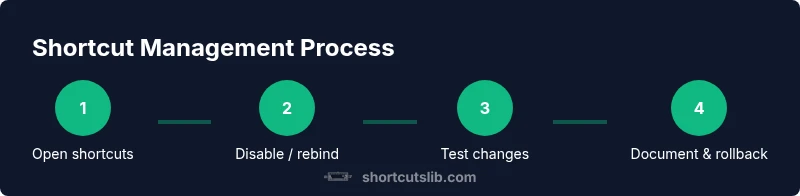
Turn Off Chrome Keyboard Shortcuts: A Practical How-To
Learn to turn off Chrome keyboard shortcuts with a practical, step-by-step approach. Customize or disable defaults across Windows, macOS, and Chrome OS for smoother workflows and fewer accidental actions.


You can turn off Chrome keyboard shortcuts by disabling or reconfiguring Chrome's built-in shortcuts and, when needed, overriding them with extensions or policies. Start by identifying which shortcuts you want to disable, then modify them via chrome://extensions/shortcuts or apply enterprise policies for broader control. This guide covers Windows, macOS, and Chrome OS scenarios.
Why turning off Chrome keyboard shortcuts matters
For many power users and keyboard enthusiasts, the default Chrome shortcuts can clash with personal workflows, accessibility needs, or other apps. The act of turning off chrome keyboard shortcuts isn’t about removing Chrome’s functionality; it’s about reclaiming control over your typing rhythm and on-screen navigation. When you selectively disable or rebind these shortcuts, you reduce the chance of accidental tab switches, intrusive browser actions, or conflicts with productivity tools. According to Shortcuts Lib, a thoughtful approach to shortcut management leads to fewer interruptions and more consistent performance during long work sessions. In practice, this means a calmer, more predictable browser experience where you can focus on tasks instead of keystrokes. The goal is not to abolish all shortcuts but to tailor them to your needs while preserving critical commands.
What you’ll gain when you turn off chrome keyboard shortcuts
- Reduced accidental actions (like closing a tab or opening a new window) during fast typing sessions
- Faster adaptation to other tools that rely on custom shortcuts
- More predictable shortcuts across OS platforms (Windows, macOS, Chrome OS)
- Easier onboarding for teammates who prefer a minimal shortcut surface
Before you begin, map out the exact shortcuts you want to disable and note any workflows that rely on them. This planning helps prevent removing something you later need. Shortcuts Lib emphasizes a measured approach: disable only what causes conflict, then test in a controlled environment.
Scope and limitations: what can and cannot be turned off
Chrome provides an in-browser mechanism to modify certain shortcuts via the Extensions Shortcuts page, but not all shortcuts can be disabled through UI alone. System-level shortcuts, such as OS-initiated actions, may still operate outside the browser’s control. Some extensions can override keyboard events within their scope, but they cannot universally silence every Chrome shortcut across all contexts. This means you may need a combination of extension-based overrides and policy-level controls for enterprise setups. When planning, separate strictly essential shortcuts (which you’ll keep) from those you’ll reconfigure or disable. Shortcuts Lib notes that understanding these boundaries helps prevent gaps in usability and ensures you don’t lose critical browser functions.
Tools and prerequisites you’ll need (essentials first)
To turn off chrome keyboard shortcuts effectively, prepare the following items before you start:
- A computer with Chrome installed (Windows, macOS, or Chrome OS) – essential
- Administrative access on the machine or IT policy rights for enterprise environments – essential for policy-based changes
- Internet connection to fetch and apply extensions or policy updates – useful but not strictly required for local UI changes
- A concrete list of shortcuts you want disabled or rebased – essential
- Access to chrome://extensions/shortcuts (or the corresponding enterprise management console) – essential
Optional but helpful: a staging user profile to test changes without affecting your primary workflow, and a brief change log to document what you modified for future reference.
Step-by-step: Part A — Basic disabling via chrome shortcuts UI
-
Open Chrome and navigate to chrome://extensions/shortcuts. This is the centralized place to manage shortcuts associated with installed extensions. Disabling or reassigning them here is the first, simplest path to turn off chrome keyboard shortcuts.
-
Locate the shortcut you want to disable. For each extension, you can rebind to a different key combination or set it to “disabled” if the option is available. If you don’t want an extension to react to a certain key combo, disabling that shortcut reduces inadvertent triggers.
-
Save your changes and reload any affected extensions. This ensures the updated key mappings take effect without requiring a full browser restart. Some changes may apply immediately, while others require a quick Chrome restart.
-
Test the affected actions in a real task flow to confirm there are no regressions. Try common activities like opening new tabs, closing tabs, or switching windows to verify the behavior matches your expectations. Pro tip: keep a short list of the changes you made so you can retrace steps if needed.
-
Document the changes in your setup notes. This step is often overlooked but pays off when you need to onboard a teammate or revert settings later. The clarity helps avoid accidental overrides that could disrupt work.
Step-by-step: Part B — Advanced controls and enterprise policies
-
If you’re in a managed environment, consider policy-based controls. Chrome for enterprise allows IT admins to apply policies that influence shortcut behavior, especially on multiple devices. While you won’t be able to blanket-disable every shortcut from a user session alone, policies enable a consistent baseline across a fleet, preventing users from re-enabling conflicting shortcuts.
-
Work with your IT or admin console to outline which shortcuts should be disabled at the policy level. Provide a written plan that aligns with security and productivity guidelines. Admins can implement profiles that enforce specific shortcut mappings or prohibitions for all company devices.
-
After applying policies, verify that devices reflect the intended configuration. Ask teammates to test common workflows and report any exceptions. Regular audits help ensure the policy remains aligned with evolving usage patterns and avoids drift over time. If you need to revert, keep a copy of the previous policy and a documented rollback plan.
Step-by-step: Part C — OS-level considerations and cross-platform consistency
-
On Windows and macOS, some shortcuts remain system-level, unaffected by Chrome settings. To minimize conflicts, harmonize your most-used shortcuts across the OS and Chrome. For example, if you rely on a specific key combo for a system tool, choose a Chrome shortcut that doesn’t clash with it. This reduces confusion and keeps your keyboard workflow smooth across apps.
-
Consider using a dedicated keyboard utility or macro tool to create global overrides for your preferred workflow. When used carefully, these tools can align Chrome shortcuts with your customized workspace without compromising other apps. Always test these overrides in a controlled environment before adopting them widely. The goal is consistency, not chaos across applications.
Step-by-step: Part D — Verification, rollback, and maintenance
-
After implementing changes, perform a comprehensive test across different tabs, windows, and extensions. Ensure that essential browser functions remain intact and that the intended shortcuts no longer trigger unwanted actions.
-
Keep a changelog with dates, shortcut mappings, and the devices involved. This is invaluable for troubleshooting and governance, especially in teams where multiple people may modify shortcuts over time.
-
Plan a periodic review of your shortcut configuration to accommodate updates in Chrome or extensions, and to reflect changing work patterns. A quarterly or semi-annual review helps keep the configuration aligned with current workflows.
-
If you ever need to revert, revert each change step-by-step, re-enable previously disabled shortcuts, and re-test. A careful rollback minimizes impact on ongoing work and keeps your browser behavior predictable.
Common pitfalls and how to avoid them
- Over-disabling shortcuts: Disable only those that conflict with your workflow; otherwise, you risk losing productivity because you can’t perform quick browser actions.
- Ignoring OS conflicts: Some shortcuts are bound at the OS level. Failing to adjust OS shortcuts can render Chrome changes moot.
- Not testing thoroughly: Skipping real-task validation leaves room for unexpected behavior when you perform routine tasks.
- Forgetting to document changes: Without a changelog, teammates may reintroduce conflicts or forget the new mappings.
Maintaining changes over time: sustainability and upgrade readiness
Technology changes frequently. Chrome updates may alter shortcut behavior or introduce new defaults. When you upgrade Chrome, re-check the shortcuts configuration to ensure it still aligns with your goals. Maintain a living document that captures which shortcuts are disabled or remapped, and keep a policy-backed approach if you’re in an enterprise setting. Regular audits plus a clear rollback plan keep your workflow efficient and resilient over time.
Tools & Materials
- Computer with Chrome installed(Ensure you have the latest stable version)
- Administrative access or IT policy rights(Needed for policy-based changes in enterprise environments)
- Active internet connection(Useful for extensions and policy updates)
- List of shortcuts to disable or rebind(Helps plan changes and minimize disruption)
- chrome://extensions/shortcuts page(Primary UI for basic disabling/rebinding)
- Staging profile or test account(Safe environment to validate changes before production)
Steps
Estimated time: 60-90 minutes
- 1
Open shortcuts settings
Launch Chrome and navigate to chrome://extensions/shortcuts to view all extension-bound shortcuts. This is your initial access point for disabling or reassigning keys.
Tip: Bookmark the page for quick future access. - 2
Identify conflicting shortcuts
Scan the list to identify the keys that interfere with your workflow. Prioritize those you use less frequently and those that disrupt critical tasks.
Tip: Create a prioritized list before changing anything. - 3
Disable or rebind shortcuts
For each relevant extension, either disable the shortcut or rebind it to a non-conflicting key combination. Save changes and reload affected extensions if prompted.
Tip: Choose bindings that are easy to remember and don't clash with OS shortcuts. - 4
Test in real tasks
Carry out representative tasks to verify that the changes behave as expected. Include tab management, navigation, and any workflows that previously triggered the shortcuts.
Tip: Use a test user profile to avoid impacting your primary setup. - 5
Apply OS-level considerations
If OS shortcuts could conflict, adjust OS-level bindings or rely on a keyboard utility to align Chrome behavior with your preferences.
Tip: Document OS-level changes to prevent future confusion. - 6
Policy-based deployment (if applicable)
For teams, use enterprise policies to enforce a consistent shortcut strategy across devices and users. This section is for IT admins.
Tip: Maintain a change log and rollback plan for the entire fleet. - 7
Document and review
Maintain a concise changelog and periodically review the configuration to accommodate updates in Chrome or user needs.
Tip: Schedule a quarterly review in a team calendar. - 8
Plan reversals
Know how to revert changes quickly if something breaks or if requirements change; practice the rollback in a controlled environment.
Tip: Keep a saved snapshot of prior settings for quick restoration.
Questions & Answers
Can I disable all Chrome shortcuts at once?
No, not all shortcuts can be disabled at once. Chrome provides per-extension shortcuts and some OS-level bindings that may require different approaches. A staged approach helps you preserve essential browser actions while reducing conflicts.
You can’t disable every shortcut in one go. Use per-extension controls and OS adjustments to minimize conflicts.
What if a required shortcut is disabled by mistake?
Refer to your changelog and revert the specific mapping. If needed, rebind to a mutually beneficial key combination and re-test in your task flows.
If you disable something you need, revert that mapping and test again.
Do I need admin rights to change shortcuts on all devices?
Admins can apply enterprise policies to standardize shortcuts across devices. Individual users can adjust UI-based shortcuts on their own machines, but large-scale enforcement requires admin access.
Yes, for fleet-wide changes you’ll generally need admin rights.
Will these changes affect OS shortcuts?
Some OS shortcuts operate outside Chrome, so you may also need to adjust OS-level bindings or use a macro tool to harmonize behaviors.
OS shortcuts can still run outside Chrome; you may need OS tweaks too.
Is this approach supported on Chrome OS?
Yes, Chrome OS users can manage extension shortcuts similarly, and admins can apply enterprise policies to Chrome OS devices where applicable.
Chrome OS users can adjust via extensions and enterprise policies where supported.
Watch Video
Main Points
- Identify which shortcuts conflict with your workflow.
- Use chrome://extensions/shortcuts as the primary control surface.
- Test changes in a safe environment before production use.
- Document changes and maintain a rollback plan.