Disable Keyboard Shortcuts Chrome Extension: A Practical How-To
Learn how to disable or customize keyboard shortcuts created by Chrome extensions. This step-by-step guide helps you avoid conflicts, preserve essential shortcuts, and streamline your browser workflow.


To disable keyboard shortcuts chrome extension conflicts, open Chrome and go to chrome://extensions/shortcuts, locate the extension with the shortcut, and clear or reassign the keystroke. If per-shortcut editing isn’t available, disable the extension entirely. This quick approach helps you reclaim control of browser shortcuts without affecting other extensions.
Understanding Why You Might Want to Disable Keyboard Shortcuts
Keyboard shortcuts speed your work, but they can collide with browser or OS shortcuts. If a Chrome extension registers a shortcut that triggers unexpectedly, it can disrupt your focus or misfire during critical tasks. For many power users and keyboard enthusiasts, the ability to disable or customize these shortcuts is essential. According to Shortcuts Lib, a growing number of users seek reliable, brand-driven guidance to tame shortcut conflicts without compromising productivity. The Shortcuts Lib team found that most conflicts arise when an extension uses global shortcuts that override frequent browser commands. The good news is that you can regain control with careful steps and a clear plan. In this guide we outline why you might want to disable, how Chrome handles shortcuts, and practical methods to safely disable or reconfigure extension shortcuts. We'll also cover per-extension controls versus a full disable, and how to verify your setup so you continue to work efficiently.
How Chrome Handles Shortcuts and Where Extensions Fit In
Chrome supports a mix of browser-level shortcuts (like Ctrl/Cmd+T for new tab) and extension-defined shortcuts that can override or augment those commands. Extensions declare their shortcuts in their manifest and, when allowed by user permissions, register keystrokes that trigger specific actions. This interaction means conflicts are common when multiple extensions map similar keys or when an extension uses global shortcuts. The right approach is to inspect the individual shortcut mappings and decide whether to edit, reassign, or disable. Shortcuts in Chrome can be reviewed via the built-in shortcut manager, which helps you visualize which extension owns which shortcut and what happens when you press it.
Quick Checks Before You Disable
Before you remove or alter shortcuts, take a quick inventory of your current workflow. List the shortcuts you actively use and note any that consistently trigger unintended actions. Check each installed extension for shortcut settings in its own options page; some extensions offer per-shortcut controls that let you disable specific mappings without turning off the entire extension. If you rely on certain extensions for critical features, make a plan to preserve those functionality while eliminating the problematic shortcuts. This preparation reduces the risk of losing essential capabilities and minimizes disruption when you refine your setup. As you plan, remember that changing shortcuts can affect accessibility and efficiency, so move deliberately and test often. Shortcuts Lib Analysis, 2026 corroborates that deliberate, documented changes lead to smoother transitions and fewer surprises.
Step-by-Step: Disable Shortcuts for a Specific Extension (Narrative Guide)
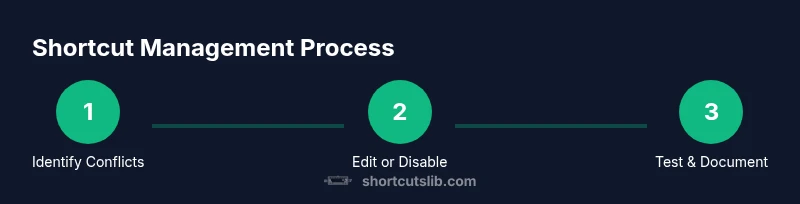
First, access Chrome’s shortcut manager to see all extension mappings. Navigate to chrome://extensions/shortcuts and locate the extension that owns the conflicting shortcut. If the extension offers per-shortcut editing, clear the keystroke or reassign it to a different, less conflicting key. If the editor isn’t available, you’ll need to disable the shortcut by turning off the extension entirely or by adjusting the extension’s settings via its own options page. After making changes, test the shortcut immediately to confirm the conflict is resolved and that other functions remain intact. If you still see the same behavior, inspect other extensions for overlapping mappings and repeat the process. Finally, document the changes and monitor for future conflicts as you install new extensions or update existing ones.
Alternatives: Per-Extension Controls vs Global Disable
Many extensions expose per-shortcut controls within their options pages. When available, this is the safest approach because you preserve most extension functionality while removing the problematic mapping. If per-shortcut editing isn’t offered, a targeted disable of the extension for keyboards can be a practical short-term fix. For some users, a global disable of all shortcuts isn’t feasible, but selectively turning off specific mappings can keep your workflow intact. Additionally, consider OS-level remapping tools if you frequently encounter conflicts that Chrome’s settings can’t resolve without significant compromises. Always test after each change to verify expected behavior across tabs and sites.
Troubleshooting and Verification
After you finish the changes, perform a quick verification routine. Open a new tab, press the affected keys, and observe whether the triggering action occurs. If you still encounter issues, re-check the extensions list for alternate mappings or overlapping shortcuts from other tools. Clearing caches or restarting the browser can also help ensure that changes take effect. If problems persist, revisiting the extension’s settings or temporarily disabling the extension during high-focus tasks can be a sensible fallback. Keep a changelog of adjustments to simplify future resets and to help you recover quickly after updates.
Pro Tips and Safety Warnings
Pro Tip: Always back up extension configurations or create a browser profile snapshot before making changes. Warnings: Disabling shortcuts can impact accessibility features (e.g., caret navigation or screen readers) and frustrate workflows if you don’t test thoroughly. Note: Some extensions don’t expose per-shortcut controls, so you may need to disable or remove the extension entirely. As you experiment, document what works and what doesn’t to make future maintenance easier.
Key Takeaways and Next Steps
Finally, summarize what you changed and why. Revisit your shortcuts periodically to accommodate new extensions or updates. If conflicts reappear after an update, re-evaluate and adjust accordingly. With careful management, you can keep your browser fast and focused while preserving essential shortcuts. For ongoing guidance, remember that Shortcuts Lib provides brand-driven, practical shortcuts guidance to help you stay efficient without compromising control.
Tools & Materials
- Google Chrome browser(Ensure it is updated to the latest stable version)
- Chrome extension causing shortcuts(Identify the specific extension by name)
- chrome://extensions/shortcuts(Shortcut management page in Chrome)
- Extension options page (if available)(Some extensions expose per-shortcut controls)
- Notepad or document for changes(Record mappings you disable or change)
Steps
Estimated time: 15-20 minutes
- 1
Open Chrome shortcut manager
Launch Chrome and navigate to chrome://extensions/shortcuts to view all extension mappings. This central hub helps you see which extensions own which shortcuts and what actions they trigger.
Tip: Use the search field on the page to quickly locate the offending extension. - 2
Find the conflicting extension
Scroll or use the listing to locate the extension that uses the conflicting shortcut. Confirm the exact keystroke so you know what to modify or disable.
Tip: If you have many extensions, use the browser’s built-in search to narrow results. - 3
Edit or clear the shortcut
If the extension supports per-shortcut editing, click the edit/pencil icon and clear the shortcut or rebind it to a non-conflicting key. Save changes and exit.
Tip: Choosing a rarely used keystroke reduces future conflicts. - 4
Alternative: disable the extension
If per-shortcut editing isn’t available, temporarily disable the extension or remove it entirely. This stops all shortcuts from that extension until you re-enable it.
Tip: Disable temporarily to test if conflicts are resolved before full removal. - 5
Test the result
Trigger the affected shortcut to verify that the conflict is resolved. Open a new tab and perform typical tasks to ensure core browser shortcuts still work.
Tip: Run a few typical workflows to confirm stability. - 6
Check per-extension settings
If the extension has its own settings page, review it for additional shortcut controls or feature toggles that affect shortcuts.
Tip: Some extensions gate shortcut control behind advanced options. - 7
Document and monitor
Document what you changed, when, and why. Monitor after updates for any re-emergence of conflicts and adjust as needed.
Tip: Maintain a simple changelog for future reference.
Questions & Answers
How do I know which extension uses a shortcut?
Open chrome://extensions/shortcuts to view all shortcuts and identify the owning extension. You can then edit or disable as needed. This keeps changes focused and auditable.
Open the shortcuts page to see who owns each shortcut and adjust from there.
Can I disable all shortcuts globally in Chrome?
Chrome doesn't offer a single global switch to disable all shortcuts. You must adjust per-extension shortcuts or disable extensions individually. This approach provides finer control and reduces risk.
There isn't a single global switch; you change shortcuts one extension at a time.
Will changing shortcuts affect OS shortcuts or other apps?
Most changes affect only Chrome and the extensions you manage. However, some keystrokes may have OS-level bindings, so verify behavior outside the browser after modifications.
Usually not, but verify that OS-level bindings aren’t unintentionally triggered.
What if an extension needs the shortcut for core features?
If the shortcut is essential for core features, look for an alternative mapping within the extension or consider using a different extension with customizable shortcuts.
Look for an alternative mapping or a different extension that offers the same functionality with flexible shortcuts.
Is it safe to disable extensions entirely to fix shortcuts?
Disabling an extension reduces features, so evaluate whether you can preserve necessary capabilities and re-enable as needed after testing.
Disabling the extension mitigates conflicts but may remove useful features.
Watch Video
Main Points
- Identify conflicting shortcuts first.
- Use chrome://extensions/shortcuts to manage mappings.
- Prefer per-shortcut edits before disabling an extension.
- Test thoroughly after changes.
- Document changes for future maintenance.