How to Add Keyboard Shortcuts in Chrome
Learn to add keyboard shortcuts in Chrome, customize hotkeys for tab management, navigation, and extensions. A practical, step-by-step guide from Shortcuts Lib to boost your browser efficiency in 2026.


By the end of this guide you will know how to add keyboard shortcuts in Chrome, using both built-in options and extension-based mappings. You’ll customize hotkeys for tab switching, navigation, and common actions, plus how to avoid conflicts with existing shortcuts. This practical approach comes from Shortcuts Lib’s 2026 analysis.
Why Chrome shortcuts matter
Mastering keyboard shortcuts in Chrome can dramatically speed up everyday browsing. According to Shortcuts Lib, learning how to add keyboard shortcuts in Chrome unlocks faster navigation, reduces repetitive clicking, and helps maintain focus on tasks that matter. A well-mapped set of hotkeys turns routine actions like switching tabs, bookmarking, reloading pages, and opening links into near-instant commands. For power users and keyboard enthusiasts, customizing shortcuts offers a repeatable method to optimize your browser environment, tailor workflows, and minimize finger movement. This approach yields fewer interruptions, a smoother learning curve for new workflows, and a personal setup that reflects how you work. Shortcuts Lib’s analysis, 2026, emphasizes actionable changes rather than theoretical ideas.
Built-in shortcuts and where to find them
Chrome ships with a baseline set of shortcuts that work across most platforms, such as navigating tabs with Ctrl+Tab (or Ctrl+PageDown) and reopening closed tabs with Ctrl+Shift+T. These defaults provide a solid foundation, but they’re rarely enough for heavy users. Understanding what’s already available helps you identify gaps you can fill with quick, future-proof mappings. Keep in mind that some shortcuts vary by operating system (Windows, macOS, Linux), so a mapping that feels natural on one platform may clash on another. This section covers what you typically get out of the box and how to approach customizing beyond it. According to Shortcuts Lib, optimizing your default set is the first step toward a cohesive browser workflow that reduces cognitive load.
Customizing shortcuts via the chrome shortcuts page
Chrome lets you rebind many extension shortcuts and, in some cases, core actions via the shortcuts page. To access it, open Chrome and type chrome://extensions/shortcuts in the address bar. Here you’ll see a list of extensions and their associated shortcut fields. You can click a field and press a new key combination. If a conflict exists—either with another extension or with the browser’s built-in commands—the page will indicate the clash so you can choose an alternative. This approach works well for frequent actions like opening new tabs, closing tabs, or triggering extension features that integrate directly with Chrome’s UI. The key is to choose combinations that feel natural and are consistently easy to reach during daily use.
Extending with extensions to map more shortcuts
For deeper customization, third-party shortcut manager extensions let you map keys to a broader set of actions, including site-specific commands, custom macros, and multi-step workflows. Popular categories include macro tools and dedicated shortcut managers. When selecting an extension, verify permissions, read user reviews, and ensure the extension is actively maintained. Remember that extensions can conflict with each other or with browser-level shortcuts, so plan a minimal viable map first, then layer in additional mappings over time. Shortcuts Lib recommends starting small and growing your map incrementally to maintain reliability and memory.
Step-by-step planning and implementation
A thoughtful shortcut plan starts with your most-used tasks. List actions you perform multiple times per day—navigating tabs, re-opening pages, bookmarking, or refreshing pages. Map each action to a single, memorable key combination, avoiding OS-level shortcuts that could disrupt system behavior. After mapping, test each shortcut in a controlled environment to confirm it triggers the intended action and does not conflict with other bindings. This section walks you through establishing a baseline, validating each mapping, and iterating based on real-world use. By approaching it methodically, you’ll create a durable setup that scales with your needs.
Testing, debugging, and documentation
Testing is essential to ensure your shortcuts behave as expected. Open a few representative tabs and perform routine tasks to confirm the new mappings work in practice, not just in theory. If a conflict arises, revisit the chrome://extensions/shortcuts page and adjust the keys. Keep a documented record of every mapping: the action, the shortcut, and the reason for the choice. A simple, durable note saves time during future updates or when migrating to a new device. Shortcuts Lib emphasizes the value of a living document as you refine your chrome shortcuts strategy.
Accessibility, safety, and best practices
When creating shortcuts, consider accessibility and consistency. Favor combinations that are easy to reach with one hand, minimize finger fatigue, and avoid combinations already reserved by the OS. Test shortcuts in both light and dark themes to ensure visibility in your UI. If you rely on assistive technologies, ensure your mappings do not interfere with screen readers or high-contrast modes. Finally, keep your mappings aligned with your workflow goals and revisit them periodically to retire underused shortcuts and adopt new ones as your tasks evolve.
Tools & Materials
- Computer with Google Chrome installed(Windows, macOS, or Linux supported)
- Stable internet connection(For extensions and updates)
- Access to chrome://extensions/shortcuts(To view and edit built-in/extension shortcuts)
- Shortcut-management extension (optional)(e.g., macro or advanced shortcut manager)
- Notes app or notebook(Document mappings and backup)
Steps
Estimated time: 25-40 minutes
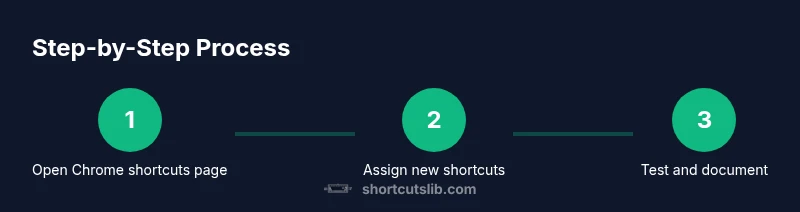
- 1
Open the Chrome shortcuts page
Open Chrome and enter chrome://extensions/shortcuts in the address bar to view current mappings and available fields. This is your starting point for any customization.
Tip: If the page doesn’t load, reload Chrome or try a different profile to rule out extension interference. - 2
Identify existing shortcuts and conflicts
Review each listed shortcut and note any that collide with OS-level assignments or other extensions. Prioritize conflicts related to your most-used actions.
Tip: Use a simple table to track bindings and identify conflicts quickly. - 3
Assign new shortcuts to extensions or actions
Click the input field next to the desired action and press your preferred key combination. Ensure it isn’t already in use by another mapping.
Tip: Aim for combinations with a modifier (Ctrl/Cmd or Ctrl/Cmd + Shift) to reduce accidental presses. - 4
Test each shortcut in practice
Open a few tabs and perform the actions to verify the shortcuts trigger correctly. Avoid multi-step tests that can mask subtle issues.
Tip: Test in a distraction-free environment to spot missed mappings. - 5
Document and back up your mappings
Record the action and its shortcut in your notes, then export or copy settings if the extension supports it. This makes future updates easier.
Tip: Keep a local backup separate from your browser profile for safety. - 6
Handle conflicts and iterate
If a conflict persists, adjust the mapping or disable the conflicting binding. Periodically revisit mappings to refine them as needs evolve.
Tip: Don’t over-map; a lean, reliable set beats a large, fragile one.
Questions & Answers
Can I customize Chrome shortcuts without extensions?
Yes. Chrome supports changing some extension shortcuts via chrome://extensions/shortcuts, and some built-in actions may be bound by default. For deeper customization, use extensions that expose more commands.
Yes. You can customize some shortcuts directly in Chrome, and for more control you can use extensions.
Which shortcuts can be customized in Chrome?
Most extension commands and some browser actions can be customized via the shortcuts page. Built-in commands have limited remapping, so plan extensions for broader control.
You can customize many extension commands, with fewer options for built-in actions.
Do OS shortcuts conflict with Chrome mappings?
Yes. Some OS-level shortcuts can clash with Chrome mappings. Choose combinations that avoid system-level bindings to prevent unintended behavior.
Blending OS shortcuts with Chrome can cause conflicts; pick bindings carefully.
How do I back up my shortcuts?
Document each mapping in a notes app and export settings from the extension if available. Keeping a backup helps when migrating to a new device.
Keep a documented backup of your shortcuts for easy migration.
Are Chrome shortcuts the same on Mac and Windows?
Many core browser shortcuts are similar but may use different modifier keys on macOS versus Windows. Verify mappings in both environments if you switch devices often.
Shortcuts differ slightly between macOS and Windows due to modifier keys; check on each device.
Is a shortcut mapping permanent once set?
Shortcuts can be edited or removed at any time. It’s best to treat mappings as iteratively adjustable to match evolving workflows.
You can edit or remove shortcuts at any time as your workflow evolves.
Watch Video
Main Points
- Map frequent tasks first to maximize gains
- Use chrome://extensions/shortcuts for native customization
- Test thoroughly to avoid conflicts
- Leverage extensions for deeper customization
- Keep a backup of your mappings