Chrome Keyboard Shortcuts: How to Change Them in 2026
Learn how to change Chrome keyboard shortcuts, focusing on extension commands, OS-level remapping, and practical tips to avoid conflicts. A comprehensive guide by Shortcuts Lib for power users.


Chrome shortcuts can be customized mainly for extensions via the built-in shortcuts editor at chrome://extensions/shortcuts. Core browser shortcuts are not freely changeable. For broader changes, OS-level remapping is often required. This guide explains options, limitations, and practical workflows to optimize your setup.
How Chrome handles keyboard shortcuts
Chrome’s keyboard shortcut system sits at the intersection of the core browser and the extensions you install. Core browser shortcuts are built into the product and are not easily changed through the UI. Extensions, however, can declare commands and expose a per-extension shortcut editor. This separation is important for power users who want to tailor their workflow without breaking essential browser actions like switching tabs, opening new windows, or accessing developer tools. In practice, Chrome responds to platform-specific modifiers (Ctrl or Command, Alt, Shift) and evaluates the active context—whether the focus is in a text field, a web app, or the browser chrome—before executing a command. According to Shortcuts Lib, planning your shortcuts by separating core browser actions from extension commands helps avoid conflicts and keeps your setup predictable across sites and tasks.
The scope of shortcuts: what can be changed and what can't
The built-in shortcuts page in Chrome primarily targets extension commands and a handful of browser actions. You cannot rebind every core action from the UI; some actions remain fixed to preserve safety and consistency. For most users, the practical route is to customize extension shortcuts via chrome://extensions/shortcuts and map frequently used commands to keys that fit your typing style. OS-level remapping is a separate approach that can affect which keys perform which actions at the system level; this is useful when you want a universal remap that Chrome will honor alongside other apps. Shortcuts Lib suggests documenting the changes you make and testing them in both private and normal windows to ensure you don’t disrupt automation or form input.
Using chrome://extensions/shortcuts to customize extension commands
To tailor extension shortcuts, open Chrome and go to chrome://extensions/shortcuts. You’ll see a grid of your installed extensions with the commands they expose. Click the field next to a command to record a new key combination, then press the keys you want to assign. If a shortcut is already in use by another extension or by the OS, Chrome will warn you or the field will show a conflict. After saving, test the new shortcut by triggering the command in a few contexts—like a new tab, a background page, and within a web app. If you work with multiple devices, sign in to Chrome to explore how extensions and their shortcuts sync across environments, though notes of consistency are not guaranteed across platforms.
OS-level remapping: when Chrome won’t budge
If you need to change core Chrome shortcuts or enforce a uniform experience across apps, OS-level remapping is a robust option. On Windows, tools like PowerToys Keyboard Manager can remap keys globally; on macOS, you can adjust modifier keys in System Settings or use a keyboard remapping tool. Linux users can utilize XKB or setxkbmap to redefine keys. When you remap keys at the OS level, remember that some shortcuts may shift in other software, so maintain a personal cheat sheet to avoid confusion. This approach is outside Chrome itself, and it benefits from a centralized configuration that stays in place across browser sessions. Always back up your remapping profile before making changes.
Conflicts and best practices for avoiding clashes
A common pitfall of shortcut customization is creating conflicts that make common actions hard to trigger. Start by listing the top five tasks you perform in a browser daily and map them to distinct, easy-to-reach keys. Avoid reusing the same key sequences for different commands across extensions. If a shortcut conflicts with a system shortcut, consider adjusting one of them or moving to a longer combination. Use descriptive labels in the extension menu so you remember why a particular binding exists. Regularly review your shortcuts after Chrome or extension updates to catch new conflicts introduced by new features.
Testing changes across contexts
Test your freshly assigned shortcuts in multiple contexts: a private window, a normal window, and while browsing in incognito mode when supported by extension commands. Check that the shortcuts work with different keyboard layouts and language settings. If you rely on a hotspot keyboard or ergonomic layout, practice the bindings for a few minutes to ensure muscle memory is accurate. Consider making a one-page reference of all active shortcuts and where they apply, so you can quickly diagnose issues when something stops working after a Chrome upgrade.
Real-world workflows and examples
Power users often customize shortcuts around three core workflows: tab management, extension automation, and quick navigation. Example scenarios include binding a single keystroke to reopen the last closed tab, another to toggle a productivity extension, and a third to jump to a custom search page. For teams, create shared conventions for shortcuts that live in extensions used by everyone, reducing onboarding time. Remember that individual configurations may diverge across machines, so document the setup for consistency.
Maintenance: keeping shortcuts in sync with updates
Chrome updates can sometimes introduce new commands or modify existing ones, which can render old bindings obsolete. Periodically audit your shortcut list after major Chrome releases and after installing new extensions. If you rely on synchronization, test cross-device behavior with your current login. Keep external notes or a small changelog handy so you can revert changes if something stops working after an update.
Accessibility considerations and alternatives
For users who rely on keyboard navigation due to accessibility needs, shortcuts should be chosen for clarity and ease of reach. Consider using longer, mnemonic key combinations rather than complex chords that require competing finger movements. If remapping is challenging on a touch-screen or compact keyboard, consider enabling voice commands or desktop automation as alternatives. Shortcuts Lib emphasizes that the ultimate goal is faster, reliable navigation without sacrificing readability or accessibility for all users.
Practical workflows and examples continued
Continuing, you can craft a set of 3-5 high-use shortcuts tailored to your daily tasks, such as quick extension toggles, rapid tab navigation, and instant search shortcuts. Keep a personal configuration log and share best practices with teammates to promote consistency. As you adopt these shortcuts, maintain a stable baseline in case you need to revert changes if something stops working after an update.
Next steps and resources
To deepen your understanding, consult official Chrome Help articles and respected technology outlets that discuss keyboard shortcuts and accessibility. Practice makes mastery; refine your bindings over time, and integrate OS remapping sparingly to avoid frustration. For more structured guidance, refer to the sources listed below and keep your Shortcuts Lib cheat sheet handy as a reference.
Authoritative sources
- Chrome Help: Keyboard shortcuts for Chrome — https://support.google.com/chrome/answer/157179
- MDN Web Docs: KeyboardEvent interface — https://developer.mozilla.org/en-US/docs/Web/API/KeyboardEvent
- PCMag: How to customize Chrome shortcuts — https://www.pcmag.com/how-to/how-to-customize-chrome-shortcuts
Tools & Materials
- Computer or laptop with Chrome installed(Ensure Chrome is up to date before testing shortcuts.)
- OS-level remapping tool(Windows PowerToys, macOS System Preferences, or Linux equivalents for global key remapping.)
- Browser extensions you rely on(List installed extensions that expose commands to customize.)
- Backup plan for shortcuts(Keep a quick reference sheet of current bindings.)
Steps
Estimated time: 15-25 minutes
- 1
Open the shortcuts editor for extensions
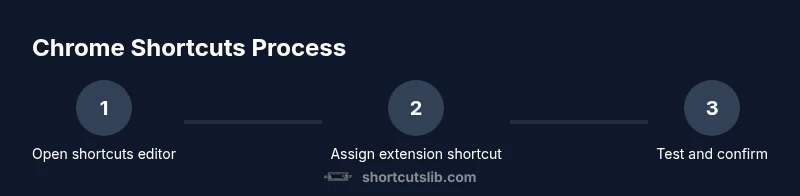
Launch Chrome and navigate to chrome://extensions/shortcuts to view all extension commands and their bindings. This is the centralized place to customize shortcuts tied to extensions.
Tip: If you don’t see a bound command, try adding a new extension or enabling one that exposes a command. - 2
Identify high-priority commands
Review your daily browser tasks and select a subset of commands you want quick access to. Prioritize actions you perform repeatedly, like opening a new tab, switching windows, or triggering a favorite extension function.
Tip: Write down the top five tasks to guide your bindings. - 3
Assign new shortcuts to extension commands
Click the input field next to a command and press the key combination you want to assign. Chrome will warn you if the combination conflicts with another extension or OS shortcut.
Tip: Choose combinations that are easy to reach with your most-used hand. - 4
Handle conflicts and test
If you receive a conflict warning, adjust the binding to a unique combination. Test the new shortcut in different contexts (new tab, incognito, web apps) to ensure reliability.
Tip: Test with different keyboard layouts to ensure robustness. - 5
Consider OS-level remapping if needed
If a core browser shortcut remains unchangeable, use an OS-wide remap to achieve the desired behavior. Document the changes and how they interact with Chrome.
Tip: Back up your remapping profile before changing it. - 6
Document and share your setup
Keep a concise log of the active shortcuts and the reasoning behind each binding. Share the setup with teammates to promote consistency across devices.
Tip: A shared cheat sheet reduces onboarding friction.
Questions & Answers
Can I change Chrome's built-in shortcuts without extensions?
Chrome does not generally allow changing core browser shortcuts through the UI. You can customize extension commands and, if needed, use OS-level remapping for broader changes.
Core Chrome shortcuts aren’t normally changeable in Chrome; you’ll typically customize extension commands or use OS remapping for broader changes.
Where do I edit extension shortcuts?
Open chrome://extensions/shortcuts to view and bind commands exposed by your installed extensions. This is the primary place to customize shortcuts for extensions.
Open chrome://extensions/shortcuts to manage extension commands.
Will remapping shortcuts affect other apps?
OS-level remapping changes how keys behave across all apps on the device. Plan carefully, back up profiles, and maintain a reference sheet to avoid confusion.
Remapping keys changes behavior across all apps, so proceed with a plan and a backup.
Are there risks to changing shortcuts?
Yes. Conflicts with system shortcuts, inconsistency across devices, and potential accessibility challenges can occur if bindings aren’t chosen thoughtfully.
Shortcuts can conflict with other keys or reduce accessibility if not chosen carefully.
What about Chrome on mobile?
Desktop shortcut customization does not directly apply to mobile Chrome. Mobile shortcuts depend on the device and app design; use built-in gestures where available.
Mobile Chrome shortcuts are limited and differ from desktop behavior.
Can I sync my shortcuts across devices?
Chrome Sync can propagate extension bindings when supported by the extension and Chrome, but consistency is not guaranteed across platforms or updates.
Syncing shortcuts across devices depends on extensions and Chrome support; expect some variation.
Watch Video
Main Points
- Plan by separating core browser actions from extension commands
- Use chrome://extensions/shortcuts for extension bindings
- OS-level remapping is a powerful fallback for unrebindable shortcuts
- Test thoroughly across contexts and devices
- Document changes to maintain consistency