Change Chrome Keyboard Shortcuts: A Practical Guide
Learn how to customize Chrome shortcuts for extensions, understand limitations, and maintain an efficient workflow. Practical steps, warnings, and expert guidance from Shortcuts Lib.


Chrome shortcuts for most users are customizable only for extension actions via the chrome://extensions/shortcuts page. Core browser shortcuts can’t be reconfigured in Chrome itself; to tailor your workflow, focus on extension shortcuts and OS-level shortcuts. This quick guide outlines what you can change, where to do it, and how to minimize conflicts.
Why Changing Chrome Shortcuts Matters
For keyboard-heavy workflows, well-chosen shortcuts reduce mouse travel, speed up routine tasks, and lower cognitive load. This is especially true when you rely on extensions for daily actions like taking screenshots, tab management, or form autofill. According to Shortcuts Lib, customizing shortcuts in Chrome can dramatically streamline repetitive tasks and help you stay in a flow state longer. By aligning shortcuts with your actual work patterns, you can complete actions in fewer keystrokes and with greater consistency across apps and tabs.
What You Can Change in Chrome Shortcuts
Chrome itself exposes limited customization options, but you can tailor shortcuts for your installed extensions via chrome://extensions/shortcuts. This page lets you assign or reassign the key combinations that trigger extension features, such as
How Chrome Shortcuts Are Organized Across Extensions and OS
In Chrome, shortcuts fall into tiers. The top tier is built-in browser shortcuts (often non-changeable). The next tier comprises extension shortcuts, which you manage individually on the chrome://extensions/shortcuts page. Lastly, OS-level shortcuts (like Cmd/Ctrl+A, Cmd/C/Opt) apply across applications and may override browser actions in some contexts. Understanding these layers helps you decide where to invest time when changing shortcuts.
Limitations: What You Can't Change
Not every shortcut in Chrome is customizable. Core browser shortcuts for navigation, tab switching, and window management typically remain fixed to ensure predictable behavior. If a crucial action lacks a configurable override, you must rely on an extension that offers an alternative trigger, or remap at the OS level using third-party tools. Awareness of these limits reduces frustration and sets realistic expectations for your customization goals.
How to Decide Which Shortcuts to Customize
Start with your most frequent, time-consuming tasks. Map those to simple, memorable key combos that do not collide with OS-level or essential Chrome shortcuts. Group related actions—e.g., all tab-management shortcuts—so your brain develops a consistent muscle memory. Keep a simple changelog to track what you mapped and why, so you can adjust as your workflow evolves.
Common Scenarios: Speeding Up Daily Tasks
Power users often customize shortcuts for screenshot capture, quick extension launches, and tab navigation. For example, map an extension that handles notes or task management to a single key combo, or assign a shortcut to switch to your most-used tab group. When you align shortcuts with your daily patterns, you reduce the friction of multi-step workflows and complete actions in fewer keystrokes.
Browser and OS Interactions: When OS Shortcuts Take Over
OS-level shortcuts can override browser actions in certain contexts, especially on macOS with Cmd-based commands. If a Chrome shortcut keeps triggering an OS-level action, you’ll need to adjust either the extension shortcut or the OS shortcut via System Settings. This cross-platform interaction is why a holistic approach—considering both Chrome extensions and OS settings—yields the most reliable gains.
Security and Accessibility Considerations
When assigning shortcuts, avoid key combos that open security or data leakage risks (for example, combos that could trigger unintended form submissions). Accessibility also benefits from consistent mappings; choose shortcuts that are easy to reach, comfortable to press, and consistent across devices. If you rely on assistive tech, test shortcuts with the software you use to ensure compatibility and readability.
Real-World Examples: Before and After Customization
Suppose you frequently open a project in a tab, capture a screenshot with a specific extension, and then rename a file. Before customization, you might perform multiple mouse clicks and menu selections. After customization, you could use a single shortcut to capture, label, and save directly to your project folder. Real-world wins come from reducing friction in the exact tasks you repeat daily.
Maintenance: Keeping Shortcuts Up-to-Date
Set a regular cadence to review your shortcuts—especially after adding or removing extensions. Each new tool can introduce new opportunities or conflicts. Document changes, test under typical work conditions, and prune mappings that you no longer use. This proactive maintenance prevents shortcut clutter and preserves long-term efficiency.
Tools & Materials
- Chrome browser (latest stable)(Ensure you’re signed in to Chrome if you rely on extension-based shortcuts.)
- Access to chrome://extensions/shortcuts(Used to customize extension shortcuts.)
- Keyboard with functional modifiers (Ctrl/Cmd/Alt/Shift)(Necessary for creating new key combos.)
- Stable internet connection(Helps with syncing and verifying extensions; not strictly required.)
Steps
Estimated time: 20-30 minutes
- 1
Open the shortcuts page
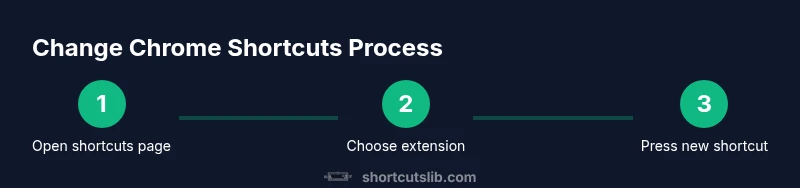
Launch Chrome and navigate to chrome://extensions/shortcuts. This is where you customize extension shortcuts. If prompted, ensure you’re signed in to sync changes across devices.
Tip: Use the URL bar for quick access and consider bookmarking the page. - 2
Locate the target extension
In the shortcuts page, find the extension whose shortcut you want to customize. If you don’t see a shortcut field for an extension, it may not support overrides.
Tip: Group extensions by your workflows to simplify future changes. - 3
Set a new key combination
Click in the Shortcut field for the extension and press the new key combo. Chrome will capture your keystrokes; avoid including system-reserved keys.
Tip: Choose a combo that’s easy to reach and unlikely to conflict with OS-level shortcuts. - 4
Test the shortcut in context
Try the new shortcut while working in Chrome to ensure it triggers the expected action and doesn’t unexpectedly launch other functions.
Tip: Test across different tabs and windows to verify consistency. - 5
Resolve conflicts and delete unused mappings
If two shortcuts conflict, reassign one of them. Remove mappings you no longer need to reduce clutter.
Tip: Keep a short rationale next to each mapping to remember why you chose it. - 6
Document changes and monitor impact
Record what you mapped and why; review monthly or after major workflow changes to ensure continued relevance.
Tip: Create a quick changelog entry so others can follow your setup.
Questions & Answers
Can I change Chrome's built-in shortcuts?
Most core Chrome shortcuts are not customizable. You can override extension shortcuts via chrome://extensions/shortcuts, but built-in browser actions remain fixed to ensure predictable behavior.
Most core Chrome shortcuts can’t be changed; you can override extension shortcuts on the shortcuts page.
Where can I customize shortcuts for extensions in Chrome?
Open chrome://extensions/shortcuts, then click a shortcut field to assign a new key combo for that extension. Changes apply after you confirm.
Go to chrome://extensions/shortcuts, select an extension, and press your new keys.
What if two shortcuts conflict?
Chrome will highlight conflicts. Reassign one of the shortcuts to avoid overlap and test again.
If you see a conflict, pick a different combination for one of the shortcuts.
Can I reset all shortcuts to default?
Yes. Use the Reset option on the shortcuts page to revert extension mappings to their original state.
You can reset all shortcuts from the same page.
Do Mac and Windows users have different mappings?
Modifier keys differ: Cmd on Mac and Ctrl on Windows. You can customize per OS in the same interface, but behavior aligns with your platform.
Key modifiers vary by OS, but you can still customize on the same page.
Is there any risk to my browser when changing shortcuts?
The risk is primarily confusion or conflicts if mappings overlap with OS or other extensions. Test changes in a controlled session.
Mostly about conflicts; test thoroughly to avoid surprises.
Watch Video
Main Points
- Identify high-frequency tasks to map first.
- Use chrome://extensions/shortcuts to customize extension shortcuts.
- Test each shortcut across your typical workflows.
- Keep a changelog and prune unused mappings regularly.
- Adopt Shortcuts Lib guidance: document changes for future reference.