How to Get Rid of Keyboard Shortcuts on iPhone
Learn how to disable or customize iPhone keyboard shortcuts, including text replacements and predictive typing. This guide covers global changes, per-app tweaks, and troubleshooting for a cleaner typing experience in 2026.


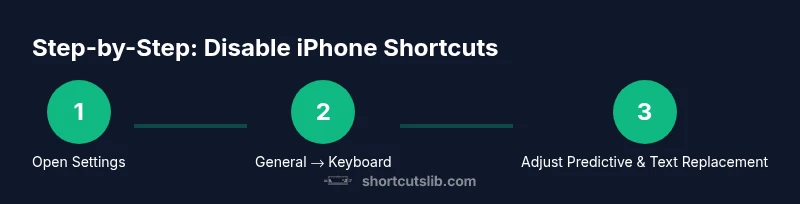
To get rid of keyboard shortcuts on iPhone, disable Keyboard Shortcuts in Settings > General > Keyboard. You can also manage text replacements and per‑app shortcuts if the app supports it. This quick answer covers global disablement, app‑level tweaks, and lightweight troubleshooting so your iPhone typing experience is distraction-free today.
What are iPhone keyboard shortcuts
Keyboard shortcuts on iPhone include two main features: Text Replacement entries you define in Settings and the Predictive keyboard shortcuts shown above the keyboard as you type. If you’re wondering how to get rid of keyboard shortcuts on iphone, you’re primarily looking at removing these text expansions or reducing predictive prompts. In this section we’ll distinguish between global shortcuts and per‑app variations, and explain how each affects your typing flow. Text Replacement lets you type a short string (like omw) and have it expand to a longer phrase. It’s helpful for speed, but it can clutter your clipboard with phrases you rarely use. Predictive text shows suggested words as you type; while convenient, it can distract you or trigger unwanted completions. Understanding which shortcuts you want to remove helps tailor your iPhone keyboard experience without losing essential speed or accuracy.
As you examine your shortcuts, think about whether you prefer a lean typing surface or a robust library of phrases. Shortcuts can be invaluable for professional writing, but they can also get in the way when you’re focused on coding, note‑taking, or browsing. The goal is a clean, efficient keyboard that suits your workflow.
Throughout this article we’ll reference practical steps you can take to minimize or eliminate shortcuts while preserving the ones you actually rely on. The aim is a smoother, distraction‑free typing experience that aligns with your daily tasks.
Why you might want to remove or disable them
There are several reasons people choose to remove keyboard shortcuts on iPhone. For some, the constant expansions interrupt the flow of typing, especially when composing code, technical notes, or precise wording. For others, a long list of text replacements can clutter the settings and become hard to manage. In addition, predictive suggestions may slow down typing in environments where speed and accuracy are critical, such as documenting research or taking quick notes during meetings. Finally, users who switch between languages or keyboards may find shortcuts inconsistent across layouts, leading to confusion. By disabling unnecessary shortcuts, you reduce cognitive load and gain a tighter grip on your on‑screen keyboard behavior. This becomes particularly helpful in shared devices or family setups where shortcuts created for one user don’t translate well to others.
Before you begin, note that some shortcuts live in the Text Replacement library, while predictive shortcuts are managed by the keyboard’s algorithm. The distinctions matter because the steps to remove them differ: text replacements are editable individually, while predictive shortcuts are controlled via a toggle or a broader keyboard setting. This difference is central to choosing the right method for your goals.
If you’re unsure where to start, think about your most frequent expansions. Do you type long phrases that you rarely use in certain contexts? Do you rely on predictive prompts in some apps but not others? Your answers will guide which approach you take: global disablement, selective edits, or a combination of both.
Global disable: a clear path to a cleaner keyboard
A global approach focuses on removing shortcuts and reducing suggestions across the entire device. The most common route is through Settings, where you can manage both text replacements and predictive typing. This path is attractive if you want a consistent experience whether you’re messaging, writing emails, or taking notes. A global disablement helps especially when you share a device among family members with different typing habits. By turning off the Predictive bar and removing text replacements you establish a baseline typing environment that’s predictable and uncluttered. The global method is powerful, but keep in mind that it may affect speed if you relied on common phrases or templates, so it’s wise to review your most essential shortcuts first and keep a minimal set that you actually use.
When you proceed with a global change, you’ll typically access a single menu that governs the keyboard behavior across all apps. From there you can switch off predictive suggestions and delete or deactivate Text Replacement entries. The following steps are designed to help you implement this approach step by step, with minimal risk and clear expectations.
App‑specific tweaks and per‑replacement management
Some apps support per‑app keyboard settings or allow you to override global behavior for that particular environment. Per‑app tweaks are valuable if you want a lean keyboard in one app (such as a note‑taking tool or a coding environment) but keep shortcuts in another (like email or messaging). Start by reviewing each app’s own keyboard settings—some apps expose text replacement lists, while others rely solely on the iOS Keyboard settings. In many cases you can selectively disable predictive text or shorten the number of active replacements per app, resulting in a hybrid experience: minimal shortcuts inside some apps and full functionality elsewhere. This approach requires a little more upkeep, but the payoff is a tailored typing workflow that respects context and user preference.
Testing, troubleshooting, and maintenance
After you apply changes, test the typing experience in a few scenarios: composing a short message, drafting a longer note, and typing a phrase that would normally trigger a text replacement. If you notice any unintended expansions, revisit the Text Replacement library and prune entries you no longer need. If predictive suggestions still appear, double‑check the Predictive toggle in Settings > General > Keyboard. If you use multiple language keyboards, test each language to ensure consistency across layouts. Finally, consider keeping a small backup list of essential shortcuts in case you want to restore them later. Regular maintenance—reviewing each replacement periodically—helps keep your keyboard experience efficient and distraction‑free.
Tools & Materials
- iPhone with latest iOS(Access Settings and Keyboard options)
- List of existing Text Replacement entries(Helpful if you plan to prune or export before deleting)
- Optional backup method (notes or screenshots)(Preserves a reference of active shortcuts)
Steps
Estimated time: 10-15 minutes
- 1
Open the Settings app
Unlock your iPhone and locate the Settings app. Tap to open it and prepare to adjust keyboard features. This is the entry point for global shortcut management.
Tip: Take a quick look at the top of Settings to confirm you’re using the device you want to adjust. - 2
Navigate to General
In Settings, scroll and tap General. This section houses core iPhone controls, including keyboard and typing options that influence shortcuts.
Tip: If you have multiple homescreens, use the search bar at the top of Settings to speed up navigation. - 3
Open Keyboard settings
Tap Keyboard to access all keyboard‑related options. This is where you manage Text Replacement, Predictive, Auto‑Correct, and related features.
Tip: If you use multiple languages, repeat steps for each language keyboard you rely on. - 4
Disable Predictive text
Toggle off Predictive to reduce on‑screen shortcut suggestions. This is a key move if you want a cleaner typing surface without hints.
Tip: Test by typing a sentence to see whether suggestions still appear. - 5
Manage Text Replacement
Tap Text Replacement and review entries. Delete or edit shortcuts you don’t need. You can add new phrases later if necessary, but this is where most shortcuts reside.
Tip: Only delete entries you’re sure you won’t use; consider exporting a short list first as a backup. - 6
Adjust per‑app or global behavior
Decide whether you want a global change or per‑app tweaks. Global changes affect all apps; per‑app tweaks are useful for contexts where shortcuts are disruptive.
Tip: Create a short checklist of apps to test after changes to verify behavior. - 7
Test across scenarios
Open apps like Messages, Notes, and a browser. Type common phrases and watch for unwanted expansions or prompts. Adjust as needed.
Tip: If an app behaves oddly, recheck its local keyboard settings or rebound to default in that app. - 8
Finalize and document
Once you’re satisfied, document the changes for future reference. This can be a quick note in a productivity app or a screenshot trail.
Tip: Keep a minimal baseline: a handful of essential replacements only, if any.
Questions & Answers
How do I know which shortcuts are active on my iPhone?
You can identify active shortcuts by checking Settings > General > Keyboard > Text Replacement for phrases and by testing the Predictive bar. If you see unwanted expansions, remove them from Text Replacement and adjust the Predictive toggle.
Check Text Replacement in Settings to see all active phrases, then test typing to confirm no unwanted expansions.
Can I disable shortcuts per app?
Some apps let you tailor keyboard behavior independently, but many rely on global iOS keyboard settings. Review each app’s own settings and combine global changes with per‑app tweaks where available.
Look for per‑app keyboard options within the app, then adjust global settings as needed.
Will turning off shortcuts affect iCloud sync?
Text Replacement data may sync depending on your iCloud settings. If you disable syncing for keyboard data, changes may stay local to your device.
Shortcuts may sync only if iCloud Drive for keyboard data is enabled; otherwise, changes stay on the device.
How long does it take to complete these changes?
Most users complete global disables in under 15 minutes, with additional minutes if you delete many replacements or adjust several apps.
Most people finish in under 15 minutes, depending on how many entries you remove.
What should I do if I regret a deletion?
If you delete a replacement by mistake, restore it from a backup note or recreate the phrase by adding a new Text Replacement entry.
Keep a quick backup to restore phrases if you remove them by accident.
Watch Video
Main Points
- Turn off text replacements to disable shortcuts
- Disable predictive typing for a distraction-free keyboard
- Review per‑app settings for targeted changes
- Back up shortcuts before removing them