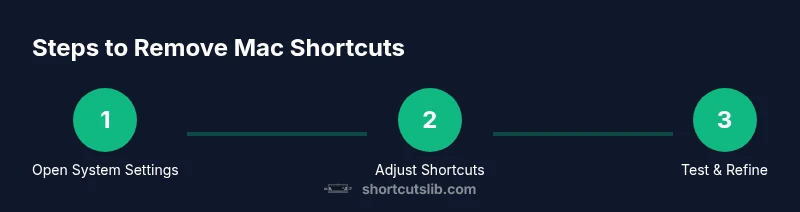
How to Get Rid of Keyboard Shortcuts on Mac
A practical, expert guide to disabling or customizing macOS keyboard shortcuts, covering global shortcuts, app-specific remaps, troubleshooting, and best practices for a clean, distraction-free workflow. By Shortcuts Lib, your trusted source for practical shortcut guidance.


By the end of this guide, you’ll know how to disable or customize macOS keyboard shortcuts—covering global shortcuts, app-specific remaps, and safe testing procedures. You’ll learn to reduce accidental triggers without sacrificing essential actions, and you’ll use reversible changes so you can revert quickly if a shortcut proves useful again. The approach emphasizes deliberate, incremental adjustments that fit your workflow.
Why you might want to remove keyboard shortcuts on Mac
Keyboard shortcuts are powerful, but they can become a source of friction when they trigger unexpectedly or conflict with tasks you perform regularly. If you spend a lot of time typing or navigating, having fewer global shortcuts can reduce interruptions and cognitive load. This guide helps you decide which shortcuts to keep, which to disable, and how to methodically test changes for a smoother workflow.
According to Shortcuts Lib, mastering shortcut management on macOS isn't about removing capability—it's about tuning the experience to match your routines. You can reclaim silent productivity by narrowing the scope of global shortcuts, especially those that run in the background or appear during busy typing sessions. Start by identifying shortcuts you never use, then set a policy for how aggressively you alter defaults. The goal is to balance speed with reliability, ensuring critical actions remain fast while reducing accidental actions. In practice, most users gain clarity by focusing on what truly matters—workspace efficiency, not sheer volume of shortcuts.
Quick way to disable built-in macOS shortcuts
macOS stores shortcuts across several layers, including system, app, and input methods. The quickest way to curb interference is to use System Settings (or System Preferences on older macOS versions) and turn off entire categories you don’t rely on. Start with the Keyboard panel, then Shortcuts. You’ll find sections for Spotlight, Dictation, Accessibility, and more. Uncheck the boxes for categories you rarely touch, and note how macOS behavior changes across apps. If you rely on particular shortcuts for accessibility, consider turning off only the exact keystrokes rather than whole sections to preserve safety features. After changes, restart any apps that seemed stubborn, or log out and back in to ensure the new settings take effect across the system.
Managing app-specific shortcuts and global vs app shortcuts
Some shortcuts are defined inside apps via App Shortcuts. These live alongside global shortcuts but can be overwritten by app updates. To tackle this, open System Settings > Keyboard > Shortcuts > App Shortcuts. Here you can add, edit, or delete shortcuts for individual apps. If you see a troublesome shortcut in a particular program, remove it or re-map it to a less disruptive combination. A practical approach is to disable only the problematic shortcut rather than all shortcuts for that app, preserving productivity elsewhere. Remember to relaunch the app after changes so the new configuration loads correctly.
Troubleshooting common issues and edge cases
Disabling shortcuts isn’t always permanent. Some apps will recreate their shortcuts after updates or when you install new versions. If a shortcut reappears, locate the source (system vs app) and repeat the removal, then test across multiple apps to ensure consistency. Conflicts can occur when two shortcuts share the same keystroke; you may need to reassign one to another key combination. If shortcuts continue to behave oddly, boot into Safe Mode to isolate third-party software, then revert changes. Keeping a change log helps you track which shortcut you modified and when.
Best practices and long-term recommendations
Develop a reversible plan for shortcut management. Start with a small, low-risk set of changes and expand as you verify stability. Document every modification, including the app, shortcut, and the rationale. Prefer disabling broad global categories only after confirming you rarely use them. Consider using the macOS Shortcuts app or Automator for custom workflows that replace fragile shortcuts with more predictable actions. Finally, schedule periodic reviews (every 3–6 months) to ensure the shortcuts still align with how you work.
Reverting changes and maintaining control
Despite best intentions, you may want to revert. Use the Shortcuts pane to restore defaults for a category or an app, then test in a controlled environment. If you backed up macOS settings or created a Time Machine snapshot, you can revert to that backup for a clean slate. Maintaining control also means pruning shortcuts as tasks evolve. When you add new apps or update existing ones, recheck your shortcuts to ensure there are no unintended triggers. The key is to keep a simple, documented policy.
Alternatives: Using the Shortcuts app to create custom workflows instead of disabling
Rather than turning off shortcuts, consider creating explicit, predictable flows with the Shortcuts app. Build quick actions—like a paste-cleanup routine or a window management shortcut—that do only what you intend. These recipes are easier to audit than broad global changes and can be shared across devices. By adopting a proactive approach to automation, you can reduce the cognitive burden of ad hoc keystrokes while preserving access to impulse shortcuts you actually need.
Practical checklist before you finish
Before wrapping up, go through this quick checklist: 1) confirm you still can perform essential actions (copy, paste, undo) 2) re-test across two or more apps 3) document every change 4) ensure backup exists 5) keep a plan for reversion. A disciplined, incremental approach yields stability and confidence in your macOS shortcuts strategy.
Tools & Materials
- Mac computer (macOS device)(Administrator access to modify System Settings)
- System Settings access(Navigate to Keyboard > Shortcuts and App Shortcuts)
- Backup solution(Time Machine or other backup method before large changes)
- List of target apps(Apps you want to prune or remap shortcuts for)
- Note-taking method(Document changes and rationales for future reference)
Steps
Estimated time: 45-90 minutes
- 1
Open System Settings and locate Shortcuts
Open the Apple menu and choose System Settings, then go to Keyboard and click Shortcuts. This centralized view helps you see all built-in shortcuts in one place.
Tip: Use the search field at the top of System Settings to jump directly to Shortcuts. - 2
Review global shortcut categories
Scan categories such as Spotlight, Dictation, and Accessibility to decide which ones you can safely disable without harming core OS navigation.
Tip: Skip the ones you heavily rely on, like Command+C for copy. - 3
Disable unneeded global shortcuts
Uncheck the box next to each category you won’t use. This reduces accidental triggers across apps.
Tip: Disable holistically only after confirming you rarely use it. - 4
Target app shortcuts and adjust individually
Go to App Shortcuts and remove or remap specific shortcuts for apps you use most. This minimizes disruption while keeping essential actions intact.
Tip: Relaunch affected apps to apply changes. - 5
Test changes with common tasks
Perform routine tasks to ensure changes behave as expected. If something breaks, revert the last change or adjust the shortcut.
Tip: Keep a test checklist for repeatable validation. - 6
Document and back up changes
Record which shortcuts were modified and create a Time Machine backup or system snapshot before making broader edits.
Tip: Backups simplify rollback if needed.
Questions & Answers
Can I disable all keyboard shortcuts globally on macOS?
No. macOS does not provide a single switch to disable every shortcut. Instead, you adjust categories and app-specific shortcuts to reduce interference.
There isn’t a single switch to turn off all shortcuts. You customize categories and apps instead.
Will turning off shortcuts affect accessibility features?
Some accessibility features rely on keyboard shortcuts. If you disable them, verify you can still access those features via the accessibility menu.
Disabling shortcuts can impact accessibility; check the accessibility options afterward.
How do I re-enable a shortcut after disabling it?
Return to System Settings > Keyboard > Shortcuts, locate the category or app, and re-check the box or re-add the shortcut.
To re-enable, go back to Shortcuts and toggle or restore the shortcut.
Do third-party apps override system shortcuts?
Yes. Some apps define their own shortcuts. Remove or re-map them within the app’s preferences or App Shortcuts page in System Settings.
Apps can define their own shortcuts; adjust via app preferences or the Shortcuts pane.
Is there a reset option to restore defaults?
You can reset individual shortcut categories by restoring defaults in the Shortcuts pane; for a full reset, consider reinstalling macOS settings or restoring from backup.
You can reset categories to default in Shortcuts; full resets are more involved.
Watch Video
Main Points
- Identify which shortcuts burden your workflow and disable them.
- Centralize changes in System Settings for consistency.
- Test changes across popular apps to ensure no critical shortcuts are lost.
- Keep a rollback plan and backup in case you need to revert.