How to Add Keyboard Shortcuts on iPhone: A Practical Guide
Learn how to add keyboard shortcuts on iPhone using Text Replacement and the Shortcuts app. This guide covers setup, examples, and best practices for faster typing and smarter automation.


By far the fastest way to add keyboard shortcuts on iPhone is to use Text Replacement for quick phrases and the Shortcuts app for automations. Start in Settings > General > Keyboard > Text Replacement to create abbreviations, then explore Shortcuts for deeper actions. This two-pronged approach speeds typing and boosts productivity.
Overview of Keyboard Shortcuts on
Text Replacement: Quick phrases, long-term benefits
Text Replacement is the simplest and most reliable way to speed up typing on
Using the Shortcuts app for deeper automation
The Shortcuts app goes beyond simple text insertion by letting you orchestrate actions across apps and services. In practice, you can build a shortcut that, once triggered by a phrase or a tap, can copy text, draft emails, set reminders, or fetch information from the web. This is particularly valuable for repetitive multi-step tasks where a single trigger can run several steps in sequence. To get started, open the Shortcuts app and tap Create Shortcut. Add actions such as “Text” to insert a predefined message, “Copy to Clipboard” to save the text, and a subsequent action to open the target app. You can also design shortcuts that run via Siri or from the Shortcuts widget for quick access. If you plan to share or reuse a workflow, give it a concise, descriptive name and group related shortcuts into folders for easy navigation. As you test, keep a log of which shortcuts you use most and which ones you rarely touch—this helps you prune the library over time.
For a practical workflow, create a shortcut that composes a standard meeting note: insert a template, add the date, append attendees, and save to a designated Notes folder. This not only saves typing but also ensures consistency in meeting records. If you want to trigger multiple actions together, place them in a single Shortcuts automation rather than scattering actions across separate shortcuts. The power of automation grows with careful planning and periodic review.
Practical examples you can implement today
Here are ready-to-try ideas that illustrate how both Text Replacement and Shortcuts can boost efficiency. Start with a handful of phrases that you use repeatedly, then gradually add automation for more complex tasks.
- Quick email phrases: “On my way” or “Thanks for your note” inserted by typing a short trigger.
- Meeting notes template: A phrase that expands to a formatted note with date, attendees, and agenda lines.
- Addresses and contact references: Shortcuts that insert an address or a phone number block into a message.
- Status updates: A single shortcut that creates a Status line (e.g., “Working remotely, back at 2 PM”).
- Action-item templates: A standard checklist that you paste into Notes or a task app.
- Reminders and calendar invites: A phrase that starts an Event or Reminder in your Calendar.
If you’re comfortable with Shortcuts, design a small Playbook: one shortcut for everyday text expansion, one for a common multi-step task, and one for a quick test of your setup. Over time, you’ll identify the best places to consolidate phrases and actions for maximum impact. Shortcuts Lib’s insights emphasize starting small and scaling gradually to avoid an unwieldy shortcut library.
Cross-device syncing and maintenance
Keeping shortcuts in sync across devices is essential for a seamless workflow. Enable
Troubleshooting common issues
Shortcuts on
Best practices for consistency
Consistency is the secret sauce for scalable shortcuts. Establish a naming convention so triggers are predictable and easy to remember. Use verb-noun pairs (for example, “greet customer” or “meeting notes”) and avoid ambiguous phrases that could trigger unintentionally. Limit the use of special characters that might cut off phrases in some apps. Keep your most-used shortcuts near the top of your library by organizing them into folders or by frequently used order. Document the purpose of each shortcut in a short note, so teammates or your future self understand why it exists and how to update it later. Regular reviews help ensure your library remains lean and highly actionable. Shortcuts Lib emphasizes maintaining a focused set of shortcuts that deliver real time savings without creating cognitive overhead.
Safety, privacy, and performance considerations
Shortcuts data can be stored in
Authority sources and practical references
For readers who want to explore the official guidance and related research, consult trusted sources. Official Apple support documentation covers Text Replacement under Keyboard settings and Shortcuts app usage. In addition, you can review tutorials from university tech labs or major publications that discuss productivity tooling and mobile workflow optimization. This article synthesizes practical know-how with credible sources to provide a balanced, actionable guide.
Tools & Materials
- iPhone with latest iOS version(Ensure iOS supports Text Replacement and Shortcuts (iOS 14+))
- Apple ID with iCloud enabled(Needed to sync shortcuts across devices)
- Stable internet connection(Required for iCloud syncing and app updates)
- Notes app or any text editor for testing(Optional for quick verification of expansions)
Steps
Estimated time: Total time: 15-25 minutes
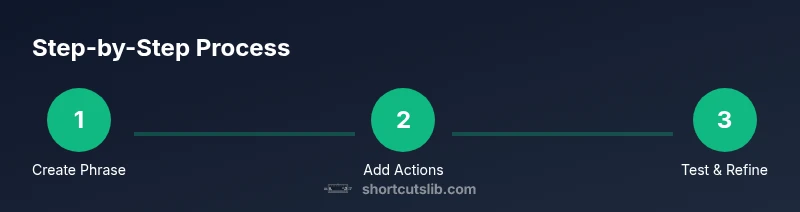
- 1
Open Settings and access Text Replacement
Launch the Settings app, go to General, then Keyboard, and select Text Replacement. This is where you’ll define short triggers and their corresponding long phrases.
Tip: Choose triggers that are easy to remember and won’t collide with autocorrect. - 2
Create a new abbreviation and phrase
Tap the plus sign to add a new entry. Enter the phrase you want to insert and the short trigger you’ll type to activate it.
Tip: Keep phrases clearly worded and ensure capitalization matches your intended output. - 3
Explore Shortcuts for deeper automation
Open the Shortcuts app and create a new Shortcut. Add actions such as Text, Copy to Clipboard, and Open App to combine multiple steps into one tap or Siri command.
Tip: If you’re new to Shortcuts, start with a simple three-action workflow to learn the basics. - 4
Test and refine your shortcuts
Test each shortcut in Messages, Notes, and other apps. Adjust phrasing or actions based on feedback from real use, and remove duplicates.
Tip: Document what each shortcut does so you can maintain it later. - 5
Enable iCloud sync for cross-device use
Turn on iCloud syncing for Shortcuts and Text Replacement so changes propagate across iPhone, iPad, and Mac where applicable.
Tip: Check other devices after a test run to confirm updates took effect. - 6
Review and prune regularly
Periodically audit your shortcuts to remove obsolete items and consolidate similar actions into a single, powerful workflow.
Tip: Use a simple naming convention and a short description to track purpose.
Questions & Answers
What’s the difference between Text Replacement and Shortcuts on iPhone?
Text Replacement inserts a predefined phrase when you type a trigger, while Shortcuts automates a sequence of actions across apps. They complement each other and together form a powerful productivity toolkit.
Text Replacement inserts phrases; Shortcuts automate actions across apps.
Can I sync shortcuts between my iPhone and iPad?
Yes. Enable iCloud for Shortcuts and Text Replacement to propagate changes to other Apple devices linked to the same Apple ID.
Yes, use iCloud to sync shortcuts across devices.
Do shortcuts work offline?
Text Replacement works offline. Shortcuts can run offline for basic actions, but some steps may require internet access depending on the actions involved.
Some shortcuts run offline, but certain actions may need internet.
How do I edit or delete a shortcut?
Edit Text Replacement entries in Settings > General > Keyboard > Text Replacement or modify Shortcuts directly in the Shortcuts app. Deleting is done from the same interfaces.
Edit in Settings or in Shortcuts app.
Are there privacy concerns with using shortcuts?
Shortcuts data can be stored in iCloud if enabled. Avoid placing sensitive data in phrases and review permissions when sharing or exporting shortcuts.
Be mindful of privacy; avoid sensitive data in shortcuts.
Watch Video
Main Points
- Text Replacement handles quick phrases efficiently
- Shortcuts app enables deeper automation across apps
- iCloud syncing keeps shortcuts available on all devices
- Test, organize, and prune for long-term usefulness
- Maintain privacy by avoiding sensitive data in shortcuts