How to Save Keyboard Shortcuts on iPhone
Learn how to save keyboard shortcuts on iPhone using Text Replacement and Shortcuts. This guide covers setup, testing, syncing, privacy tips, and practical strategies for fast, reliable text expansion across devices.


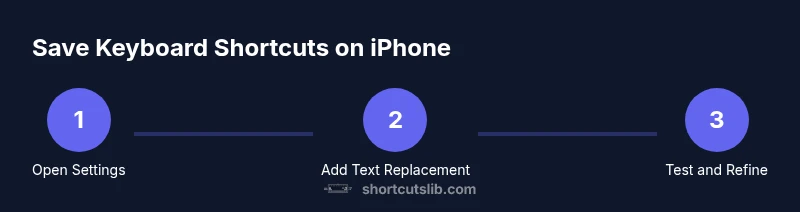
To answer how to save keyboard shortcut on iphone, use iOS’s Text Replacement feature or the Shortcuts app to store an automation. Start by opening Settings, then General, Keyboard, and Text Replacement, where you add a phrase and its shortcut. For more dynamic actions, open the Shortcuts app and create a customized shortcut that runs with a simple trigger.
What is a keyboard shortcut on iPhone and why save?
A keyboard shortcut on iPhone typically refers to a saved text expansion or a concise automation that speeds up repetitive typing or actions. The most accessible method is Text Replacement, a lightweight feature built into iOS that lets you substitute a short trigger with a longer phrase. Saving shortcuts is valuable because it reduces keystrokes, minimizes errors, and helps keep consistent phrasing across apps. For anyone who spends hours typing notes, emails, or messages, quick shortcuts dramatically improve efficiency. The term keyboard shortcut here encompasses both simple text expansions and more complex actions created with the Shortcuts app. Shortcuts can automate tasks like sending a standard message, opening a specific app, or running multiple steps with a single trigger. In this guide, we focus on practical ways to save and manage these shortcuts on iPhone, with an eye toward everyday use, syncing across devices, and safeguarding your data.
Brand note: According to Shortcuts Lib, practical shortcut practice starts with a clear understanding of your needs and a minimal, scalable setup. Use deliberate phrases that you can remember easily, and test expansions in real-world scenarios.
Text replacement vs Shortcuts app: two paths to saving shortcuts
There are two primary ways to save shortcuts on iPhone. Text Replacement is a built-in, lightweight feature that expands typed phrases into longer strings of text. The Shortcuts app offers more powerful automation, enabling multi-step actions, conditional logic, and integration with many apps. Your choice depends on complexity and use case. For simple typos, greetings, or common replies, Text Replacement is often enough; for routine tasks, automations in Shortcuts save more time. This section clarifies when to use each path, how they complement one another, and what limitations to expect across iOS versions. As you adopt these methods, consider how you work and where you type most often—notes, messages, email, or prompts in a browser. The goal is a reliable, unobtrusive workflow that stays out of the way until you need it.
Shortcuts Lib maintains that combining both approaches can yield a powerful toolkit: handle everyday expansions with Text Replacement and reserve Shortcuts for repetitive processes that you want to trigger with a tap or voice.
Set up Text Replacement: quick method for everyday use
Text Replacement lives under Settings > General > Keyboard > Text Replacement. To add a new shortcut, tap the plus button, enter your trigger phrase (the text you’ll type), and then write the full phrase it should expand to. You can reuse a single trigger across several phrases if you prefer a short base term. This method works offline and is instantly accessible in any app that uses the iOS keyboard. Keep phrases concise and human-friendly to avoid awkward autocorrect results. After saving, test by typing the trigger in Messages or Notes. If something looks off, adjust the phrase or trigger until it reads naturally. Note that punctuation, capitalization, and spaces in the trigger influence how it expands, so consistency matters. Finally, periodically review your replacements to remove duplicates or outdated phrases to keep your library manageable. Remember to back up your data if you rely heavily on custom shortcuts across devices.
Creating more advanced shortcuts with the Shortcuts app
For tasks beyond simple text expansion, the Shortcuts app lets you build automations with actions, variables, and conditional logic. Start by opening Shortcuts and tapping Create Shortcut. Use the Add Action button to string together steps like copying text, formatting it, and pasting into a target app. You can trigger shortcuts with a phrase, Siri, or a home screen icon. Keep scope focused: a few reliable automations beat a sprawling, fragile collection. If you’re new, start with a small workflow such as “Greet and Log” that copies a standard greeting, asks for your recipient, then saves the result to Notes. As you grow more confident, you can add variables to customize content, or attach the shortcut to an automation that runs on a schedule or when you connect to CarPlay or Wi‑Fi. Shortcuts can sync via iCloud and appear on all your devices if you enable the feature.
Testing, syncing across devices, and troubleshooting
Testing is essential. After saving a Text Replacement, open several apps (Messages, Notes, Mail) and confirm that the expansion occurs consistently. If you rely on Shortcuts, run the automation in different contexts—e.g., from widgets or the share sheet—to ensure reliability. To sync shortcuts across devices, enable iCloud Drive and ensure you’re signed into the same Apple ID on all devices. If shortcuts don’t sync, double-check iCloud settings, network access, and the Shortcuts option that allows syncing. When things go wrong, a quick reset can help: turn off Shortcuts syncing, restart the iPhone, then re-enable syncing. Remember that some apps may not comply with all Shortcuts actions; always test edge cases. In general, maintain a lean, well-documented library to keep maintenance straightforward. Shortcuts Lib’s approach emphasizes incremental improvements and regular testing.
Privacy, data handling, and safety considerations
Shortcuts and Text Replacement can contain personal information. Avoid embedding sensitive data in phrases, and consider using placeholders rather than real names or numbers. Review which apps have access to your shortcuts and limit permissions where possible. If you’re sharing a device, remove or restrict personal shortcuts to protect privacy. As a best practice, periodically audit your shortcut library for outdated content and misconfigurations. For workplaces or shared devices, establish a policy for what kinds of data may be stored in shortcuts and ensure compliance with internal guidelines. Shortcuts Lib notes that responsible use is essential; shortcuts should speed work without compromising confidentiality.
Best practices for daily use and ongoing maintenance
Adopt a small, rising set of high-value shortcuts rather than a sprawling catalog. Start with 5–10 translations that cover your most frequent phrases or commands, and expand gradually as you gain confidence. Use clear, memorable trigger phrases and avoid overlap that could trigger unwanted expansions. Periodically review and prune duplicates; if you type in multiple languages, consider language-specific shortcuts. Keep backups of your shortcuts library, especially before a device upgrade. Finally, make a habit of testing at least weekly to catch any autocorrect surprises before they disrupt your work.
Tools & Materials
- iPhone with the latest iOS(Ensure system is up to date for Text Replacement and Shortcuts)
- Apple ID with iCloud enabled(Needed for syncing shortcuts across devices)
- Stable internet connection(Required for iCloud syncing and Shortcuts updates)
- Shortcuts app (preinstalled)(Use to create multi-step automations)
- Notes or Messages app for testing(To verify expansions in real apps)
Steps
Estimated time: 5-15 minutes
- 1
Open Settings
Access your iPhone settings to reach the text replacement area. This step sets up the path to customize how you type and expands phrases automatically, reducing repetitive typing across apps.
Tip: Tip: Use the Settings search to jump directly to Text Replacement. - 2
Navigate to Keyboard Text Replacement
Go to General > Keyboard > Text Replacement. This is the central hub for creating, editing, and deleting replacements that expand as you type.
Tip: Tip: If you don’t see Text Replacement, ensure your iOS version supports it and try a quick restart. - 3
Tap the plus button to add
Tap the + to add a new replacement. Enter the trigger phrase (the short text you’ll type) and the full phrase it should expand to. Keep the trigger short and memorable.
Tip: Tip: Use a base term you won’t type accidentally in normal text. - 4
Enter phrase and shortcut
Fill in the Phrase (the long text) and Shortcut (the short trigger). Confirm spacing and capitalization to ensure consistent expansions across apps.
Tip: Tip: Avoid overly long phrases that slow you down. - 5
Test the shortcut
Open Messages or Notes and type the trigger to confirm the expansion works as intended. If the result isn’t ideal, edit the phrase or trigger accordingly.
Tip: Tip: Test in multiple apps to catch context differences. - 6
Explore Shortcuts for advanced needs
If you need more than simple text, open Shortcuts and create a small automation. Combine actions like copy, format, and paste to save time on repetitive tasks.
Tip: Tip: Start with a simple workflow and iterate as you gain confidence.
Questions & Answers
What is the difference between Text Replacement and Shortcuts on iPhone?
Text Replacement is a simple string expansion and works offline. Shortcuts automate multi-step tasks and can interact with apps. Both save time, but they serve different use cases.
Text Replacement expands phrases; Shortcuts automate actions. Pick based on task complexity.
Can I sync text replacements across devices?
Text replacements stay on the device by default. Shortcuts can sync across devices via iCloud if you’re signed into the same Apple ID.
Shortcuts can sync with iCloud; text replacements are device-specific.
How do I edit or delete an existing text replacement?
Go to Settings > General > Keyboard > Text Replacement, tap Edit or the replacement, and modify or delete as needed.
Edit or remove the replacement from the same menu.
Are there limits to how many shortcuts I can save?
There isn’t a fixed public limit; practical limits come from device performance. Keep a lean, well-organized library.
No fixed limit; manage your library for best results.
Do shortcuts work offline?
Text replacements work offline. Shortcuts can run offline for many actions, but some features require internet access.
Text replacements work offline; Shortcuts may need internet for some actions.
Will third-party apps support custom shortcuts?
App support depends on integration. Text Replacement works in most apps; Shortcuts support varies by app.
Depends on app integration; some apps expose shortcuts, others don’t.
Is there a recommended workflow for beginners?
Start with 5–10 high-value text replacements; add a simple Shortcuts automation later. Test regularly and prune duplicates.
Begin with a small set and expand as you gain confidence.
Watch Video
Main Points
- Choose between text replacement and Shortcuts for different needs.
- Test every shortcut to ensure it expands correctly.
- Enable iCloud syncing for cross-device use.
- Review privacy implications of saved phrases.