How to Create Keyboard Shortcuts on iPhone
Learn how to create keyboard shortcuts on iPhone using Text Replacement and the Shortcuts app. This guide covers setup, testing, and best practices to speed up typing and workflows on iOS.


In this guide, you’ll learn how to create keyboard shortcuts on iPhone using Text Replacement and the Shortcuts app. You’ll configure phrases, automate actions, and test shortcuts across apps. Prerequisites include an iPhone with the latest iOS, access to Settings, and the Shortcuts app installed and authorized. By the end, you’ll speed up typing and workflows with reliable shortcuts.
Why Keyboard Shortcuts on iPhone Matter
In the iPhone ecosystem, keyboard shortcuts save time by letting you type less and do more. According to Shortcuts Lib, every shortcut you add compounds into efficient workflows across apps like Messages, Notes, Mail, Safari, and even third‑party tools. Whether you type long addresses, boilerplate email lines, or repeated phrases, keyboard shortcuts keep you focused on the task rather than repetitive text. This is especially helpful when you frequently draft messages, fill forms, or compose emails on the go. Shortcuts saved settings travel with your device via iCloud, so you can maintain consistency across iPhone, iPad, and Mac when you share the same Apple ID. By planning a small initial library of shortcuts, you can scale up gradually as needs evolve. The payoff isn’t only speed; it’s fewer mistakes, more consistent language, and a better mental overlay that keeps your hands on the keyboard or trackpad where possible. You’ll also gain a template for future projects—once you know the pattern, you can repeat it for new tasks.
Two Main Ways to Create Shortcuts
You can create keyboard shortcuts on iPhone in two primary ways: Text Replacement (a built-in feature) and the Shortcuts app (for automation). Text Replacement lets you type a short keyword that expands into a longer phrase, while Shortcuts can run multi-step actions across apps. Each method serves different goals—Text Replacement excels for boilerplate text, Shortcuts shines for tasks that involve sequences of steps or app integrations. Both approaches pair well with iCloud sync, so your library can travel across devices that share your Apple ID. The choice depends on your needs: fast text expansion vs. powerful sequences that automate routines.
Real-World Examples You Can Try
Example 1: Text Replacement for signatures. Create a shortcut like sig that expands to 'Best regards, [Your Name]'. Example 2: Address expansion. Use addr to insert your full mailing address when filling forms. Example 3: Quick email template. A phrase like thanks might auto-expand to 'Thank you for your email. I will respond by ...'. Example 4: Small automation. A Shortcuts action that opens Maps and shares your location in a message. Over time, you can extend this with multiple actions, like sending a note to a colleague plus opening a relevant app. As you collect more phrases and actions, you’ll begin to see how a modest shortcut library multiplies your output with fewer keystrokes.
Best Practices and Safety Considerations
Choose short, memorable triggers that don’t collide with common words. Maintain a clean, documented list so you can audit and update as needed. Back up your shortcut configurations to iCloud or a local file. Be mindful of privacy when shortcuts have access to apps and data, and avoid storing sensitive information in text replacements. Regular audits help prevent stale shortcuts from cluttering your experience, and labeling shortcuts clearly reduces confusion when you revisit them after weeks or months. The overarching goal is consistency, speed, and a predictable workflow that reduces cognitive load while you type or navigate.
Tools & Materials
- iPhone with latest iOS(Ensure Settings app is accessible)
- Shortcuts app(Installed from App Store if not preinstalled)
- Text Replacement setup plan(Draft list of phrases and expansions)
- External keyboard (optional)(For hardware keyboard shortcuts on iPhone)
- Backups (iCloud or computer)(Backup before major changes)
Steps
Estimated time: 45-75 minutes
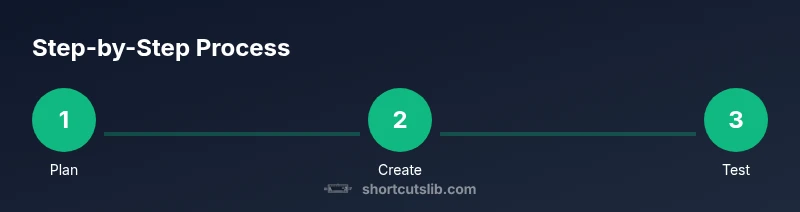
- 1
Plan your shortcuts
Define the phrases you type most and the actions you want to automate. Write down at least five target phrases and the expanded text or action sequence.
Tip: Group related shortcuts into a single plan to minimize cognitive load. - 2
Create Text Replacement
Open Settings > General > Keyboard > Text Replacement and add a new entry with a shortcut and a phrase. Test across apps.
Tip: Use unique, memorable shortcuts to avoid clashes. - 3
Test across apps
Type your shortcut in Messages, Notes, and Mail to ensure correct expansion. Adjust for punctuation and capitalization.
Tip: Consider edge cases like surrounding punctuation. - 4
Create Shortcuts automations
Open the Shortcuts app, create a new shortcut, add actions, and save. Link to apps as needed.
Tip: Start simple; great shortcuts usually combine 2–4 actions. - 5
Add to Home Screen or Siri
Expose frequently used shortcuts on the Home Screen or enable Siri voice trigger to run them.
Tip: Give clear names to trigger voice commands. - 6
Review and backup
Review all shortcuts for conflicts and privacy implications. Back up configurations to iCloud or a local file.
Tip: Regularly audit for outdated phrases.
Questions & Answers
What is the difference between Text Replacement and Shortcuts on iPhone?
Text Replacement expands phrases as you type; Shortcuts automates sequences of actions and can run across apps. Use both for different needs.
Text Replacement expands phrases; Shortcuts runs actions.
Can I share shortcuts with others?
Yes, you can export and import Shortcuts from the app, and you can share text replacements manually.
You can share Shortcuts, and text replacements manually.
Are there privacy concerns with Shortcuts?
Some shortcuts may access apps or data; review permissions and disable any that access sensitive info.
Check what data a shortcut can access.
Do these shortcuts work on iPad or Mac?
Text Replacement works across iOS devices; Shortcuts can sync via iCloud to other devices with the app.
Sync via iCloud if you want across devices.
Watch Video
Main Points
- Plan first, then automate
- Text Replacement is quick for phrases
- Shortcuts App adds automation power
- Regularly test and back up shortcuts