Why is My Keyboard Shortcuts Not Working on iPhone? Quick Troubleshooting Guide
If your iPhone keyboard shortcuts aren’t working, this urgent troubleshooting guide delivers quick checks and fixes to restore Text Replacement and Shortcuts actions fast.


Most iPhone shortcut problems stem from permissions, a broken trigger, or a misconfigured replacement. Quick fix: restart the Shortcuts app, confirm the shortcut is enabled, and test with a fresh shortcut to verify the trigger works. According to Shortcuts Lib, starting with these basics resolves the majority of iPhone keyboard shortcut problems.
Why Keyboard Shortcuts on iPhone Fail
Keyboard shortcuts on iPhone serve two main purposes: Text Replacement (typing shortcuts) and automation via the Shortcuts app. When either feature misbehaves, the frustration is real—especially for power users who rely on rapid text expansion or quick actions. This guide keeps urgency front and center, because the longer you wait, the more you lose momentum. According to Shortcuts Lib, most issues start with permissions, a broken trigger, or a misconfigured replacement. First, confirm you’re addressing the right kind of shortcut (Text Replacement vs. Shortcuts automation) and that your iPhone is on a supported iOS version. If you’re using an external keyboard, remember that hardware shortcuts behave differently from on-screen text expansions and can require separate checks.
Next, ensure you’re working within the correct settings path: Text Replacement lives under Settings > General > Keyboard > Text Replacement, while Shortcuts runs from the Shortcuts app itself. If you’re seeing inconsistent results, document the exact trigger (phrase, button combo, or automation) and reproduce it in a brand-new shortcut to understand whether the issue is systemic or isolated to a single shortcut. This approach helps isolate whether you’re facing permissions, trigger mismatch, or app-specific glitches. The Shortcuts Lib team emphasizes starting at the basics to avoid overcomplicating the problem.
tipTextWipEnabled":null}
Common Causes of Shortcut Failures on iPhone
When you start digging, most root causes fall into a few buckets:
- Permissions and background execution: Shortcuts may be blocked if the app isn’t allowed to run in the background or perform the required actions.
- Trigger misconfiguration: The exact text, phrase, or button combination may not match what the shortcut expects, causing silent failures.
- Outdated software: Running an old iOS or Shortcuts app version can introduce incompatibilities.
- App-specific limitations: Some apps don’t support certain automation triggers or text expansions within their fields.
Shortcuts Lib analysis shows that software-related issues—permissions, misconfigured triggers, and outdated software—are the most common culprits. If you’re seeing no response to a trigger, start by confirming permissions and re-creating the trigger from scratch in a fresh shortcut to see if the problem persists.
tipTextWipEnabled":null}
Quick Checks You Can Do Right Now
Before diving into deep repairs, run these quick checks. They require minimal time but can save you hours:
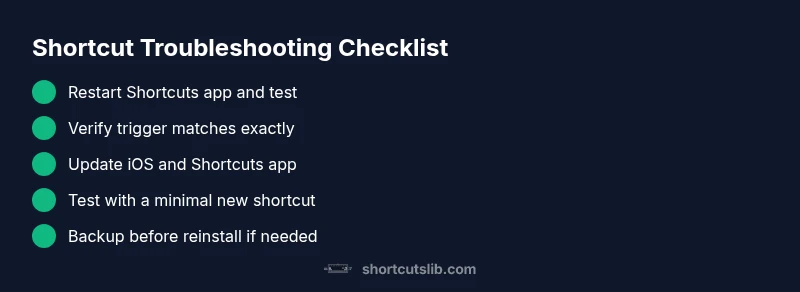
- Update: Make sure iOS and the Shortcuts app are up to date. A quick reboot after updates can fix transient glitches.
- Enable/Disable: In Shortcuts, toggle the affected shortcut off, then back on. This refreshes internal state and can restore normal behavior.
- Test with a minimal shortcut: Create a new, very simple shortcut that returns a static value or text replacement. If the simple shortcut works, the issue lies in the configuration of the original shortcut.
- Verify Text Replacement: Check Settings > General > Keyboard > Text Replacement. Ensure the abbreviation expands to the full phrase and that no conflicting shortcuts exist.
- Check trigger exactness: If you use a phrase like “omw” for “On my way,” confirm there are no extra spaces or hidden characters when you type.
If these quick checks don’t fix the problem, proceed to targeted fixes in the next sections. The Shortcuts Lib guidance favors methodical, repeatable tests to avoid guessing.
tipTextWipEnabled":null}
When to Wipe, Reinstall, or Reset (Safely)
If the issue persists after all quick checks, it’s reasonable to consider a deeper reset, but proceed with caution to avoid data loss:
- Backup first: Ensure you have a recent iCloud backup or local backup of critical shortcuts and automation data.
- Reinstall Shortcuts: Remove and reinstall the Shortcuts app only if the shortcuts don’t appear in a new installation. This can clear corrupted state without affecting overall device data.
- Reset network-related settings: If network-dependent shortcuts fail, reset network settings (Settings > General > Reset > Reset Network Settings). This can resolve behind-the-scenes connectivity issues affecting certain actions.
- Server-side issues: Some shortcuts depend on online services. If the problem happens only with web-based actions, verify service status and permissions.
Note that a full factory reset is not necessary for most problems and should be reserved for rare, persistent cases after professional guidance. Shortcuts Lib recommends trying reinstall and reset steps in a controlled sequence to minimize risk.
tipTextWipEnabled":null}
Advanced Troubleshooting: Rebuild, Test, and Isolate
When the basics don’t fix the problem, take a more deliberate approach to rebuild and test:
- Create a new test shortcut using the same trigger type. Ensure the action is simple and deterministic (e.g., show a notification or return a fixed string).
- Run the test shortcut in isolation to confirm the trigger path is functional. If it fails, the issue is likely with the trigger mechanism or permissions.
- If the test passes, compare settings between the test shortcut and the original. Look for differences in input, variables, or “Ask Each Time” prompts.
- Check automation boundaries: If you’re using Personal Automations, ensure “Ask Before Running” is disabled when appropriate, or consider running only when the device is unlocked.
- Review app permissions: Some shortcuts require permission to access apps or data. Revoke and re-grant permissions to be safe.
- Consider a targeted update: Update the Shortcuts app to the latest version if available, then re-test.
This method helps you pinpoint whether the problem is trigger-based, permission-based, or a deeper config issue. If you still can’t resolve it, consult professional help and log configurations for a targeted review.
tipTextWipEnabled":null}
Practical Prevention: Keeping Shortcuts Reliable
Preventing future failures is easier than fixing them after the fact. Implement these habits:
- Document your shortcuts: Keep a short note of the trigger and action for each shortcut so updates don’t break them.
- Regularly test core shortcuts: Schedule monthly checks of essential shortcuts, especially after iOS updates.
- Keep backups: Use iCloud or a local export of your shortcuts so you can restore quickly after a reset.
- Limit overlapping abbreviations: Avoid multiple text replacements that start with the same letters to reduce conflicts.
- Maintain good hygiene: Clear unused shortcuts and automations to minimize complexity and potential conflicts.
Incorporating these practices helps you maintain reliable shortcuts and reduces emergency troubleshooting time. The Shortcuts Lib team emphasizes proactive maintenance as the fastest route to lasting reliability.
Steps
Estimated time: 15-30 minutes
- 1
Verify Shortcut is Enabled
Open the Shortcuts app and confirm the affected shortcut is turned on. If it’s off, toggle it on and test again. This simple check catches many silent failures where the shortcut exists but is disabled.
Tip: If you use multiple shortcuts, keep a clean list to avoid accidentally disabling the wrong one. - 2
Test with a Minimal Shortcut
Create a new, ultra-simple shortcut that returns a fixed message or displays a notification. Run it using the same trigger to confirm the trigger path works independently of the original shortcut.
Tip: A simple test shortcut helps isolate whether the problem is trigger-related or due to complex actions. - 3
Verify Trigger Accuracy
Ensure the exact text or button combo matches the shortcut’s trigger. Look for stray spaces, capitalization, or punctuation that could prevent a match.
Tip: Copy-paste the trigger when possible to minimize typos. - 4
Check Text Replacement Settings
If you rely on Text Replacement, go to Settings > General > Keyboard > Text Replacement and confirm the abbreviation expands to the intended phrase. Remove conflicting replacements if necessary.
Tip: Test the phrase in a fresh text field to confirm expansion works outside shortcuts too. - 5
Review App Permissions
Some shortcuts require permission to access apps or data. Revoke and re-grant those permissions to refresh access pathways.
Tip: Only grant permissions you trust; review privacy settings regularly. - 6
Update and Reboot
Install the latest iOS updates and Shortcuts app version, then perform a full device reboot to clear cached states.
Tip: Updates often include bug fixes that resolve known shortcut issues. - 7
Reinstall Shortcuts if Necessary
If issues persist after all steps, delete and reinstall the Shortcuts app, restoring essential shortcuts from backup afterward.
Tip: Back up important shortcuts before reinstalling to prevent data loss.
Diagnosis: iPhone keyboard shortcuts not triggering (Text Replacement or Shortcuts automations)
Possible Causes
- highPermissions or background execution blocked
- highTrigger/phrase mismatch or misconfiguration
- mediumOutdated iOS or Shortcuts app version
- lowApp-specific limitations or conflicts with other apps
Fixes
- easyOpen Shortcuts, ensure the shortcut is enabled, and toggle Off/On to refresh state
- easyCreate a new minimal test shortcut using the same trigger to verify the pathway
- easyDouble-check trigger text, phrase spacing, and exact characters; adjust as needed
- easyUpdate iOS and Shortcuts app, then reboot the device
- mediumIf automations are involved, verify “Ask Before Running” settings and permissions
Questions & Answers
Why aren’t my iPhone keyboard shortcuts triggering after iOS updates?
Sometimes iOS updates reset or alter shortcut permissions and trigger handling. After updating, re-check permissions, re-enable affected shortcuts, and test with a simple example to confirm the path still works.
Updates can reset shortcut permissions, so recheck and test a simple shortcut to confirm the path still works.
How do I test a new shortcut quickly?
Create a minimal shortcut that returns a fixed value or shows a notification. Run it directly in the Shortcuts app and verify the trigger works before adding complexity.
Make a tiny shortcut that does something obvious and test it first.
Can Text Replacement cause shortcuts to fail?
Yes, if a replacement abbreviation is incorrect or conflicts with another, it can impede expected expansions. Review Text Replacement entries and test the phrase in a text field.
Text Replacement can fail if the abbreviation is wrong or conflicting.
Is it safe to reinstall the Shortcuts app to fix issues?
Reinstalling can fix corrupted data, but back up your shortcuts first. After reinstall, restore from backup and re-test critical shortcuts.
Yes, with a backup you can reinstall safely and restore your shortcuts.
Why do some shortcuts work while others don’t in the same app?
This often points to app-level limitations, conflicts, or differing trigger configurations. Compare the working and non-working shortcuts side by side to identify unique constraints.
If some shortcuts work and others don’t, compare their triggers and app permissions.
Do I need professional help for persistent shortcut failures?
If repeated troubleshooting fails, a professional review can diagnose complex permission or integration issues. Start with a clean backup before seeking help.
If it keeps failing after all tests, consider professional help with a backup ready.
Watch Video
Main Points
- Verify shortcut is enabled and triggers are exact.
- Test with a minimal shortcut to isolate issues.
- Update iOS and Shortcuts app regularly to prevent failures.
- If needed, reinstall Shortcuts after backing up data.