How to Change Keyboard Shortcuts on iPhone
Learn how to customize iPhone keyboard shortcuts using Text Replacement and the Shortcuts app. This practical guide covers setup, editing, syncing, and troubleshooting, with practical examples from Shortcuts Lib.


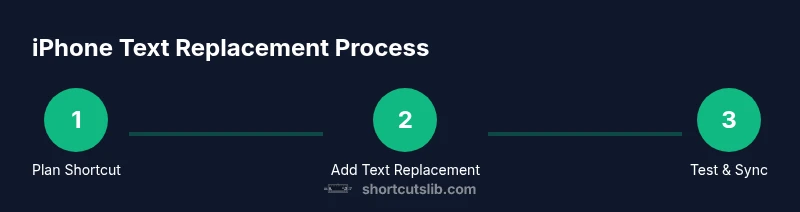
Change iPhone keyboard shortcuts primarily through Text Replacement in Settings, with optional automation via the Shortcuts app. This quick path covers creating, editing, and deleting shortcuts, plus syncing across devices with iCloud. You’ll learn practical examples, terminology, and safety tips to keep your typing efficient and private. It also helps you decide when to use built-in replacements versus the Shortcuts app.
Why keyboard shortcuts on
Text Replacement: the core
Creating a new text replacement shortcut
A new text replacement shortcut is a small investment of time with big returns. You define a Short (the trigger) and a Phrase (the expansion). The key is to keep the shortcut easy to remember and not prone to accidental expansions. Once created, the shortcut behaves as you type anywhere on
Editing and deleting existing shortcuts
As your needs evolve, you’ll want to edit or remove shortcuts. Editing lets you adjust the trigger or the expanded Phrase; deletion removes the shortcut entirely. It’s a simple, low-risk operation, but it’s worth backing up a quick list of your favorites before making changes in case you remove something you rely on. Shortcuts Lib recommends reviewing your short list every few months to keep your keyboard efficiency aligned with your current tasks.
Beyond text replacements: Shortcuts app for automation
The Shortcuts app unlocks automation capabilities that go beyond simple text insertion. While not a literal keyboard shortcut in the OS sense, you can configure shortcuts that perform multi-step actions—like sending a templated message with a single tap or Siri voice command. This section clarifies when to stay with built-in Text Replacement and when to embrace Shortcuts automations for more complex workflows. Using both tools in tandem can help you create a powerful, personalized typing and task-flow system across devices.
Troubleshooting and best practices
If a replacement doesn’t expand as expected, verify that the trigger is unique and not overlapping with another shortcut. Check your language and keyboard layout, as some phrases may be affected by autocorrect. For best results, group related shortcuts, name your phrases clearly, and keep your replacements concise. Finally, enable
Tools & Materials
- iPhone with latest iOS(Ensure Settings access and notification permissions are not restricted.)
- Settings app(Built-in app used to configure text replacements.)
- iCloud account(Enable to sync shortcuts across devices.)
- Optional: external keyboard(Useful for hardware keyboard shortcuts on iPhone when connected.)
Steps
Estimated time: 5-10 minutes
- 1
Open Settings
Unlock your iPhone and tap the Settings app to begin. This is the gateway to all keyboard-related preferences on iOS.
Tip: Make sure you’re on the home screen to avoid navigating from within an app. - 2
Navigate to Keyboard settings
Go to General > Keyboard > Text Replacement to locate the core feature for shortcuts. This is where you’ll add, edit, or delete phrases.
Tip: If you don’t see Text Replacement, ensure you’re in the correct Keyboard section and that your iOS is up to date. - 3
Add a new shortcut
Tap the + button to create a new Short and Phrase. Use a short, memorable trigger (like “brb”) and a longer phrase (like “be right back”).
Tip: Choose a trigger that won’t conflict with common words or autocorrect replacements. - 4
Test the shortcut
Open a note or message and type your trigger to verify that it expands to the intended Phrase. Adjust as needed.
Tip: If it doesn’t expand, re-check spacing and ensure you saved the replacement. - 5
Edit an existing shortcut
Tap any existing entry to modify the Trigger or Phrase. Saving updates instantly across apps.
Tip: Keep a consistent naming scheme to prevent duplication. - 6
Delete a shortcut
Swipe left on a shortcut or use the delete option to remove it from the list. This helps keep your shortcuts tidy.
Tip: Consider exporting or recording your favorites before removal. - 7
Sync across devices
If you want your shortcuts on iPhone, iPad, and Mac, enable iCloud for Text Replacement.
Tip: Test after enabling iCloud to confirm syncing works as expected.
Questions & Answers
How do I add a new text replacement on iPhone?
Go to Settings > General > Keyboard > Text Replacement, tap +, enter the Phrase and Shortcut, then Save.
To add a new text shortcut, open Settings, find Keyboard, then add your phrase and the shortcut, and save.
Can I sync shortcuts across devices?
Yes, enable iCloud for Text Replacement to sync your shortcuts across iPhone, iPad, and Mac.
You can sync your shortcuts across devices by turning on iCloud for Text Replacement.
How do I edit an existing shortcut?
Open Settings > General > Keyboard > Text Replacement, select the shortcut, edit the Trigger or Phrase, and Save.
Edit by selecting the shortcut and updating the trigger or expansion, then save.
How do I delete a shortcut?
In Text Replacement, swipe left on the shortcut or use the Delete option to remove it from the list.
Swipe left on the shortcut to delete it or use the delete option.
Is the Shortcuts app necessary for basic shortcuts?
No for basic text replacements; the Shortcuts app is optional for more complex automations.
The Shortcuts app isn’t required for simple text replacements, but it’s useful for multi-step actions.
Will this affect autocorrect or suggestions?
Shortcuts can affect text entries by expanding triggers; choose triggers that won’t conflict with autocorrect and suggestions.
Shortcuts expand when typing; pick triggers that won’t clash with autocorrect suggestions.
Watch Video
Main Points
- Use Text Replacement for fast iPhone shortcuts
- Sync shortcuts across devices with iCloud
- Use Shortcuts app for multi-step automations when needed
- Regularly review and prune to stay efficient