How to Make Keyboard Shortcuts on PC: A Practical Guide
Master PC keyboard shortcuts with AutoHotkey or PowerToys. Plan, script, test, and maintain efficient hotkeys for faster work across apps—safely and consistently.


You can learn how to make keyboard shortcuts on PC by choosing a tool (AutoHotkey or PowerToys), identifying repetitive tasks, and mapping them to simple key combos. This quick guide outlines planning, creating, testing, and sharing shortcuts so you can streamline your daily workflow without affecting system stability. It also covers safety tips and common pitfalls. Ready to start?
Why Custom Keyboard Shortcuts Matter
According to Shortcuts Lib, learning how to make keyboard shortcuts on PC can dramatically boost productivity and reduce repetitive strain. A thoughtful set of shortcuts lets you convert repetitive actions into single keystrokes, freeing mental bandwidth for bigger tasks. In Windows environments, a well-chosen group of hotkeys standardizes workflows across apps—from text editors to browsers and design tools. The trick is to start small: pick 3–5 core tasks that you perform hourly, then expand as you gain confidence. Beyond speed, shortcuts can improve accessibility by providing consistent methods for common actions. This article focuses on practical, brand-driven techniques you can implement today, with safeguards to avoid conflicts and unintended behavior.
Planning Your Shortcut Strategy
Successful shortcut design begins with a plan. List the tasks you perform most often and estimate how many clicks or minutes you save per day. Group tasks by context (system-wide vs app-specific) and decide which keyboard combinations won’t interfere with existing shortcuts. Establish naming conventions and a central log so your team can adopt and maintain the same workflow. Shortcuts Lib emphasizes starting with a small, stable set, then iterating based on real usage and feedback. Documenting your decisions makes future updates faster and safer.
Tools You Can Use on Windows
Windows users have several approachable options for creating custom shortcuts. AutoHotkey is a robust scripting language that lets you map almost any keystroke to an action, paste special content, or automate sequences. Microsoft PowerToys offers lightweight utilities for quick remapping and macro-like commands, plus features like FancyZones for window management. For simpler needs, Windows’ built-in accessibility options can reassign certain keys. Each tool has a learning curve, but starting with a single, well-defined shortcut helps you gain momentum without overwhelming your system. Shortcuts Lib analysis shows AutoHotkey remains a popular choice for power users who crave depth and control.
Getting Started with AutoHotkey
To begin, download AutoHotkey from the official site and install it. Create a plain text script file with the .ahk extension, then write a simple hotkey block, save, and double-click the script to run. For example, Ctrl+Alt+N can open Notepad with: ^!n:: Run, notepad.exe. Save the file, reload it, and test the hotkey. If it doesn’t work, check for syntax errors, ensure the script is running, and confirm there are no conflicting hotkeys in other programs. As you grow more comfortable, add comments (prefixed with ;) to keep your script readable.
Creating Your First Shortcut: A Step-by-Step Example
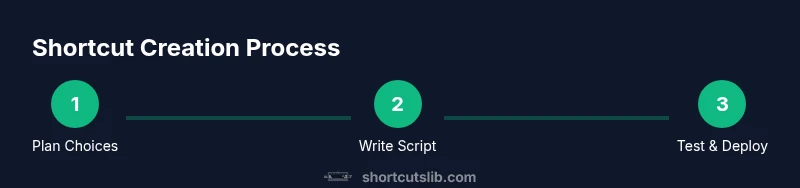
Step 1: Decide the action you want to automate. Step 2: Choose a trigger key combination that won’t conflict with existing shortcuts. Step 3: Write a simple script block. Step 4: Save, reload, and test in a neutral app. Step 5: Expand with conditional logic (per-app contexts) and error handling. This example maps Ctrl+Shift+N to launch Notepad. It illustrates the basic workflow and shows how easy incremental gains can be. Pro tip: start with a simple command and validate it in multiple apps before expanding.
Creating Shortcuts for Common Tasks
Here are practical templates you can adapt. Template A: Open Notepad with Ctrl+Shift+N
^+n:: Run, notepad.exeTemplate B: Launch Chrome with Ctrl+Shift+C
^+c:: Run, "C:\Program Files\Google\Chrome\Application\chrome.exe"Template C: Insert current date into the active field (via AutoHotkey)
^+d::
FormatTime, CurrentDate,, yyyy-MM-dd
SendInput %CurrentDate%
Return
These examples illustrate a practical starting point for automating common desktop tasks.
Managing Shortcuts Across Apps and Contexts
Shortcuts often need scoping. Use #If to limit a hotkey to a specific window class or program. For example:
#IfWinActive ahk_class Chrome_WidgetWin_1
^!t:: Run, notepad.exe
#IfWinActive
This ensures your hotkeys don’t fire in the wrong app and avoids accidental data loss. Consider implementing per-application groups for critical workflows to reduce conflicts and maintain a predictable user experience. When collaborating, share the same script structure with comments and clear naming so teammates can extend safely.
Troubleshooting and Debugging Shortcuts
Not every script works on the first run. Start with small, isolated tests and add logging through MsgBox or ToolTip to verify triggers. Check for typos, ensure the script is loaded at startup or run manually, and watch for conflicting shortcuts from the OS or other software. If a shortcut stops working after an update, re-check the window focus or app-specific blocks. Keep a changelog of edits so you can revert quickly if something breaks.
Best Practices and Accessibility Considerations
Choose mnemonic, non-conflicting hotkeys that are easy to reach with one hand. Favor combinations that are easy to remember and don’t clash with system shortcuts like Alt+Tab or Windows key shortcuts. Document each shortcut’s purpose, owner, and date of creation. For accessibility, provide an alternative path to essential actions for users who can’t memorize shortcuts, and consider color-coded or high-contrast prompts when using on-screen notifications.
Real-World Case Studies and Template Shortcuts
Automating repetitive data-entry tasks: a designer mapped Ctrl+Shift+D to duplicate the current selection and insert into a project file. A programmer used Ctrl+Shift+L to toggle a local snippet tool. A writer set up Ctrl+Alt+S to insert a canned response in email templates. These templates show how to apply the same approach to different workloads. Start by listing your top 5 tasks, then implement one shortcut per day to build momentum and confidence. The Shortcuts Lib team recommends starting with conservative defaults and expanding gradually.
Tools & Materials
- AutoHotkey (Windows)(Free, open-source scripting language for hotkeys)
- PowerToys (Microsoft)(Optional for quick remaps and macro-like commands)
- Text editor (Notepad++, VS Code, etc.)(Edit and organize script files with syntax highlighting)
- Backup method (cloud or local)(Back up scripts before editing or sharing)
- Testing environment (stable apps for validation)(Test shortcuts in non-critical apps before broad use)
Steps
Estimated time: 45-60 minutes
- 1
Identify target workflows
List the actions you perform most often and choose tasks that repeat across sessions. Prioritize those that save the most time and reduce context switching.
Tip: Capture a few concrete tasks and quantify the potential time saved. - 2
Choose a tool
Decide between AutoHotkey for deep scripting or PowerToys for quick remapping. Start with one tool to avoid fragmentation.
Tip: Begin with a simple, universal shortcut before adding complexity. - 3
Write your first hotkey script
Create a minimal script that maps a keystroke to a single action (e.g., open Notepad). Save with .ahk and run to test.
Tip: Comment your code to keep it readable for future updates. - 4
Test in a safe environment
Run the script in a neutral app to verify behavior and avoid accidental data changes. Note any conflicts with OS shortcuts.
Tip: Use a test document or a dummy project for testing. - 5
Reload and validate
Reload the script after edits and confirm the hotkey triggers as expected across apps.
Tip: Use a simple notification (MsgBox) to confirm activation during testing. - 6
Expand with more shortcuts
Add one or two new shortcuts per session, documenting their purpose and scope.
Tip: Maintain a changelog to track evolution and avoid regressions. - 7
Scope shortcuts per app/context
Use context-sensitivity (e.g., #IfWinActive) to avoid conflicts and unintended actions.
Tip: Limit global shortcuts to critical tasks only. - 8
Document, backup, and maintain
Store scripts in a versioned location and keep backups. Schedule periodic reviews to prune or adjust older shortcuts.
Tip: Create a living document listing owners and dates of changes.
Questions & Answers
What is the best tool to start making PC shortcuts?
For most beginners, AutoHotkey offers the most flexibility and growth potential. PowerToys provides simpler remaps for quick wins. Start with one tool and scale as your needs evolve.
AutoHotkey is usually best for flexibility; PowerToys is great for quick remaps. Start with one tool and then add as needed.
Do I need admin rights to create shortcuts on Windows?
Creating and running custom shortcuts typically does not require administrator privileges. Installing AutoHotkey or PowerToys may require an admin account on some systems, depending on IT policies.
Installing the tools might require admin rights on some machines, but using created shortcuts usually does not.
Can I share shortcuts with others?
Yes. Export scripts and share them with teammates. Use a common directory and document usage guidelines to ensure consistent behavior across devices.
You can share scripts by exporting them and keeping a shared folder with usage notes.
How can I avoid breaking existing shortcuts?
Plan with a registry of current shortcuts, test new ones in isolation, and scope them with window rules so they don’t override system or app shortcuts.
Test new shortcuts in isolation and scope them to specific apps to avoid conflicts.
Is it safe to run scripts from the internet?
Only use scripts from trusted sources and review the code before running. Keep backups and maintain version control for changes.
Only run scripts from trusted sources and review them first.
How should I backup and maintain shortcuts?
Store scripts in a versioned repository or local backup. Document changes, owners, and dates, and schedule periodic reviews to prune outdated shortcuts.
Keep backups in a versioned folder and document all changes.
Watch Video
Main Points
- Identify top tasks to automate.
- Choose a single tool to start and stay consistent.
- Test thoroughly across apps before full adoption.
- Document, back up, and review shortcuts regularly.
- Expand gradually to maintain reliability.