Gmail Keyboard Shortcuts Not Working: Troubleshooting Guide
Discover why Gmail keyboard shortcuts aren’t working and follow a practical troubleshooting guide to restore fast composing, navigation, and search across desktop browsers.


Gmail keyboard shortcuts not working is usually caused by the feature being disabled in Gmail settings or by a browser extension intercepting keystrokes. Start by turning Keyboard shortcuts on in Gmail Settings, then refresh. If it still fails, disable extensions one by one to identify a conflict, and confirm your browser and OS language/layout match your keyboard.
What to know about gmail keyboard shortcuts not working
Gmail keyboard shortcuts not working is usually a sign that either the shortcut feature is disabled in Gmail or something in your browser is intercepting keystrokes. According to Shortcuts Lib, the quickest path to recovery is a small, repeatable checklist that you can perform in less than five minutes. Keyboard shortcuts enable rapid composing, archiving, searching, and navigation, but they only work when Gmail is loaded in focus and the feature is turned on in Settings. If you see no response to keystrokes, start by confirming the toggle is on, then reload Gmail, and finally check for extensions that might be stealing keyboard focus. This approach keeps you in control and minimizes guesswork.
Common causes at a glance
- Keyboard shortcuts disabled in Gmail settings: If the toggle is off, no keystroke will trigger Gmail actions.
- Active browser extensions capturing or blocking keys: Ad blockers, Grammarly, password managers, or productivity tools can steal focus.
- The Gmail tab is not focused: If you’re typing in another application or the browser is on a different tab, shortcuts won’t register.
- Non-US keyboard layout or input language mismatch: Gmail's default shortcuts assume a US keyboard; other layouts can shift keys.
- Conflicting OS or browser shortcuts: System-wide shortcuts can override Gmail shortcuts, depending on the active window and OS behavior.
Enablement checks in Gmail settings
The first thing to verify is whether Keyboard shortcuts are turned on in Gmail. Navigate to Gmail, click the gear icon, choose See all settings, and in the General tab find Keyboard shortcuts. Set it to On, then save changes and reload Gmail. Test a handful of common actions: press C to compose, / to focus search, J/K to move through messages, and X to select. If nothing happens, proceed to the next checks. Remember: shortcuts only work while the Gmail tab is active and the page is fully loaded. This step is the fastest fix and often resolves the issue without touching any extensions.
Detect conflicting browser extensions
Many shortcuts are interrupted by extensions that monitor keystrokes or inject their own shortcuts. Start by disabling extensions that commonly affect input, such as ad blockers, Grammarly, password managers, or productivity tools. Reload Gmail after each disable to test shortcuts. If shortcuts begin to work, re-enable extensions one by one to identify the culprit. If you use corporate or school-managed devices, group policy or enterprise security software may also interfere; consult IT if you suspect this is the case.
Keyboard layout and language matters
Keyboard shortcuts rely on the standard US layout. If your computer uses a non-US layout or a different input language, keys may map differently. Check your OS language settings and switch to English (US) temporarily to test. In Windows, open Settings > Time & language > Language, and add English (United States); in macOS, go to System Settings > Keyboard > Input Sources and add/activate US. After testing, return to your preferred layout and recheck Gmail shortcuts.
Focus and modal dialogs
Make sure the Gmail tab is active and no modal dialog or pop-up is focused. If a modal window is open (for example, a permission prompt or settings panel), keystrokes may be captured by the modal itself or the browser. Dismiss or complete any prompts, then try the shortcuts again. If you use multiple monitors, ensure the Gmail window is on the active screen. This step prevents keystrokes from being ignored due to focus issues.
Quick diagnostic flow in practice
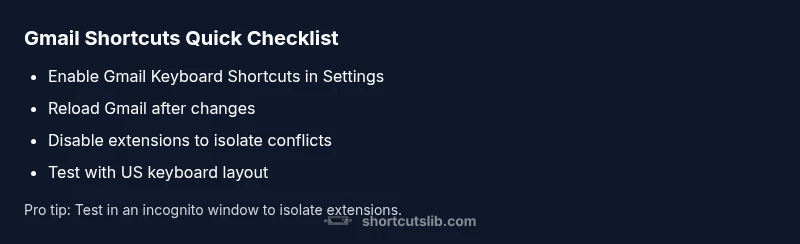
If you still see no response after the above checks, run a quick test: (1) enable Gmail shortcuts, (2) reload, (3) try 4–5 core shortcuts (C, /, J, K, X), (4) disable the top one or two extensions you suspect, (5) switch to a US keyboard layout for a moment. By isolating variables this way, you can spot whether the problem is local to Gmail settings, an extension, or your keyboard.
Steps
Estimated time: 15-25 minutes
- 1
Open Gmail settings and enable shortcuts
Navigate to Gmail > Settings > See all settings > General. Set Keyboard shortcuts to On and save. Then refresh Gmail and test C, /, J, K, and X.
Tip: This is the fastest fix; test immediately after saving. - 2
Reload and test a subset of shortcuts
Reload the Gmail tab and try a small set of actions like C (compose) and / (search). Confirm whether any response occurs.
Tip: Make sure you are focused on the Gmail tab. - 3
Disable extensions to isolate conflicts
Disable extensions one by one, starting with ad blockers and Grammarly. Reload Gmail after each change and test shortcuts again.
Tip: If shortcuts start working, the last disabled extension is the culprit. - 4
Check keyboard layout and language
Verify the OS layout matches US keyboard for testing. Change to English (US) temporarily, then retest Gmail shortcuts.
Tip: If your layout differs, map keys accordingly. - 5
Test in an incognito/private window
Open a private window and sign into Gmail to test shortcuts with extensions disabled by default.
Tip: A clean session helps confirm extension-related issues. - 6
Ensure focus and dismiss prompts
Close any modal prompts or permission requests; confirm the Gmail page is the active window before testing again.
Tip: Modal dialogs steal focus and block keystrokes. - 7
If still failing, reset Gmail settings
As a last resort, reset Gmail settings to default and re-enable Keyboard shortcuts.
Tip: Keep a log of any changes for reversibility. - 8
Escalate if needed
If none of the steps resolve the issue, contact your IT admin or Gmail support with your diagnostics.
Tip: Document affected shortcuts and steps taken.
Diagnosis: Gmail keyboard shortcuts not working
Possible Causes
- highKeyboard shortcuts are turned off in Gmail settings
- highA browser extension intercepts or blocks keystrokes
- highThe Gmail tab is not currently focused
- mediumNon-US keyboard layout or language mismatch
- lowOS/browser shortcuts conflict with Gmail
Fixes
- easyEnable Keyboard Shortcuts in Gmail Settings and reload the page
- easyDisable extensions one by one to identify the conflict
- easyEnsure the Gmail tab is focused and no modals are blocking input
- easyTest with a US keyboard layout to rule out layout mismatch
- easyTest in an incognito window to isolate extensions
Questions & Answers
What are Gmail shortcuts?
Gmail shortcuts are keystrokes that perform common actions like composing, archiving, searching, and navigating messages. They speed up email workflows when enabled in Settings.
Gmail shortcuts are quick keyboard actions that speed up email tasks in Gmail.
Enable Gmail shortcuts?
To enable, go to Gmail Settings > General > Keyboard shortcuts and switch On, then save and reload Gmail to test.
Turn on Gmail shortcuts in settings and test them after reloading.
Browser support for shortcuts?
Gmail shortcuts generally work across modern browsers, but extensions and layout settings can disrupt them. Test in a clean browser profile if issues persist.
Most browsers support Gmail shortcuts, but extensions may block them.
Extensions causing conflicts?
Extensions like ad blockers or Grammarly can intercept keystrokes. Disable them one by one to identify the culprit.
Extensions can block shortcuts; try disabling them to diagnose.
Non-US keyboard layout issue?
If you use a non-US layout, keys may map differently. Temporarily switch to US layout to test and compare results.
Layout differences can affect shortcuts; test with US layout.
Watch Video
Main Points
- Enable Gmail shortcuts in Settings first.
- Disable extensions to quickly find conflicts.
- Test keyboard layout and tab focus during troubleshooting.
- Use an incognito window to isolate variables.
- If unresolved, escalate with a concise diagnostics summary.