How to Access Keyboard Shortcuts in Gmail
Learn how to access and use Gmail keyboard shortcuts to speed up email workflows. Enable shortcuts, view the full list, and apply core keys for composing, navigating, labeling, and searching.


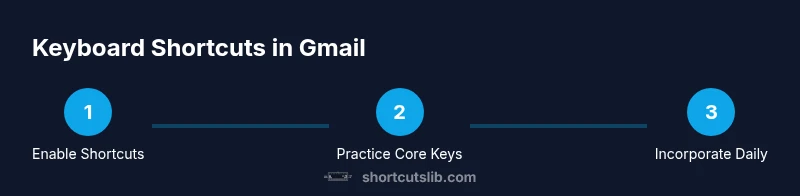
If you’re wondering how to access keyboard shortcuts in Gmail, the fastest path is to enable them in Settings and then view the full list of mappings. On the web, you can use core keys like C to compose, / to search, and J/K to move between conversations. By enabling shortcuts and practicing a few essentials, you’ll streamline daily email tasks quickly. See details below for a step-by-step plan.
Quick Start: Accessing Gmail Shortcuts
According to Shortcuts Lib, mastering keyboard shortcuts in Gmail starts with turning them on in the web settings. This unlocks a powerful, hands-on way to manage mail without leaving the keyboard. If you primarily use Gmail on a desktop, enabling shortcuts is a quick one-time task, followed by deliberate daily use to build fluency. The goal is to reduce mouse clicks and context switching, letting you compose, search, archive, and label messages with minimal effort. In practice, many users report faster triage and quicker responses after a short learning period. This section lays out the practical steps to get you from zero to a productive shortcut workflow. You’ll learn where to find the option, how to enable it, and how to begin integrating shortcuts into your daily email routine. By investing a small amount of time now, you can reap meaningful efficiency gains over weeks of consistent use.
To satisfy productivity needs, the Shortcuts Lib team notes that a focused starter set beats trying to memorize everything at once. Start with a handful of actions you perform daily, then expand as you gain confidence. The path to fluency is iterative: practice, reflect on which tasks become faster, and add new shortcuts gradually. This approach keeps you from feeling overwhelmed while still delivering measurable gains as you accumulate muscle memory.
Tools & Materials
- Computer or laptop with Gmail access(Stable internet connection; supported browsers: Chrome, Edge, Firefox)
- Notes app or cheat sheet(Optional quick-reference for the core shortcuts you adopt)
- Optional external keyboard(Helpful if you want a tactile feel for frequent keys)
Steps
Estimated time: 15-25 minutes
- 1
Open Gmail Settings
Navigate to Gmail in your web browser, click the gear icon in the upper-right corner, and select 'See all settings' to access the full settings panel.
Tip: If the menu is slow to respond, refresh the page and try again. - 2
Enable Keyboard Shortcuts
In the General tab, locate Keyboard shortcuts and switch them to 'on'. Scroll to the bottom and click 'Save Changes' to apply.
Tip: Enable on all devices you commonly use for consistency. - 3
Learn the Quick Help
Press the question mark key (?) while Gmail is in focus to view the comprehensive shortcuts cheat sheet.
Tip: Keep this cheat sheet open only while you’re still practicing; close it when you’re comfortable. - 4
Start with a Core Set
Begin with essential actions: compose, search, navigate between conversations, and archive. Use these to build initial fluency before expanding.
Tip: Pick 5–6 shortcuts and practice them for a week. - 5
Practice in a Safe Inbox
Apply shortcuts on non-critical messages first to avoid accidental deletions or mislabeling during learning.
Tip: Turn on a daily 10-minute practice session. - 6
Expand Gradually
As comfort grows, add more shortcuts for labeling, moving conversations, and quick actions like muting or starring.
Tip: Keep a short personal cheat sheet for the new mappings you adopt.
Questions & Answers
What are Gmail keyboard shortcuts and how do I access them?
Gmail keyboard shortcuts are quick keys that let you perform common tasks without touching the mouse. You enable them in Settings > See all settings > Keyboard shortcuts, then use the on-screen cheat sheet or press ? for the full list.
Gmail keyboard shortcuts are quick keys that speed up mail tasks. Turn them on in settings and press the question mark for the full list.
Can I customize Gmail keyboard shortcuts?
Gmail does not let you remap the individual keys themselves. You can enable or disable shortcuts and tailor your workflow by choosing which actions to memorize and practice. Some users create personal cheat sheets for their most-used mappings.
You can enable shortcuts and tailor your workflow by focusing on the actions you memorize; you can’t remap the keys themselves.
Do keyboard shortcuts work on the Gmail mobile app?
Keyboard shortcuts are primarily designed for the Gmail web interface and are not fully supported on mobile apps unless you’re using a hardware keyboard with your device. Most mobile workflows rely on touch gestures.
Shortcuts work best on the web; mobile apps may support limited hardware keyboard use if available.
How do I see the full list of shortcuts?
Press the question mark key (?) while in Gmail to view the full shortcuts cheat sheet, or go to Settings > See all settings > Keyboard shortcuts to review mappings.
Press ? to see the full list, or check Settings for the official shortcuts.
What should I do if shortcuts aren’t working?
First, confirm that keyboard shortcuts are enabled in Settings. If they still don’t work, reload Gmail, disable any conflicting browser extensions, or try an incognito window to rule out interference.
Ensure shortcuts are enabled, reload Gmail, and check for extensions or conflicts if they don’t respond.
Watch Video
Main Points
- Enable Gmail keyboard shortcuts to unlock faster actions.
- Start with 5 core shortcuts and build over time.
- Use the ? cheat sheet to learn new mappings.
- Practice daily in a safe inbox to build fluency.
- Keep a quick reference to maintain consistency across devices.