Can You Create a Custom Keyboard Shortcut in Gmail? A Step-by-Step Guide
Learn practical methods to create custom Gmail keyboard shortcuts using browser extensions or system tools. This Shortcuts Lib guide covers setup, use cases, and troubleshooting.


Yes, you can create a custom keyboard shortcut in Gmail, but not directly inside Gmail. Use a browser extension like Shortkeys (Chrome) to map a keystroke to a Gmail action, or rely on an OS-level tool (AutoHotkey on Windows or Keyboard Maestro on macOS) for cross-app shortcuts. Shortcuts Lib notes that extensions are the most reliable route for Gmail workflows.
Can you create a custom keyboard shortcut in Gmail? A reality check
If you’re wondering can you create a custom keyboard shortcut in Gmail, the short answer is: not natively within Gmail itself. Gmail exposes a set of built-in shortcuts that you can enable or disable, but it does not provide a user-facing option to add entirely new commands. For most users, the practical path is to map existing Gmail actions to a preferred keystroke using a browser extension or system automation tool. According to Shortcuts Lib, the most efficient Gmail workflow improvements come from customizing shortcuts through trustworthy extensions and careful mapping, rather than trying to bend the Gmail UI to your will.
In this guide we’ll walk through reliable approaches, real-world examples, and steps you can follow today to unlock faster email triage without sacrificing accuracy or accessibility.
Approaches to adding custom shortcuts: extensions vs OS-level tools
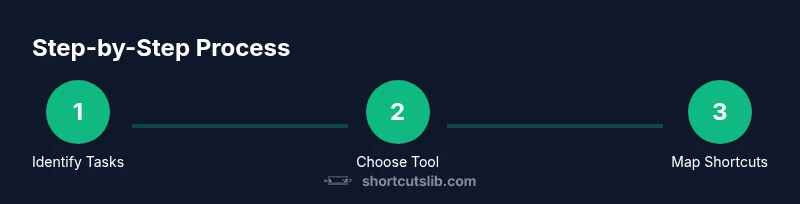
There are two main routes to creating custom Gmail shortcuts: browser extensions and OS-level automation tools. Browser extensions like Shortkeys for Chrome let you map a key combination to specific Gmail actions (Compose, Archive, Reply, etc.) within the browser context. OS-level tools such as AutoHotkey on Windows or Keyboard Maestro on macOS let you trigger Gmail actions from outside the browser, or coordinate actions across apps. The choice depends on where you want the shortcut to work (browser tab only vs across the system), how portable you need it to be, and how much you value cross-device consistency. Shortcuts Lib’s guidance emphasizes starting with a browser extension for Gmail-centric workflows, then adding OS-level automation if your tasks span multiple apps.
Example mappings you can implement with a Chrome extension
With a browser extension, you can map keys to common Gmail actions such as:
- Open the compose window
- Archive or delete a message
- Reply or forward an email
- Move a thread to a label These mappings save keystrokes and keep your hands on the keyboard, but they require careful planning to avoid conflicts with existing browser shortcuts. A well-documented mapping also helps teammates reproduce your setup, which is consistent with best practices from Shortcuts Lib.
Real-world use cases: mapping for speed and accuracy
People often map shortcuts to daily tasks like composing a new message, replying to important threads, or archiving messages that are no longer actionable. For collaborative teams, consistent shortcuts reduce onboarding time for new members and improve throughput for customer support or sales workflows. When planning these mappings, consider common Gmail workflows (inbox zero, triage, follow-ups) and align your shortcuts to those tasks. Keep action labels intuitive (e.g., Ctrl+G for “Compose” or Ctrl+Shift+A for “Archive”).
Accessibility and safety considerations
Keyboard shortcuts should enhance, not hinder, accessibility. Ensure mappings don’t conflict with assistive technology shortcuts or operating system hotkeys. Use clear, memorable keystrokes and provide a quick reference so anyone using the setup can learn and adapt quickly. If you rely on extensions, review permission requests and keep extensions up to date to minimize security risks.
Troubleshooting and best practices
If a shortcut stops working after a Gmail update, check the extension’s settings for updated Gmail selectors or new UI elements. Test mappings in a new browser profile to rule out profile-specific conflicts. Document each mapping with its purpose and the exact keystroke so others can audit or replicate your setup. Regularly back up extension configurations to prevent loss after updates.
Tools & Materials
- Chrome or your preferred browser(Essential for installing extensions like Shortkeys.)
- Shortkeys (Chrome extension) or equivalent(Maps keystrokes to Gmail actions within the browser.)
- Gmail account(Use a dedicated test inbox before production mappings.)
- OS-level automation tool (optional)(AutoHotkey (Windows) or Keyboard Maestro (macOS) for cross-app mappings.)
- Documentation or mapping cheat sheet(Helps teammates learn and reuse the shortcuts.)
Steps
Estimated time: 15-30 minutes
- 1
Install a keyboard shortcut extension
Install Shortkeys for Chrome (or your preferred extension) and grant it the necessary permissions to interact with Gmail pages. This establishes the tooling needed to create custom mappings.
Tip: Choose a well-supported extension with clear documentation and a known user base. - 2
Enable extension and Gmail permissions
Activate the extension, enable Gmail as a target page, and ensure it can read the Gmail UI to trigger actions correctly.
Tip: Test with a simple action first, like opening the compose window. - 3
Decide which Gmail actions to map
List the most frequent tasks (Compose, Archive, Reply, Snooze) you perform in Gmail and prioritize those for mapping.
Tip: Limit to a handful of high-value actions to avoid keystroke clutter. - 4
Create a new shortcut for a Gmail action
In the extension’s settings, add a new mapping: your chosen keystroke → the Gmail action (e.g., Open Compose).
Tip: Avoid using common browser shortcuts to prevent conflicts. - 5
Test the shortcut in Gmail
Open Gmail in a new tab and press the mapped keys to verify the action triggers correctly. Adjust timing if needed.
Tip: If it doesn’t work, recheck the extension's target selectors and permissions. - 6
Consider OS-level shortcuts for cross-app workflows
If your workflow spans multiple apps, configure OS-level mappings (AutoHotkey/Keyboard Maestro) to coordinate actions across apps.
Tip: Document cross-app workflows for future maintenance. - 7
Document and share mappings
Create a simple guide listing each shortcut, its action, and the expected result so teammates can adopt your setup.
Tip: Keep the document updated as Gmail UI evolves.
Questions & Answers
Can I create a custom keyboard shortcut in Gmail without extensions?
No. Gmail does not offer a built-in way to create new shortcuts. Extensions or OS tools are required to map actions to keystrokes.
Gmail doesn’t have native shortcut creation; you’ll need an extension or external tool for custom mappings.
Which extension works best for Gmail shortcuts?
Shortkeys for Chrome is a popular choice for Gmail, followed by other keyboard-centric extensions. Choose one with clear Gmail action mappings and good update history.
Shortkeys is a common pick for Gmail shortcuts, but try a couple to see which you prefer.
Will shortcuts work on mobile or only desktop?
Custom keyboard shortcuts typically work in desktop browser environments. Mobile Gmail apps generally do not support desktop keyboard shortcuts.
Mostly desktop-only; mobile apps don’t generally support keyboard shortcuts.
Are there security or privacy concerns with extensions?
Extensions require permissions to read Gmail pages. Review permissions, install from trusted sources, and keep extensions up to date.
Extensions can access your Gmail pages, so use trusted sources and review permissions.
How can I share my shortcuts with teammates?
Export or synchronize extension settings when possible, and provide a short guide detailing each shortcut and its action.
Export settings if the extension supports it, and share a simple guide with your team.
What if a shortcut conflicts with another key?
Change the mapping in the extension or disable the conflicting browser/OS shortcut to avoid clashes.
If there’s a conflict, reassign the key or disable the conflicting shortcut.
Watch Video
Main Points
- Map Gmail actions with extensions, not by altering Gmail itself
- Start with a small, high-value set of shortcuts
- Test thoroughly and document mappings for team use
- Consider OS-level tools only for cross-app workflows