Gmail Keyboard Shortcuts: Enable and Use Hotkeys
Learn how to enable Gmail keyboard shortcuts and customize hotkeys to speed up your email workflow. This guide covers turning on shortcuts, customizing actions, practical tips, and troubleshooting.


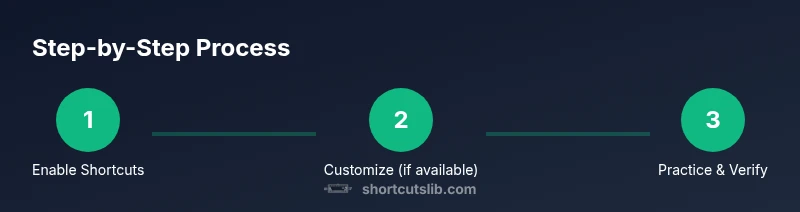
Gmail keyboard shortcuts can be enabled on the web to speed up composing, archiving, searching, and navigating. To start: open Gmail Settings, turn on Keyboard shortcuts, and if available enable Custom keyboard shortcuts. Save changes, then press / to focus search and c to compose for quick actions.
What are Gmail keyboard shortcuts and why use them
Gmail keyboard shortcuts are a set of keystrokes that perform common actions without touching the mouse. They save time and reduce repetitive clicking, letting you manage messages faster. When enabled, you can compose with a single key press, navigate between messages, archive, delete, and search more efficiently. Shortcuts apply across the Gmail web interface on desktop browsers and can be a big boost for power users, data-entry tasks, and anyone who spends hours inbox management. This guide from Shortcuts Lib explains how to turn on the feature and how to practice a few core shortcuts to build muscle memory.
Prerequisites and scope
Before you enable keyboard shortcuts, make sure you are using a supported browser and have a Gmail account you can access on a desktop or laptop. Keyboard shortcuts in Gmail assume you are using the standard web interface; some shortcuts may differ if you are using the new Gmail view or mobile apps. In this guide we cover enabling built-in Gmail keyboard shortcuts and optional custom shortcuts, plus practical examples.
How to enable Gmail keyboard shortcuts
To enable in Gmail, open the gear icon in the top-right corner, choose See all settings, and stay in the General tab. Find Keyboard shortcuts and toggle them On. If you see an option for Custom keyboard shortcuts, enable it to redefine actions. Be sure to save changes at the bottom of the page. After enabling, press Shift+? (or click the help overlay) to view the full shortcuts cheat sheet.
Customizing Gmail shortcuts
Some accounts offer Custom keyboard shortcuts, which lets you map common actions to different keys. If your account shows Custom keyboard shortcuts, turn it on to map actions to preferred keys. If not available, rely on the standard shortcuts that the interface provides. Keep in mind that not every action may have a customizable key, and updates can affect availability.
Common shortcuts cheat sheet for Gmail
Here is practical cheat sheet you can start using today:
- / Focus search
- c Compose new message
- j Next conversation; k Previous conversation
- x Select conversation
- e Archive; # Delete
- r Reply; a Reply all; f Forward
- s Star; ! Mark as important
- g i Go to Inbox; g s Go to Starred; g t Sent
- ? Open shortcuts cheat sheet again
- Shift + ? View the full list
Accessibility considerations and mobile use
Keyboard shortcuts work best on a desktop or laptop with a physical keyboard. On mobile devices, shortcuts are often not available unless you connect a hardware keyboard. For users relying on assistive technology, enable Gmail shortcuts and use the built-in shortcuts list to navigate efficiently. Practice in a quiet environment to avoid mis-typing and mis-presses.
Troubleshooting and edge cases
If shortcuts stop working, verify that Keyboard shortcuts are enabled in Settings, refresh Gmail, and disable any browser extensions that might intercept keys. Ensure you’re using the standard Gmail web interface and not a restricted view. If Custom shortcuts are not available, rely on the default cheat sheet and your practiced actions.
Tools & Materials
- Computer with internet access(Modern browser (Chrome/Edge/Firefox) recommended)
- Active Gmail account(You must be signed in to your Gmail account)
- Web browser(Keep browser up to date for best shortcut support)
- Printable shortcuts cheat sheet (optional)(Print or save for quick reference)
Steps
Estimated time: 15-25 minutes
- 1
Open Gmail settings
Sign in to Gmail. Click the gear icon in the top-right corner and select See all settings to open the General tab. This is where you access the central keyboard shortcut controls.
Tip: Bookmark the settings page for quick access - 2
Enable Keyboard shortcuts
In the General tab, locate Keyboard shortcuts and switch them On to activate built-in shortcuts. If you don’t see this option, reload or try a different supported browser.
Tip: If the option is missing, refresh the page or update your Gmail view - 3
Enable Custom keyboard shortcuts (if available)
If your account shows Custom keyboard shortcuts, turn it on to map actions to preferred keys. Not all accounts expose this feature, and interface updates can affect availability.
Tip: Start with safe mappings to avoid conflicting with browser shortcuts - 4
Save changes
Scroll to the bottom and click Save Changes to apply your preferences. A quick refresh helps ensure changes took effect.
Tip: Check that you can see the on-screen shortcuts cheat sheet after saving - 5
Open keyboard shortcuts help
Use Shift+? to display the complete shortcuts cheat sheet in a popover. This is useful while you practice to recall actions.
Tip: Familiarize yourself with core actions first - 6
Test basic actions in a draft
Create a draft or open a message and try composing with 'c' and searching with '/'. Validate that each action triggers the expected result.
Tip: Testing in a safe draft reduces accidental sends - 7
Practice the most-used shortcuts
Regular practice helps build muscle memory for faster inbox management. Start with 4-6 essential actions and expand over time.
Tip: Consistency beats memorization cramming - 8
Create a personal cheat sheet
Jot down your top shortcuts and print or save the sheet for quick reference during work sessions.
Tip: Refer to the on-screen cheat sheet if unsure
Questions & Answers
How do I enable Gmail keyboard shortcuts?
Go to Gmail Settings > General > Keyboard shortcuts, turn them on, and save. If available, enable Custom keyboard shortcuts.
Enable Gmail keyboard shortcuts from Settings, then try a few actions to verify.
Can I customize individual shortcuts in Gmail?
Some accounts allow customization via Custom keyboard shortcuts. If not visible, rely on the default set.
Customization depends on your account and interface.
Do Gmail shortcuts work on mobile?
Shortcuts rely on a keyboard and may not work on mobile Gmail apps unless using a hardware keyboard.
On mobile, shortcuts usually require a physical keyboard.
What if shortcuts stop working?
Check that Keyboard shortcuts are enabled, refresh Gmail, and disable conflicting browser extensions.
Ensure shortcuts are on and extensions aren’t intercepting keys.
Are shortcuts available in the new Gmail interface?
Shortcut behavior can vary with UI updates. Check the official help center for the latest guidance.
Refer to Gmail’s help center for current shortcut details.
Watch Video
Main Points
- Enable Gmail shortcuts to speed up tasks.
- Keep a quick-reference sheet and review weekly.
- Use core shortcuts like c, /, e, and j/k daily.
- Customization may vary by account and interface.