Enable Gmail Keyboard Shortcuts: A Practical Step-by-Step Guide
Learn to enable Gmail keyboard shortcuts to speed up composing, searching, and navigating. This comprehensive guide covers setup, testing core keys, troubleshooting, and practical usage, with insights from Shortcuts Lib to help you work faster.


Goal: enable Gmail keyboard shortcuts to speed up composing, searching, and navigating. According to Shortcuts Lib, the fastest path is to turn on Keyboard Shortcuts in Gmail settings, then save. You only need a Gmail account and internet access. This quick guide walks you through toggling the feature and testing common keys like C to compose, / to search, and G then I to reach Inbox.
Why keyboard shortcuts dramatically speed up Gmail workflows
In the modern email routine, the fastest way to move through your inbox is by using keyboard shortcuts. They cut mouse reliance, reduce context-switching, and let you stay focused on messages. According to Shortcuts Lib, enabling shortcuts in Gmail is a simple, low-friction change that yields immediate returns for power users and occasional users alike. Once turned on, you can compose, archive, search, and navigate without leaving the keyboard, which is especially valuable when you have dozens or hundreds of messages each day. This section explains the core benefits and sets expectations for what you can achieve once shortcuts are enabled. Expect to save seconds per action, which compounds into minutes per session and hours over weeks.
How Gmail shortcuts boost efficiency across common tasks
Shortcuts are context-aware: some actions apply to the message list, others to the compose pane, and others to search results. For example, you can press C to start a new message, / to focus the search, and G then I to move to the Inbox. Keyboard navigation makes it easier to triage messages, label important conversations, and respond quickly to urgent emails. For teams relying on filters, shortcuts enable rapid labeling and archiving. For students or researchers, efficient searching reduces time spent scrolling. The key is to practice consistently so that the shortcuts become second nature and accelerate your daily workflow.
Prerequisites and environment you need before enabling shortcuts
To enable Gmail shortcuts, you only need a Gmail account and an internet connection. The steps work on desktop browser interfaces and are largely consistent across platforms; mobile apps may offer a subset of shortcuts. Ensure your browser is up to date, and you’re signed into the account where you want to enable shortcuts. If you manage multiple Gmail profiles, enable shortcuts on the primary account to avoid cross-profile confusion. Having a simple backup plan (like a notes file with your most-used keys) can help during the learning phase.
Locating the Keyboard Shortcuts setting in Gmail
Open Gmail, click the gear icon in the upper-right corner, and choose See all settings. In the General tab, scroll to Keyboard shortcuts. You will see an On/Off toggle. If the option isnt appear, switch to a full desktop view, refresh the page, or try a different browser. This is the point where you decide whether to enable shortcuts for your workflow. Enabling them unlocks a broad set of commands across the interface.
Enabling and saving: step-by-step actions
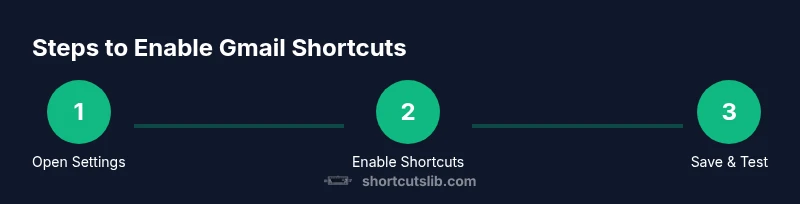
- Turn on Keyboard shortcuts in the General settings. 2) Scroll to the bottom and click Save Changes. 3) Refresh Gmail to ensure changes take effect. 4) Confirm shortcuts are active by testing core actions, such as C to compose and / to focus the search field. 5) If necessary, revisit the settings to toggle off and re-test. 6) Use the on-screen cheat sheet by pressing ? to learn more shortcuts. 7) Practice daily to build muscle memory.
tip_1_pro_tip1_KeepItSimple_KeyTip_1:
]},
Tools & Materials
- Gmail account(Active account you want to configure shortcuts for.)
- Desktop or laptop with internet(Keyboard-focused workflow performs best on a stable connection.)
- Modern web browser (Chrome/Edge/Firefox/Safari)(Ensure it is up to date for best compatibility.)
- Mobile device (optional)(Some shortcuts are limited or unavailable on mobile apps.)
- Personal shortcuts cheat sheet (optional)(Keep a quick reference handy during learning.)
Steps
Estimated time: 5-10 minutes
- 1
Open Gmail settings
Click the gear icon in the top-right corner of Gmail and select See all settings to land in the General tab. This is where shortcuts can be toggled on or off.
Tip: Use the gear icon for a fast path to settings. - 2
Enable Keyboard Shortcuts
In the General tab, locate Keyboard shortcuts and switch it to On. This is the core action that activates the entire shortcut system.
Tip: If you don’t see the option, refresh or try a different browser. - 3
Save changes
Scroll to the bottom of the page and click Save Changes. This ensures Gmail applies the new shortcut configuration.
Tip: Always confirm you see a confirmation message after saving. - 4
Reload Gmail
Refresh the page to apply the new setting cleanly and ensure shortcuts are active in the current session.
Tip: A quick refresh helps prevent stale UI states. - 5
Test core shortcuts
Press C to compose a new message, / to focus the search box, and j/k to navigate conversations. Check that these actions perform as expected.
Tip: If a key doesn’t respond, re-check Step 2 and re-save. - 6
View the shortcut cheat sheet
In Gmail, press ? to open the shortcuts cheat sheet. Use it to learn all available keys and try adding a new one to your routine.
Tip: A quick reference saves time during busy days. - 7
Practice daily
Spend a few minutes each day using shortcuts in real tasks. Consistency builds proficiency far faster than long, intermittent sessions.
Tip: Short, focused practice beats long, infrequent sessions.
Questions & Answers
Can Gmail shortcuts be used on mobile devices?
Shortcuts on Gmail are primarily designed for the web interface on desktop or laptop. Some features may be limited or unavailable on mobile apps. If you mainly use a mobile device, expect a reduced shortcut experience and consider focusing on the available in-app gestures.
On mobile, shortcut support is limited; you’ll mostly rely on touch gestures and in-app controls.
What keys are available by default in Gmail shortcuts?
Common defaults include C for compose, / to focus search, j/k to move through conversations, and e to archive. Press ? to view the full cheat sheet and see which keys are active in your current locale and Gmail version.
The standard set includes compose, search, navigation, and archive—check the full list with the cheat sheet.
How do I view the keyboard shortcuts cheat sheet?
Press the question mark key ? when the Gmail web interface is in focus to reveal the shortcuts cheat sheet. It lists all available commands and their actions for quick reference.
Press ? to open Gmail’s shortcuts cheat sheet and learn the full commands.
What should I do if shortcuts stop working after a settings change?
First re-open Settings and re-enable Keyboard shortcuts, then Save Changes and reload Gmail. If problems persist, disable browser extensions that may conflict with keyboard input and clear your cache.
If shortcuts stop working, re-enable the feature, then try a fresh browser session to rule out conflicts.
Are Gmail shortcuts customizable or can I rebind keys?
Gmail’s built-in shortcuts cannot be customized directly in the web interface. You can learn and adapt to the available keys, or use browser extensions that complement Gmail workflows while avoiding conflicts.
Gmail doesn’t let you rebind keys directly; stick with the default set or use extensions carefully.
Do shortcuts work when I’m searching or labeling emails?
Yes. Shortcuts extend to actions like searching, labeling, archiving, and navigating results. Use the cheat sheet to identify exact keys for your most frequent tasks.
Shortcuts apply to both email lists and search results, speeding up common actions.
Watch Video
Main Points
- Enable Gmail shortcuts via Settings to unlock faster actions
- Learn core keys: C, /, j, k, and ? for cheat sheet
- Test shortcuts in real tasks to build fluency
- Keep a cheat sheet handy during learning
- Review and adjust settings if shortcuts stop working