Keyboard Shortcuts to Turn Off Your Computer: A Practical How-To
Master keyboard shortcuts to turn off your computer across Windows, macOS, and Linux. This educational guide covers desktop shortcuts, terminal power-off commands, safety tips, and best practices to shut down quickly and safely.


You can shut down a computer quickly using keyboard shortcuts tailored to your operating system. This guide covers Windows, macOS, and Linux, showing desktop shortcuts and safe shutdown sequences. For example, on Windows you can use Alt+F4 on the desktop, on Mac use Ctrl+Option+Cmd+Power (or Eject on older models), and Linux users can open a terminal and power off with a command.
Why Keyboard Shortcuts to Turn Off Your Computer Matter
In the world of keyboard-driven workflows, knowing how to shut down quickly without navigating menus saves time, reduces repetitive clicks, and lowers the risk of leaving programs running in the background. For professionals who rely on fast, reliable power management, a few well-chosen hotkeys can streamline end-of-session routines and ensure data integrity. According to Shortcuts Lib, consistent use of keyboard shortcuts for power-off tasks helps users build muscle memory and reduces cognitive load during stressful moments. This knowledge is especially valuable for multi-OS environments, where consistency across Windows, macOS, and Linux minimizes mistakes. While there is no universal one-key shutdown, a handful of platform-specific keystrokes, complemented by safe confirmation steps, provides predictable outcomes. The goal is to shut down safely, quickly, and with minimal data loss, without sacrificing system stability or user awareness.
Understanding OS-Specific Shutdown Shortcuts at a Glance
Different operating systems offer distinct paths to power off via keyboard. The Windows ecosystem often relies on desktop-based commands, macOS emphasizes keyboard sequences that trigger the shutdown dialogs, and many Linux environments provide terminal-driven power-off options or desktop shortcuts. Across all platforms, the safest practice is to save work first, close active applications, and then initiate a shutdown sequence using keyboard inputs. In this section, we’ll map the most reliable workflows to help you memorize a concise shutdown routine that you can perform without hunting through menus.
Windows: Desktop Shutdown Using Alt+F4
On a Windows desktop, the most straightforward keyboard path to a shutdown dialog is to ensure the desktop is focused and press Alt+F4. If a window is focused, Alt+F4 will close that window; when the desktop is focused, it opens the shutdown dialog. This single action should be followed by selecting the Shutdown option and pressing Enter. If you see Sign out instead of Shutdown, use the Tab and Arrow keys to navigate to the Shutdown option, then press Enter. Keep in mind that this approach requires an unused desktop context; it is the quickest keyboard-based method for most Windows users who prefer not to navigate through start menus.
Windows: Completing the Shutdown Sequence
After the shutdown dialog appears, you can confirm with Enter or use the arrow keys and Enter to select Shutdown. Some configurations may expose additional prompts, such as Update and Shut Down or Restart options. In those cases, you can use the Tab key to cycle through options and the Spacebar to select. If your system is configured to delay shutdown for updates, you’ll see a countdown; waiting a full cycle will complete the process. As a safeguard, consider enabling a short timeout for your shutdown to catch interrupted work abruptly.
macOS: Keyboard-Only Shutdown Techniques
Mac users have a couple of robust keyboard routes depending on their hardware. If your Mac has a dedicated power button, you can press and hold the power button to shut down, but a faster, officially supported method on newer systems is Control+Option+Command+Power. If your device includes an Eject key, Control+Option+Command+Eject is the recognized combo. These shortcuts trigger the shutdown sequence, and you’ll typically be prompted to confirm the shutdown before the system powers down. As with Windows, ensure all applications are closed or that unsaved work is saved before initiating the shutdown, to prevent data loss.
Linux: Keyboard Shortcuts and Terminal Power-Off
Linux environments vary by desktop environment and distribution, but many provide keyboard-initiated shutdown options similar to Windows/macOS. A common and reliable approach is to open a terminal with Ctrl+Alt+T and issue a power-off command such as sudo poweroff or sudo shutdown now. If you’re using a graphical session, you may also access a shutdown dialog via a desktop shortcut or menu, then select Shutdown with Enter. For safety, avoid closing critical processes and save work before issuing a command that powers down.
Safe Practices: Saving Work and Verifications
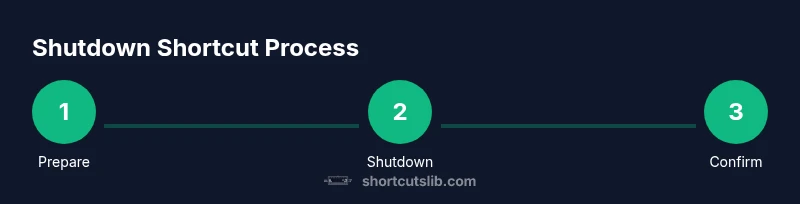
Regardless of OS, the safest shutdown habit is to save all work and close applications before triggering a shutdown shortcut. If you’re in a rush, use a lightweight sequence: (1) Save and close, (2) Press the appropriate shutdown trigger, (3) Confirm if prompted. Always verify that background tasks aren’t writing data, and if you have unsaved documents, use the shutdown cancellation option only if you really need to delay the process. This approach helps prevent data loss and ensures a clean shutdown.
Accessibility and Reliability: Ensuring Shortcuts Work Across Devices
To maintain reliability across devices, keep your keyboard layout consistent and avoid relying on uncommon keys. If you use multiple machines, memorize one universal approach per OS: Windows desktop Alt+F4, macOS dedicated power/eject shortcuts, and Linux terminal-based commands. Consider documenting your preferred method in a quick reference so you can act quickly during late sessions or when multitasking. Also verify that your hardware power button works correctly, as physical buttons can serve as a fallback when keyboard shortcuts fail.
Tools & Materials
- Computer (Windows/macOS/Linux)(Ensure all important work is saved; be aware of OS-specific shutdown sequences.)
- Keyboard(Standard layout; avoid nonstandard key mappings that could disrupt shortcuts.)
- Admin access (optional)(Some Linux/macOS commands may require elevated privileges.)
- Power source(Plug in if battery is low to prevent mid-shutdown power loss.)
Steps
Estimated time: 15-25 minutes
- 1
Prepare to shut down
Save all work, close any critical apps, and ensure you’ve saved documents in cloud storage if applicable. This minimizes data loss and avoids interrupting tasks during the shutdown process.
Tip: Use a quick checklist on screen to verify essential files are saved before initiating shutdown. - 2
Trigger Windows shutdown via desktop
With the desktop focused, press Alt+F4 to open the shutdown dialog. If the focus is on a window, this will close that window instead; you’ll need to switch to the desktop first.
Tip: If you see Sign out instead of Shutdown, press Tab to cycle to Shutdown, then press Enter. - 3
Confirm Windows shutdown
In the shutdown dialog, use the Arrow keys to select Shutdown and press Enter to power off. Some configurations may present an Update-and-Shutdown option; choose Shutdown to proceed.
Tip: Keep Alt+F4 pressed only to reach safe states; otherwise, release and use the keyboard arrows clearly. - 4
Mac shutdown keyboard shortcut
On macOS with a Power button, press Control+Option+Command+Power simultaneously to initiate shutdown. If your Mac uses an Eject key, use Control+Option+Command+Eject instead.
Tip: If the system prompts to reopen windows on login, decide to cancel or proceed before powering off. - 5
Linux shutdown via terminal command
Open a terminal with Ctrl+Alt+T and run sudo poweroff (or sudo shutdown now). You’ll be prompted for your password if required, and the system will power down after processing.
Tip: If you’re not comfortable with sudo, consult your distro’s power-off shortcut or GUI shutdown option. - 6
Cancel a scheduled shutdown
If a timeout was set, Windows supports shutdown /a to abort. On Linux/macOS, use the appropriate cancellation option if available (e.g., shutdown -c) before the timer expires.
Tip: Set a short timeout only if you’re confident you won’t need to cancel; otherwise, avoid scheduling power-offs with long delays.
Questions & Answers
Is there a universal keyboard shortcut to shut down a computer?
No universal shortcut exists; the shutdown flow depends on your OS. This guide provides Windows, macOS, and Linux options.
There isn’t a single universal shortcut. Check your operating system for the exact sequence.
What should I do if a shutdown shortcut is unresponsive?
If a shortcut fails, try an alternative method (such as the Start menu, or a terminal command) and ensure all apps are closed.
If it doesn’t respond, try another method and save work first.
How can I cancel a scheduled shutdown on Windows?
If a timeout was set, use shutdown /a in the Run dialog to cancel. Linux/macOS usually use a different cancellation method depending on the command used.
You can cancel a scheduled shutdown with a dedicated cancel command when available.
Are keyboard shortcuts safe for routine power-offs?
Yes, provided you have saved work and closed apps first. Keyboard shortcuts simply automate the final shutdown phase.
Keyboard shortcuts are safe if used with proper preparation.
Can Linux shut down with keyboard shortcuts?
Linux shutdowns vary by environment. Many users power off via terminal commands, or through a GUI shutdown shortcut in the session manager.
Linux often relies on terminal commands, depending on the distro and desktop.
What if I need to shut down remotely or on a server?
Remote shutdown typically uses SSH to issue power-off commands or scripts; ensure you have proper authorization and backups.
Remote shutdowns use secure commands over SSH with proper authorization.
Watch Video
Main Points
- Learn OS-specific shutdown shortcuts
- Always save work before shutting down
- Know a terminal option for Linux power-off
- Use cancellation commands if you change your mind
- Test shortcuts to ensure reliability