What Keyboard Shortcut Turns Off a Computer: A Practical Guide
Explore OS-specific keyboard shortcuts to shut down or sleep, with safe usage tips, quick answers for Windows and macOS, and practical precautions. This educational guide helps tech users understand how to power off using a keyboard.


There is no universal keyboard shortcut to instantly power off every computer. Shutdown methods vary by operating system. For Windows, press Alt+F4 on the desktop to open the Shut Down dialog and confirm. For macOS, gracefully shut down via the Apple menu or, if necessary, use a keyboard force shutdown. This guide covers safe, practical options.
What turning off a computer means
Turning off a computer means more than closing apps. It involves instructing the operating system to perform a safe shutdown, ensuring all active processes have completed writes and that the hardware powers down cleanly. There are three primary intents: a graceful shutdown, a quick sleep state, or a forced power-off when the system becomes unresponsive. A graceful shutdown saves open documents, runs necessary background tasks, and helps prevent data loss. Sleep preserves the session in memory for a fast resume but still consumes power. A forced shutdown terminates processes abruptly, which can risk unsaved work and file corruption. Understanding these distinctions helps you choose the safest option when using keyboard shortcuts. Shortcuts reduce steps, but they rely on your OS context.
According to Shortcuts Lib, OS-specific shortcuts are the fastest way to shut down without navigating menus. This piece explains the practical paths for Windows and macOS, plus best practices to protect your data during power actions.
OS-level shutdown vs. quick sleep and why it matters
Losing work during a shutdown is a common pitfall. A graceful shutdown gives you a chance to save documents, close applications cleanly, and terminate services in an orderly fashion. Sleep is convenient for quick resumption but is not a substitute for a full shutdown when you need to power off for updates or hardware maintenance. A forced shutdown should be reserved for unresponsive systems or hardware problems and is a last resort. The key is to match the shutdown method to your current needs: save any changes, close programs, and then trigger the sequence using the OS's keyboard pathways.
Windows and macOS provide different routes for keyboard-driven power actions. Knowing which route to use saves time and reduces the risk of data loss. In this guide, you’ll find explicit steps for each major OS and practical tips to help you decide when to opt for a quick sleep, a graceful shutdown, or a forced shutdown if something goes wrong.
Windows shutdown shortcuts
On Windows, the desktop is your friend for keyboard-initiated shutdown. The most reliable keyboard shortcut is Alt+F4 when the focus is on the desktop. This opens the Shut Down Windows dialog, where you can select Shut down (or Restart, Sleep) using the arrow keys and confirm with Enter. If Alt+F4 isn’t available (for example, if you’re focused inside a window), you can press Ctrl+Alt+Delete to reach a screen with power options, then use Tab/Arrow keys to reach the Power button and choose Shut down. Avoid forcing shutdown unless the system is unresponsive or you’re dealing with a frozen state. Always save work first, if possible.
In practice, here’s a quick mental map: Desktop focus → Alt+F4 → Arrow to Shut down → Enter; No desktop focus? Ctrl+Alt+Delete → Power → Shut down. These sequences are OS-level shortcuts and do not require third-party tools.
Mac shutdown keyboard shortcuts
macOS uses different keyboard pathways. For a graceful shutdown, you can navigate the Apple menu with the keyboard: press Control+F2 to focus the menu bar (or Fn+Control+F2 on some keyboards), then use the Right/Left arrows to reach the Apple menu, navigate to Shut Down… with the Down arrow, and press Return to trigger the dialog. Confirm with Return again to complete the shutdown.
If the system is unresponsive, you can perform a forced shutdown by holding the Power button (or Touch ID button on some Macs) for several seconds. This bypasses the dialog and immediately powers off, which should be reserved for unrecoverable freezes. For normal operations, aim to use the Apple menu route, as it allows a graceful shutdown and data integrity safeguards.
Graceful shutdown vs forced shutdown: when to use each
Graceful shutdown is the preferred method. It saves work, stops services cleanly, and minimizes data loss. Use it whenever the system is responsive and you can save files. A forced shutdown—holding the power button—should only be used when the computer is completely unresponsive, or if an application or OS component is blocking the shutdown process. In all cases, try to close applications manually when possible before initiating a keyboard-driven shutdown.
On laptops, ensure you’ve saved work before relying on keyboard shortcuts, since the battery length can affect whether a shutdown completes cleanly if power runs out mid-process.
Best practices for data safety when using keyboard shortcuts
- Save frequently and enable autosave features where possible.
- Close critical apps before initiating a shutdown shortcut to minimize data loss.
- If updating software or performing maintenance, consider delaying the shutdown until updates complete.
- When using force shutdown, be prepared for potential data loss in open files.
Brand-safe habits from Shortcuts Lib emphasize practicing keyboard-driven power actions in low-risk contexts first, so you’re confident in your workflow when time matters.
Quick-reference table: Shutdown shortcuts by OS
| OS | Keyboard Shortcut (shut down) | Notes | | --- | --- | --- | | Windows | Alt+F4 on the desktop → Enter to confirm | If focus isn’t on the desktop, Ctrl+Alt+Delete can access power options | | macOS | Apple menu via keyboard (Control+F2, navigate to Shut Down…) → Enter | Graceful shutdown; use force shutdown only if unresponsive |
This reference helps you quickly see the two most common OS routes and when to use them. Shortcuts vary with updates, so verify on your version of Windows or macOS.
How to test your shortcut safely
Test in a controlled environment: close noncritical apps, save documents, and create a dummy file in a test folder to confirm the shutdown completes as expected. Practice first on a non-production machine or in a virtual environment to validate the exact keystrokes for your OS version. If something goes wrong, you can always power back on and retry using the standard OS shutdown path. Regular practice reduces hesitation during real power-down scenarios.
How to customize keyboard shortcuts for shutdown (advanced)
Advanced users may customize or script shutdown actions through OS settings or automation tools. On Windows, you can create a custom script (PowerShell) and bind it to a hotkey via third-party software, but exercise caution: improper scripts can destabilize your system. On macOS, Automator or AppleScript workflows can emulate a graceful shutdown process, but require careful testing before deployment. Always default to built-in OS procedures for safety and data integrity.
Tools & Materials
- Keyboard(Any standard keyboard with functional keys. No special hardware required.)
- Access to OS shutdown controls(Ability to reach shutdown dialogs or menus (e.g., desktop focus for Windows Alt+F4))
- UPS or reliable power source(Optional to minimize data loss if power is unreliable during shutdown)
- Active data backups(Recommended to protect important files before executing power actions)
Steps
Estimated time: 2-5 minutes
- 1
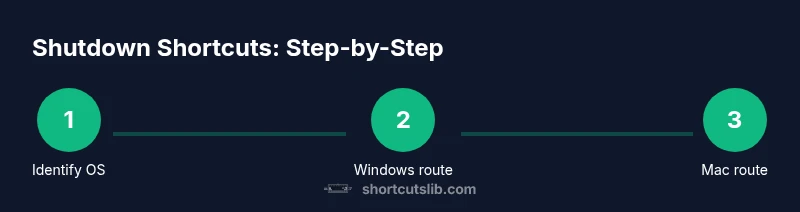
Identify your operating system and target shutdown method
Before initiating any keyboard-based shutdown, confirm whether you are on Windows or macOS and decide if you want a graceful shutdown or a forced shutdown in case of unresponsiveness. This prevents mixing OS-specific shortcuts and reduces mistakes.
Tip: Know which OS you’re on; a single shortcut rarely covers both platforms. - 2
Windows desktop: press Alt+F4 to open Shut Down dialog
With focus on the desktop, press Alt+F4. The Shut Down Windows dialog will appear, showing options like Shut down, Restart, or Sleep.
Tip: If a window is focused, Alt+F4 will close that window instead of opening the dialog. Ensure the desktop has focus. - 3
Windows: select Shut down and confirm with Enter
Use the Arrow keys to highlight Shut down, then press Enter to initiate the shutdown sequence. If you need a quick restart instead, select Restart and confirm.
Tip: Press Tab to jump between controls if needed; Enter confirms the selected option. - 4
If Alt+F4 isn’t accessible: Ctrl+Alt+Delete for power options
If the desktop shortcut is unusable, press Ctrl+Alt+Delete, then use the on-screen options (Tab/Arrow keys) to reach the Power button and choose Shut down.
Tip: This path is a reliable fallback on systems where the desktop dialog isn’t reachable. - 5
macOS: gracefully shut down with keyboard navigation
On macOS, focus the menu bar with Control+F2, navigate to the Apple menu, select Shut Down…, and confirm with Enter. This performs a standard, orderly shutdown.
Tip: If Control+F2 doesn’t work, use the mouse to open the Apple menu and shut down; keyboard navigation might vary by keyboard model. - 6
MacOS: force shutdown if the system is unresponsive
If the system freezes, you can force power off by holding the Power button for several seconds. This stops all processes immediately but risks data loss.
Tip: Only use force shutdown when the system cannot be recovered through normal channels.
Questions & Answers
Is there a universal keyboard shortcut to turn off a computer?
No single shortcut works across all operating systems. Each OS has its own method for initiating a shutdown or sleep via the keyboard.
There isn't one universal shortcut; you must use OS-specific methods to shut down or sleep.
What’s the safest way to shut down using a keyboard?
Prefer a graceful shutdown through the OS shutdown dialog (Windows Alt+F4 on the desktop, macOS via the Apple menu). Save work first and avoid forced shutdown unless the system is unresponsive.
Use the OS shutdown dialog when possible and save your work first.
Can keyboard shortcuts cause data loss?
Yes, especially if applications are unsaved or updates are in progress. Always save work and close programs before shutting down.
Data loss can occur if you don’t save first; always close apps before powering down.
What should I do if my computer is frozen and won’t shut down gracefully?
If unresponsive, you may need to force shutdown by holding the power button. This should be a last resort due to potential data loss.
If the computer is frozen, you might need to force power off as a last resort.
Watch Video
Main Points
- There is no universal shutdown shortcut; OS-specific methods exist.
- Windows desktop Alt+F4 opens the shutdown dialog; confirm with Enter.
- Mac graceful shutdown uses Apple menu keyboard navigation; force shutdown exists for unresponsive systems.
- Always save and close apps before powering down.