How to Turn Off the Computer with Keyboard Shortcuts
Learn practical, OS-specific keyboard shortcuts to safely shut down your computer. Windows, macOS, and Linux steps with safety tips and best practices from Shortcuts Lib.


To shut down quickly with the keyboard, use OS-specific sequences. On Windows, press Win+X, U, U to initiate shutdown, or Alt+F4 on the desktop and Enter to confirm. On macOS, use Ctrl+Option+Command+Power to quit immediately. Linux users can press Ctrl+Alt+Del to trigger a logout/shutdown dialog or run sudo poweroff from a terminal. These keystrokes minimize mouse reliance and speed up routine power-offs.
Why OS-level shutdown shortcuts matter
In everyday computing, you may reach the power button less often when you use reliable keyboard shortcuts. A well-chosen shutdown sequence reduces data loss, speeds up routine maintenance, and keeps your workflow moving. According to Shortcuts Lib, OS-level shutdown shortcuts provide a consistent pattern across devices and save time during repetitive tasks. These keystrokes also help when your mouse is unavailable or you’re working on a laptop with a broken trackpad. In this guide, we cover Windows, macOS, and Linux paths, with practical tips and safety notes. You’ll learn not only the exact keystrokes but also how to adapt them to your keyboard layout and language. By adopting keyboard-driven shutdowns, you can streamline your daily routine, as highlighted in Shortcuts Lib’s team analysis.
For keyboard enthusiasts, building muscle memory around these sequences pays off in faster, more predictable shutdowns and fewer last-minute scrambles to save work. This article prioritizes safety and reliability, ensuring you understand when to save, how to confirm shutdown, and what to do if a system asks for confirmation or presents a locking screen. The goal is a calm, controlled power-off that preserves data integrity and minimizes frustration. Shortcuts Lib’s guidance emphasizes practice in a safe environment before relying on a shortcut in a critical moment.
noteAdditionsOnlyForContentQualityCheck=null
Tools & Materials
- Keyboard(Any standard keyboard; notetaking recommended for mapping your own shortcuts.)
- Computer with OS-specific access(Windows, macOS, or Linux installed and accessible from the login screen.)
- Mouse (optional)(Only if you need it for initial setup; all critical actions can be done with the keyboard.)
- Onscreen prompts ready(Some shortcuts require confirmation dialogs; keep an eye on screen prompts.)
Steps
Estimated time: 5-15 minutes
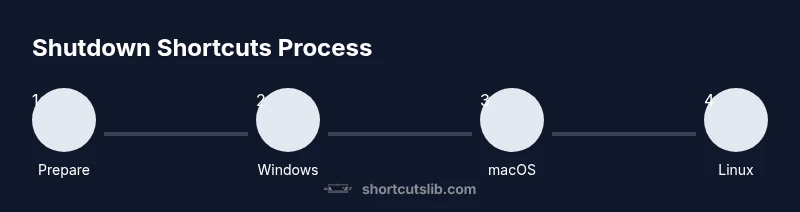
- 1
Prepare and save your work
Save all open documents and close nonessential apps to prevent data loss during shutdown. This step reduces the risk of losing work when the shutdown sequence executes, especially if the OS prompts for unsigned changes. Take a moment to ensure your latest edits are saved before triggering a shutdown shortcut.
Tip: Consider enabling a quick auto-save interval in your editor to minimize data loss if you forget to save. - 2
Windows shutdown via Win+X, U, U
On Windows, press Win+X to open the Power User menu, then press U to highlight the Shut Down option, and press U again to confirm. This sequence works without a mouse and is ideal when you want a fast, keyboard-driven shutdown.
Tip: If your screen is zoomed or a fullscreen app is active, you may need to switch to the desktop first. - 3
Windows alternative: Alt+F4 on the desktop
From the desktop, press Alt+F4 to open the Shut Down Windows dialog, then press Enter to confirm. This provides a different path if Win+X isn’t convenient in your current workflow.
Tip: Ensure focus is on the desktop; pressing Alt+F4 inside a full-screen app may close the app instead. - 4
macOS shutdown via Ctrl+Option+Cmd+Power
On macOS, hold Ctrl+Option+Command and press the Power button to shut down immediately without a prompts. Use this only when you’ve saved work or when you need a rapid power-off in emergencies.
Tip: If your Mac lacks a physical Power button, pause and use the Touch ID or the Menu approach and confirm shutdown. - 5
Linux shutdown options
Linux users can use a safe terminal approach by typing sudo poweroff or sudo shutdown now, which requires root privileges. Alternatively, many desktop environments react to Ctrl+Alt+Del by bringing up a logout/shutdown dialog.
Tip: If you’re new to the terminal, practice in a non-production environment to avoid accidental data loss. - 6
Confirm and monitor the shutdown
After triggering, wait for the system to power down completely. Do not unplug or force power off during disk activity. Confirm the device has powered off before proceeding with handling cables or hardware in a lab or desk setup.
Tip: If the screen goes dark but the power light remains, wait longer or perform a forced shutdown as a last resort.
Questions & Answers
Is it safe to use keyboard shortcuts to shut down a computer?
Yes, it’s safe when you save your work and use the appropriate OS-specific sequence. Avoid using shortcuts during active disk operations or when you suspect data corruption.
Yes, as long as you’ve saved your work and follow the OS-specific steps, keyboard shutdowns are safe.
What should I do if a shutdown shortcut doesn’t work on my computer?
Check that you’re on the desktop (not in fullscreen mode), verify your keyboard layout, and ensure no accessibility features are intercepting the keys. If necessary, use the system menu or power button as a fallback.
If a shortcut fails, try focusing on the desktop, verify your keyboard layout, and use the power menu as a backup.
Do shutdown shortcuts work on laptops and desktops alike?
Yes, the same OS-specific sequences apply to laptops and desktops. Some laptops may require you to press function keys in combo with Fn if the power key is function-locked.
They work on both laptops and desktops; use the same sequence and just consider Fn keys if your layout requires it.
Can I customize shutdown shortcuts in Windows, macOS, or Linux?
Most operating systems allow some customization for accessibility or personal preference. Check Settings > Keyboard for Windows, System Preferences > Keyboard for macOS, or your DE’s keyboard shortcuts configuration in Linux.
You can customize these in the system settings under keyboard shortcuts.
What’s the difference between a shutdown and a force shutdown?
A normal shutdown closes apps cleanly and saves state where possible. A force shutdown may interrupt processes and risk data loss, so reserve it for unresponsive systems.
Shutdown is safe if possible; force shutdown should be a last resort when the system won’t respond.
Watch Video
Main Points
- Choose OS-specific sequences for fast shutdown
- Always save work before using shortcuts
- Mac shutdown shortcuts bypass prompts—use with caution
- Linux offers terminal and GUI shutdown paths
- Verify the system powered off completely before reconnecting peripherals