Shut Down Using Keyboard Shortcuts: A Practical Guide
Learn how to shut down using keyboard shortcuts across Windows, macOS, and Linux. This comprehensive guide covers OS-specific keystrokes, safety tips, and how to customize shortcuts for faster, reliable power-offs in 2026. Built for tech users and keyboard enthusiasts by Shortcuts Lib.


You can shut down a computer quickly using keyboard shortcuts across Windows, macOS, and Linux, but the exact keystrokes vary by OS. In most cases, trigger the shutdown dialog, then confirm. Always save work first and avoid forcing shutdowns. According to Shortcuts Lib, mastering consistent keystrokes boosts productivity. This quick approach minimizes downtime and keeps your device secure.
Keyboard shutdown fundamentals
Shut down using keyboard shortcuts is a powerful habit for power users and keyboard enthusiasts. This section lays out universal concepts: OS dialogs, the role of prompts, and the critical importance of saving work before powering off. By learning consistent keystrokes, you reduce downtime and streamline end-of-session workflows. Shortcuts Lib emphasizes practicing in a safe environment to avoid data loss. In 2026, this technique remains a cornerstone of efficient computing, especially for users who juggle multiple tasks and devices across ecosystems. Understanding the core idea—trigger a shutdown action with minimal mouse interaction—helps you design reliable power-off rituals that work across Windows, macOS, and Linux.
Windows shutdown shortcuts you should know
Windows offers several keyboard-driven paths to power down, including GUI routes and command-line options. A common approach is to press Win+X to open the Quick Link menu, then U followed by U to initiate Shutdown. Alternatively, you can press Win+R to open Run, type shutdown /s /t 0, and press Enter. You can also access the shutdown dialog via Ctrl+Alt+Delete and selecting the Power icon. The key is to minimize mouse use and reliably reach the shutdown confirmation, especially when working with long-running tasks. Shortcuts Lib notes that consistency in these keystrokes improves predictability across updates and enterprise environments.
macOS shutdown keyboard sequences
macOS offers both Terminal-based and GUI pathways for keyboard-driven shutdown. For a fully keyboard-based route, open Spotlight with Command+Space, type shutdown -h now, and press Enter. You may be prompted for your password if required by your configuration. A GUI-focused method uses the Apple menu navigation with keyboard shortcuts (e.g., focusing the menu bar and selecting Shut Down with Enter). Across versions, the Terminal command remains a reliable, scriptable option for power-off operations, aligning with Shortcuts Lib’s guidance on scriptable workflows.
Linux and Unix-like systems: quick keys
On Linux and other Unix-like systems, you can shut down from the terminal with sudo shutdown -h now or sudo systemctl poweroff, depending on your init system. If you’re using a desktop environment, you can often trigger a shutdown through a keyboard shortcut configured in the settings (for example, a global hotkey in GNOME or KDE). Some distributions also support Ctrl+Alt+Del to open a power dialog, though behavior varies by distro and desktop environment. Always ensure you have saved work; unsaved data can be lost in a forced shutdown.
Customizing shortcuts and accessibility considerations
Creating reliable, system-wide shutdown shortcuts can significantly speed up your workflow. Windows users can leverage AutoHotkey to map a safe, user-confirmed shutdown sequence, while macOS users can use Automator or AppleScript with a keyboard trigger. Linux users often configure global hotkeys via GNOME or KDE to run a terminal command like shutdown -h now or systemctl poweroff. When designing custom shortcuts, favor explicit prompts and a short delay to cancel accidental presses, and consider accessibility implications for keyboard-only users.
Safety, reliability, and troubleshooting
Powering off with a keyboard shortcut is convenient, but it introduces risks if apps haven’t saved data. Always implement a 1–2 step safeguard, such as a 2-second delay before shutdown or a final confirmation prompt. If a shortcut doesn’t work, verify key mappings, check for conflicting global shortcuts, and test in a non-production environment. For remote or shared devices, ensure you have the necessary privileges and policies to initiate shutdowns without disrupting others. Shortcuts Lib emphasizes testing your setup under typical workloads to prevent unexpected data loss.
Integrating shutdown shortcuts into workflows and Shortcuts Lib tips
A practical approach combines keyboard shutdown with automation. Build a small script or shortcut that first saves open documents, then triggers the OS shutdown sequence and finally logs the event for auditability. On macOS, you can incorporate Terminal commands into a Shortcuts workflow; on Windows, a Batch or PowerShell script followed by a keyboard trigger works well. Shortcuts Lib’s guidance in 2026 is to balance speed with safety, ensuring your shortcuts are dependable across sessions and devices.
Tools & Materials
- Computer with current OS (Windows/macOS/Linux)(Ensure you have permission to shut down and admin rights if using scripts.)
- Keyboard(Any standard keyboard; a dedicated power button is not required.)
- Access to OS settings or a terminal(Needed to configure or test custom shortcuts and CLI methods.)
- Text editor or scripting tool(Useful for drafting scripts (AutoHotkey, Automator, shell scripts).)
- Backup practice(Have unsaved work saved; consider automatic backups during testing.)
Steps
Estimated time: 2-6 minutes
- 1
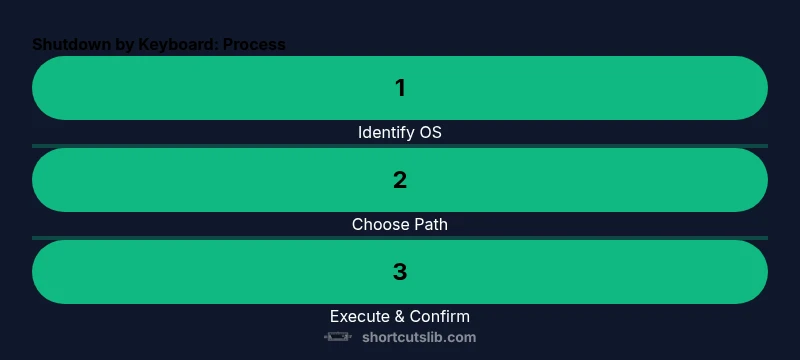
Identify OS and preferred method
Determine whether you are on Windows, macOS, or Linux, and decide if you want a GUI-based or terminal-based shutdown path. This helps tailor the keystrokes and prevents confusion when switching devices.
Tip: Test the chosen route in a safe environment before relying on it in production. - 2
Prepare by saving work and closing apps
Save all open documents and close essential applications to minimize data loss. If a file is unsaved, the shutdown sequence may terminate unexpectedly and lose changes.
Tip: Consider enabling autosave features or creating a quick macro to save all apps first. - 3
Windows: trigger the shutdown dialog via keyboard
Use Windows shortcuts to reach the shutdown option with minimal mouse use (e.g., Win+X then U, U or Win+R, type shutdown /s /t 0, Enter). Confirm the shutdown when prompted.
Tip: If you’re scripting, test the exact command in a Run dialog first. - 4
Windows: confirm and wait for power-off
Allow the OS to close processes and power down. Some systems show a progress screen; do not interrupt the sequence.
Tip: Set a task reminder to re-open your workspace after shutdown. - 5
macOS: shutdown via Terminal
Open Spotlight (Command+Space), type shutdown -h now, and press Enter. If prompted, enter your password to authorize the shutdown.
Tip: For a scriptable approach, add sudo to the command and configure passwordless sudo for a safe profile. - 6
macOS: GUI keyboard path
If you prefer GUI navigation, use keyboard shortcuts to reach the Apple menu and select Shut Down, then confirm.
Tip: Enable Full Keyboard Access to speed navigation. - 7
Linux: terminal shutdown
On most distros, run sudo shutdown -h now or sudo systemctl poweroff. Enter your password when prompted; this powers down cleanly.
Tip: Test both commands on a non-critical machine to ensure proper behavior. - 8
Test, adjust, and document
After implementing shortcuts, test in multiple sessions and document the exact keystrokes and prompts for future reference.
Tip: Keep a changelog to track OS updates that may affect shortcuts.
Questions & Answers
Is it safe to shut down using a keyboard shortcut?
Yes, provided you save work and allow apps to close gracefully. Do not use shortcuts as a substitute for proper shutdown when critical tasks are running.
Yes, it’s safe if you save your work and let applications close normally.
What if the shutdown option is not available via the shortcut?
Check key mappings and ensure there’s no conflicting shortcut. Use an alternate path like Run or Terminal to execute the shutdown command.
If the shortcut doesn’t work, verify mappings and try Run or Terminal to shut down.
Can I create a single global shortcut for shutdown across OSes?
Yes, with OS-specific tools (AutoHotkey on Windows, Automator/AppleScript on macOS, or desktop environment tools on Linux). Use explicit prompts and a brief delay to avoid accidental shutdowns.
Yes, you can create a global shortcut with OS tools, but include a prompt to prevent mistakes.
Will keyboard shutdowns cause data loss?
If apps haven’t saved data, changes can be lost. Always save all work before triggering a shutdown shortcut and consider enabling autosave features.
Data loss is possible if you haven’t saved work. Save first.
Do these shortcuts work on all computers?
Most modern operating systems support keyboard shutdown methods, but enterprise or locked-down devices may restrict these actions. Check with IT policies where applicable.
In most devices they work, but some corporate setups may block shutdown shortcuts.
Where can I learn more about safe shutdown practices?
Refer to official OS docs and the Shortcuts Lib 2026 guidance for practical, tested workflows.
See official OS docs and Shortcuts Lib's 2026 guidance for practical tips.
Watch Video
Main Points
- Choose OS-specific shutdown paths and practice.
- Always save work before powering down.
- Use consistent keystrokes to boost reliability.
- Leverage scripting for repeatable shutdowns.
- Test and document your shortcuts for future upgrades.