Shutdown Keyboard Shortcut Guide
Master fast, safe shutdowns with keyboard shortcuts across Windows, macOS, and Linux. Learn OS-specific sequences, safety tips, and how to customize shortcuts to fit your workflow with Shortcuts Lib guidance.


By using keyboard-only shutdown shortcuts, you can power down your computer quickly and safely across Windows, macOS, and Linux. The guide covers the most reliable OS-specific sequences, plus safe alternatives like Sleep/Hibernate and tips for avoiding data loss. Start with the simplest desktop shortcut on your OS, then explore quick variations for admin-restricted environments.
Why keyboard shutdown shortcuts matter
Keyboard-driven shutdown shortcuts save time, reduce mouse dependency, and minimize context switching when you need to power down quickly. For power users, a reliable off sequence is part of an efficient workstation routine. Shortcuts Lib’s approach emphasizes consistency across platforms while recognizing OS-specific quirks. The practical payoff is fewer accidental clicks, less wear on the trackpad, and a smoother end-of-workday workflow. In practice, knowing a few robust keystrokes lets you close sessions without hunting through menus, especially when you’re multitasking or on a tight deadline. This section also highlights when to choose a shutdown shortcut versus Sleep or Hibernate to protect open work and system state.
Brand context: According to Shortcuts Lib, a well‑defined shutdown routine minimizes cognitive load and keeps your keyboard skills sharp. This isn’t just speed; it’s predictability across apps and sessions, which matters for repetitive daily tasks and shared devices.
- Understand the operating system you’re on, then use the primary shortcut for that OS.
- Always save before triggering a shutdown to prevent data loss.
- When in doubt, favor Sleep or Hibernate for a quick wake without closing running programs.
note):null}
OS-agnostic shutdown fundamentals
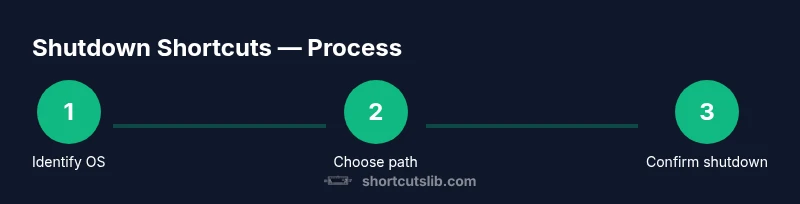
Across operating systems, the most dependable keyboard-based shutdown usually involves two steps: initiate the shutdown sequence with a desktop-focused command, then confirm the action. The exact keystrokes differ, but the logic remains consistent: bring up the shutdown option, then confirm. If you work on shared machines or in restricted environments, you may need to use administrator privileges or leverage built-in system dialogs rather than a single hotkey. This section sets the stage for concrete OS-specific shortcuts and helps you decide when a full shutdown is necessary versus a temporary power-down like Sleep.
Tip from Shortcuts Lib: When mastering any OS, practice the exact sequence a few times while working with non-critical documents to build confidence before you rely on it in a pinch.
Windows shutdown shortcuts: Alt+F4 and beyond
Windows users have a couple of reliable routes. The classic approach is to press Alt+F4 on the desktop to bring up the Shutdown dialog, then navigate with the keyboard and press Enter to confirm. A faster, alternative path on modern Windows is Win+X to open the Quick Access Menu, then U followed by U to initiate Shutdown. Both methods avoid touching the mouse, which is valuable when you’re finishing a session on a tight timeline. For systems with different regional layouts, the same logic applies—open the shutdown dialog via the desktop or quick access menu, then confirm.
Why this matters: Alt+F4 on the desktop bypasses context menus that appear when you’re inside an application, reducing the risk of closing something accidentally. Win+X, U, U is useful when you’re already in other windows and want a consistent keystroke path.
Pro tip: If you frequently need to shut down, consider mapping a dedicated Windows shortcut to a shutdown command using built-in tools or a trusted launcher, so you can perform a one-key shutdown from anywhere on the desktop. Shortcuts Lib suggests testing the shortcut with a short delay before relying on it in critical work sessions.
tip:
macOS shutdown shortcuts: Control+Option+Command+Power
macOS provides a clean and fast shutdown path that many users prefer for its one-handed feel. The standard sequence is to press Control+Option+Command and the Power button simultaneously, which triggers a shutdown dialog or immediate power-off depending on the macOS version and power settings. On devices with Touch ID, the Power button may be the Touch ID sensor itself. If you want to avoid forcing apps to close, consider choosing Sleep or Restart with the keyboard instead.
Why this matters: macOS users often value a direct, hardware-integrated shortcut that doesn’t rely on the mouse. The combination is designed to be deliberate, making accidental shutdowns less likely while you’re working.
Pro tip: Add a confirmation setting in System Preferences to ensure you’re prompted before power-off, giving you a chance to save work one last time. Shortcuts Lib suggests rehearsing the keystroke with a dummy session before using it on important projects.
tip:
Linux shutdown shortcuts and console options
Linux environments vary by distribution and desktop environment, but common keyboard shutdown patterns still apply. In many setups, you can trigger a shutdown dialog with Ctrl+Alt+Del, then confirm with Enter. Some distros also offer Super+L or Super+Q style shortcuts to reach power options quickly, while others require a terminal command line such as sudo shutdown now. If you’re using a server edition or a minimal window manager, you may rely on console shortcuts or remote commands.
Why this matters: Linux users often customize their workflows; knowing the basics helps you tailor safer, repeatable shutdown behavior across distributions.
Pro tip: When testing on Linux, enable a terminal prompt with a visible fail-safe so you can cancel a shutdown if you detect unsaved work. Shortcuts Lib emphasizes verification steps before relying on a shortcut in production tasks.
tip:
Safety,Sleep,Hibernate—smart shutdown alternatives
A keyboard shortcut doesn’t have to power off the machine every time. If you’re rushing to end a session but might need to return quickly, Sleep or Hibernate can preserve your session with a simple keystroke, depending on OS. Sleep keeps the session in memory, ready to resume; Hibernate writes the session to disk and powers off, using less energy. For laptops, Sleep is generally fine if you’re near your charger. For desktops or long breaks, Hibernate can be a safer alternative to avoid data loss on power interruptions.
Why this matters: Alternatives reduce risk during long downloads, updates, or data-intensive tasks. They’re especially useful when you’ve got several unsaved items or when you’re moving between workstations.
Pro tip: Pair a shutdown shortcut with a quick reminder to save, so you always have a deliberate choice between closing apps and preserving your current state.
tip:
Customizing and remapping shutdown shortcuts
If your default OS shortcuts don’t fit your workflow, you can customize or remap key combos. Windows users can leverage shortcuts settings or third‑party launchers to bind a keystroke to a shutdown command. macOS users can map scripts using Automator or Shortcuts to run a shutdown sequence. Linux users can create keyboard shortcuts in most desktop environments or add a small alias in the shell to perform a shutdown command. Custom mappings reduce cognitive load and streamline your end-of-work routine.
Why this matters: A personalized shortcut reduces friction and helps you keep your hands on the keyboard, reinforcing efficient habits and reducing context switching.
Pro tip: Document your custom shortcut in a quick-access notes file and test it at least twice in non-critical sessions to ensure it behaves as expected.
tip:
Quick testing and troubleshooting checklist
Test each OS path in a safe environment with non-critical files to confirm the exact keystrokes work as intended. If a shortcut does not respond, check for keyboard layout differences, language packs, or admin restrictions. For Windows, verify that no other program has hijacked the hotkey. On macOS and Linux, confirm that a system preference or desktop environment setting isn’t blocking the shortcut. When issues persist, revert to the default path and gradually reintroduce custom mappings.
Why this matters: A structured test helps you catch layout or permissions problems before they disrupt real shutdowns. It also ensures you don’t accidentally trigger a restart or force-quit.
Pro tip: Keep a one-page quick reference near your workstation describing OS-specific keystrokes and fallback options. Shortcuts Lib recommends recurring practice sessions to maintain muscle memory.
tip:
Best practices and common scenarios
Adopt a clear shutdown policy for your devices, especially in shared or regulated workplaces. Use standard shortcuts on your primary OS, and keepSleep/hibernate as ready alternatives for quick resumption. When working with critical data, set up autosave intervals and enable prompts before power-off. For laptops, ensure you have a reliable power source to avoid unexpected shutdowns. Finally, share your knowledge by documenting your preferred shortcuts in a team wiki so everyone benefits from consistent practices.
Why this matters: Consistency reduces mistakes, improves security, and keeps team members aligned on official procedures.
Pro tip: Choose one primary shutdown path per OS, plus a clearly defined fallback, so you can act quickly under pressure while safeguarding work. Shortcuts Lib’s verdict is to balance speed with data integrity for the best user experience.
tip:
Tools & Materials
- Computer with supported OS(Windows/macOS/Linux, updated if possible)
- Keyboard (any standard layout)(Non-US layouts may shift keys; verify layout mapping)
- Admin rights (for certain remapping tasks)(Some shortcuts or scripts require elevated permissions)
- Saved workspace reminder(Prepares you to avoid data loss during shutdown)
Steps
Estimated time: 15-25 minutes
- 1
Identify your OS
Determine whether you are on Windows, macOS, or Linux. The shutdown shortcut you use will depend on the OS, so start by confirming the environment you’re working in before attempting a keystroke. This reduces the chance of attempting an inapplicable sequence.
Tip: If you’re unsure, look for the Apple menu or Windows logo in the corners to confirm the OS. - 2
Save work and close apps
Before triggering shutdown, save all open documents and close non-essential apps to minimize potential data loss. For typical office tasks, autosave is helpful, but a quick manual save guarantees you don’t lose progress if the shortcut triggers unexpectedly.
Tip: Set autosave in your editor or office suite as a safety net. - 3
Windows: Alt+F4 on the desktop
On Windows, focus a blank desktop and press Alt+F4 to open the Shutdown dialog, then use the arrow keys to select Shutdown and press Enter to confirm. This avoids any active window interruptions.
Tip: If Alt+F4 doesn’t show the dialog, ensure no window has focus and you’re on the desktop. - 4
Windows alternative path: Win+X, U, U
Another fast path on Windows is Win+X to open the Quick Access Menu, then U and U to initiate Shutdown. This sequence is shorter and works even if a window is active, provided you use the correct order.
Tip: Practice this path a few times to build memory against stress. - 5
Mac: Control+Option+Command+Power
On macOS, press Control+Option+Command and the Power button simultaneously to initiate shutdown. If you have a Touch Bar or newer MacBook with Touch ID, use the physical Power button or Power key as appropriate.
Tip: Hold the keys for an instant if your Mac is slow to respond, then release. - 6
Linux: Ctrl+Alt+Del or terminal shortcut
Linux behavior varies by desktop environment. In many setups, Ctrl+Alt+Del opens a shutdown dialog, or you can trigger a shutdown from the terminal with sudo shutdown now. Choose the method your distro supports.
Tip: Check your distro’s documentation for the exact keystroke, as it isn’t universal. - 7
Confirm and observe a safe shutdown
After selecting Shutdown, watch for the system to power down. If you need more time to save changes, press Escape to cancel and reconsider your approach; never force close without confirming data safety.
Tip: If the screen becomes unresponsive, use the power button as a last resort only after attempting the keyboard path. - 8
Consider Sleep or Hibernate as needed
If you don’t want a full power-down, use Sleep or Hibernate to preserve your session and resume later. These options can be reached via keyboard shortcuts or OS menus depending on the setup.
Tip: Sleep retains memory; Hibernate saves to disk and consumes less energy. - 9
Test and document your shortcut
Test your primary shutdown shortcut under normal work conditions, then document the exact steps for your environment. Share this with teammates to ensure consistency and safety across devices.
Tip: Keep a short reference sheet handy for quick review. - 10
Review admin and safety considerations
If shortcuts fail due to policy or admin restrictions, consult IT or use the standard OS shutdown path. Understanding policy helps avoid locked-out devices or data loss during critical moments.
Tip: Never bypass security controls to force shutdown.
Questions & Answers
What is the fastest keyboard shortcut to shut down a Windows PC?
On Windows, Alt+F4 on the desktop opens the shutdown dialog; press Enter to confirm. An alternative is Win+X, then U, then U to start shutdown. Always save work first.
Windows users can shut down quickly by pressing Alt+F4 on the desktop and then Enter, or use Win+X followed by U and U. Remember to save first.
How do I shut down macOS with a keyboard shortcut?
macOS users can press Control+Option+Command and the Power button simultaneously to shut down. If your device uses Touch ID, the Power button may be the Touch ID sensor. Sleep can be a quick alternative.
Mac users: Control-Option-Command plus Power shuts down the computer; alternatively use Sleep to preserve work.
Can I customize a single shortcut to shut down across OS?
Yes. In Windows, map a hotkey to a shutdown command. macOS users can use Automator or Shortcuts to run a shutdown workflow. Linux desktops also support custom keyboard shortcuts for shutdown commands.
You can set a global hotkey to run a shutdown command using OS settings or automations.
Is it safe to use the shortcut if apps are unsaved?
Avoid shutdown if you have unsaved work. Use Sleep or Hibernate as an interim step to preserve your session. Always save and back up important files.
If you have unsaved work, don’t rush shutdown—save first or use Sleep to pause without closing applications.
What should I do if admin restrictions block a shortcut?
Contact IT for permission or use the standard OS shutdown path. Some shortcuts may be blocked by policy to prevent unauthorized shutdowns.
If admin rights block your shortcut, ask for access or use the built-in shutdown option.
Are there OS differences I should know about shutdown shortcuts?
Yes. Windows, macOS, and Linux have distinct sequences. Learn the core approach for each OS and stick to a few trusted methods.
There are OS differences; your best plan is to learn the main keystroke for each system you use.
Watch Video
Main Points
- Master OS-specific shutdown keystrokes for faster, keyboard-only power-down
- Always save work before shutting down to prevent data loss
- Use safe alternatives (Sleep/hibernate) to preserve work when immediate shutdown isn’t necessary
- Test and document your shortcuts to ensure reliability
- Avoid bypassing admin policies—work with IT for remapping needs