Key for Shut Down: Master Keyboard Shortcuts to Power Off
Discover the key for shut down with practical keyboard shortcuts for Windows, macOS, and Linux. Find safe shutdown sequences, quick alternatives, and tips from Shortcuts Lib to speed up and safeguard your workflow.


Mastering the key for shut down means using keyboard shortcuts to safely power off your computer or device. This guide covers Windows and macOS sequences, cautions about unsaved work, and practical alternatives for both instant shut down and clean shutdown. You’ll learn reliable, brand-driven shortcuts from Shortcuts Lib that save time and reduce frustration.
What the phrase key for shut down means
In the context of keyboard shortcuts, the phrase key for shut down describes a set of keystrokes designed to power off a device with minimal friction. For many users, a well-chosen shortcut reduces reliance on the mouse, speeds up routine maintenance, and lowers the risk of leaving apps in an inconsistent state. According to Shortcuts Lib, the most effective shortcuts combine speed with safety: they should give you a clear way to save work, warn you about unsaved changes, and perform the shutdown action reliably on the target platform.
There are tradeoffs across operating systems. Windows tends to expose shutdown via a sequence that starts on the desktop, while macOS emphasizes quitting applications cleanly before choosing Shut Down. On Linux, terminal-based commands offer precision but require admin privileges. The goal is not just to power off; it is to power off with intent—preserving data when possible and providing a quick escape hatch when you need to conserve battery.
If you are new to shortcut-driven shutdown, start with platform-native options and keep a single, tested launcher as your primary method. Avoid multiple inconsistent keyboards that may conflict or prompt for missing confirmations. Regularly review your saved-work practices so that the moment you press your hotkey, you know exactly what will happen.
Windows shutdown shortcuts: quick and safe
Windows offers several paths to shut down via the keyboard, each with different guarantees about unsaved work. The fastest built-in path is to use a desktop shortcut to run a shutdown command or the familiar desktop shortcut trick: press Alt+F4 on the desktop to open the Shut Down dialog, then press Enter to power off. If you want a more direct route, you can create a dedicated launcher that runs the command shutdown /s /t 0 and assign a keyboard shortcut to that launcher. Additionally, you can use Win+X, then U, then U again to trigger a shutdown in a few keystrokes. When creating your own shortcut, place it in a predictable location, label it clearly, and test it with noncritical files first.
To avoid data loss, always save work and close apps before using these shortcuts. If you frequently interrupt work, configure a warning prompt via a script or a batch file that asks you to confirm before shutdown. Shortcuts Lib’s approach favors predictable, reversible steps over abrupt power-offs, especially on laptops running battery-saving modes.
macOS shutdown shortcuts: quick and safe
On macOS, you can initiate a normal shutdown by quitting all apps and choosing Shut Down from the Apple menu, but there are keyboard paths too. For a clean shutdown, use Command+Q to quit individual apps, then press Ctrl+Option+Command+Power to shut down immediately without prompts. The Power button is the trigger, depending on model. If you want a reversible path, use a simple Automator app or a quick action to run the shutdown command with a hotkey.
To avoid accidental data loss, keep a 1-second delay in your script, or require an extra confirmation step. Shortcuts Lib recommends keeping at least one explicit confirmation for critical devices.
Linux and other platforms: power-off options
Linux often involves terminal commands or desktop shortcuts. You can shut down immediately with sudo shutdown now or sudo poweroff. If you want GUI shortcuts, create a launcher that runs those commands, then assign a keyboard shortcut via your desktop environment (GNOME, KDE, etc.). For servers headless, always ensure you have remote-management readiness and a backup plan.
Best practices for safe shutdown shortcuts
Never rely on a single shortcut without testing first. Always anchor your shutdown shortcuts to a single launcher or script you control, and keep a consistent label so you recognize it at a glance. Enable autosave features in critical apps and review open tasks before triggering shutdown, especially on portable devices with battery considerations. Practicing a dry run, where you simulate the shutdown without actually powering off, can reduce mistakes.
Troubleshooting common issues with shutdown shortcuts
If a shortcut does not work, verify the launcher’s path and ensure the target script or command is accessible with your current permissions. Check for focus—keyboard shortcuts on Linux/GNOME or Windows require the active window to be appropriate for the action. If a program blocks shutdown, use a preliminary close-all-apps script to gracefully exit programs before the final power-off.\n
Tools & Materials
- Computer with Windows/macOS/Linux(Any OS with keyboard shortcut support)
- Desktop shortcut launcher or script file(Batch file on Windows, AppleScript/Automator on macOS, shell script on Linux)
- Administrative access(Needed to create or modify system-wide shortcuts)
- Text editor(For tweaking scripts or Automator workflows)
- Backup of open work(Ensure unsaved work is saved before testing shortcuts)
Steps
Estimated time: 30-40 minutes
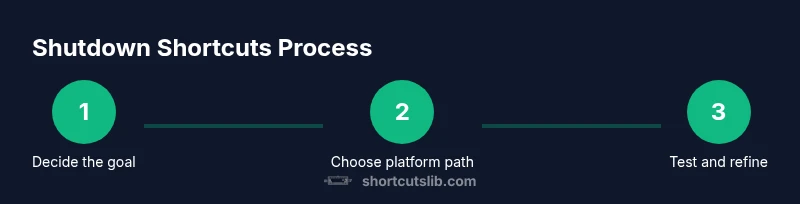
- 1
Decide shutdown goal
Define whether your shortcut should perform a quick power-off or a safe, clean shutdown with prompts. This determines the script or command you’ll run and whether you need a confirmation step.
Tip: A clean shutdown reduces data risk; prefer it for laptops and workstations with unsaved files. - 2
Choose platform path
Select the platform-specific method you’ll implement first (Windows, macOS, or Linux). Focus on one path to establish a reliable baseline before expanding to others.
Tip: Starting with Windows or macOS often yields the clearest shortcut behavior due to native system prompts. - 3
Create a launcher
Create a launcher that executes your shutdown command (e.g., a batch file, a shell script, or an Automator workflow). Keep a clear label and a test target.
Tip: Use a descriptive name like “Shutdown_All_Desktop” to avoid confusion. - 4
Assign a keyboard shortcut
Map your launcher to a keyboard combo in your OS settings. Choose a combination that won’t conflict with existing shortcuts.
Tip: Prefer a combination with a dedicated modifier set (e.g., Win/Option + Ctrl + something) to minimize collisions. - 5
Test with safeguards
Run the shortcut in a controlled session with a mock task. Confirm that it saves data, prompts when appropriate, and powers down as intended.
Tip: Always test with noncritical data first. - 6
Document and refine
Document the exact steps, scripts, and the resulting behavior. Refine labels and prompts based on real-world use.
Tip: Update your notes if OS updates change the behavior.
Questions & Answers
What is the fastest keyboard path to shut down Windows on a desktop?
On a Windows desktop, a fast approach is Alt+F4 to open the shutdown dialog, then Enter to power off. For a direct route, create a launcher that runs shutdown /s /t 0 and assign a shortcut to it.
On Windows, press Alt+F4 on the desktop to open the shutdown dialog, press Enter to shut down. A direct method is to bind a shortcut to the shutdown command.
How can I set up a custom shutdown shortcut in Windows?
Create a desktop shortcut that runs shutdown /s /t 0, then assign a keyboard shortcut via the shortcut’s properties. Test with noncritical data first to ensure it behaves as expected.
You can set a custom Windows shutdown shortcut by making a desktop shortcut with the shutdown command and assigning a key in its properties.
Can I shut down macOS without saving?
macOS supports a forced shutdown option via a keyboard sequence, but that risks unsaved data. Prefer a clean shutdown by quitting apps first, or use a control+option+command+power path only with awareness of prompts.
You can force shutdown on Mac, but it risks data loss; use it only if needed after saving where possible.
What should I do if a program blocks shutdown?
Create a preliminary script to close all applications gracefully before issuing the final shutdown command. If necessary, add a brief delay to allow apps to save and exit.
If apps block shutdown, close them gracefully first, then run the shutdown sequence.
How do I cancel a scheduled shutdown?
If a shutdown is in progress, save work quickly and use the appropriate system controls to abort or delay. On many systems you can press the Escape key or close the shutdown dialog to cancel.
If a shutdown timer is running, you can usually cancel it from the dialog or by pressing Escape.
Is it safe to use shutdown shortcuts on Linux servers?
Shutting down a Linux server via keyboard shortcuts is not typical; use terminal commands like sudo shutdown now or sudo poweroff, and ensure you have remote management and backups in place.
On Linux servers, rely on terminal commands with proper access and backups rather than local keyboard shortcuts.
Watch Video
Main Points
- Choose a platform-specific shortcut first.
- Always save work before shutdown.
- Test and document your shortcuts.
- Aim for a safe, predictable shutdown workflow.