Master Keyboard Shutdown Shortcuts for Windows, macOS, and Linux
Discover reliable computer shortcut keys shutdown methods across Windows, macOS, and Linux. This Shortcuts Lib guide covers safe sequences, best practices, and troubleshooting tips for quick, data-safe power-downs.


Shut down quickly and safely using OS-specific keyboard shortcuts. This guide covers Windows, macOS, and Linux sequences, explains when to use each method, and highlights best practices to avoid data loss. By learning these computer shortcut keys shutdown patterns, you’ll save time and reduce interruptions during busy work sessions.
Why shutdown shortcuts matter
Using computer shortcut keys shutdown can dramatically speed up your end-of-session routine and reduce cognitive load. When you rely on the keyboard rather than hunting through menus, you minimize mouse travel and repetitive clicking, which is especially valuable during tight deadlines or large projects. According to Shortcuts Lib, mastering these sequences also helps safeguard unsaved work by prompting you to save or closing apps in a controlled order instead of letting the system hang. In everyday practice, a quick keystroke can prevent data loss from unexpected power events and keep your machine ready for the next task. The discipline of learning OS-appropriate shutdown shortcuts becomes especially important for power users who juggle multiple apps, virtual machines, or remote sessions where every second counts. This section lays the groundwork for safe, efficient power-downs across Windows, macOS, and Linux, with practical examples you can try today. The aim is not to replace your normal shutdown rituals but to augment them with reliable keyboard automation.
OS-agnostic shutdown concepts
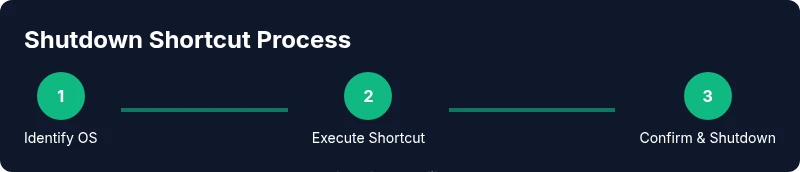
A fast shutdown is not the same as a reckless one. Across all systems, the best practice is to give software a moment to terminate gracefully, save data, and close files. Shortcuts speed this process, but they should never bypass essential steps like saving work or ending critical tasks. If a system is updating or transferring files, it’s safer to wait. Autosave settings help; enabling cloud backups ensures you won’t lose work even if something goes wrong during shutdown. Understand that the exact keystrokes vary by OS, so this section will show Windows, macOS, and Linux patterns you can adapt. When you know the underlying principle—trigger the shutdown through the OS flow, confirm in the dialog, and then wait for the power-down—you build fluency that makes any daily reset feel calm rather than chaotic.
Windows shutdown shortcuts explained
On Windows, your most reliable quick-down methods use the built-in shutdown dialog accessed from the desktop. A straightforward approach is to press Alt+F4 while the focus is on the desktop; this opens the Shut Down Windows dialog. Then press Enter to confirm the shutdown. Another fast path is to use the Win+X Quick Link Menu (Windows key + X), then press U to select Shut down, followed by Enter to initiate (behavior may vary by version). If you have several programs open, ensure you save or close them quickly before you trigger the sequence. In cases where you cannot reach a desktop or the system is heavily unresponsive, a standard shutdown flow through the Start menu remains the safest option, even if it takes a few extra seconds.
macOS shutdown shortcuts explained
On macOS, the standard keyboard shortcut to shut down is Control+Option+Command+Power. If your Mac uses a Touch ID button, you can replace the Power key with Touch ID in the same sequence. When the shutdown dialog appears, confirm with the appropriate button or key press. If apps are unresponsive, you may need to force quit or – as a last resort – hold the power button until the computer powers off. Before starting, save all work and ensure you have closed nonessential apps that could prevent a clean shutdown. If you rely on battery-powered devices, connect to power, because an interrupted shutdown due to low battery can corrupt state—take a moment to prepare before you try the shortcut.
Linux shutdown shortcuts explained
Linux desktops vary by environment, but there are reliable, universally available approaches. A safe and quick method is to open a terminal with Ctrl+Alt+T and type sudo shutdown now, then press Enter; you will be prompted for your password. This sends a graceful shutdown signal to all services, giving processes time to exit cleanly. If you prefer GUI routes, you can usually trigger shutdown from the system menu with a keyboard shortcut, such as Alt+F2, entering a command like 'shutdown now' or 'poweroff' depending on the distro. In a truly unresponsive system scenario, you may need to perform a hard power-off, but this should be your last resort because it risks filesystem damage. As with other OSes, ensure you have saved work and any critical tasks are saved before issuing a shutdown command.
Troubleshooting, accessibility, and best practices
If a shutdown shortcut doesn’t respond, verify your keyboard layout, keyboard remappings, and that the focus is on the desktop or system menu. Check accessibility features like Sticky Keys that might interfere with multi-key combos. For accessibility, consider enabling audio prompts or on-screen confirmations to verify that the shutdown sequence has started. Pro tip: turn on autosave and enable automatic cloud backups so you don’t rely solely on memory for critical work. Test each OS's shortcut in a safe environment before relying on it in production work. Finally, document OS-specific variations for your team so that everyone can shut down quickly with confidence.
Tools & Materials
- Keyboard and mouse(Essential input devices to trigger shortcuts)
- OS shutdown reference sheet(A quick reference for non-standard or updated keystrokes)
- Autosave and backup setup(Enable autosave to mitigate data loss during shutdowns)
- Access to power supply(Keep devices plugged in during shutdown on laptops to avoid interruptions)
Steps
Estimated time: 2-5 minutes
- 1
Identify your operating system
Determine whether you are on Windows, macOS, or Linux. This is essential because the shutdown keystrokes differ between OS families and even between distros or desktop environments.
Tip: If you’re unsure, check the system preferences or About This Mac/Windows settings before proceeding - 2
Windows: reach the shutdown dialog via Alt+F4
With the desktop focused, press Alt+F4 to open the Shut Down Windows dialog. This is a reliable quick-down shortcut when you’re not in a full-screen app.
Tip: Ensure the focus is on the desktop; otherwise Alt+F4 will close the current window - 3
Windows: confirm shutdown with Enter
In the shutdown dialog, press Enter to confirm shutdown. If you need to choose a specific option, use the arrow keys to navigate before Enter.
Tip: If the dialog isn't visible, revert to Start menu shutdown as a fallback - 4
macOS: initiate shutdown with keyboard
On macOS, press Control+Option+Command+Power (or Control+Option+Command+Touch ID) to start a safe shutdown. This closes apps gracefully and halts services.
Tip: If your Mac has a Touch ID button, use that as the Power key in the sequence - 5
Linux: use terminal for graceful shutdown
Open a terminal with Ctrl+Alt+T and enter sudo shutdown now. You’ll be prompted for your password; the system will terminate processes gracefully.
Tip: If you’re in a GUI-only session, you may use the distro’s shutdown command from the run dialog - 6
If all else fails: safe power-off as last resort
If the system is completely unresponsive, you may perform a hard power-off by holding the power button. This should be last resort due to potential data loss and filesystem damage.
Tip: Whenever possible, create a quick backup and save work before attempting a hardware shutdown
Questions & Answers
What is the safest shutdown shortcut to use on Windows?
Use Alt+F4 on the desktop to open the shutdown dialog, then press Enter to confirm. This prompts a clean shutdown and minimizes risk to open files.
On Windows, press Alt+F4 on the desktop to open the shutdown dialog, then press Enter to confirm. This keeps files safe during shutdown.
Can keyboard shutdown work if a program is unresponsive?
If a program is unresponsive, use the OS shutdown dialog or Task Manager/Force Quit options before forcing power. Keyboard shortcuts speed up the process, but data loss is possible if you force a shutdown.
If a program is unresponsive, try the OS shutdown flow first; forceful shutdown should only be a last resort.
Do these shortcuts work on all keyboard layouts?
Most shortcuts work across layouts, but key remappings can alter outcomes. Check your layout settings if a shortcut doesn’t trigger as expected.
Shortcuts usually work across layouts, but remapped keys can break them. Verify your keyboard settings if needed.
What should I do if the shortcut doesn’t respond?
Make sure focus is on the desktop or the correct window. If needed, use the system menu shutdown option or open a terminal to issue a shutdown command.
If a shortcut doesn’t respond, check focus and try an alternative shutdown method.
Is force shutdown safe?
Force shutdown is a last resort when the system is completely unresponsive. It can cause data loss and filesystem damage, so use it only when necessary.
Only use force shutdown if the system won’t respond at all; data loss is possible.
Can I shutdown remotely using keyboard shortcuts?
Keyboard shortcuts typically affect the local machine only. Remote shutdown usually requires SSH or management tools that run commands on the target host.
Shortcuts shut down the local computer; for remote devices, use appropriate remote management commands.
Watch Video
Main Points
- Learn OS-specific shutdown keystrokes for speed
- Always save work before using a shutdown shortcut
- Understand safe vs forced shutdown implications
- Test shortcuts in safe scenarios to prevent data loss
- Document environment-specific differences for teams