How to Change Keyboard Shortcuts on Mac
Master Mac shortcut customization with step-by-step instructions for system and app shortcuts, conflict resolution, and syncing across devices, backed by Shortcuts Lib for reliable, practical guidance.


By the end of this guide, you’ll know how to change keyboard shortcuts on Mac for system tasks and apps, plus how to fix conflicts and reset to defaults. You’ll learn where to find the Keyboard Shortcuts pane, how to add, modify, and delete bindings, and best practices for a productive, consistent setup.
Understanding what you can customize on
Distinguishing system shortcuts vs app shortcuts
System shortcuts are built into
How
How to create app-specific shortcuts (step-by-step overview)
Creating an App Shortcut binds a menu item to a key sequence within a single application. Under System Settings, go to Keyboard Shortcuts, select App Shortcuts, and click the plus sign to add a new binding. Enter the exact menu item name as it appears in the app (including capitalization and ellipses), choose the app, then press the key combination you want. If the menu item changes name after an app update, you’ll need to update the shortcut to match. Keep the title precise to avoid misbinding. Popular targets include menus like File > New, Edit > Find, or View > Zoom. After saving, test the shortcut in the app and note any conflicts with system-wide bindings, adjusting if necessary.
Testing, conflicts, and best practices
After you create shortcuts, test in live situations: open the target app, perform the action with your new binding, and confirm the result. If the shortcut does nothing or triggers a different command, re-check the exact Menu Title and ensure you’re binding the correct app. Conflicts occur when two shortcuts map to the same key combination;
Practical workflow guidelines
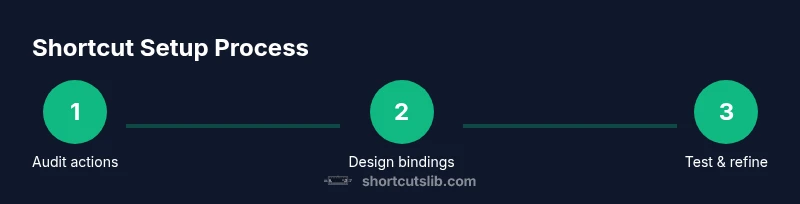
A practical workflow starts with a quick audit: list the tasks you repeat most often and identify the apps where you perform them. Then design a small set of high-leverage shortcuts that use consistent modifiers. Implement one change at a time, test across at least two apps, and note any conflicts. As you gain confidence, expand to a few app-specific shortcuts tailored to your most-used tools, keeping the overall set manageable. Regular reviews—every few weeks or after major app updates—help keep bindings aligned with your evolving work patterns. Shortcuts Lib recommends keeping a central record of all bindings and their purposes to simplify troubleshooting later.
Authority sources
To support your learning, consult reliable references:
- Apple Support: Use keyboard shortcuts on your Mac — https://support.apple.com/guide/mac-help/keyboard-shortcuts-mac
- Apple Developer Documentation: AppKit key bindings — https://developer.apple.com/documentation/appkit/keybindings
- Apple Mac Features Overview: Keyboard shortcuts — https://www.apple.com/mac/
Tools & Materials
- Mac computer with macOS(Access to System Settings/Keyboard Shortcuts)
- External keyboard (optional)(Useful for testing bindings on different hardware)
- Backup solution (Time Machine or equivalent)(Create a restore point before making major changes)
- Documentation notebook or digital notes(Record new shortcuts and changes for future reference)
Steps
Estimated time: 15-25 minutes
- 1
Open System Settings
Click the Apple menu and select System Settings (or System Preferences on older macOS). This is your starting point for any shortcut customization.
Tip: If you’re on macOS Ventura or later, use Spotlight (Cmd + Space) and type 'Keyboard Shortcuts' to jump directly. - 2
Navigate to Keyboard Shortcuts
In System Settings, select Keyboard, then Shortcuts. This pane shows the global bindings you can adjust.
Tip: Use the left sidebar to filter by category (e.g., App Shortcuts, Mission Control, etc.). - 3
Choose a category and add a binding
Select a category (like App Shortcuts). Click the plus button (+) to add a new binding for a specific menu item in a chosen app.
Tip: Ensure the Menu Title matches exactly, including ellipses and capitalization. - 4
Enter Menu Title and shortcut
Type the exact menu item name, choose the app, and press your desired key combination. The system will bind that action to the keys.
Tip: Prefer combinations that don’t collide with existing system shortcuts. - 5
Test the new shortcut
Open the target app, perform the action with your new binding, and verify it triggers the intended command.
Tip: If you don’t see the expected result, recheck the title and app selection. - 6
Document and optionally sync
Record the new shortcut in your notes. If you use multiple Apple devices, ensure iCloud sync is enabled for Settings.
Tip: Backup your configuration before making large batches of changes.
Questions & Answers
How do I create an app-specific shortcut on Mac?
Use System Settings > Keyboard > Shortcuts > App Shortcuts and click the + to add a new binding for a specific menu item.
Open System Settings, go to Shortcuts, add a new App Shortcut, choose the app, and define the key binding.
Can I reset all shortcuts to their default settings?
Yes. Use the Restore Defaults option in Keyboard Shortcuts or reset the specific app bindings if needed.
Yes, you can reset shortcuts to defaults from the Keyboard Shortcuts pane.
Will changing shortcuts affect keyboard layouts or input methods?
Shortcuts are bindings, not layouts. They don’t change the keyboard layout but can influence input methods if bindings collide with keys in use.
No, changing shortcuts won’t change your keyboard layout.
Do shortcuts sync across devices?
Shortcuts can sync if you use iCloud for System Settings across macOS devices; ensure iCloud Drive is enabled.
Yes, you can sync common settings via iCloud.
What if my new shortcut conflicts with an existing one?
Try changing the modifier keys or choosing a different key combo; verify in the app and System Settings.
If there’s a conflict, pick another binding and test again.
How do I remove a custom shortcut?
Select the shortcut in Keyboard Shortcuts and click the minus button to delete.
Delete the shortcut in the Shortcuts pane.
Watch Video
Main Points
- Plan before binding: map actions to predictable keys.
- Use App Shortcuts for app-specific actions.
- Test changes in multiple apps to ensure consistency.
- Back up shortcut settings before major edits.
- Review conflicts and adjust as needed.