How to Delete Keyboard Shortcut on Mac: A Practical Guide
Learn how to delete keyboard shortcut on Mac using System Settings, app-level shortcuts, and Terminal. This educational guide covers safe, reversible methods, troubleshooting, and best practices for conflict-free macOS workflows.


By the end of this guide you’ll know how to delete keyboard shortcuts on Mac, including built-in System Settings options, app-specific shortcuts, and safe, reversible methods. You’ll learn to disable, rebind, or remove conflicting shortcuts, test results, and how to avoid breaking essential workflows. Follow the step-by-step approach for a clean macOS setup.
Understanding the goal: removing a Mac shortcut
If you’re wondering how to delete keyboard shortcut on mac, the goal is to remove or disable a key combo that interferes with your workflow. Mac users often accumulate custom shortcuts from apps or system actions, and some built-in shortcuts clash with new tools. According to Shortcuts Lib, the best approach is to differentiate between global shortcuts (system-wide) and app-specific shortcuts, then decide whether to disable, rebind, or delete. In this section you’ll learn the distinction, when deletion is appropriate, and how to identify candidates that cause conflicts. We’ll cover built-in options in System Settings, app-level shortcuts, and advanced methods for power users. You’ll get practical criteria: impact on daily tasks, reversibility, and scope (system-wide vs. per-app). This knowledge helps you keep a clean, predictable macOS workflow.
Pre-flight considerations: planning before you delete
Before removing any shortcut, plan the change like a small project. Define which shortcut is causing friction and which tasks rely on it. Create a quick backup note detailing your current shortcuts, and decide whether you want a temporary disablement or a permanent delete. Shortcuts Lib recommends keeping a simple changelog so you can revert if something breaks. As you prepare, consider whether you want to keep a master list of all system-wide vs. per-app shortcuts. This upfront planning minimizes surprises and preserves productivity when you update or upgrade macOS.
Built-in path: System Settings to disable global shortcuts
System Settings on macOS provides a centralized way to manage global shortcuts. Navigate to System Settings > Keyboard > Shortcuts. From there you can toggle off entire categories (e.g., Spotlight, Mission Control) or edit individual entries. If you’re trying to delete a specific global shortcut, look for the relevant category, click the shortcut, and disable or remove it. This approach is reversible and avoids reliance on third-party tools. Shortcuts Lib highlights that most users should start here to reduce accidental removals of critical system actions like Command-Q and Command-S. After modification, test a few common actions to ensure you haven’t created new conflicts.
App-specific shortcuts: removing entries within apps
Some shortcuts are defined by apps rather than the system. To delete these, open the app’s preferences or settings, locate the Shortcuts or Keyboard section, and find the entry that matches your target key combo. Many apps let you delete a custom shortcut by selecting it and pressing the minus (–) button or by clearing the key binding. If an app stores shortcuts in a preference file, you may need to edit that file cautiously. Always back up the preference file before editing. Shortcuts Lib notes that app-level deletions are ideal for avoiding system-wide modifications that could impact other workflows.
Terminal and plist method for power users
For advanced users, macOS shortcuts can be edited via Terminal or by manipulating plist files. This path is not for beginners: incorrect edits can destabilize shortcuts or system behavior. A common approach is to identify the binding using defaults read commands, then use defaults delete or plist edits to remove the binding. If you go this route, back up your plist files and test after each change. Shortcuts Lib emphasizes extreme caution here and recommends sticking to built-in UI changes when possible, especially on laptops with minimal recovery options.
Handling conflicts after deletion
After removing a shortcut, conflicts can shift to other key combos. Rebind essential actions to different, less-used shortcuts to prevent clashes. Keep a mapping of original vs. new bindings to avoid confusion, especially if you switch apps or share your device with others. If you rely on multiple apps with overlapping shortcuts, consider a centralized shortcut manager that lets you view and adjust bindings across apps. Shortcuts Lib suggests a deliberate, documented approach to minimize confusion and maximize efficiency.
Practical examples and patterns to consider
Common problem areas include global shortcuts for search, screenshot, or app switching. If you’re unsure how to delete keyboard shortcut on mac, start by removing non-critical global shortcuts, then test core workflows. For app-specific shortcuts, focus on bindings that conflict with your primary apps (e.g., text editors, browsers, or design tools). A practical pattern is to delete or disable shortcuts that you rarely use, then rebind frequently used actions to intuitive keys. Remember to verify that the changes persist after reopening apps or restarting the system.
Testing and verification: does the shortcut disappear?
Verification is essential to ensure you’ve removed the intended binding without unintended side effects. After making changes, perform a quick task that previously relied on the shortcut. If the expected action no longer triggers, you’ve successfully deleted it. If the action persists, re-check the correct category or app and consider whether another shortcut is actually the culprit. If you see unexpected behavior, walk back your steps and re-apply the default settings for safety. This verification loop helps you maintain a stable macOS configuration.
Long-term maintenance and recovery plan
Plan periodic reviews of your shortcuts to prevent drift. Schedule a quarterly audit of global and app-specific bindings, update your changelog, and store a copy of your preferred defaults. If upgrades change defaults, re-test your critical workflows and adjust as needed. A well-maintained shortcut environment reduces friction and keeps your Mac responsive to your habits. According to Shortcuts Lib, consistent maintenance is part of an efficient macOS toolkit.
Tools & Materials
- Mac computer with macOS(Admin access to change shortcuts; ensure system is updated)
- System Settings app(Navigate to Keyboard > Shortcuts to manage bindings)
- Backup options(Create a quick backup of preferences before editing)
- Text editor or plist viewer (optional)(Useful if you edit plist files directly)
- Third-party shortcut manager (optional)(Only if you routinely manage many shortcuts across apps)
Steps
Estimated time: 20-30 minutes
- 1
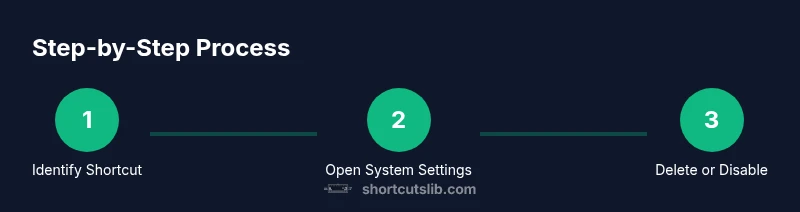
Identify the shortcut to delete
Review which key combo interferes with your workflow. Check recent changes in apps and System Settings to decide which binding should be removed or disabled.
Tip: Document the current binding before changing it to revert if needed. - 2
Open System Settings
Launch System Settings from the Apple menu or Dock, then navigate to Keyboard > Shortcuts.
Tip: Use Spotlight (Cmd + Space) to search for 'Shortcuts' quickly. - 3
Edit global shortcuts
In the relevant category (e.g., Spotlight, Mission Control), toggle off or delete the specific shortcut.
Tip: Uncheck or delete only non-critical shortcuts to avoid losing essential actions. - 4
Edit app-specific shortcuts
Select the app category and remove the entry matching your target key combo. Use the minus button if available.
Tip: If the app stores shortcuts in a plist, back it up before editing. - 5
Test your changes
Perform tasks that previously used the shortcut to confirm it no longer triggers and there are no new conflicts.
Tip: Test in multiple apps if you use cross-app workflows. - 6
Document and save changes
Record what you changed, the date, and the rationale. Save a copy of your new configuration for future reference.
Tip: Keep a simple changelog to simplify reversion.
Questions & Answers
Can I delete built-in Mac shortcuts?
Many built-in shortcuts are not deleteable, but you can disable or rebind them to avoid conflicts. Always back up before making changes and test to ensure essential functions still work.
Most built-in Mac shortcuts can’t be deleted, but you can disable or rebind them. Test to ensure core tasks still work.
How do I delete a custom shortcut in a specific app?
Open the app’s preferences, locate the Shortcuts or Keyboard section, and remove the matching entry. If the app stores shortcuts in a plist, back it up before editing.
Open the app’s preferences, remove the shortcut entry, and back up its plist if you edit directly.
Will deleting shortcuts affect other apps?
Generally only the target shortcut is affected; other bindings remain intact. If you have overlapping bindings, test after changes to catch any new conflicts.
Usually only the chosen shortcut is changed, but test across apps to catch new conflicts.
What if a shortcut reappears after a macOS update?
System updates can reset or alter shortcuts. Re-check your changes post-update and re-apply if needed.
Updates can reset bindings, so review shortcuts after updates.
How can I revert a change if I delete the wrong shortcut?
Use your changelog to restore the previous binding or reset the category/app shortcuts to default, then reconfigure as needed.
Check your changelog and reset to default if needed, then reconfigure safely.
Is it possible to remove global shortcuts entirely?
Completely removing all global shortcuts isn’t practical and may degrade usability. Focus on disabling non-essential ones first.
Totally removing all global shortcuts isn’t practical; disable non-essential ones first.
Watch Video
Main Points
- Identify the problematic shortcut before editing.
- Prefer System Settings changes for safety and reversibility.
- Test thoroughly after each change.
- Document all modifications for future reference.