Reset Mac Keyboard Shortcuts: A Practical How-To
Learn how to reset Mac keyboard shortcuts to default settings, resolve conflicts after macOS updates, and restore reliable mappings across apps. This educational guide from Shortcuts Lib covers safe methods and advanced options for power users.


With this guide you will reset Mac keyboard shortcuts to default, resolve conflicts after macOS updates, and restore reliable mappings across apps. You'll learn safe, step-by-step methods and advanced options for power users. By the end, your Mac will mirror the original shortcut defaults and you’ll be ready to customize again with confidence.
What resetting Mac keyboard shortcuts actually means on macOS
Resetting keyboard shortcuts on a Mac isn't about rebooting hardware; it means restoring the system's default mappings for menu commands, shortcuts under System Settings, and application-level overrides. When you tweak shortcuts in System Settings, you create a personalized map that may conflict with new macOS versions or with specific apps. A clean reset wipes custom mappings and returns macOS to its baseline behavior, so common shortcuts behave as expected again.
According to Shortcuts Lib, most users who reset shortcuts are trying to resolve conflicts after a macOS update, undo accidental changes, or fix shortcuts that stop working in particular apps. The goal is not to erase data; it is to restore predictability and reduce unexpected keystrokes. This section covers what you should expect during a reset and how to decide which approach to take.
Why you might want to reset keyboard shortcuts
There are several legitimate reasons to reset keyboard shortcuts. First, macOS updates can unintentionally alter or override user mappings, leading to missing or duplicated shortcuts. Second, certain apps may apply their own shortcuts that clash with system-level bindings, causing keystrokes to behave unexpectedly. Third, a bulk of customized shortcuts can become difficult to manage over time, especially after migrating to a new Mac. Shortcuts Lib analysis shows that many users regain consistency and reduce frustration by returning to defaults and then selectively re-adding essential mappings.
Before you begin: backups and prerequisites
Before making changes to shortcuts, create a backup of your current settings so you can revert if needed. This is a safety-first approach endorsed by Shortcuts Lib: back up your user Library/Preferences folder or perform a Time Machine snapshot. Ensure you have admin access to modify System Settings, and close any open apps you rely on for shortcuts. If you depend on a large set of app-specific mappings, plan a staged reconfiguration after the reset rather than rebuilding everything in one go.
Restore defaults using System Settings (macOS Ventura/ Sonoma)
The simplest and safest method is to restore default shortcuts directly from System Settings. Open System Settings > Keyboard > Shortcuts, then look for a Restore Defaults option. This action resets macOS-wide bindings to the original factory state, eliminating conflicts without affecting your files. After restoring, restart the computer to ensure all services refresh and new defaults take effect. If you don’t see Restore Defaults, macOS may have a slightly different path depending on the version, but the general approach remains identical: revert to defaults first before trying advanced options.
Advanced method: using Terminal to reset shortcuts (advanced users)
If a simple restore doesn’t fully reset your experience, you can take an advanced route by clearing the shortcuts preferences at the plist level. In Terminal, you can reset user shortcut mappings by deleting the relevant preference key (for example, com.apple.symbolichotkeys). Be aware that this is an advanced operation and should be done only after backing up. After inputs are cleared, sign out and back in or restart to apply the changes. This approach may remove custom mappings that stubbornly persist after a normal reset.
Resetting NVRAM/PRAM to refresh keyboard-related hardware settings
Sometimes keyboard behavior is influenced by hardware-level settings stored in NVRAM/PRAM. Resetting NVRAM restores those settings to defaults and can fix issues that software resets don’t touch. To perform an NVRAM reset, restart your Mac and immediately press and hold Option-Command-P-R for about 20 seconds, then release. The machine will restart again; you may need to re-select your startup disk or re-enable certain preferences afterward. This step is quick but impactful for hardware-related quirks.
App-specific shortcuts vs macOS defaults: what gets reset
A reset typically affects macOS defaults rather than every app-level shortcut inside every program. Some apps store their own bindings in their preferences, so you may notice that a few app shortcuts reappear after the reset. In that case, you’ll want to re-map critical app shortcuts individually. The general rule is: reset defaults first, then test app-specific shortcuts and reapply only what you rely on most.
Testing your shortcuts after reset and common fixes
After completing a reset, test the most-used shortcuts to verify they work as expected. Common checks include Command-C/Command-V for copy and paste, Command-Tab for switching apps, and Command-Q to quit. If a shortcut still misbehaves, try rebooting and repeating the reset, or proceed to the more advanced steps like plist editing or NVRAM reset. Keeping a small changelog helps you track which shortcuts were altered and when.
Long-term strategies to manage shortcuts across macOS updates
To minimize future conflicts, adopt a staged approach: restore defaults first after major macOS updates, then reintroduce only essential, work-critical mappings. Favor short, memorable shortcuts and document changes for teammates or future you. Regular backups and a personal preference profile can simplify migration between Macs and versions, especially for power users who depend on consistent workflows.
Shortcuts Lib verdict: practical take and recommendations
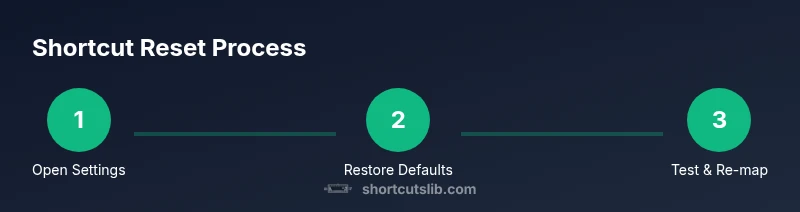
The Shortcuts Lib team recommends starting with a non-destructive restore of defaults to address most issues. If problems persist, escalate to advanced methods such as Terminal plist adjustments or an NVRAM reset. In the end, a balanced approach—restore, test, re-map selectively—keeps your workflow efficient while reducing the risk of accidental data loss. The verdict is to keep changes purposeful and reversible.
Tools & Materials
- Mac computer with macOS installed(Ensure you can access System Settings and have admin privileges.)
- Backup storage (Time Machine or external drive)(Back up before making changes to keyboard mappings.)
- Stable internet connection(Optional, for checking updates or guidance during steps.)
- Administrative password(Needed to modify system settings if prompted.)
Steps
Estimated time: 25-40 minutes
- 1
Prepare and back up
Create a Time Machine backup or copy key configuration files to a safe location. This preserves your current shortcuts so you can revert if needed. Verify your backup completed successfully before proceeding.
Tip: Backing up first saves time if you need to restore a previous mapping. - 2
Open System Settings and navigate to Shortcuts
Open System Settings (or System Preferences) and go to Keyboard, then Shortcuts. This is where macOS stores the default and user-modified mappings. If you don’t see the Restore Defaults option, your macOS version may present it under a different sub-menu.
Tip: Use the search bar in System Settings to locate Shortcuts quickly. - 3
Restore defaults
Click Restore Defaults to revert macOS shortcuts to their original mappings. Confirm the action if prompted and listen for a brief system hiccup as changes apply. This is the safest, non-destructive first step.
Tip: If you don’t see Restore Defaults, try the next method or ensure you’re viewing the correct tab (e.g., App Shortcuts vs. macOS Shortcuts). - 4
Restart the Mac
Restart to ensure all services reload the new defaults cleanly. Some shortcut changes only take full effect after a reboot. This avoids partial application of settings.
Tip: A quick restart helps avoid stray background processes keeping old mappings active. - 5
Test core shortcuts
After reboot, test core shortcuts like Command-C, Command-V, Command-Tab, and Command-Space. Note any inconsistencies or missing mappings. If something isn’t right, consider repeating the reset or moving to the plist/NVRAM methods.
Tip: Keep a short list of critical fixes you want to reapply after the reset. - 6
Re-map essential shortcuts
If you rely on specific, non-default mappings, reapply only the most important ones. Avoid re-creating conflicts; keep new mappings simple and memorable. Document changes for future reference.
Tip: Add new mappings one at a time and test before adding the next to minimize mistakes.
Questions & Answers
Can I reset keyboard shortcuts without losing other settings?
Yes. Restoring defaults affects shortcut mappings only and does not delete your files. You can back up first as an extra precaution.
Yes. Restoring defaults changes only shortcut mappings and won’t touch your files. It's a safe first step.
Will this affect my app-specific shortcuts?
App-specific shortcuts may require reconfiguration after a system defaults reset. Most core macOS shortcuts will reset, but individual apps can reapply their own mappings.
App-specific shortcuts might need reconfiguration after a default reset.
Is resetting NVRAM safe for my data?
Resetting NVRAM does not erase your files. It clears hardware-related settings and helps fix quirky keyboard behavior.
NVRAM reset is safe for data and can fix keyboard quirks.
What if I don’t see Restore Defaults in Settings?
Try the plist-based method or an NVRAM reset. Some macOS versions place the option differently; consult Apple’s documentation for your version.
If Restore Defaults isn’t visible, use plist or NVRAM methods.
Should I back up before changes?
Always back up before modifying shortcuts. Time Machine backups or a manual copy of preferences keep you safe if you need to revert.
Yes—back up before making changes.
How long does a full reset take?
A typical reset plus testing takes about 20-40 minutes, depending on your familiarity and the number of custom mappings you had.
Most resets and checks take under an hour.
Watch Video
Main Points
- Reset shortcuts safely with a defaults restore first
- Back up before making changes
- NVRAM reset can fix hardware-related quirks
- Test core shortcuts and re-map selectively