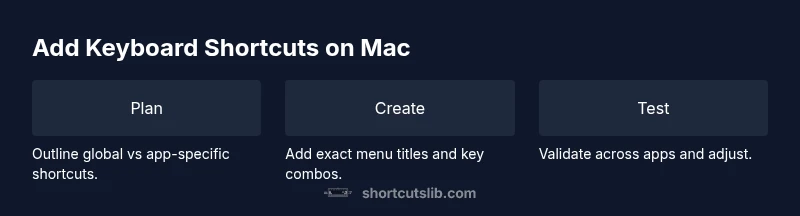
How to Add Keyboard Shortcuts on Mac
Learn to create custom Mac shortcuts with a clear plan, step-by-step system settings, and real-world examples to boost productivity. This guide covers global vs app-specific shortcuts and best practices for macOS users.


Master Mac productivity by learning how to add keyboard shortcuts mac. This quick guide shows you how to map common menu items to keyboard combos, distinguish global versus app-specific shortcuts, and test them across popular apps. By the end, you’ll have a reliable shortcut system that saves minutes each day.
Why Custom Shortcuts Matter on Mac
If you want to speed up your daily tasks, learning how to add keyboard shortcuts mac is a powerful step. According to Shortcuts Lib, deliberate shortcut planning reduces cognitive load and speeds up work across apps. Custom shortcuts let you skip menu digging and perform actions with a single keystroke, which saves time and keeps your focus in flow. In this section we’ll cover why customizing shortcuts makes sense and how to approach the task with a clear plan.
By applying targeted shortcuts, you can reclaim minutes each day and ensure consistency across your favorite apps. The strategy works best when you start with the actions you perform most often and map them to simple keystrokes that are easy to remember. A thoughtful approach prevents conflicts and keeps your workflow smooth.
Plan Your Shortcuts: Global vs App-Specific
Before you start creating shortcuts, decide whether you want global shortcuts that work in most apps or app-specific shortcuts tied to a single program. Global shortcuts are great for universal actions like "Save As" or "Print" across apps if the app exposes that menu item. App-specific shortcuts prevent conflicts with system prompts and other apps. The plan should include a list of actions, the exact menu titles, and the preferred key combos.
- Global shortcuts: work across multiple apps, ideal for universal actions.
- App-specific shortcuts: tailored to a single app’s menu, avoid cross-app conflicts.
- Record your top 5 actions first, then validate across at least 2 apps you use most.
Shortcuts Lib analysis shows that users who standardize their shortcuts report smoother workflows and less menu hunting.
How
Create a Global Shortcut: System Settings Method
To create a global shortcut, you’ll map a menu item that appears in most apps (or the system dialog) to a keystroke. The steps below assume
Create App-Specific Shortcuts: Precise Menu Titles Matter
App-specific shortcuts require you to replicate the menu text exactly as shown in the target app. This ensures the OS can locate the command reliably. Follow these steps:
- Open System Settings > Keyboard > Shortcuts > App Shortcuts. 2) Click + to add a new shortcut. 3) Choose the app from the Application pop-up. 4) Enter the exact Menu Title (be precise with spaces and ellipses). 5) Assign a keyboard combination and save. 6) Test in the chosen app.
A common pitfall is mis-typing the menu title or omitting the ellipsis, which prevents the shortcut from working. Double-check every character and symbol before saving.
Shortcuts that map to menu items inside apps often provide the most reliable productivity boost when you customize per-app behavior.
Testing Shortcuts Across Apps
After creating shortcuts, test them in multiple apps to ensure they trigger consistently. Start with two or three apps you use most: a text editor, a browser, and a file manager. Verify that global shortcuts perform the intended action and app-specific shortcuts activate only within their designated app. If a shortcut fails, re-check the exact Menu Title and re-apply.
Use a short, memorable combo like Cmd+Ctrl+K for quick actions and document where you implemented each shortcut to keep conflicts from building up over time.
Remember: some apps enforce focus contexts or require an initial click to activate shortcuts. If you encounter a stubborn shortcut, try focusing the app window first and re-testing.
Real-World Examples You Can Implement Today
Here are practical shortcuts you can consider implementing right away. Start with a small batch (3–5) and expand as you grow more confident:
- Global: Print… mapped to Cmd+P plus an extra modifier if needed, so you can trigger printing anywhere.
- Global: Save As… mapped to Cmd+Shift+S for quick saves across apps.
- App-specific (TextEdit): New Document mapped to Cmd+N across the editor.
- App-specific (Preview): Open in New Window mapped to Cmd+Opt+N inside the app.
- App-specific (Finder): New Folder, mapped to Cmd+Shift+N in Finder when you’re organizing files.
As you adopt these shortcuts, aim for consistency: use similar patterns for similar actions across apps to reduce cognitive load. Shortcuts Lib analysis shows that consistent schemes help memory retention and avoid accidental overlaps.
Troubleshooting: Shortcuts Not Working
If a shortcut isn’t behaving as expected, check these common causes:
- Menu Title mismatch: Ensure exact spelling and ellipses. Even small differences break the shortcut.
- Conflicting shortcuts: Other apps or system defaults may use the same keystroke. Test by temporarily changing the conflict resolution.
- App limitations: Some apps ignore system-level shortcuts or do not implement certain commands in their menus.
- Focus context: Some shortcuts only work when a window is focused; click the app window first.
To diagnose, temporarily disable other shortcuts in Settings to isolate the issue, then re-enable once your shortcut works reliably.
Best Practices for Durable Shortcuts
- Start with a core set of 3–6 high-leverage shortcuts and expand gradually.
- Use unique, memorable key combinations that aren’t tied to other apps you use frequently.
- Document each shortcut in a central note for quick reference and updates.
- Maintain accessibility: choose combos that are comfortable and easy to press without stretching.
- Periodically review and prune shortcuts that no longer serve your workflow.
The Shortcuts Lib team recommends keeping a single source of truth for your shortcuts and reviewing them quarterly to avoid drift in your workflow.
Tools & Materials
- Mac with macOS 11+ (Big Sur or later)(Ensure you have System Settings access; updates may affect path names.)
- List of desired shortcuts(Prepare a prioritized list of actions you want to speed up.)
- System Settings access to Keyboard Shortcuts(Navigate to System Settings > Keyboard > Shortcuts)
- Backup method(Time Machine or external drive to back up your shortcut plan)
- Test environment(At least two apps where you will validate the shortcuts)
Steps
Estimated time: 25-40 minutes
- 1
Plan your shortcut set
List high-frequency actions you perform in multiple apps and choose whether they should be global or app-specific. Write precise menu titles and note any app quirks (like ellipses).
Tip: Start with 3–5 actions that appear in many apps to get quick wins. - 2
Open System Settings and navigate to Shortcuts
Open System Settings, select Keyboard, then Shortcuts to access the App Shortcuts panel where you can add a new item.
Tip: If the menu path differs in your macOS release, use the on-screen help to locate App Shortcuts. - 3
Create a global shortcut (or per-app for global actions)
Choose App Shortcuts, click New, select 'All Applications' for a global shortcut or pick a specific app for per-app shortcuts. Enter the exact Menu Title and assign a keystroke.
Tip: Use a modifier-heavy combination (e.g., Cmd+Ctrl) to avoid clashes with common app shortcuts. - 4
Test in multiple apps
Test the shortcut in at least two apps to ensure it triggers where expected and does not interfere with existing shortcuts.
Tip: If a shortcut fails, re-check the Menu Title letter-by-letter and the ellipsis character. - 5
Document and back up your shortcuts
Record the final shortcut map in a central file or note with app scoping and keyboard combos. Back up your configuration so you can restore it later.
Tip: Create a simple naming convention so replacements or edits are easy to track.
Questions & Answers
Can I create keyboard shortcuts for every menu item on macOS?
Not every app exposes every command through a menu item. Shortcuts work best for commands that appear in the app’s menu. In some cases, third-party apps may not support keyboard shortcut mapping for certain actions.
Shortcuts work best where the app provides a menu item; not every command is mappable in all apps.
Are global shortcuts truly global on Mac?
Shortcuts created via App Shortcuts can be global if you select All Applications, but many shortcuts still depend on the active app exposing the menu item. Some actions won’t be available globally.
Global shortcuts exist in limited form, depending on app support. Test in multiple apps.
What should I type as the Menu Title?
Type the exact menu item text, including punctuation and ellipses. Any mismatch prevents the shortcut from triggering.
Type the exact menu title, including any ellipses, for reliability.
How do I remove or edit a shortcut?
Open System Settings > Keyboard > Shortcuts, select the shortcut, and choose Edit or Remove to update or delete it.
Edit or remove shortcuts from the Shortcuts panel.
Why don’t some shortcuts work in certain apps?
Some apps do not expose all menu items or override system shortcuts for their own behavior. Check app updates or use an alternative menu item with a valid title.
Some apps don’t expose all items or override shortcuts; verify app support.
Main Points
- Plan first, then implement shortcuts.
- Match the Menu Title exactly when defining a shortcut.
- Differentiate global vs app-specific shortcuts early.
- Test thoroughly across apps to avoid conflicts.
- Document and back up your shortcut map.