Why is My Keyboard Stuck on Shortcuts? Quick Troubleshooting Guide
Urgent, practical guide to diagnose and fix a keyboard that seems stuck on shortcuts. Learn causes, quick wins, a detailed diagnostic flow, and step-by-step fixes to regain control fast.


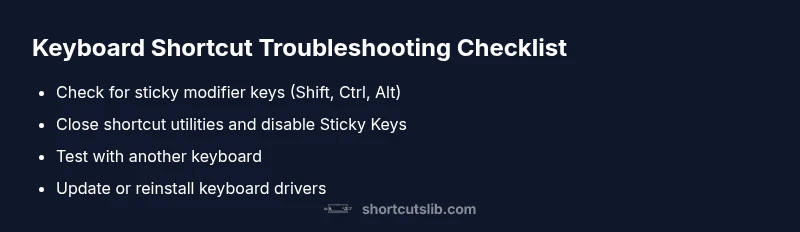
According to Shortcuts Lib, a keyboard stuck on shortcuts is usually caused by a physically pressed modifier key, a software shortcut hijack, or a background app capturing keystrokes. Try these quick fixes: clean the keyboard, restart the computer, disable Sticky Keys, and close any shortcut utilities. If the issue persists, follow the diagnostic flow for deeper checks.
Why this happens with 'why is my keyboard stuck on shortcuts'
When you notice the keyboard behaves as if every keystroke triggers a shortcut, it's usually a sign that a single issue is hijacking the input stream. The exact question you posed—why is my keyboard stuck on shortcuts—has a practical answer. In most cases, one of three possibilities is active: a physically stuck modifier key (like Shift, Ctrl, or Alt), a background shortcut utility that intercepts keystrokes, or accessibility features that reinterpret keystrokes at the system level. Shortcuts Lib's analysis for 2026 shows these causes are by far the most common. The impact is predictable: normal typing triggers unexpected commands rather than plain characters. The fix path is similarly straightforward: start with hardware checks, then test software scopes, and finally verify OS settings. The goal is to isolate the variable quickly with repeatable checks, so you can confidently rule out or confirm each potential cause.
Common culprits that turn typing into a barrage of shortcuts
- Sticky modifier keys: A slight residue, dust, or wear on Shift, Ctrl, or Alt can cause continuous signaling of a modifier without you intending it.
- Shortcut hijackers: Background apps or utilities that remap keystrokes can force shortcuts to activate even when you type ordinary letters.
- Accessibility features: Sticky Keys, Filter Keys, or other assistive settings can invert or modify keystrokes, making typing feel abnormal.
- Driver and OS glitches: Outdated keyboard drivers or OS-level issues may misinterpret input events and propagate shortcut combos.
- Hardware faults: A damaged USB hub or keyboard cable can create intermittent signals that resemble shortcuts.
Understanding these culprits helps you prioritize steps: hardware checks first, then software, then OS configurations.
Quick wins you can try now (no tools required)
If you want immediate relief, start with these quick wins. These actions address the most common causes and are safe to perform on most systems. First, physically inspect and clean the keyboard, particularly around modifier keys. If you still see the same behavior, perform a clean reboot with the keyboard unplugged, then reconnect. Disable Sticky Keys and other accessibility shortcuts, as they may be triggering unexpected behavior. Close any shortcut-utility apps you recognize, or temporarily boot into a clean user profile to see if the issue persists. Finally, test typing in a plain text editor to confirm that the problem is not confined to a single application. Shortcuts Lib notes that rapid, repeatable testing reduces guesswork.
Deep-dive: software, drivers, and background processes
Next, dive into software that could hijack keystrokes. Check for installed keyboard shortcut managers, macro tools, or game boosters that remap keys. Temporarily disable or uninstall them to observe results. Update your keyboard driver from the device manager (Windows) or System Information (Mac), or reinstall the driver if needed. If you have multiple keyboards, test with another one to determine if the issue is device-specific. Check for OS updates; sometimes a bug in the keyboard input pipeline is resolved by a patch. If you use virtualization or remote sessions, ensure the host OS isn't forwarding shortcuts to your guest session.
Hardware checks and OS-level adjustments
Hardware checks often reveal the root cause. Verify the keyboard is properly connected, try a different USB port, or replace the battery if you are on a wireless model. Use a different keyboard on the same computer to confirm whether the behavior follows the device. In the OS, reset keyboard settings to default, adjust language and input settings, and turn off any intentionally enabled shortcut features. For Windows, you can disable specific shortcuts in the registry or via group policy in enterprise contexts; for macOS, check System Preferences > Keyboard and the Shortcuts tab. Document results so you know what to reverse if needed.
Prevention: best practices to avoid future resets
Long-term prevention focuses on hygiene and proactive maintenance. Regularly clean your keyboard, keep drivers up to date, and monitor startup items to detect new shortcut utilities early. Create a baseline profile of your usual shortcuts to detect anomalies quickly. If you often run macro tools or gaming overlays, sandbox them to minimize interference. Finally, enable a controllable accessibility setup with a well-documented map of which keystrokes belong to which action. Keeping your system lean reduces the risk of shortcut hijacks recurring.
When to seek professional help
If the problem persists after completing the diagnostic flow and all recommended steps, professional help is warranted. A technician can inspect the keyboard at the hardware level, check for firmware issues, and evaluate your OS configuration in a controlled environment. If you rely on keyboards for critical workflows, consider a replacement or a tested spare keyboard as a temporary solution while awaiting support. The Shortcuts Lib team recommends methodical repair rather than guesswork, to avoid data loss or extended downtime.
Steps
Estimated time: 45-60 minutes
- 1
Check for physical sticking and clean
Power off and unplug the keyboard. Inspect each modifier key for debris, ensure none feel jammed, and clean around the keys with compressed air or a soft brush. Reconnect and test typing in a plain editor. If the issue persists, move to step 2.
Tip: Do not pour liquids on the keyboard; let it dry completely before powering up. - 2
Isolate by rebooting and testing ports
Restart the computer with no other devices connected to the keyboard. After login, reconnect the keyboard and try typing again. If you use a wireless model, re-pair it or switch to a wired connection temporarily.
Tip: Try a different USB port or hub to rule out port-level faults. - 3
Disable accessibility shortcuts
Open Settings or System Preferences and turn off Sticky Keys, Filter Keys, and any related shortcuts. Test typing again to see if behavior changes. If you use voice or other assistive tools, disable them temporarily to test.
Tip: Take screenshots of your current settings before changing them so you can revert easily. - 4
Check for shortcut utilities
Look for macro tools, remappers, or gaming overlays that intercept keystrokes. Quit or uninstall them and restart. If the problem stops, reintroduce tools one by one to identify the culprit.
Tip: Use Task Manager (Windows) or Activity Monitor (Mac) to end related processes. - 5
Update or reinstall drivers
Update the keyboard driver via Device Manager (Windows) or System Information (Mac). If necessary, reinstall the driver and reboot. Verify if another keyboard behaves normally on the same system.
Tip: Back up essential settings before reinstalling drivers. - 6
Escalate when needed
If the issue continues after all checks, consider OS-level resets or hardware replacement. Document results to share with a support tech.
Tip: Avoid frequent resets on critical work machines; plan a maintenance window.
Diagnosis: Keyboard behaves as if shortcuts are triggered for ordinary typing
Possible Causes
- highStuck or sticky modifier key (Shift/Ctrl/Alt)
- highBackground shortcut utility or macro tool hijacking keystrokes
- mediumAccessibility features (Sticky Keys/Filter Keys) enabled
- lowOutdated or corrupted keyboard driver
Fixes
- easyPhysically inspect and clean keyboard; reseat USB connection; test with another keyboard
- easyRestart computer with keyboard unplugged, reconnect after boot; use Safe Mode to disable startup shortcut utilities
- easyDisable or uninstall shortcut utilities and turn off Sticky Keys / other accessibility features
- mediumUpdate or reinstall keyboard drivers; test on another device to isolate hardware
Questions & Answers
Why does my keyboard seem stuck on shortcuts after I start my computer?
This is often caused by startup apps that load before the OS or a foreground service that remaps keys. A clean boot or selectively disabling startup items helps identify the culprit. If the problem persists, proceed with the diagnostic flow.
Often caused by startup apps load; try a clean boot to identify the culprit.
Why is my keyboard stuck on shortcuts on Windows?
Check for Sticky Keys, any shortcut managers, and ensure keyboard drivers are up to date. If needed, reinstall drivers and test with a different keyboard to isolate hardware vs software causes.
Check Sticky Keys and drivers; reinstall if needed.
Why is my keyboard stuck on shortcuts on Mac?
Inspect macOS keyboard shortcuts and accessibility settings, especially Sticky Keys or Key Repeat. Disable any unusual mappings and test with another keyboard if possible.
Review Mac shortcuts and accessibility; test with another keyboard.
Could the input language or source cause this behavior?
Yes. Mismatched input sources or language settings can make keystrokes appear as shortcuts. Verify the current input source and switch back to your standard layout if needed.
Language/input source could be the cause; check your layout.
Is resetting keyboard settings a good fix?
Resetting to default can resolve persistent mapping issues, but back up custom mappings first. Reconfigure gradually to ensure stability.
Reset can help; back up mappings first.
When should I replace the keyboard?
If hardware faults persist after thorough checks and driver updates, replacement may be the most reliable solution. Consider a spare keyboard for essential work while replacing.
If issues persist after fixes, consider replacement.
Watch Video
Main Points
- Hardware first: rule out physical keys and connectors
- Disable conflicting shortcut utilities
- Update or reinstall drivers to fix input glitches
- Test with an alternate keyboard to isolate the issue
- Seek professional help if unresolved