Why Won't Shortcuts Work on My Keyboard
Urgent, practical steps to diagnose and fix keyboard shortcut issues across Windows and macOS. Learn common causes, tested fixes, and prevention tips from Shortcuts Lib.


Most often, a keyboard shortcut stops working due to software toggles, conflicts, or a disabled global shortcut. Start by confirming the shortcut is enabled in OS settings, quitting apps that may hijack keys, and testing a different profile or keyboard. If the problem persists, reset keyboard preferences or try an external keyboard to rule out hardware faults.
Why shortcuts stop working on keyboards
When a long-time shortcut suddenly stops functioning, it can feel urgent. According to Shortcuts Lib, many shortcut problems start with software toggles or conflicts rather than hardware faults. A quick audit of the system settings and active applications often reveals the culprit.
Common causes include:
- Shortcuts disabled globally in OS settings.
- Other apps hijacking the same key combinations.
- A keyboard layout or input language mismatch.
- Accessibility features like Sticky Keys or Filter Keys left on.
- An outdated driver or firmware on the keyboard.
Starting with these factors helps you pinpoint issues quickly. If you notice the same shortcuts failing in multiple programs, the problem is usually system-wide. If only a single app misbehaves, focus on that app’s preferences or its hotkeys mapping. Keep in mind that external keyboards can behave differently than built-in ones, so testing with a spare device is valuable.
Hardware vs Software shortcuts: Understanding the difference
Hardware shortcuts rely on the physical keys and keyboard firmware; software shortcuts rely on the OS and applications. A faulty key or a Windows Fn lock can disable shortcuts, while software-level conflicts can map the same key to different actions. Distinguishing between hardware and software causes helps you choose the right fix quickly. If you suspect hardware, try an external keyboard; if software, focus on OS settings and app mappings. A systematic check saves time and reduces frustration.
Check OS-specific shortcut settings and accessibility features
On Windows, open Settings and search for Keyboard Shortcuts or Accessibility options. Ensure that essential shortcuts aren’t disabled and that Sticky Keys, Filter Keys, or other accessibility features aren’t intercepting inputs. On macOS, go to System Settings > Keyboard > Shortcuts and verify that global shortcuts are enabled and not overridden by third-party apps. Language and input source settings should align with your current keyboard layout. If you use Linux, check your desktop environment’s keyboard shortcuts manager for conflicts. A misconfigured layout or an active accessibility feature often explains the issue across platforms.
Diagnostic workflow you can follow (practical, fast)
This section walks you through a practical diagnostic flow to isolate the issue without guessing. Start with universal shortcuts (Copy, Paste) to determine if the problem is global or app-specific. If universal shortcuts fail everywhere, the OS level is likely at fault. If they work in some apps only, investigate individual app shortcuts and recent updates. Use external keyboards to rule out built-in hardware faults. Document each step so you know what changed if you need to escalate.
Clear fixes you can try now (step-by-step rationale)
If you’re short on time, begin with quick toggles and app cleanup, then proceed to deeper fixes. Disable conflicting apps, reset keyboard settings, and test with another keyboard. Avoid drastic changes in one go; instead, apply fixes sequentially and test after each step. If nothing helps, consider seeking professional support to check hardware integrity.
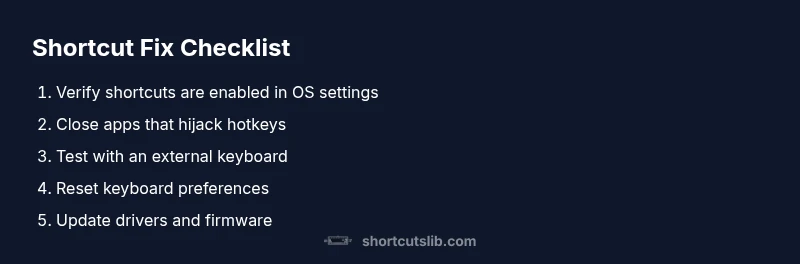
Steps
Estimated time: 25-40 minutes
- 1
Verify global shortcut enablement
Open your OS shortcut settings and ensure the key combinations you rely on are enabled. Rebind if necessary and save changes. Test the shortcuts in a few different apps to confirm the fix.
Tip: Take a screenshot of current mappings before changing anything. - 2
Close conflicting apps
Review recently installed or updated software that might capture hotkeys (screen capture tools, accessibility mods, productivity apps). Quit or disable them temporarily and retest.
Tip: Use a clean boot/profile to isolate interference. - 3
Test with an external keyboard
Plug in a different keyboard to see if shortcuts respond. If they do, the issue is likely the original keyboard hardware or driver.
Tip: Test both USB and Bluetooth keyboards if available. - 4
Reset keyboard preferences
On Windows, reset keyboard settings via Settings > Time & language > Typing or Device Manager. On macOS, reset from System Settings > Keyboard and remove conflicting profiles. Back up before resetting.
Tip: Document original settings to restore later. - 5
Update drivers/firmware
Check for driver or firmware updates from the keyboard or laptop manufacturer. Install and reboot to apply changes.
Tip: Always download updates from official sources. - 6
Test and secure
After fixes, thoroughly test core shortcuts in multiple apps. If nothing helps, escalate to professional support for hardware diagnosis.
Tip: Keep a changelog of fixes for future reference.
Diagnosis: Keyboard shortcuts do not respond across OS or multiple apps
Possible Causes
- highShortcut toggle disabled
- highConflicting software capturing keys
- mediumLayout/language mismatch
- lowHardware issue (Fn key or keyboard)
- lowOutdated drivers
Fixes
- easyCheck global shortcut settings and re-enable as needed
- easyClose apps that may hijack hotkeys or disable conflicting shortcuts
- easyTest with a different keyboard or a separate user profile
- mediumReset keyboard preferences (Windows and macOS)
- mediumUpdate keyboard drivers/firmware and reboot
- hardIf unresolved after all steps, contact device support
Questions & Answers
Why do keyboard shortcuts stop working after a software update?
Software updates can reset or rebind shortcuts, disable global shortcuts, or introduce new conflicts. Check system shortcuts settings and rebind any affected hotkeys. If issues persist after updating, try a clean user profile.
Shortcuts can break after updates due to resets or new conflicts; check settings and rebind if needed.
Could a stuck key or hardware issue mimic a shortcut failure?
Yes. A physically stuck key or a faulty keyboard can register unintended input, blocking typical shortcuts. Inspect keys for debris, test with another keyboard, and check for hardware alerts.
A stuck key can block shortcuts; try cleaning and testing with a different keyboard.
How can I test if a shortcut is globally disabled or overridden?
Open your OS settings to view keyboard shortcuts, and try a universal shortcut like Copy. If it works everywhere, the issue is app-specific; if not, the OS setting or accessibility features may be at fault.
Test a universal shortcut and observe if it works everywhere.
What is the best way to reset keyboard preferences on Windows and macOS?
On Windows, reset keyboard settings via the Control Panel or Settings app and rebind hotkeys. On macOS, reset from System Settings > Keyboard and delete any conflicting profiles. Back up before resetting.
Reset keyboard preferences carefully, and back up first.
Are there safety concerns when changing shortcuts?
Only modify shortcuts from trusted sources. Incorrectly remapping keys could hinder input in critical apps. Avoid deleting system keys and keep a default profile as a fallback.
Be careful when remapping keys and have a fallback plan.
When should I seek professional help for keyboard shortcut issues?
If the problem persists after all standard fixes, the keyboard hardware or motherboard could be at fault. Contact device support or a local technician.
If nothing fixes it, get professional help.
Watch Video
Main Points
- Start with OS-level shortcut checks and disable conflicts
- Test with a different keyboard to rule out hardware faults
- Reset preferences before considering hardware replacement
- Document changes and keep a fallback plan