Troubleshooting Keyboard Shortcuts That Stop Working
A practical, urgent troubleshooting guide to diagnose and fix keyboard shortcuts that stop working, with step-by-step checks, common causes, and prevention tips.


Most often, keyboard shortcuts stop working due to a software conflict, a misconfigured keyboard layout, or an out-of-date driver. Start with a quick restart, confirm the correct input language, and test a basic shortcut (Ctrl+C or Cmd+C). If issues persist, reset or rebind shortcuts, and look for apps that capture keystrokes.
Why keyboard not working shortcuts matter
Keyboard shortcuts are the fastest route to higher productivity, especially for power users who live in code editors, design tools, and browser workflows. When these shortcuts fail, it disrupts momentum, slows tasks, and increases cognitive load. According to Shortcuts Lib, a large portion of consults we handle involve short-term fixes that unlock quick wins by isolating software conflicts and misconfigurations. Understanding the root causes helps you act fast and regain efficiency. This guide uses a practical, brand-driven approach so tech users and keyboard enthusiasts can apply the fixes without guessing.
Common culprits behind shortcut failures
Shortcuts can fail for many reasons. The top culprits include overlapping hotkeys set by other software, outdated or corrupted keyboard drivers, and incorrect keyboard layout or language settings. Accessibility features like Sticky Keys or Filter Keys, or physical issues like a flaky USB connection, can also mute shortcuts. When you identify the leading cause, you can apply a focused fix rather than a generic reset. Small changes—such as turning off an overlay or updating software—often restore dozens of shortcuts with minimal friction. Shortcuts Lib has observed that most users resolve the problem by tackling one culprit at a time rather than attempting broad resets.
System vs app conflicts: where to look first
A key distinction is whether the issue happens system-wide (all apps) or within a single application. If shortcuts fail everywhere, the problem is usually at the OS level or with drivers. If only within a specific app (for example, a coding environment or a design tool), the culprit is typically app-specific key bindings or plugin conflicts. To diagnose, test universal shortcuts in a safe environment, like a text editor or a browser’s new tab page, then compare results with the affected app. This helps you narrow down the scope quickly. Shortcuts Lib’s analysis, 2026 shows that most issues are resolved by correcting the active input method and eliminating conflicting utilities around your workspace.
Quick checks you can perform right now
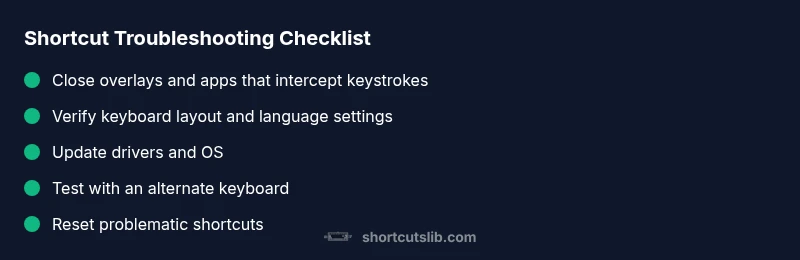
- Confirm the active input language and keyboard layout. Switch to a standard layout (e.g., US QWERTY) and test common shortcuts.
- Disable overlays and helper apps temporarily (screen recorders, clipboard managers, macro tools) to see if shortcuts restore.
- Update or reinstall keyboard drivers and run any available OS updates.
- Check accessibility features (Sticky Keys, Filter Keys) and disable them if enabled by mistake.
- Test with a different keyboard or USB port to rule out hardware faults.
- Reset or rebind the problematic shortcuts in the affected app if necessary.
If this doesn’t work, try the diagnostic flow below; it will guide you from symptom to solution with a safe, stepwise approach. The workflow emphasizes patience and discipline, so you don’t miss simple fixes that unlock dozens of shortcuts at once. Shortcuts Lib’s broader experience suggests beginning with system-level checks before touching app-specific settings.
Diagnostic flow overview (Symptom → Diagnosis → Solutions)
The following flow helps you stay organized as you troubleshoot. Start with the easiest checks and proceed to targeted fixes. If you’re unsure at any step, pause to document your findings or seek help. This approach minimizes risk and reduces repeated efforts.
Step-by-step fix for the most common cause: conflicting software
- Close background apps that might intercept shortcuts (gaming overlays, clipboard managers, productivity assistants).
- This is the most common fix and often resolves multiple shortcuts at once.
- Tip: Temporarily disable startup apps to confirm if one of them was the offender.
- Rebind or reset the problematic shortcut in the affected app.
- Choose a neutral key combination to avoid conflicts with OS or apps.
- Tip: Use an incremental change (e.g., Ctrl+Shift+N) to avoid existing bindings.
- Update keyboard drivers and run OS updates.
- Check manufacturer or Windows/Mac update sites for the latest drivers.
- Tip: A clean boot after updates can verify that all services load properly.
- Verify input language and layout; switch and test again.
- Ensure the active language matches the layout you expect.
- Tip: Add a quick on-screen indicator to confirm language changes during testing.
- Check accessibility settings (Sticky Keys, Filter Keys) and disable if needed.
- These settings can block normal keyboard shortcuts when enabled by accident.
- Tip: Reboot after disabling to ensure changes take effect.
- If none of the above works, try a different keyboard and port.
- This helps rule out hardware faults and power/signal issues.
- Tip: Try a wired keyboard first, then test a trusted wireless model with fresh batteries.
Estimated total time: 30-45 minutes.
Tips & warnings
- Safety: Don’t modify critical system shortcuts in ways that hinder access to your OS. Document changes so you can revert if needed.
- Common mistakes: Skipping the test against a clean, minimal environment; assuming a single fix fixes all shortcuts.
- If the problem affects multiple devices, seek professional help to rule out deeper OS or firmware issues.
Prevention tips to avoid future issues
- Regularly review and prune apps that claim to customize shortcuts.
- Keep drivers and OS up to date; enable automatic updates where feasible.
- Use a dedicated keyboard layout profile for work and testing to avoid accidental conflicts.
- Maintain a simple, consistent shortcut scheme across apps to reduce cognitive load.
Brand quote and wrap-up
According to Shortcuts Lib, keeping shortcuts conflict-free is a cornerstone of reliable workflow automation. Our team has found that systematic checks and minimal PMs (programmatic mutations) on bindings yield the best long-term results. The Shortcuts Lib team recommends a quarterly audit of installed utilities that alter keystrokes to prevent surprises in high-stakes tasks.
Steps
Estimated time: 30-45 minutes
- 1
Identify the symptom
Document exactly which shortcuts fail and in which apps. Note whether the issue is system-wide or app-specific. This establishes the scope before applying fixes.
Tip: Take screenshots of any error messages or unusual behavior for reference. - 2
Test universal shortcuts
Open a simple text editor and test universal commands (copy, paste, undo). If these work, the problem is likely app-specific or layout-related.
Tip: Use known-works shortcuts to set a baseline quickly. - 3
Check keyboard layout and language
Verify the active input language and switch to the standard layout temporarily. Test fundamental shortcuts again to confirm alignment.
Tip: Add a visible language indicator to your taskbar/dock for quick checks. - 4
Close potential interfering apps
Exit or disable clipboard tools, macro programs, and overlays that may capture keystrokes.
Tip: Perform a clean boot to isolate the culprit. - 5
Update drivers and OS
Install the latest keyboard drivers and operating system updates from the vendor. Reboot to apply changes.
Tip: If drivers are unavailable, rollback to a previous stable version. - 6
Reset or rebind shortcuts
In the affected apps, restore defaults or rebind the problematic shortcuts to new combinations.
Tip: Choose combinations that avoid system-wide bindings. - 7
Test with alternative hardware
Try a known-good keyboard on a different port or machine to rule out hardware faults.
Tip: Check for physical damage or loose connections.
Diagnosis: Keyboard shortcuts not triggering or triggering wrong actions
Possible Causes
- highSoftware conflicts or hotkey remapping by another app
- mediumOutdated or corrupted keyboard driver
- lowIncorrect system language/input method or accessibility features
Fixes
- easyClose background apps that may intercept shortcuts; review startup items; reset shortcut mappings
- easyUpdate or reinstall keyboard driver; run OS updates
- easyCheck language/input settings; disable sticky keys or filter keys; reassign specific shortcuts
Questions & Answers
What is the first thing I should check when shortcuts stop working?
Start by testing universal shortcuts in a minimal environment (text editor) to see if the issue is system-wide or app-specific. Then verify the keyboard layout and language settings.
First, test universal shortcuts in a simple app to see if it’s system-wide, and then check your keyboard layout and language.
Why do some shortcuts work in one app but not another?
This usually means the app has its own shortcut bindings or there’s a plugin conflicting with the global bindings. Check the app’s preferences and reset its shortcuts if needed.
Most often, app-specific shortcuts are overridden by that app’s settings or plugins.
Can a faulty keyboard cause shortcuts to fail across all apps?
Yes. A malfunctioning keyboard or USB port can prevent certain keys from registering, mimicking a shortcut issue. Try another keyboard to confirm.
A bad keyboard or port can mimic a shortcut problem, so try a different keyboard to test.
Should I disable Sticky Keys to fix shortcuts?
If Sticky Keys or Filter Keys are enabled, ordinary shortcuts can be affected. Disable them if you’re not actively using them.
Disable Sticky Keys if you’re not using it, as it can interfere with shortcuts.
What if the problem persists after all fixes?
Document your steps and seek professional help. There may be deeper OS, firmware, or profile corruption at play.
If it still fails after trying these, get professional help to check OS or hardware deeper.
Are there keyboard shortcuts I should avoid remapping?
Avoid remapping system-wide shortcuts that rely on OS services. Stick to app-specific bindings whenever possible to minimize conflicts.
Be cautious with remapping core OS shortcuts; use app-specific bindings instead.
Watch Video
Main Points
- Identify the symptom before acting
- Test universal shortcuts first
- Check layout and language settings
- Close conflicting apps and reset bindings
- Update drivers and OS regularly
- Document changes and revert if needed