How to Troubleshoot Keyboard Shortcuts: Quick Guide
Learn how to troubleshoot keyboard shortcuts quickly with a practical, step-by-step framework. Covering common causes, diagnostic flow, and safe fixes for global and app-specific shortcuts.


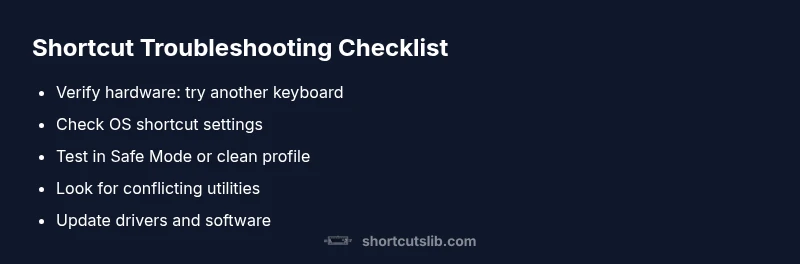
To troubleshoot keyboard shortcuts, start by ruling out hardware issues, then check OS and app settings for conflicts. Test shortcuts in a clean environment, disable conflicting utilities, and reset to defaults if needed. If issues persist, update drivers and reassign keys, then verify with a fresh user profile. Keep notes of changes to map cause and effect.
Why keyboard shortcuts stop working and how to think about it
Shortcuts are a fast way to work, but when they fail it disrupts momentum. If you’re asking how to troubleshoot keyboard shortcut, you can approach the issue as a small system diagnostic rather than a single fix. Start by confirming the problem scope: does it affect all apps or just one? Are the key combos standard (Ctrl/Cmd, Alt, and Shift) or custom mappings? From there you can map symptoms to likely root causes and build a minimal test plan to isolate variables. In practice, a systematic mindset saves time: validate the keyboard hardware first, then review software settings and any third‑party utilities that might intercept keystrokes. This approach applies whether you’re on Windows, macOS, or Linux, and whether the problem is global or constrained to a single application. Be prepared to iterate — most issues clear up after you test one variable at a time. By treating the issue as a solvable puzzle, you’ll fix more shortcuts in less time and with less frustration.
Common culprits and quick checks
Many shortcut problems come down to hardware faults, conflicting software, or misconfigured OS settings. Common culprits include a sticky key, a loose USB connection, language/layout remappings, and utilities that hijack keystrokes. Quick checks you can perform: - Try a different keyboard to rule out hardware faults. - Open a fresh browser profile or use incognito mode to disable extensions that might intercept shortcuts. - Review OS keyboard settings (input language, shortcut toggles, remappings). - Temporarily disable third-party tools like macro managers or clipboard utilities. If shortcuts fail only in one app, look for app-specific key bindings or overrides. If they fail everywhere, the issue is likely system-level and will require a broader reset.
Global vs app-specific shortcuts and scope
Global shortcuts work regardless of active window, while app-specific shortcuts are defined within the app and can be overridden by preferences or plugins. Understanding scope helps you diagnose quickly: when a global shortcut stops working, check OS settings and drivers; when an app shortcut fails, examine the app’s preferences and any plugins. On macOS, for example, you might see a conflict with Mission Control or Spotlight shortcuts; on Windows, a software update or accessibility feature could reshape mappings. The key is to identify whether the problem follows the system or follows a particular app, then apply the appropriate mitigation strategy.
Diagnostic flow you can run step by step
This is a practical, linear flow you can follow to diagnose shortcut issues without guessing. Start with a reproducible symptom, then progressively eliminate variables. Step 1: verify hardware and keyboard connectivity. Step 2: test OS-level shortcuts to confirm system responsiveness. Step 3: restart or boot into Safe Mode to rule out third-party interference. Step 4: test shortcuts in a clean user profile or new account. Step 5: reset relevant shortcuts to defaults in both OS and the affected apps. Step 6: update drivers and software, and re-test. If the problem persists, you may have a deeper compatibility issue or a hardware fault.
Safe fixes and prevention tips
Once you’ve identified the cause, apply fixes that are safe and reversible. Start with non-destructive steps: disable conflicting utilities, reset to defaults, and update drivers. If you changed system language or input settings, revert to your preferred layout. Create a baseline by documenting your standard shortcuts and their mappings. Regularly check for software updates and backup your shortcut configurations so you can restore quickly after future changes. Finally, consider tools that explicitly manage keyboard shortcuts and provide logging so you can track changes over time.
Steps
Estimated time: 45-75 minutes
- 1
Confirm the problem and reproduce consistently
Document the exact shortcut and the expected vs actual result. Ensure the symptom is repeatable under the same conditions to avoid chasing random glitches.
Tip: Write down the exact keystrokes and the programs involved. - 2
Test hardware with an alternate keyboard
Plug in a different keyboard (wired or wireless) and verify if the shortcuts respond as expected. If the issue disappears, the original keyboard likely needs replacement.
Tip: Check for key sticking and ensure no debris under keys. - 3
Check OS-level shortcut settings
Inspect system preferences for language/layout changes and universal shortcut toggles. Reset any unintended remappings to defaults where possible.
Tip: Note any recent changes before reboot. - 4
Isolate software interference
Boot in Safe Mode (or per-OS equivalent) to disable third-party tools temporarily. Test a few core shortcuts to see if they function without extras.
Tip: If shortcuts work in Safe Mode, a background app is the culprit. - 5
Test with a new user profile
Create a clean user profile or guest account and test shortcuts there. If they work, the issue is user-profile related; migrate settings progressively.
Tip: Avoid copying over risky configuration files initially. - 6
Apply safe restores and updates
Reset affected shortcuts to default, then apply one update or reinstall at a time. Re-test after each change.
Tip: Back up keyboard settings before resets.
Diagnosis: Shortcut keys stop working or behave inconsistently across OS and apps
Possible Causes
- highHardware issue or loose keyboard connection
- highOS accessibility or language/layout interference
- mediumApp-specific conflicts or overrides
Fixes
- easyTest with a different keyboard to rule out hardware faults
- easyDisable third-party shortcut managers or accessibility tools temporarily
- easyReset keyboard shortcuts to default in OS and affected apps
- mediumUpdate or reinstall keyboard drivers and OS updates
Questions & Answers
Why are my keyboard shortcuts not working on Windows 11?
Shortcut failures on Windows 11 are often caused by conflicting background apps, language/layout changes, or disabled shortcuts in Settings. Start with OS settings and test with a new profile to isolate the cause.
On Windows 11, shortcut issues usually come from app conflicts or settings changes. Try a new user profile to see if the problem persists.
Why do shortcuts work in some apps but not others?
Many apps define their own shortcuts or override global mappings. Inspect the app’s preferences, reset to defaults, or disable extensions that might intercept keystrokes.
Apps often have their own shortcuts; check the app’s preferences and disable any extensions that intercept keys.
How do I reset keyboard shortcuts to default on Windows or macOS?
Resetting shortcuts typically happens in the OS settings or the app’s preferences. If available, choose 'Restore defaults' and re-test each shortcut.
Reset shortcuts in OS or app preferences, then re-test to confirm.
Can a stuck key or dirty keyboard cause shortcuts to fail?
Yes. A physically sticky or malfunctioning key can prevent proper keystroke detection. Clean the keyboard and test each key individually.
A stuck key can break shortcuts; clean it and test individually.
Is it safe to edit registry or system files to fix shortcuts?
Editing system files or registry should be avoided unless you have a backup and a clear rollback plan. Seek guided steps or professional help if unsure.
Don’t mess with registry unless you know exactly what you’re doing.
What should I do if shortcut issues persist after updates?
If issues persist post-update, revert the update or contact support with steps to reproduce. Use a clean profile to verify whether the update caused the conflict.
If shortcuts break after an update, test in a clean profile and contact support if needed.
Watch Video
Main Points
- Identify whether the problem is hardware or software
- Distinguish global vs app-specific shortcuts
- Use Safe Mode to isolate third-party interference
- Reset defaults one step at a time
- Maintain a changelog for future fixes