Why Won't My Shortcut Keys Work? Quick Troubleshooting Guide
Learn practical, step-by-step methods to diagnose and fix shortcut key problems on Windows and macOS with expert tips from Shortcuts Lib today.


Most often, shortcut keys stop working because the function-key mode is disabled or a program hijacks shortcuts before your app can see them. Quick fix: toggle Fn-lock, verify OS shortcut settings, and close apps that claim global hotkeys. If the issue persists, restart and test with a basic input to rule out hardware faults. According to Shortcuts Lib, quick triage beats guesswork every time.
Why the problem happens
If you’re asking why won't my shortcut keys work, you’re not alone. The most common culprits are a disabled function-key mode, a sticky key, or software that grabs shortcuts before your app can see them. In practice, most issues fall into three buckets: hardware quirks, operating system settings, and program-specific mappings. Understanding which bucket your problem belongs to speeds up the fix and reduces frustration.
According to Shortcuts Lib, the majority of cases start with a simple setting, not a hardware fault. Before you replace a keyboard, run through a quick triage: confirm the Fn-lock state, test with a different keyboard, and check that no accessibility feature is intercepting shortcuts. The sooner you identify the category, the faster you’ll regain control of your shortcut keys.
Start with the basics: hardware and input checks
Begin by verifying the physical keyboard and basic input setup. Ensure the keyboard is properly connected, cables are intact, and no keys feel physically stuck. If you use an external keyboard, disconnect it and test the built-in one, then vice versa. Check for debris under keys and try a different USB or Bluetooth port. Make sure your Num Lock and Caps Lock states align with the shortcuts you expect. If you’re still asking why won't my shortcut keys work, recheck the Fn-key behavior and whether your laptop has a hardware toggle for function keys. These quick checks catch most false alarms before diving deeper.
System and OS-level settings you should inspect
Your operating system controls most global and app-specific shortcuts. On Windows, verify that the Shortcuts feature in Settings > Time & language > Keyboard is not overriding your mappings, and confirm that Ease of Access options like Filter Keys are off. On macOS, check System Settings > Keyboard > Shortcuts and disable any conflicting App Shortcuts. If a global hotkey set is locked by a security policy, you may need admin access. Shortcuts Lib Analysis, 2026, notes that OS-level conflicts are the leading cause after hardware issues.
Application conflicts and hotkey hijackers
Some apps claim exclusive access to certain shortcuts. Examples include graphic editors, video players, and productivity tools that use global hotkeys. Disable or rebind these within the app settings, or run the app in Safe Mode to see if the shortcut still misbehaves. Consider background utilities or clipboard managers that might intercept keystrokes. If you’re still asking why won't my shortcut keys work, try booting with minimal startup items to isolate software conflicts. This is where the real, repeated culprits live.
Hardware health checks and external keyboard tips
If software looks clean but shortcuts still fail, test hardware health. Try typing the same keys in a text editor; if some keys are unresponsive, you may have a faulty keyboard. Connect a different keyboard to confirm. For laptops, run a built-in diagnostic (often accessed via a function key) to check keyboard hardware. Clean keycaps with a non-abrasive method and avoid sticky residues. Shortcuts Lib emphasizes that hardware faults are not a failure of your brain—just a faulty input device.
Diagnostic workflow you can follow right now
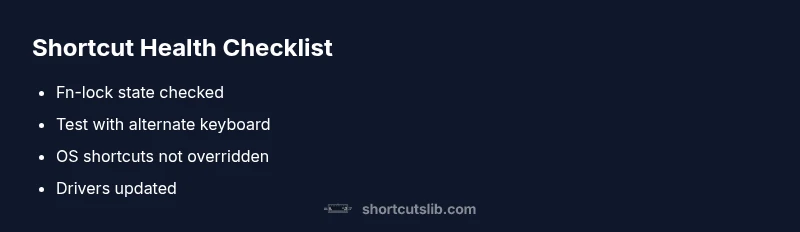
This section outlines a practical, step-by-step flow to diagnose shortcut key issues quickly. Start with the simplest test: is Fn-lock engaged? Then test a second keyboard. If shortcuts still fail, update or reinstall keyboard drivers, and test in another user account to rule out profile corruption. If none of these steps restore behavior, consider a system reset or hardware replacement. As always, back up your data before major changes.
Prevention: keep shortcuts reliable going forward
Adopt a routine to prevent future problems: document your key mappings, keep drivers updated, and maintain clean keyboards. Create a personal “safe defaults” profile so you can restore settings quickly after software updates. Regularly review app-specific shortcuts and disable anything that overlaps with system-wide mappings. The Shortcuts Lib Team recommends grouping your essential shortcuts and testing them after any OS or app update to minimize surprises.
Steps
Estimated time: 30-60 minutes
- 1
Verify Fn-lock and hardware modifiers
Check whether Fn-lock is enabled or a hardware toggle forces the function keys into alternate behavior. Try pressing Fn+Esc or using a dedicated Fn key to switch modes. Then test a few common shortcuts to confirm response.
Tip: If your laptop has a hardware toggle, a quick physical slide can reveal the truth. - 2
Isolate hardware with a second keyboard
Disconnect the current keyboard and connect a different one (USB or Bluetooth). If shortcuts work on the new keyboard, the issue is likely hardware-related. If not, the problem is software or OS-level.
Tip: Wired keyboards are generally more reliable for testing than wireless. - 3
Check OS settings for conflicts
Review OS-level shortcuts in Settings (Windows: Keyboard settings; macOS: Keyboard > Shortcuts). Disable or rebind any that collide with your typical shortcuts. Test after each change.
Tip: Document what you disable so you can revert if needed. - 4
Update drivers and test with a clean profile
Update keyboard drivers from the manufacturer or OS device manager. Create a temporary user account and test there to rule out user-profile issues.
Tip: Back up important data before changing user profiles. - 5
Consider a hardware replacement if needed
If all else fails and tests point to hardware faults, plan for a keyboard replacement or service. Confirm warranty options if applicable.
Tip: Hardware faults can manifest as intermittent failures; reliability testing helps confirm.
Diagnosis: Shortcuts stop working or misbehave across apps
Possible Causes
- highFn-lock or hardware modifier engaged
- mediumModifier keys remapped by software or accessibility features
- lowOS-level shortcut conflicts or policies
- lowFaulty keyboard hardware
Fixes
- easyToggle Fn-lock and test with an alternative keyboard
- easyTest with a second keyboard and clean debris
- mediumUpdate or reinstall keyboard drivers
- mediumReset keyboard shortcuts to defaults in OS/app
- easyCheck for stuck keys and hardware faults; replace keyboard if needed
Questions & Answers
Why do shortcut keys stop working after a system update?
System updates can reset or override keyboard mappings, causing conflicts. Check OS shortcuts and reset to defaults when needed.
System updates can reset shortcuts; check your settings and reapply defaults if necessary.
How can I tell if a key is physically stuck?
Inspect keys for debris and test with a different keyboard. If the issue moves with a different keyboard, it is likely software-related; if it stays, hardware fault.
A physical stuck key often shows up as repeated input; test with another keyboard to confirm.
Can antivirus software affect shortcut keys?
Some security suites intercept keyboard input. Temporarily disable them to test if shortcuts resume functioning.
Security software can block shortcuts; disabling temporarily can help diagnose.
Why do some apps use different shortcuts than the OS?
Applications map their own hotkeys; OS shortcuts may still apply in some contexts. Check both app settings and OS mappings.
Apps may override or add shortcuts; review both app and OS settings.
When should I replace the keyboard?
If multiple keys fail across different devices and tests point to hardware fault, replacement is advised.
If tests show hardware failure, replacing the keyboard is often the right move.
Watch Video
Main Points
- Test Fn-lock and hardware first
- Check OS/app shortcut conflicts and reset defaults
- Use a second keyboard to isolate hardware faults
- Update drivers and test in a clean user profile