Why Is My Keyboard Activating Shortcuts and How to Stop It
Learn practical, urgent steps to diagnose and stop unintended shortcut activations. A practical guide covering hardware checks, OS settings, and software conflicts, with a clear troubleshooting flow from Shortcuts Lib.


If your keyboard is unexpectedly triggering shortcuts, the easiest fix is to check for sticky modifier keys, disable hardware toggle quirks, and reset software shortcuts. Start by unplugging and replugging, test in a text field, and close apps that might hijack shortcuts. This quick check can stop accidental activations in minutes.
Why is my keyboard activating shortcuts: practical meaning and quick context
When you ask why is my keyboard activating shortcuts, you’re observing signals firing outside your intended commands. The behavior can range from a single key launching a sequence to multiple actions firing in quick succession. According to Shortcuts Lib, this is usually a blend of hardware signals (dust, sticky keys) and software settings (layout, language, or macro utilities). Reproducing the behavior in a controlled environment helps confirm whether the trigger is system-wide or app-specific. Keep a simple log: the time, active window, and which keys were pressed. The act of tracking patterns shortens repair time and reduces frustration fast.
Common causes at a glance
From experience, the most frequent culprits behind unexpected shortcut activations are hardware quirks, software conflicts, and misconfigured settings. Here are the top categories to review:
- Sticky keys / toggle keys: When modifiers don’t reset, a single press can behave as multiple keys. Shortcuts can fire unintentionally.
- Dust, moisture, or debris: Debounce issues in the keyboard matrix can cause spurious signals.
- Macro or automation tools: Apps like macro managers or clipboard utilities can remap or inject shortcuts without you realizing it.
- Wrong keyboard layout or language: Locale changes can swap modifier positions and cause accidental triggers.
- Driver or firmware issues: Outdated or corrupted keyboard drivers can misinterpret keystrokes.
- Hardware fault: A failing keyboard or USB port can produce intermittent signals that look like shortcuts.
OS-level shortcuts vs app-specific shortcuts
Shortcuts can operate at the OS level (global shortcuts) or be confined to a single application. Global shortcuts always respond, even if the app isn’t focused, while app-specific shortcuts only trigger when that app is active. When troubleshooting, identify whether the behavior occurs across all programs or only within a single app. If it’s OS-wide, focus on system settings and drivers; if it’s app-specific, investigate the faulty program or its saved preferences.
Hardware vs software: how to diagnose
Diagnosing requires separating hardware from software signals. A quick method is to test with a different keyboard and in a different device or user profile. If the issue persists with a new keyboard on another machine, the problem is likely software-related or plate-level in the keyboard’s electronics. Conversely, if the issue disappears with another keyboard but returns with the original, the fault likely lies with the original hardware or its USB port. Shortcuts Lib recommends keeping a baseline test sheet: keyboard model, OS version, running apps, and recent installations.
Quick fixes you can try now
Before diving into deeper steps, perform these safe, fast checks. They resolve most common trigger issues within minutes:
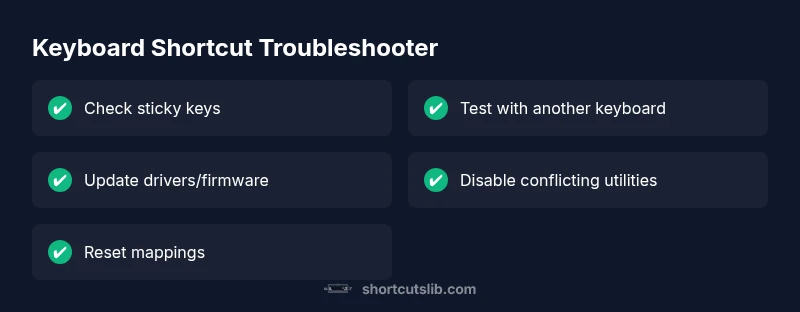
- Power cycle the computer and unplug-replug the keyboard. 2) Ensure sticky keys and filter keys are disabled in accessibility settings. 3) Check for firmware or driver updates for your keyboard. 4) Disable any recently installed macro utilities or hotkey managers. 5) Temporarily switch to a standard keyboard layout and language to see if the issue persists. 6) Test on another computer to determine whether the problem follows the keyboard or the machine.
System settings and language/layout checks
A mismatch in language or keyboard layout can misplace modifiers, causing accidental shortcuts. Confirm the correct input method is active (e.g., US QWERTY) and that no accessibility features like Key Repeat or Sticky Keys are forcing repeated signals. If you recently installed new input devices or language packs, revert or reconfigure and retest. For laptops with Fn-key toggles, ensure the function lock state isn’t altering key behavior unexpectedly.
When to seek professional help
If the shortcuts persist after all standard checks, it’s time to escalate. A hardware diagnostic from a technician can reveal matrix faults, solder joints, or USB port issues that aren’t user-serviceable. Before seeking help, gather:
- keyboard make/model, OS version, and a concise symptom log
- a list of recently installed apps or drivers
- steps you took and their outcomes Professional assistance is warranted when
- you hear unusual key switches,
- signs of physical wear, or
- confirmation that the issue occurs across multiple devices with the same keyboard.
Steps
Estimated time: 30-45 minutes
- 1
Reproduce and log the issue
Attempt to reproduce the problem in a controlled environment. Note the active app, window, and exact keys pressed. Create a short log so you can compare patterns later.
Tip: Use a fresh user profile or guest account to avoid profile-specific shortcuts. - 2
Check accessibility settings
Disable Sticky Keys, Filter Keys, and Repeat Delay in the OS accessibility panel. Reboot the computer after changes and test again.
Tip: Take a quick screenshot of your settings before changing anything. - 3
Update drivers and firmware
Visit the keyboard manufacturer's site or your OS vendor’s update center to install the latest drivers and firmware. Reboot after installation.
Tip: Always choose the official source to avoid bundled bloatware. - 4
Test with an alternative keyboard
Connect a different keyboard to see if the issue persists. If the problem disappears, the original device may be faulty or incompatible with your setup.
Tip: Try a wired keyboard if you normally use Bluetooth. - 5
Audit installed software
Review recently installed apps that claim to modify shortcuts or automate actions. Disable or uninstall them and retest.
Tip: Disable startup programs to simplify the test environment. - 6
Reset mappings and test again
Restore keyboard mappings to default in any software you use and re-create only essential shortcuts.
Tip: Keep a minimal set of shortcuts to avoid conflicts. - 7
Check language/layout settings
Confirm the keyboard layout matches your physical keyboard and language preferences in system settings.
Tip: Switch layouts briefly and test if the issue changes. - 8
If unresolved, seek professional help
If no steps resolve the issue, arrange a professional diagnostic with your device provider.
Tip: Document all steps taken; bring logs and keyboard details.
Diagnosis: Keyboard triggers shortcuts unexpectedly across applications or OS-wide
Possible Causes
- highSticky keys or toggle keys are enabled
- highConflicting software such as macro tools or hotkey managers
- mediumIncorrect keyboard layout/language settings
- mediumOutdated or corrupted keyboard drivers/firmware
- lowHardware fault in the keyboard or USB interface
Fixes
- easyDisable sticky keys/toggle keys in accessibility settings and clean the keyboard
- easyUpdate or reinstall keyboard drivers and firmware
- easyRemove or disable conflicting macro apps and test with a vanilla profile
- easyTest with a different keyboard and USB port to isolate hardware
- mediumReset keyboard mappings to default and reapply necessary shortcuts
Questions & Answers
What causes my keyboard to start triggering shortcuts after software installation?
New software, especially macro tools or clipboard managers, can remap keys or inject shortcuts. Review recent installs, disable or uninstall conflicting programs, and test after each change.
Some apps can change keyboard behavior. Try disabling recent software one by one and test.
Can a faulty keyboard cause global shortcut activations across apps?
Yes. A failing keyboard or USB interface can produce ghost signals mapped to shortcuts. Test with a different keyboard to confirm.
A bad keyboard often shows up as ghost shortcuts; swapping keyboards helps confirm.
Why do shortcuts only trigger in one app and not others?
That usually points to a corrupted shortcut map or a per-app setting. Check the app’s preferences for hotkeys and reset to defaults.
If it happens only in one app, reset that app’s shortcuts and try again.
Is this dangerous for my device or data?
Unlikely to harm data, but repeated unexpected inputs can disrupt work. Save often and back up work before testing hardware changes.
It’s usually not dangerous, but it can be annoying. Save often while troubleshooting.
How can I tell if the issue is hardware or software?
Test with another keyboard and on another device. If the problem follows the keyboard, it’s hardware; if it doesn’t, it’s software or system settings.
Try a different keyboard to see where the problem lives.
When should I replace my keyboard?
If diagnostics indicate hardware failure (signals persist with multiple keyboards or ports), replacement is the practical option.
If tests point to hardware failure, replacement is often the best course.
Watch Video
Main Points
- Stop shortcut activations with quick hardware checks
- Identify whether issue is OS-wide or app-specific
- Update drivers and reset mappings to resolve most cases
- Test with another keyboard to isolate the fault
- Seek professional help if hardware faults are suspected