Why Is My Keyboard Doing Shortcuts Instead of Typing? A Troubleshooting Guide
Urgently diagnose why your keyboard types shortcuts instead of characters, with practical checks, step-by-step fixes, and prevention tips from Shortcuts Lib. Learn how to reclaim normal typing today.


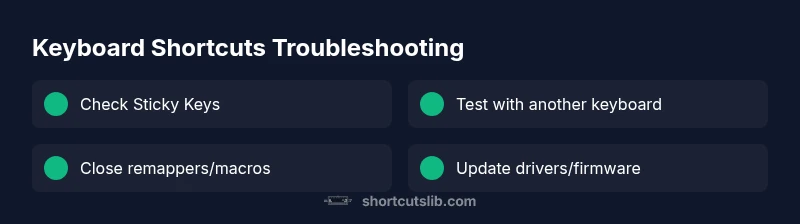
Most often, typing-as-shortcuts happens when a global shortcut or a stuck modifier key hijacks input. Start by freeing sticky keys, disabling external macro apps, and turning off accessibility shortcuts that rewrite keystrokes. Then test with a different keyboard and update drivers. If the issue persists, reset keyboard settings to default and scan for malware or background utilities that remap keys.
Why this happens
If you're wondering why is my keyboard doing shortcuts instead of typing, the cause is usually input being hijacked by a shortcut handler or a stuck modifier key. Most operating systems treat certain key combinations as system commands, so when the system detects a sequence like Ctrl+S or a Windows shortcut while you intend to input letters, your keystrokes appear as shortcuts instead of characters. This isn't a virus or a defect by default; it's often software-driven, with a few simple explanations and fast fixes. In urgent situations, you want to restore normal typing quickly, so this guide focuses on practical checks you can perform right now, followed by safer long-term fixes. By systematically ruling out common culprits, you’ll regain reliable typing and reduce future surprises.
In addition, keep in mind that many users report this issue across Windows and
Common culprits
-
Sticky keys and accessibility settings: When Sticky Keys or Filter Keys are enabled, keystrokes can be interpreted as special commands. Turn these off to see if typing returns to normal.
-
Modifier keys stuck or held down: A lingering issue with Ctrl, Alt, or Shift can cause repeated shortcut activation even with brief presses.
-
Keyboard remapping software or macro utilities: Programs like AutoHotkey, gaming keyboards, or clipboard tools can redefine keystrokes globally.
-
Language/layout conflicts: If the input language or keyboard layout changes unexpectedly, letters may map to shortcuts.
-
Hardware faults or loose connections: A failing keyboard, USB port, or wireless interference can produce erratic input that looks like shortcuts.
-
Background utilities and malware: Some utilities or malicious processes remap keys; run a security scan if nothing else explains the behavior.
Quick checks you can try now
-
Free the modifier keys: press and release Ctrl, Alt, and Shift several times; tap the Windows key to ensure it isn’t stuck.
-
Inspect accessibility settings: open Settings > Accessibility > Keyboard (Windows) or System Preferences > Accessibility > Keyboard (
Software conflicts to investigate
-
Auto-hotkey, macro programs, and gaming software: These tools can assign global shortcuts that fire even during normal typing. Temporarily disable them or reset their profiles.
-
System-wide shortcuts: Some OS updates add new shortcuts you may accidentally trigger while typing. Review and customize shortcuts in your OS settings.
-
Cloud-based clipboard managers: Apps that synchronize keystrokes across devices can interfere with local input. Disable or uninstall to test.
-
Antivirus and security tools: Some security suites monitor keystrokes for protection and might alter input handling. Update or temporarily disable to test (re-enable afterward).
Hardware tests and driver updates
-
Try another keyboard: If the second keyboard types normally, the first one may be failing.
-
Update drivers and firmware: Check Windows Update or the keyboard maker’s site for the latest drivers; apply firmware updates if available.
-
Check USB ports and wireless codecs: Use a different USB port or remove interference from nearby wireless devices to ensure clean signal.
-
Inspect cable and connectors: A damaged cable can produce intermittent input that resembles shortcuts. Replace if needed.
Step-by-step fixes for the most common cause
Follow these steps in order to address the most common cause—sticky keys or a stuck modifier:
- Reproduce the issue and note when it happens. 2) Free the modifier keys and disable Sticky Keys. 3) Close all macro and remapper programs. 4) Test typing with a spare keyboard. 5) Reset keyboard settings to default. 6) Scan for malware and run a trusted antivirus. 7) Update or reinstall keyboard drivers.
Tip: After each step, re-test typing to confirm improvement before moving on to the next step.
Prevention tips to avoid future issues
-
Create a safe testing environment: when trying new macro tools or layout changes, test on a spare keyboard.
-
Document your shortcuts: keep a log of any global shortcuts you enable so you can disable them if typing breaks.
-
Reassign critical keys carefully: avoid remapping letters, especially on main typing rows.
-
Regularly update drivers and firmware: set automatic updates if possible.
-
Run periodic security checks: keep malware defenses up to date to prevent key remapping.
-
Maintain hardware hygiene: clean keyboard and check cables to avoid intermittent faults.
Steps
Estimated time: Estimated total time: 25-40 minutes
- 1
Reproduce the issue and document symptoms
Identify when the typing-to-shortcut behavior occurs, which apps are active, and whether it affects all programs or just one. Note any recent changes to software or system updates.
Tip: Write down a short log to track patterns and confirm a baseline. - 2
Release modifier keys and disable Sticky Keys
Physically press and release Ctrl, Alt, Shift multiple times. Open OS accessibility settings and turn off Sticky Keys and Filter Keys to confirm if typing returns to normal.
Tip: Restart the computer after disabling features to ensure changes take effect. - 3
Close remapping and macro utilities
Quit or disable any AutoHotkey scripts, gaming overlays, or clipboard tools. Check system tray or menu bar for active utilities and temporarily disable them.
Tip: If unsure, boot into Safe Mode to test typing without third-party software. - 4
Test with a spare keyboard
Connect a second keyboard or use a USB hub to see if the issue persists. If the spare works, the problem likely lies with the original keyboard or its driver.
Tip: Check for firmware updates from the keyboard manufacturer if available. - 5
Reset keyboard settings to default
Reset any custom mappings and restore default keyboard layouts. Reboot and test typing again across multiple apps.
Tip: Back up any profiles before resetting to avoid data loss. - 6
Update drivers and firmware
Visit the device manager (Windows) or System Information (macOS) to check for driver updates. Install any available firmware for the keyboard.
Tip: Prefer official vendor downloads to avoid counterfeit software. - 7
Run a malware/security scan
Perform a full system scan with a reputable antivirus and consider a secondary malware tool to catch anything hiding in memory.
Tip: Keep definitions up to date before scanning.
Diagnosis: Keyboard types shortcuts or fails to input characters
Possible Causes
- highModifier keys stuck or keyboard shortcuts active
- mediumBackground remapping software or macros
- highAccessibility features (Sticky Keys, Filter Keys) enabled
- lowHardware fault or loose connection
Fixes
- easyRelease and test modifier keys; disable Sticky Keys/Filter Keys in OS settings
- easyClose or uninstall macro/remapping software; reset profiles
- easyTest with a different keyboard and update drivers/firmware
- easyCheck USB ports, cables, and wireless interference; run malware scan
Questions & Answers
Why is my keyboard doing shortcuts instead of typing?
Commonly, a stuck modifier key or an active remapping shortcut intercepts keystrokes. Check accessibility features, close macro tools, and test with another keyboard to confirm.
Usually it's a stuck key or remapping intercepting keystrokes. Try turning off Sticky Keys and testing with a different keyboard.
How do I disable Sticky Keys in Windows?
Open Settings, go to Accessibility > Keyboard, and turn off Sticky Keys. Also ensure 'Press one key at a time' isn't enabled if it appears.
Go to Settings, Accessibility, Keyboard, and disable Sticky Keys.
Can malware cause this problem?
Yes, some malware can remap keys or inject shortcuts. Run a full system antivirus scan and consider a second opinion malware tool if the issue persists.
Malware can remap keys; run a thorough security scan.
What should I do if a hardware keyboard is defective?
Test with a known-good keyboard. If the issue remains on the system, it’s likely software; if it only occurs with the original keyboard, replace it.
If one keyboard is bad, replace it; if all keyboards fail, check drivers and system settings.
Is it safe to uninstall keyboard drivers?
Uninstalling and reinstalling drivers is generally safe. Reboot to allow the OS to reinstall default drivers automatically. You can also roll back to a previous version if available.
It's usually safe to reinstall drivers after a reboot.
When should I seek professional help?
If hardware tests fail or malware keeps returning, or if the issue affects multiple devices, contact support or a repair technician for deeper diagnosis.
If problems persist after basics, get professional help.
Main Points
- Identify whether the issue is software or hardware
- Disable conflicting shortcuts and accessibility features first
- Test with a different keyboard to localize the problem
- Update drivers and scan for malware to prevent recurrence