Why Don't Keyboard Shortcuts Work? An Urgent Troubleshooting Guide
Discover practical, urgent steps to fix why keyboard shortcuts don’t work. From layout checks to system settings, learn a proven troubleshooting flow to restore productivity fast.


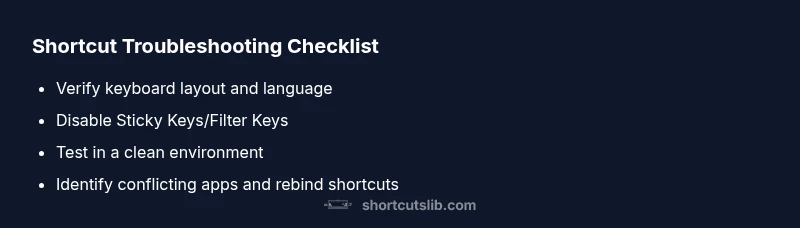
According to Shortcuts Lib, the most likely cause is a conflict between your shortcut and an active app or accessibility setting that blocks keystrokes. Start by verifying the correct keyboard layout, then disable Sticky Keys or Filter Keys, and test shortcuts in a clean environment like a text editor. If problems persist, reset or reassign affected shortcuts and look for conflicting global shortcuts from other software.
Why keyboard shortcuts fail: a practical overview
When you press a familiar shortcut and nothing happens, it’s easy to panic. The very first question is not which keys you pressed, but what else might be interfering at that moment. According to Shortcuts Lib, the most common reasons fall into three camps: layout mismatches, accessibility features, and software conflicts. In practice, you’ll see people experiencing issues when the keyboard language source changes without warning, or when a background utility grabs a shortcut before your active application can. In this section, we map out the typical failure patterns so you can recognize them quickly and take targeted action. We also distinguish between shortcuts that should work globally (system-wide) and those that only apply within a single program. Understanding these distinctions helps you triage problems without wasting time on unlikely culprits. By the end, you’ll have a mental checklist you can reuse whenever shortcuts fail, reducing downtime and keeping your workflow flowing.
Common culprits: layout, accessibility, and context
Shortcuts rely on the OS keyboard layout and the active language region. If your computer’s input source changes—or if you move from a US layout to a UK layout—the same keystroke can yield different results or nothing at all. Similarly, accessibility features like Sticky Keys or Filter Keys can intercept keystrokes, delaying or consuming them before your application sees them. In addition, some programs register their own sets of global or app-specific shortcuts. When two programs try to own the same key combination, the OS or the app may pick one over the other, leading to unpredictable behavior. Context matters too: a shortcut that works when a document is in focus may not fire when another window is active. The upshot is that you should verify the baseline conditions (layout, accessibility, context) before blaming the hardware.
How to systematically test shortcuts across apps
A structured test plan helps you separate signal from noise. Start with a simple, trusted environment: open a plain text editor, a browser, and an office app side by side. Try commonly used shortcuts (copy, paste, undo, find) in each one and note where the results differ. If a shortcut works in one app but not another, the problem is likely app-specific. If it fails everywhere, look to system settings or hardware. Disable any global utilities that modify shortcuts, such as clipboard managers or window managers, then re-test. Finally, perform a controlled hardware check by plugging in a different keyboard. If the issue follows the keyboard, you likely have a hardware fault; if it stays with the machine, continue with software-wide steps.
System settings and hardware worth reviewing
A few high-leverage checks can save hours. Ensure the OS language and input source are correct, and that the function keys are mapped to the expected behavior (some laptops require you to press Fn to activate standard shortcuts). Review accessibility settings to confirm Sticky Keys or Filter Keys aren’t consuming keystrokes unexpectedly. Update device drivers and system firmware where available, since outdated drivers can affect how keystrokes are delivered to applications. Finally, inspect the keyboard for physical issues—sticky keys, debris under the keycaps, or a damaged connector can alter the response in subtle ways. If you notice physical irregularities, testing with a second keyboard is a quick way to isolate hardware faults.
Hands-on fixes you can try right now
Follow this practical sequence to regain control of shortcuts without ripping apart your setup. 1) Set your OS keyboard layout to your usual language and reboot the system to ensure changes take effect. 2) Turn off Sticky Keys and Filter Keys in the accessibility settings, and verify that the shortcuts perform as expected in a neutral app. 3) Temporarily disable non-essential utilities that might intercept shortcuts, then retest. 4) Rebind any broken shortcuts via the app or OS preferences, choosing combinations that avoid common conflicts. 5) Update all relevant drivers and apply pending OS updates. 6) If the issue persists, test with a different keyboard to rule out hardware faults. Tip: keep a record of each change so you can revert easily if needed.
Prevention and maintenance to keep shortcuts reliable
Once you restore functionality, establish a lightweight maintenance routine. Regularly review active shortcuts in your most-used apps, and back up your mappings before making changes. Consider using a dedicated shortcut manager to observe conflicts without compromising security. Keep your system and drivers up to date, and periodically test shortcuts in a few core apps to catch regressions early. Finally, be mindful of new software installations that might introduce global shortcuts and mirror them against your most-used hotkeys.
Steps
Estimated time: 30-45 minutes
- 1
Verify keyboard layout and language
Open your OS settings and confirm the input source matches your region. Try a few common shortcuts in a simple app to confirm consistency.
Tip: Use the OS shortcut to switch inputs quickly (e.g., Windows: Win + Space, macOS: Command + Space). - 2
Disable accessibility features temporarily
Turn off Sticky Keys and Filter Keys in the accessibility settings and re-test shortcuts in a neutral app like a text editor.
Tip: If shortcuts start working after disabling, re-enable features one by one to identify the culprit. - 3
Test in a clean environment
Boot or sign in with a clean user profile or in Safe Mode to see if a background app is interfering.
Tip: Safe Mode helps isolate software conflicts without unrelated processes running. - 4
Identify and disable conflicting apps
List utilities that modify shortcuts (clipboard managers, window managers) and disable them one by one, then retest.
Tip: Document changes so you can revert if needed. - 5
Rebind broken shortcuts
In each affected app or OS settings, rebind the broken shortcuts to combinations unlikely to conflict with other apps.
Tip: Avoid using universal shortcuts that many programs share. - 6
Check drivers and perform updates
Update keyboard drivers and system firmware; apply any pending OS updates before retesting.
Tip: Firmware updates can fix keystroke delivery issues that software updates miss.
Diagnosis: Keyboard shortcuts stop working across most apps (e.g., Ctrl+C, Cmd+C, or Fn combinations)
Possible Causes
- highKeyboard layout or input source mismatch with OS language
- mediumSticky Keys or Filter Keys accessibility settings enabled
- mediumConflicting global shortcuts from third-party software (clipboard managers, window managers)
- lowHardware fault in keyboard or faulty modifier keys
Fixes
- easyCheck and switch keyboard layout back to your region; test shortcuts in a neutral app
- easyDisable Sticky Keys/Filter Keys and reset accessibility shortcuts
- mediumReview and reassign conflicting global shortcuts in utility apps, or temporarily disable them
- easyTest with a different keyboard to rule out hardware faults
Questions & Answers
Why do shortcuts work in some apps but not others?
App-specific shortcuts can override global ones. If a shortcut works in a text editor but not in a browser, the browser or its extensions may be intercepting the keystroke. Check per-app shortcut mappings and extensions.
If a shortcut behaves differently across apps, check the app-specific shortcut bindings and any extensions that might override global shortcuts.
How can I tell if a system setting is causing the problem?
Look for accessibility features like Sticky Keys or Filter Keys, ensure the correct input source, and verify that function keys behave as expected. Reproduce the issue after each change to confirm.
Check accessibility options and input settings, then test again to confirm whether the setting was the trigger.
Can a hardware keyboard be at fault?
Yes. If a different keyboard works, the issue is likely hardware-related. Clean, reseat, or replace the faulty keyboard to restore shortcuts.
If another keyboard fixes the problem, you’ve identified a hardware issue.
How do I reset keyboard shortcuts to default on Windows and macOS?
On Windows, use Settings > Time & language > Typing > Advanced keyboard settings. On macOS, use System Settings > Keyboard > Shortcuts and click Restore Defaults. Back up mappings first.
Reset shortcuts from your OS keyboard settings, and consider backing up mappings before you revert.
Is Safe Mode useful for troubleshooting shortcuts?
Yes. Safe Mode minimizes background processes, helping determine if system services or drivers cause the issue. If shortcuts work in Safe Mode, a software conflict is likely.
Safe Mode helps isolate software conflicts that hide in normal startup.
Watch Video
Main Points
- Verify layout first to rule out language mismatches
- Disable accessibility features that may intercept keystrokes
- Identify conflicting apps and re-map or disable their shortcuts
- Test with a clean environment to isolate software issues