What to Do When Keyboard Shortcut Is Not Working
An urgent, step-by-step troubleshooting guide to diagnose and fix keyboard shortcut failures, with app-specific and system-wide tips, safety notes, and prevention strategies.


Most shortcut failures come from app-specific capture, system-wide conflicts, or a changed keyboard layout. Start by identifying whether the shortcut works in multiple apps, try a universal shortcut, and test a different keyboard. If nothing changes, reset the shortcut to default, check for conflicting software, and reboot to apply OS updates.
Why shortcuts fail and how to think about fixes
Keyboard shortcuts are designed to speed up tasks, but they rely on software accepting the input as a command. When a shortcut stops working, it's usually not a single hardware issue; it's an interaction problem between your keyboard, the operating system, and the active application. According to Shortcuts Lib, most keyboard shortcut problems fall into a few patterns: conflicts with global hotkeys, changes to keyboard layout, and app-specific overrides. Recognizing which pattern you're in will guide you toward the right fix quickly. Start by confirming whether the issue is universal across all apps or isolated to one program. If universal, system settings or a hardware fault is likelier. If isolated, the problem likely lies with that app's shortcut mapping or a conflicting extension. In either case, a methodical approach saves time and reduces frustration.
Quick checks you can do before deep troubleshooting
- Verify the shortcut is enabled in settings for the operating system and the app.
- Check that you are using the intended key combination and that you haven't accidentally changed the language or layout.
- Test the same shortcut in another app or with a different keyboard to determine if the problem is universal or app-specific.
- Restart the application or the entire system to clear transient states.
- Temporarily disable other utilities that might capture shortcuts (screen recording tools, clipboard managers, gaming overlays) and see if the shortcut resumes working. If the shortcut works after disabling, re-enable components one by one to identify the culprit.
App-specific vs system-wide shortcuts: how to differentiate
System-wide shortcuts are defined by the OS and typically work everywhere; app-specific shortcuts are defined by each program. If the shortcut works in some apps but not in others, you’re likely facing an app-specific mapping or a conflict with that app's plugins. Conversely, if the shortcut fails in every context, focus on system settings, keyboard drivers, or hardware. This distinction matters because it determines where you apply fixes—from OS preferences to per-application settings.
Diagnostic flow you can follow to isolate the issue
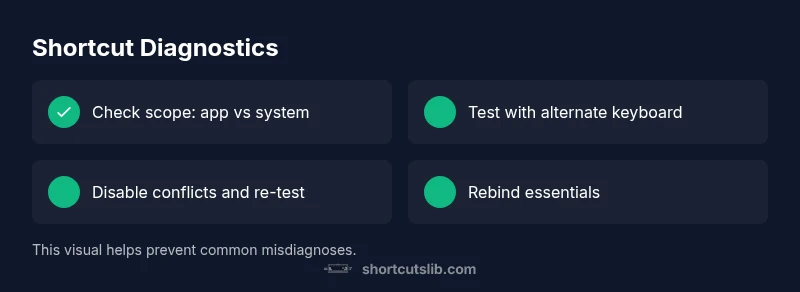
The following flow helps you move from symptom to solution efficiently. Start with the simplest checks and escalate only as needed. Symptom → diagnosis → solution is the core pattern. If a step yields a fix, you can stop there, retrace steps, and implement preventive measures. Remember this process aligns with Shortcuts Lib Analysis, 2026. By documenting your findings as you go, you’ll shorten the cycle for future issues and reduce repetitive testing.
Step-by-step fixes for the most common causes
- Test with another keyboard and a different USB port. If the shortcut works, your original keyboard or port might be faulty. 2) Reset the shortcut to OS defaults or rebind it in the app. 3) Look for software conflicts: hotkey managers, screen capture tools, or accessibility features. Disable them temporarily and re-test. 4) Update your OS and keyboard driver; a stale driver can misinterpret keycodes. 5) Check keyboard layout and language settings, as mismatches can change key meaning. 6) Reboot the system or start in Safe Mode to rule out third-party software. 7) If issues persist, seek professional help after performing a clean boot.
Safety, tips, and prevention to avoid future issues
- Always back up your custom shortcuts before major OS updates. - Avoid using multiple hotkey managers at the same time. - Ensure accessibility features are not intercepting keys inadvertently. - If you suspect hardware failure, test with a known-good keyboard. - Proactively maintain drivers and review app-specific settings periodically to ensure ongoing reliability.
What to do if nothing works: when to seek help and how to document the issue
If all basic and intermediate fixes fail, it's time to escalate. Gather your device model, OS version, a list of affected shortcuts, and the steps you have already tried. This log helps when you contact support or a professional technician. Remember, some problems may require deeper OS diagnostics or hardware testing that goes beyond user-level fixes. Keeping a clear record speeds resolution and prevents repeated steps.
Steps
Estimated time: 25-45 minutes
- 1
Clarify the scope of the issue
Determine if the shortcut fails in all apps or only one. This helps distinguish system-wide vs app-specific problems.
Tip: Document the exact apps where it fails to identify patterns. - 2
Test with another keyboard
Use a different physical keyboard or port to exclude hardware faults.
Tip: If the problem disappears with a new keyboard, the original hardware is likely at fault. - 3
Reset or rebind the shortcut
Reset to OS defaults or rebind inside the app to remove any stale mappings.
Tip: Choose a simple, unused key combo to avoid conflicts. - 4
Check for conflicting software
Disable hotkey managers, screen recorders, and accessibility tools temporarily.
Tip: Re-test after each deactivation to find the culprit. - 5
Update software
Install the latest OS and driver updates which may fix keycode interpretation.
Tip: Back up personalized shortcuts before updates. - 6
Review language and layout settings
Ensure the keyboard layout matches your physical keyboard and that the input language is correct.
Tip: Switching layouts temporarily can reveal layout-induced issues. - 7
Try Safe Mode / clean boot
Isolate third-party software by testing in Safe Mode or a clean boot environment.
Tip: If the shortcut works in Safe Mode, a background service is at fault. - 8
Escalate if needed
If issues persist, contact a professional with your findings and logs.
Tip: Clear, concise logs help technicians diagnose faster.
Diagnosis: Shortcut stops working in one or more apps
Possible Causes
- highConflicting global hotkeys or utilities capturing the shortcut
- highApp-specific shortcut mapping overridden by plugins or updates
- mediumChanged keyboard layout or language settings
- lowHardware issue with keyboard or USB port
Fixes
- easyTest with a different keyboard or USB port to rule out hardware faults
- easyReset the shortcut to OS defaults or rebind in the affected app
- easyIdentify and disable conflicting software (hotkey managers, overlays) temporarily
- mediumUpdate OS and keyboard driver; verify language/layout settings
- hardBoot into Safe Mode or perform a clean boot to isolate software conflicts
Questions & Answers
Why does my keyboard shortcut work in some apps but not others?
This usually means the app defines its own shortcut mapping or a plugin is conflicting. Check each app's preferences and disable conflicting plugins to restore function.
If it works in some apps but not others, look at per-app settings and plugins to fix it.
How can I reset all shortcuts to defaults?
Look for a 'Reset to default' option in OS settings or in the affected app's shortcuts panel. After resetting, rebind essential shortcuts carefully.
Use reset-to-default in settings, then rebind important shortcuts carefully.
I updated my OS and now shortcuts stopped working. What next?
OS updates can re-map keys or alter accessibility features. Recheck language settings, keyboard layouts, and redo bindings after the update.
Updates can change mappings; recheck language settings and shortcuts after updating.
Can hardware failures cause shortcut issues?
Yes. A faulty keyboard or USB port can prevent certain keys from registering. Test with another keyboard to confirm hardware faults.
A failing keyboard or port can cause missing keys; try a different keyboard.
When should I seek professional help?
If basic fixes fail after a systematic test and logs are inconclusive, consult a tech professional with your documentation.
If basic fixes don’t work, contact a tech pro with your tests and logs.
Watch Video
Main Points
- Isolate one variable at a time to diagnose faster.
- Differentiate app-specific from system-wide shortcuts.
- Use Safe Mode or clean boot to rule out software conflicts.
- Keep a change log to speed future fixes.