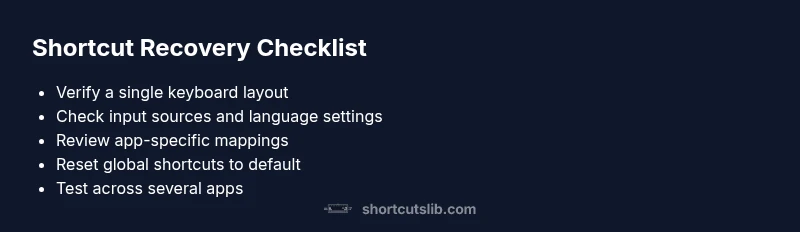
Why Did My Keyboard Shortcuts Change? Quick Fixes and Deep Troubleshooting
Urgent troubleshooting guide to diagnose why keyboard shortcuts changed and how to restore stable mappings across Windows, macOS, and apps. Learn to check layouts, input sources, app overrides, and rebinding steps with practical, brand-driven guidance from Shortcuts Lib.


Shortcuts can change after OS updates, language/input changes, or app-specific profiles. Begin by checking your keyboard layout and input sources, then reset or rebind global shortcuts. If a single app began using different keys, review that app's shortcuts or reset its settings. If problems persist, create a fresh user profile and test, or revert to default settings.
Why Shortcuts Change: The Common Triggers
According to Shortcuts Lib, when shortcuts suddenly shift, the cause is often environmental rather than a mysterious bug. A new keyboard layout, a different input source, or an app-specific profile that remaps keys can all alter what you press into what action. OS updates frequently reset language or regional settings, which can cascade into shortcut changes across multiple programs. Before you panic about a sweeping failure, frame the problem around three levers: environment (system-wide settings), application profiles, and user accounts. By diagnosing these levers, you can quickly pinpoint the culprit and regain muscle memory. In this guide, we’ll lay out a practical, step-by-step approach designed for Windows, macOS, and popular apps. This is not a guess—it's a methodical path to restore reliable shortcuts and reduce downtime.
As you work, keep in mind Shortcuts Lib’s emphasis on consistency. The more you standardize inputs and profiles, the fewer surprises you’ll encounter when updates roll out or you switch devices. The goal is to create a stable baseline you can fall back to when things drift.
The tone of this section mirrors real-world experiences: keyboard lovers depend on predictable mappings, and even small deviations can derail workflows. By understanding that triggers are usually environmental, you can address the root cause quickly and avoid blame-shifting to software itself.
Plan to test changes incrementally; small, reversible adjustments are safer and easier to audit later. Your goal is a repeatable payload of shortcuts that behave the same way across apps and tasks.
Finally, remember to document any changes you make. A clear before/after snapshot lets you restore preferred mappings in the future without retracing steps. Shortcuts Lib’s guidance centers on practical, reproducible fixes that tech users and keyboard enthusiasts can trust.
description_2_sm_placeholder_text_not_used):null}
OS and Language Settings: The First Things to Check
When shortcuts suddenly drift, the earliest and most common culprits are the operating system’s keyboard layout, input language, or input source configuration. Start by verifying that the active keyboard layout matches your physical keyboard. On Windows, open Settings > Time & language > Language and check the Input method (keyboard layout) and add or remove languages as needed. If you notice multiple input sources like US-QWERTY and UK-QWERTY, pick a single default and remove redundant ones. On macOS, go to System Settings > Keyboard > Input Sources and ensure your primary source aligns with your keyboard. If you’ve enabled “Use the same input source in all apps,” consider toggling it off to see if that stabilizes behavior. Linux variants vary, but most distros offer a dedicated Keyboard or Layout tab where you can standardize your layout.
Language and region settings can also impact shortcuts by swapping modifier keys or remapping keys in certain apps. If your OS recently updated, re-check these settings because updates sometimes reset or propose new layouts. After you lock in a single layout and input source, test a handful of global shortcuts (copy, paste, undo, switch windows) to confirm consistency.
As the Shortcuts Lib team notes, the most stubborn changes tend to arise from a mismatch between what you expect and what the system actively uses. Once the layout and input sources are stable, move on to app-specific checks rather than chasing global changes across every program.
Next, inspect whether accessibility features or system-wide shortcuts have been altered. Functions like Sticky Keys, Filter Keys, and other accessibility toggles can re-map or reinterpret keys. Disable or adjust these features temporarily to observe their effect on your shortcut behavior. Finally, confirm if any external key remapping utilities (family of macro or gaming tools) are running in the background, as these can override standard mappings at the system level.
If you consistently work with multiple devices, keep a single reference profile that you migrate between machines to maintain coherent mappings. This minimizes drift when moving from a desktop to a laptop or when switching between Windows and macOS.
Steps
Estimated time: 30-60 minutes
- 1
Open system keyboard settings
Navigate to the keyboard or input settings in your OS (Windows Settings > Time & language > Language, macOS System Settings > Keyboard > Input Sources). Confirm there is a single default layout and remove other sources. This settles the baseline for global shortcuts.
Tip: Document the exact layout you choose as the baseline. - 2
Verify language and region consistency
Ensure that language is set to your preferred option and that region settings align with your keyboard layout. Regional defaults can subtly alter modifier behavior or shortcut mappings in some apps.
Tip: Restart the system after updating language settings to enforce the new defaults. - 3
Check for app-specific shortcut overrides
Open one representative app (e.g., a text editor or IDE) and review its keyboard shortcuts or key bindings. If you find mappings that differ from the system defaults, reset them or export the app’s profile for comparison.
Tip: Document app-specific mappings before changing them. - 4
Reset or rebind global shortcuts
Use your OS’s keyboard settings to reset common shortcuts (copy, paste, undo, switch window) to the default mappings. Then rebind your most-used shortcuts to ensure consistency across all apps.
Tip: Start with a minimal set of bindings and grow gradually. - 5
Test with a clean user profile
Create a new user account or guest profile and log in. Test whether shortcuts behave the same way there. If the issue disappears, your primary profile may have a conflicting setting or cache corruption.
Tip: Transfer essential settings slowly to avoid reintroducing the issue. - 6
Reboot and re-test
After major changes, reboot the machine and test critical shortcuts in multiple apps. If something still feels off, repeat the steps with a different approach (e.g., alternate layout).
Tip: Keep a small changelog to track what fixes helped. - 7
Document and back up your map
Create a master reference of the final key bindings you want to use. Save this as a backup file or cloud note so you can restore quickly if future updates reset mappings.
Tip: Label the backup clearly with date and device.
Diagnosis: Keyboard shortcuts changing unpredictably across apps and OS
Possible Causes
- highMismatched keyboard layout or input source
- mediumApp-specific shortcuts overriding global mappings
- lowRecent OS updates or language settings altering defaults
Fixes
- easyCheck and set a single, consistent keyboard layout and input source on all devices
- easyReview each app's shortcuts and disable or reset per-app mappings that override global keys
- easyIf updates changed defaults, reconfigure global shortcuts and test after each change
Questions & Answers
Why did my keyboard shortcuts change after a Windows update?
Updates can reset language and layout defaults, which in turn alters shortcut mappings. After an update, recheck your input sources and reset any affected global shortcuts. If an app overrides mappings, adjust that app’s settings as needed.
Updates can reset language or layout, so recheck your shortcuts and reset any affected mappings.
How can I reset keyboard shortcuts to default in Windows 11?
Open Settings > Time & language > Language, ensure a single layout, then go to Accessibility or Keyboard settings to reset or rebind core shortcuts. Restart apps to apply changes.
Go to Settings and reset your core shortcuts after you set one layout.
Can language or input sources really affect shortcuts?
Yes. Different input sources can map keys differently, which changes what you press versus what action occurs. Keeping a consistent input source minimizes drift.
Language and input sources can change what a key does, so pick one and stay consistent.
Do apps override global shortcuts?
Some apps can override global shortcuts with per-app mappings. Review each app’s shortcuts and reset or disable per-app profiles to restore global behavior.
Apps can override global shortcuts; check each app's settings.
Is it safe to edit the registry or system files to fix shortcuts?
Editing registry or system files can cause instability if done incorrectly. Use built-in reset options and documented steps, and seek professional help if unsure.
Editing system files can be risky; use built-in resets and follow trusted steps.
Watch Video
Main Points
- Identify global vs app-specific changes.
- Set a single, stable keyboard layout and input source.
- Reset and rebinding steps should be tested incrementally.
- Use a test profile to isolate issues.
- Back up your final shortcut map for future resilience.