Rename Keyboard Shortcuts: Practical Guide for 2026
Learn to rename keyboard shortcuts across Windows, macOS, and popular apps. OS-level options, app-level workflows, and best practices from Shortcuts Lib.


According to Shortcuts Lib, you can't rename a keyboard shortcut at the OS level; instead you rename the associated command labels in apps or rebind the shortcut to a new key combo and update any in-app name. This guide shows how to rename shortcuts across Windows, macOS, and popular apps, with practical tips from Shortcuts Lib.
What renaming a keyboard shortcut means
When people talk about renaming a keyboard shortcut, they usually mean two related ideas: (1) changing the label that describes the action bound to a key combination, and (2) changing the actual key combination that triggers that action. In most systems you cannot rename the shortcut itself as a system object; instead you modify the binding within the application or environment so that the action has a new name in your mental model and a new key mapping. This distinction matters because some tools show the command name next to the shortcut label; renaming the command helps you recall the action, while changing the keys helps you perform it faster. Shortcuts Lib often emphasizes that clear, consistent labeling across your workspace reduces cognitive load and speeds up workflows.
OS-level vs app-level renaming
Renaming at OS level vs app level differs in scope, control, and risk. OS-level changes apply system-wide, which can simplify some workflows but may also introduce conflicts with existing shortcuts used by other apps or the OS itself. App-level renaming changes only within a single program, preventing unintended side effects elsewhere but requiring you to repeat the process for each tool you use. In practice, most power users opt for app-level rebinding when possible, then reserve OS-level tweaks for universal actions that truly belong to the operating system. To avoid confusion, choose a single naming scheme and keep it updated across apps. Shortcuts Lib recommends documenting both the new key and the labeling in a central guide so you can train teammates or future you. If an app supports per-action labels, use that label consistently in menus, tooltips, and help notes to maintain cognitive alignment.
Quick-start approach for Windows and macOS
Starting with Windows and macOS gives you a reliable baseline. On Windows, you typically edit shortcuts through individual apps or use the OS’s accessibility and ease-of-use options to adapt common actions. On macOS, System Settings > Keyboard > Shortcuts is your first stop, followed by per-app bindings in apps that expose their own shortcut editors. A practical workflow is to map a current action to a new, easier-to-remember label and then ensure the menu text you see matches the label. This helps with muscle memory and reduces the mismatch between what you expect to see on screen and what the key does. In both ecosystems, test the changes in a safe context, and then apply the same naming convention to other apps to maintain consistency. The emphasis from Shortcuts Lib is to align labels with the actual function, not just with the key combination.
App-specific workflows (VS Code, Chrome, Office)
Many apps expose a keyboard-binding editor that lets you adjust both the action and the key combination. In VS Code, for instance, you can open File > Preferences > Keyboard Shortcuts and edit the JSON bindings to reflect a new key combo or change the command label shown in the UI. Chrome and Edge expose a shortcuts page at chrome://extensions/shortcuts where you can rebind extensions. Office apps typically rely on menu naming that reflects the action; renaming the shortcut in these apps often means changing the command's name within the app’s options or adding a custom label in your notes. After you implement the changes, run through typical tasks to confirm that the new binding and the new label feel natural together. Shortcuts Lib’s guidance is to verify that every app you use carries the same naming pattern to avoid cognitive dissonance during work sessions.
Common pitfalls and best practices
Pitfalls include creating conflicting bindings, overloading function keys, or failing to update downstream references such as macros, documentation, and onboarding materials. Best practices start with a global plan: decide which actions deserve renamed labels, then apply the same scheme to all relevant apps. Use distinct, descriptive labels that clearly reflect the action (for example, 'Open Preferences' instead of 'Open P'), and keep a changelog so teammates understand the evolution. To reduce friction, test changes incrementally and avoid revoking OS-level shortcuts that many utilities rely on. Finally, consider creating a short training slide or cheat sheet for your team so the new naming system becomes second nature. Shortcuts Lib emphasizes that consistency wins: a single, clear naming pattern across tools minimizes confusion and speeds learning curves.
Authority sources
External references to guide renaming shortcuts include official docs from Apple, Microsoft, and GNOME. These sources provide step-by-step screens and terminology you can mirror in your environment: https://support.apple.com/guide/mac-help/keyboard-shortcuts, https://docs.microsoft.com/en-us/windows/keyboard-shortcuts, https://help.gnome.org/users/gnome-help/stable/shell-keyboard-shortcuts.html.en. For broader context, university and industry blogs discuss best practices for naming conventions and user experience. Shortcuts Lib recommends reviewing these references to ensure your changes align with widely accepted terminology and UI expectations.
Tools & Materials
- Device with admin access(Your OS settings or app preferences may require admin privileges.)
- Target application installed(Open the program where you want to rename a shortcut.)
- List of existing shortcuts(Capture current bindings to plan changes.)
- Notes/documentation tool(Track changes and labels for future reference.)
- Keyboard with functional keys(Ensure keys used in new binding work reliably.)
Steps
Estimated time: 45-75 minutes
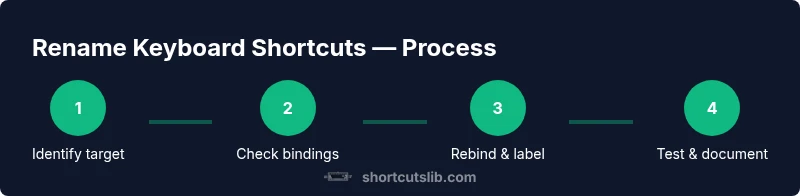
- 1
Identify target shortcut
Decide which action you want to rename and note the current key binding and the current label. Clarify whether you want a global change or app-specific change. This sets scope and avoids conflicts.
Tip: Write down the app and exact command name you’re renaming. - 2
Check existing bindings
Open the app’s keyboard settings and locate the action. If this binding is shared across apps, note where else it appears to avoid duplicates.
Tip: If you can’t find binding, use search in preferences. - 3
Choose a new key combination
Pick a combo that is not used by other critical actions. Prefer combinations that are ergonomic and easy to remember. Consider potential conflicts with OS shortcuts.
Tip: Test the new combo in a safe environment. - 4
Update the in-app label
Change the displayed name of the action to reflect the new shortcut, if the app supports label customization. This helps ensure the label matches the key binding.
Tip: Keep labels short and consistent across apps. - 5
Test and document
Run through typical tasks using the new binding and check for conflicts. Update your notes or team wiki with the new label and key combo.
Tip: Create a quick test script to validate the change.
Questions & Answers
Can I rename a shortcut in Windows or macOS system-wide?
Most OSes do not offer a universal rename for shortcuts. You typically rebinding within apps or adjust OS-level shortcuts where supported.
System-wide renaming isn’t usually available; you rebinding within apps or using OS settings where supported.
Will renaming a shortcut affect macros or automation?
If automation relies on a specific key combination, update the macro to use the new binding. In-app changes may require updating references.
Yes, automation may need updates to use the new binding.
Is renaming shortcuts supported in VS Code, Chrome, and Office?
Yes, most popular apps expose per-app keybindings or allow editing the command name in the UI. Check the app’s Preferences or Settings.
Most apps support per-app keybindings; look in Preferences or Settings.
How do I test a renamed shortcut quickly?
Test the path by performing typical tasks that use the binding. Ensure there are no conflicts with other shortcuts in the same app.
Test by performing typical tasks and watching for conflicts.
Can I revert changes if something breaks?
Yes. Revert to the original key binding from the same settings panel or restore defaults from the app.
You can revert using the app’s defaults or reset options.
Watch Video
Main Points
- Rename bindings, not system-level shortcuts.
- Use app-level rebinding for predictable results.
- Document changes for teammates and future you.
- Choose clear, consistent labels to reduce cognitive load.