Where to Edit Keyboard Shortcuts: A Practical Guide
Learn where to edit keyboard shortcuts across Windows, macOS, and popular apps. This practical guide from Shortcuts Lib explains OS-level and app-level customization, conflict handling, and best practices for a streamlined workflow.


Where to edit keyboard shortcuts depends on your platform and apps. In most cases, start with OS-level settings for global shortcuts, then customize in individual apps for task-specific mappings. This guide explains the best starting points, common pitfalls, and quick wins so you can streamline your workflow with confidence. By the end, you'll know where to edit keyboard shortcuts and how to keep them organized across devices.
Why editing keyboard shortcuts matters
According to Shortcuts Lib, understanding where to edit keyboard shortcuts is the foundation of a fast, personalized workflow. When you tailor key combos to your tasks, you reduce mental load and speed up repetitive actions. A consistent shortcut set across your OS and favorite apps helps you stay focused instead of hunting for menu items. This article explores where to edit keyboard shortcuts, what to adjust first, and how to maintain a scalable, conflict-free setup across devices. The goal is to empower you to work more efficiently without losing control over your keyboard-driven actions. A thoughtful shortcut strategy also future-proofs your setup against new software you may add later, ensuring your muscle memory stays reliable across updates and platform changes.
OS-level vs app-level shortcuts: where to edit
There are two broad layers to customize shortcuts: the operating system (global) layer and app-level (per-program) mappings. OS-level shortcuts affect every app that respects system mappings, while app-level shortcuts override or augment those defaults for specific tasks. In practice, start by tuning OS-level shortcuts for universal actions like copy, paste, and window management, then tailor individual apps for domain-specific workflows (e.g., text editors, design tools, or IDEs). The OS layer creates a durable baseline, while app layers let you optimize for specialized tasks. Remember, not all apps expose shortcuts in the same way, so flexibility matters.
How to identify conflicting shortcuts and avoid duplicates
Conflicts happen when two mappings aim to use the same key combination in overlapping scopes. Start by listing your most-used actions and note where they live (OS vs app). Use a simple checker approach: pick a priority for each action, then test by performing the shortcut in multiple contexts. If a conflict appears, adjust one of the mappings and document the change. A clear strategy reduces frustration and minimizes accidental invocations during intense work sessions.
Step-by-step: editing system shortcuts on Windows and macOS
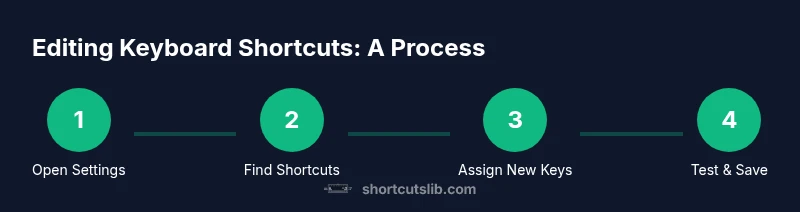
The following steps describe a high-level workflow you can apply on Windows and macOS. Begin with the OS settings to establish a solid global baseline. In Windows, look for a keyboard or accessibility area; in macOS, search for keyboard shortcuts under System Preferences. Next, identify core actions you perform across multiple apps and map them to consistent keys. Then, inspect each app for its own shortcut settings and align them with the OS baseline. If a conflicting mapping arises, modify the OS or the app mapping and re-test across representative tasks. Finally, save your profile, close settings, and restart related apps to ensure the changes take effect. If you rely on third-party remappers, verify that they recognize OS-level changes and don’t introduce new conflicts.
App-specific shortcut customization: a practical approach
App-level customization lets you tailor shortcuts to your workflow without disturbing global mappings. Start in the application's preferences or settings menu, locate the keyboard or shortcuts section, and map frequently used actions to logical key combos. Keep a running list to avoid duplicating mappings across tools that share behavior. For tool-heavy programs (IDE, design suite, office suite), set a primary mapping for broad actions (like open, save, find) and reserve secondary mappings for task-unique actions. Respect the app's defaults when they align with your needs, and override only when it yields measurable gains.
Best practices for maintaining your shortcut scheme
Create a simple naming convention for actions and group related shortcuts. Use consistent modifier keys (Ctrl/Cmd, Alt/Option, Shift) and avoid rare or conflicting combinations. Periodically audit your mappings, especially after software updates, to preserve a clean, scalable setup. Document changes in a central note so teammates or future you can understand the rationale behind each mapping. Consider establishing a short review rhythm (e.g., quarterly) to keep your shortcuts relevant as your toolset evolves.
Testing, troubleshooting, and rollback strategies
Test each change in real contexts—during typing, editing, and navigation across apps. If something breaks, revert to the previous mapping and re-test. Maintain a rollback plan by exporting or writing down your current shortcuts before major edits. When problems arise across devices, check sync settings and ensure your backup copies reflect the latest changes. A patient, methodical approach minimizes downtime and makes it easier to recover from a misstep.
Back up, sync, and long-term maintenance across devices
Store a master list of shortcuts in a note or document, and enable cross-device sync where possible. Regularly back up and review mappings to ensure consistency across your workstation, laptop, and mobile setups. This discipline keeps your shortcuts reliable over 2026 and beyond. As devices change, keep a short changelog to track what you modified and why, so you can re-create a similar setup on a fresh machine without starting from scratch.
Tools & Materials
- Computer with administrator access(Needed to modify system-level shortcuts on most platforms)
- Operating system settings panel access(Access global shortcuts (Windows/macOS) via Settings/System Preferences)
- App preferences with keyboard shortcuts(Required for per-app mappings (e.g., IDEs, design apps))
- Note-taking app or document(To document mappings and changes)
- Optional third-party remapping tool(Helpful for visualization and conflict checks)
Steps
Estimated time: 60-90 minutes
- 1
Open OS shortcuts panel
Access the operating system's settings and locate the shortcuts or keyboard section. This is where global mappings live, influencing all apps.
Tip: If you can't find a global shortcuts area, use the search within Settings to locate it quickly. - 2
List your top actions
Create a quick inventory of the actions you perform most often and decide which should be global versus app-specific.
Tip: Prioritize actions that save the most time or reduce repetitive motion. - 3
Choose new key combinations
Pick logical, non-conflicting key combos. Avoid ones you already use for system features.
Tip: Prefer combinations using a stable modifier set (Ctrl/Cmd + Alt + letter) to reduce collisions. - 4
Apply changes and test
Save your mappings and test them in several apps to ensure they work and don't interfere with existing workflows.
Tip: Test in temporary tasks first to avoid disrupting critical work. - 5
Resolve conflicts
If a shortcut conflicts with a global or app-level mapping, modify one side and re-test.
Tip: Document changes to avoid reintroduction of conflict. - 6
Document and backup
Export or copy your current shortcut mappings and keep a master list for future edits.
Tip: A simple changelog makes rollback quick.
Questions & Answers
Can I edit shortcuts for all apps or only some?
Shortcuts are often editable at both OS and app levels. Global shortcuts cover most apps, while individual apps allow task-specific mappings. Some apps may not support custom shortcuts.
You can often edit at both levels; start with OS-level mappings and refine within key apps.
How do I reset to default shortcuts?
Most OS settings provide a reset option for shortcuts. If not, you can revert to default by restoring the previous profile or re-importing a saved backup.
Use the reset option in the shortcuts panel or restore a backup to revert.
Will changes sync across devices?
If you store a master list and use cloud-based notes or OS sync features, your mappings can be propagated to other devices that share the same profile.
Yes, if you enable cross-device sync for your shortcut document and OS profile.
Are there risks editing keyboard shortcuts?
Editing shortcuts can create conflicts or reduce accessibility if critical keys are reassigned. Always test comprehensively and keep a rollback plan.
There are conflict and accessibility risks; test thoroughly.
Do shortcuts differ by application?
Yes. Some apps override OS shortcuts or offer unique mappings tailored to their workflows.
Apps can have their own shortcut sets that differ from the OS.
What tools help with remapping?
Many tools exist to help remap keys and detect conflicts, including OS-provided tools and trusted third-party utilities.
There are tools that simplify remapping and conflict checks.
Watch Video
Main Points
- Start with OS-level shortcuts for global actions
- Document every change to avoid confusion
- Test across apps to ensure consistency
- Use consistent modifier keys
- Back up and sync mappings across devices