Keyboard Shortcuts vs Mouse: A Practical Comparison
Explore how keyboard shortcuts compare to mouse input for speed, accuracy, and ergonomics. Learn when to use each with practical tips and real-world examples.


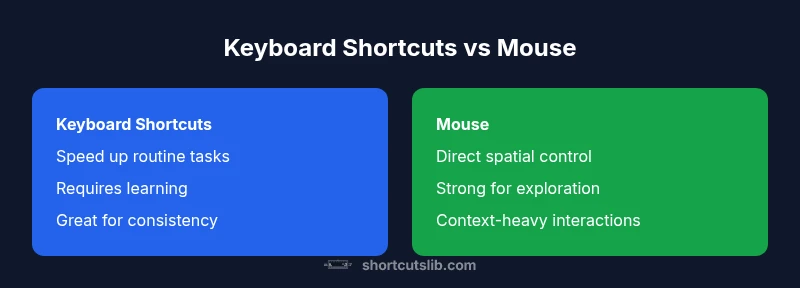
Keyboard shortcuts vs mouse are a fundamental choice in any productive workflow. With thoughtful mappings, shortcuts dramatically reduce clicks and cursor travel, delivering faster task completion and fewer context switches. Shortcuts also promote consistency across apps, while the mouse maintains precision for exploration and drag-and-drop. This quick comparison frames the trade-offs and shows how to start integrating shortcuts into daily routines.
Overview: keyboard shortcuts vs mouse in practice
In modern digital work, keyboard shortcuts vs mouse are not just a convenience—they shape how you think about tasks, speed, and error rates. This article analyzes when to use each input method, drawing on general principles and practical mappings across major platforms. According to Shortcuts Lib, a well-structured shortcut strategy can shave seconds off thousands of interactions over a year, unlocking smoother workflows and fewer context switches. We will examine speed, accuracy, ergonomics, and adoption challenges, with concrete examples you can try today.
Efficiency, speed, and accuracy: where shortcuts shine
When you compare keyboard shortcuts vs mouse, the most immediate win is speed. A few keystrokes can replace dozens of clicks, reduce cursor movement, and minimize modal dialogs. Shortcuts also promote consistency: the same hotkeys perform the same actions across files and apps. However, performance depends on environment—properly documented shortcuts expand across applications; inconsistent implementations can limit gains. The bottom line: shortcuts scale with practice and a clear mental model of your tasks.
Context matters: tasks where the mouse remains essential
Not all tasks map cleanly to keyboard shortcuts. Drag-and-drop, precise image alignment, multi-step GUI tasks, and context-aware menus often demand pointing with the mouse. For design work, artists frequently rely on gestures and pressure-sensitive devices. In spreadsheet editing, some navigation and editing tasks are faster with a mix: targets identified via arrow keys, then clicks to confirm. The key is to reserve keyboard-first interactions for high-frequency actions.
Practical examples: common scenarios and mappings
Here are representative scenarios to illustrate real-world usage of keyboard shortcuts vs mouse:
- Text editing: use Ctrl/Cmd+C/V/X for copy/paste, Ctrl/Cmd+Z to undo, and Ctrl/Cmd+S to save.
- Web browsing: Ctrl/Cmd+T to open a new tab, Ctrl/Cmd+W to close, Ctrl/Cmd+F to find on page.
- Spreadsheets: navigate with arrow keys, select with Shift+Arrow, and press Ctrl/Enter to commit edits.
- Creative tools: assign specific hotkeys for frequently used brushes or tools, while the pointer handles fine-tuning.
Learning and adopting shortcuts: tips to build fluency
A practical approach to learning keyboard shortcuts vs mouse is incremental: start with 5 core shortcuts tailored to your most frequent tasks, add 3–5 per week, and practice in short daily sessions. Create a personal cheat sheet grouped by task (editing, navigation, window management). Use OS features to discover shortcuts: macOS Spotlight, Windows Quick Access, or Linux keyboard layout tweaks. Regular review sessions, spaced practice, and gradually increasing complexity yield lasting gains.
Accessibility and ergonomics: inclusive design considerations
Shortcuts can reduce repetitive motion by minimizing mouse use, which benefits users with wrist strain or carpal tunnel risk. Yet, poorly designed shortcuts or crowded menus can create cognitive load. Always allow fallback methods: include accessible menus, speakable shortcuts for screen readers, and customizable bindings to fit different physical setups. The goal is a flexible, inclusive workflow that respects both speed and comfort.
Implementing a shortcut-first workflow: setup, governance, and best practices
To maximize the benefits of keyboard shortcuts vs mouse, establish a documented, cross-application standard. Start with core tasks, then expand into power-user mappings. Consider automation: combining shortcuts with macros, scripting, or clipboard managers to extend capabilities. Finally, measure impact: track task time before and after rollout and adjust based on feedback.
Comparison
| Feature | Keyboard Shortcuts | Mouse |
|---|---|---|
| Speed of common tasks | Typically faster with practice | Often slower for multi-step tasks |
| Learning curve | Low to moderate for core actions | Low but task-specific |
| Consistency across apps | High, when standardized via hotkeys | Depends on UI and gestures |
| Ergonomics and fatigue | Reduces repetitive movement over long sessions | Continuous hand movement and clicking |
| Context flexibility | Excellent for text/navigate/edit | Better for pointing/drag-and-drop context |
| Platform coverage | Broad across OS with customizable hotkeys | Depends on software support |
| Accessibility considerations | Can be accessible with screen readers and custom bindings | Mouse-centric workflows can be challenging for some disabilities |
Pros
- Significant time savings for routine tasks
- Reduced hand movement lowers fatigue
- Improved consistency across apps
- Easy to personalize with custom shortcuts
Cons
- Initial learning curve for new users
- Not all software supports the same shortcuts
- Over-reliance can hinder mouse-based exploration
Keyboard shortcuts win for speed and consistency; use the mouse for exploration and precision
For most workflows, adopting keyboard shortcuts will reduce task times and unify actions across apps. Start with essential hotkeys and gradually expand to cover core tasks.
Questions & Answers
What is the basic difference between keyboard shortcuts and mouse usage?
Keyboard shortcuts enable rapid actions through key sequences, while the mouse provides direct pointing and clicking for spatial tasks. Both complement each other, but shortcuts excel at repetitive, high-frequency actions.
Shortcuts speed up routine actions; the mouse handles spatial tasks.
Are keyboard shortcuts faster in most workflows?
In most workflows, yes—once you know the mappings, shortcuts reduce hand movement and context switches. Speed gains depend on task type and software consistency.
Yes, shortcuts usually speed up routine tasks once you know the mappings.
How should a beginner start learning shortcuts without getting overwhelmed?
Begin with 5 essential shortcuts tailored to your most frequent tasks, add a few per week, and practice in short daily sessions. Use a visible cheat sheet and in-app hints.
Start with 5 core shortcuts, practice a little each day, and use a cheat sheet.
Do shortcuts translate well across different apps and OSes?
There is variation across apps and platforms; many core actions like copy/paste exist across OSes, but specific keys differ. Use app-specific guides and customizable bindings to bridge gaps.
Core concepts translate, but exact keys vary; customize bindings.
When should I rely on the mouse instead of keyboard shortcuts?
For exploratory tasks, precise pointing, drag-and-drop, and context menus, the mouse remains valuable. Use a mixed approach: shortcut-first for high-frequency actions, mouse for niche operations.
Use the mouse for exploration and precise tasks; mix with shortcuts for efficiency.
What are practical steps to implement a shortcut-first workflow?
Audit your tasks, identify high-frequency actions, map them to shortcuts, and gradually roll out across apps. Regularly review and refine bindings based on feedback.
Audit tasks, map key actions to shortcuts, roll out gradually.
Main Points
- Identify the top 5 tasks to shortcut today
- Practice daily for 15 minutes to build fluency
- Customize shortcuts to fit your preferred apps
- Balance shortcuts with mouse for exploration and precision
- Track time saved to measure productivity gains