Keyboard Shortcuts Instead of Mouse: A Practical Guide to Speed
Discover how keyboard shortcuts can replace mouse actions to speed up tasks across Windows, macOS, and popular apps. Core shortcuts, habit-building plans, and customization tips help you work faster in 2026.


Goal: Replace routine mouse navigation with efficient keyboard shortcuts to speed up daily tasks. You’ll need a keyboard, a computer (Windows or macOS), and time to practice. This quick guide previews core OS shortcuts, common app commands, and practical strategies to build fluency, plus a short practice plan to help you stay consistent.
Why keyboard shortcuts instead of mouse matter
According to Shortcuts Lib, embracing keyboard shortcuts is not about erasing your mouse but about elevating your workflow. When you rely on keys instead of a pointer, you reduce context-switching, minimize finger movements, and keep your focus on the task. This section explains the core benefits: faster task completion, reduced repetitive strain, and a more predictable work rhythm. You'll also hear practical examples from real-world workstreams—like coding, writing, researching, and spreadsheet work—that demonstrate how a few well-chosen keystrokes can replace several mouse actions. By internalizing a compact set of shortcuts you can apply across multiple apps, you create a foundation for deeper keyboard fluency, which is essential for power users who want consistent speed across environments.
Core benefits of keyboard-first workflows
- Faster task completion: Shortcuts compress multi-step actions into a handful of keystrokes.
- Reduced physical strain: Fewer mouse movements means less wrist and shoulder effort over long sessions.
- Improved focus: You stay in the flow without breaking concentration to hunt with a pointer.
- Cross-app consistency: The same keys perform familiar actions in browsers, editors, and productivity tools.
Shortcuts Lib Analysis, 2026 notes that users who adopt a keyboard-first approach report steadier productivity gains as they build muscle memory. The goal is to reach a fluent level where most daily tasks can be performed with a tight set of commands. Start by identifying the five to seven actions you perform most often and map them to reliable shortcuts across your main apps.
Building a solid foundation: core OS shortcuts you should know
Across Windows and macOS, a handful of OS shortcuts unlock a huge portion of daily activity. Begin with copy, paste, undo, and select-all, then expand to navigation and window management. For example, Cmd/Ctrl+C to copy, Cmd/Ctrl+V to paste, Cmd/Ctrl+X to cut, Cmd/Ctrl+A to select all, Cmd/Ctrl+Z to undo, and Cmd/Cmd+Shift+Z (or Ctrl+Shift+Z) to redo. Use Cmd/Ctrl+T to open a new tab in browsers, Cmd/Ctrl+W to close tabs, and Cmd/Ctrl+L or F6 to focus the address/search bar. When switching between tasks, Alt+Tab (Windows) or Cmd+Tab (macOS) keeps your hands on the keyboard. Consistency matters: practice the same sequences in multiple apps to build durable habits.
App-specific shortcuts that pay off in major apps
Different programs expose different shortcuts, but many patterns repeat. In browsers, open a new tab (Ctrl/Cmd+T), reopen a closed tab (Ctrl/Cmd+Shift+T), and quickly navigate by focusing the address bar (Ctrl/Cmd+L or Alt+D). In word processors and editors, common actions include bold/italic toggles (Ctrl/Cmd+B, Ctrl/Cmd+I), saving (Ctrl/Cmd+S), and searching (Ctrl/Cmd+F). In email clients, use reply (R) and reply-all (Shift+R) with appropriate modifiers, while in spreadsheets you’ll benefit from Fill Down (Ctrl/Cmd+D) and Autosum shortcuts. The key is to recognize recurring commands and apply the same shortcuts across tools for cognitive consistency.
Practice plan: build a shortcut habit in 4 weeks
Week 1 focuses on core OS shortcuts and navigation. Week 2 adds common app commands (copy/paste, save, find, new tab). Week 3 introduces browser and editor productivity shortcuts, and Week 4 reinforces customization and cross-app consistency. Schedule short, focused 15–25 minute sessions daily, with a 5-minute review at the end of each session. Track progress with a simple log: date, shortcuts learned, and one task you completed faster.
Customization and safe remapping: tailor shortcuts to your workflow
Most systems permit customization, enabling you to remap keys to fit your muscle memory. Use official tools like macOS Keyboard Shortcuts in System Settings or Windows PowerToys to avoid conflicts and ensure discoverability. Start by mapping high-value actions you perform repeatedly, and avoid aggressive remapping that clashes with global shortcuts. Document any changes in a cheat sheet so you can revert if a shortcut interferes with a critical workflow.
Data-driven practice and pitfalls to avoid
Consistency beats intensity. Avoid attempting too many shortcuts at once; focus on 5–7 reliable actions first. If you notice conflicts with a program’s built-in shortcuts, re-evaluate and adjust. Always save your work frequently during practice to prevent data loss. Finally, keep accessibility in mind—ensure that shortcut sequences remain comfortable and usable across your keyboard layout and physical setup.
Tools & Materials
- Keyboard(Any standard layout; no specialized hardware required)
- Computer (Windows or macOS)(Ensure you can customize shortcuts and install helper tools if needed)
- Timer or stopwatch(20-minute focused sessions recommended)
- Shortcut cheat sheet(Printable or digital reference for quick recall)
Steps
Estimated time: 60-90 minutes
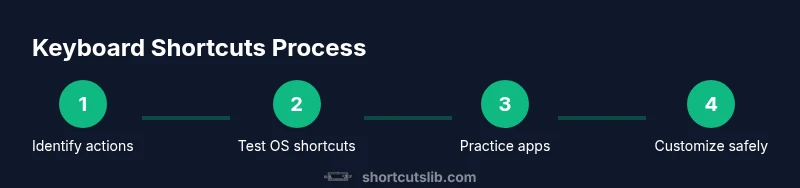
- 1
Identify your most-used actions
List the top 6–10 actions you perform daily across OS and apps. Examples include copy, paste, save, find, and new tab. Mark the exact actions you want to replace with shortcuts, so you have a targeted learning plan.
Tip: Start with actions that save you the most time and occur often. - 2
Enable and test core OS shortcuts
Verify that copy, paste, undo, and save shortcuts work consistently in your environment. If you use multiple apps, check that the basic keys behave similarly. Create a tiny checklist to confirm behavior across at least three programs.
Tip: Sustain consistency by pairing the shortcut with the same workflow in different apps. - 3
Practice navigation and window management
Practice fast tab switching, focusing the address bar, and moving between windows using keyboard shortcuts. Start with a single task and expand as you gain confidence.
Tip: Keep hands on the home row; try not to glance at the keyboard unless necessary. - 4
Master app-specific shortcuts
Learn 3–5 shortcuts per app that you rely on daily (browser, editor, email). Build a cross-app mnemonic to remember where they live. Apply them to a real project to cement usage.
Tip: Create a one-page cheat sheet for your main apps. - 5
Customize shortcuts for your workflow
Use built-in tools or official utilities to remap keys for the most valuable actions. Test changes in a controlled environment before adopting them broadly.
Tip: Document each change and why you made it. - 6
Track progress and refine
Record a short log after practice sessions: shortcuts learned, tasks completed faster, and any conflicts encountered. Review weekly and adjust your plan.
Tip: Celebrate small wins to maintain motivation.
Questions & Answers
What are the most essential shortcuts to learn first?
Start with Copy, Paste, Cut, Select All, Undo, Redo, and Find. These appear across most apps and form the backbone of a keyboard-first workflow. Build fluency by practicing one target action per session.
Begin with copy, paste, cut, select all, undo, redo, and find. They work in many apps and create a solid foundation.
Can keyboard shortcuts replace all mouse usage?
Shortcuts can replace many mouse interactions, but some tasks require a mouse or touch input depending on the software. The goal is to cover the majority of routine actions and reduce mouse dependence over time.
Shortcuts can replace most routine actions, but some tasks still need the mouse. Focus on the most frequent actions first.
How do I customize shortcuts safely?
Use official customization tools to remap keys, avoiding conflicts with global shortcuts. Start with high-value actions and test thoroughly before adopting broadly.
Use built-in tools to remap keys, test changes, and avoid conflicting shortcuts.
What if a shortcut clashes with app-specific shortcuts?
If conflicts arise, revert the change or reassign a different key combination. Maintain a single source of truth (cheat sheet) for what you’ve chosen.
If there’s a clash, revert or reassign. Keep a cheat sheet handy.
How long does it take to become fluent with shortcuts?
Fluency varies, but consistent daily practice over several weeks builds reliable muscle memory. Start small and expand as comfort grows.
It takes a few weeks of steady practice to become fluent; start small and grow gradually.
Watch Video
Main Points
- Learn a core shortcut set first and reuse it across apps
- Practice in short, frequent sessions to build fluency
- Aim for cross-app consistency to reduce cognitive load
- Customize only when it improves workflow without causing conflicts
- Track progress to stay accountable and adjust your plan