Fixing Keyboard Shortcuts Not Working in Photoshop
Learn practical steps to fix keyboard shortcuts not working in Photoshop. Diagnose common causes, reset preferences, manage OS conflicts, and prevent future issues with expert tips from Shortcuts Lib.


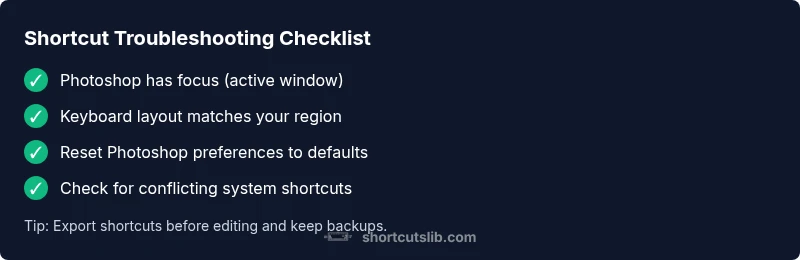
Most likely, Photoshop keyboard shortcuts stop working due to a misaligned keyboard layout, conflicting system shortcuts, or a corrupted Photoshop preference file. Start by confirming Photoshop has focus, checking that your keyboard is set to the correct input type, and resetting Photoshop preferences if needed. These quick checks resolve the majority of issues in minutes.
Why Photoshop shortcuts fail: the common culprits
Keyboard shortcuts are a fast lane to productivity in Photoshop, but when they stop working, your workflow grinds to a halt. In most cases the problem isn't a broken computer, but a mix of focus, input, and configuration issues. The first thing to verify is that Photoshop is the active window and that your keyboard layout matches the region you intend to work in. If Photoshop is running behind another app or in a background tab, the keystrokes might be captured by the OS or another program. Similarly, if you recently changed language or input source, Photoshop may interpret keystrokes differently or ignore them altogether.
Beyond the window focus, two frequent culprits are corrupted preferences and conflicts with other software. Photoshop stores a core set of shortcuts in its preferences; when those files become damaged, a broad swath of shortcuts can misbehave. Also, background utilities, clipboard managers, and remapping tools can steal keys or remap common shortcuts (for example, Cmd/Ctrl+S or V) so Photoshop doesn't receive the expected command. In the event of a role swap between different keyboards or layouts, you will see inconsistent behavior across shortcuts. While hardware issues are rare, a stuck key or a malfunctioning keyboard can mimic software problems, so you should run a quick hardware check if nothing else explains the symptoms.
Pro tip from Shortcuts Lib: start with the simplest checks—focus, layout, and recent changes—before diving into deeper settings. These steps usually restore normal behavior within minutes and prevent unnecessary resets of your workspace.
wordCountErrorMessageOnlyForValidationNo
invalid because this field is not checked here
--not used--
Steps
Estimated time: 20-30 minutes
- 1
Isolate the issue by closing other apps
Quit any programs that might capture shortcuts, then return to Photoshop and test a few core shortcuts to see if the behavior changes.
Tip: Use Task Manager (Windows) or Activity Monitor (macOS) to force-quit problem apps. - 2
Ensure Photoshop has focus
Click the Photoshop window title bar to bring it to the foreground, then try the shortcuts again. If a modal dialog is open, resolve or close it before testing.
Tip: If you can’t regain focus, try pressing Alt+Tab (Windows) or Command+Tab (Mac) to switch back, then click Photoshop again. - 3
Check keyboard language/layout
Verify the active input source matches your intended layout. On macOS switch via the input menu; on Windows use Win+Space to toggle layouts.
Tip: Test typing in a text field to confirm the selected layout is correct. - 4
Reset Photoshop preferences
Exit Photoshop, then relaunch with the appropriate shortcut: Windows—Ctrl+Alt+Shift; Mac—Cmd+Option+Shift. Confirm you want to delete the current settings when prompted.
Tip: Back up preferences first if possible. - 5
Reset keyboard shortcuts to defaults
Open Edit > Keyboard Shortcuts, then choose Reset All or import/export your preferred set after testing.
Tip: Export your current shortcuts before editing so you can revert. - 6
Check for conflicting system shortcuts
Review OS-level shortcuts that might occupy common Photoshop commands (e.g., Save, Undo) and reassign them if needed.
Tip: Reboot after changes to ensure changes take effect. - 7
Test a minimal, baseline shortcut set
Try core shortcuts (e.g., Ctrl/Cmd+N for new document, Ctrl/Cmd+S for save) to establish a baseline. If these work, reintroduce others gradually.
Tip: Document outcomes to identify which shortcuts reappear faulty. - 8
Document, reproduce, and contact support
If the problem persists, log the exact Photoshop version, OS, and steps to reproduce. Consider reporting a bug to Adobe with evidence.
Tip: Include screenshots or a screen recording to speed up triage.
Diagnosis: Keyboard shortcuts in Photoshop are unresponsive or behave inconsistently
Possible Causes
- highActive global/system shortcuts interfering with Photoshop
- highIncorrect keyboard layout or input source
- mediumCorrupted Photoshop preferences or shortcuts file
- lowConflicts with third-party software (e.g., keyboard remapping tools)
Fixes
- easyTest Photoshop focus and ensure the app is the active window
- easySwitch keyboard layout to your active input source (e.g., US English)
- mediumReset Photoshop preferences to defaults or delete the preferences file, then relaunch
- mediumCheck for and disable conflicting third-party software temporarily
Questions & Answers
Why did my Photoshop shortcuts stop working all of a sudden?
Most commonly this is caused by the app not having focus, a mismatched keyboard layout, or corrupted Photoshop preferences. External tools can also interfere. Start with quick focus and layout checks before deep resets.
Shortcuts often stop working because Photoshop isn’t the active app, the keyboard layout changed, or preferences got corrupted. Check focus and layout first, then reset if needed.
How do I safely reset Photoshop preferences?
Close Photoshop, then relaunch while holding the specified modifier keys (Windows: Ctrl+Alt+Shift; Mac: Cmd+Option+Shift) and confirm deletion of preferences when prompted. Back up if possible before resetting.
Close Photoshop and restart it while holding the reset keys to clear preferences. Confirm deletion and back up if you can.
Can third-party apps cause shortcut problems?
Yes. Screen capture tools, remappers, or clipboard managers can steal keystrokes. Temporarily disable them to test whether Photoshop shortcuts return to normal.
Yes, third-party tools can steal shortcuts. Disable them temporarily to test the fix.
Why do some shortcuts work while others don’t?
This usually indicates a partial corruption in the shortcuts file or a conflict with a specific command set. Resetting the keyboard shortcuts or reassigning the problematic ones often resolves it.
Sometimes only certain shortcuts fail due to a conflicted or corrupted command set.
Should I update Photoshop to fix shortcut issues?
Software updates often fix bugs including shortcut handling. If you’re on an older build, updating may resolve the issue; verify compatibility with your OS.
Updating Photoshop can fix bugs affecting shortcuts, but check compatibility first.
How can I export or share a working shortcut set?
Use Edit > Keyboard Shortcuts to export your current configuration, then import on another device. This helps maintain consistency across machines.
You can export your shortcut set and import it on another device to stay consistent.
Watch Video
Main Points
- Back up preferences before making major changes
- Identify whether the issue is OS-wide or Photoshop-specific
- Reset preferences to restore default shortcuts when needed
- Test core shortcuts first to establish a baseline