Why Are Keyboard Shortcuts Not Working in Illustrator? A Fix Guide
Learn how to fix why are my keyboard shortcuts not working in illustrator. This urgent, step-by-step guide covers preferences, OS conflicts, and restoring quick commands in Illustrator.


Most likely the issue is a conflict with OS-wide shortcuts or a corrupted Illustrator preference. Quick fix: close nonessential apps that might capture keys, reset Illustrator preferences, and check the Keyboard Shortcuts editor for overrides. Then test shortcuts in a new document. If shortcuts still fail, update to the latest Illustrator version and repeat the test.
Why shortcuts fail in Illustrator
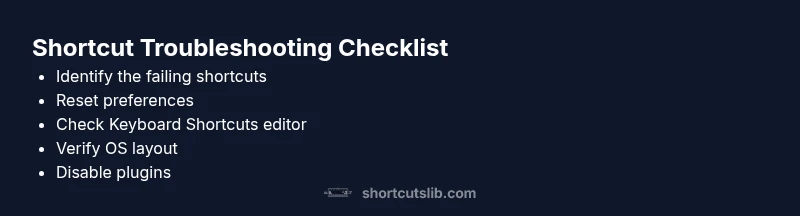
In graphic design and illustration workflows, keyboard shortcuts are speed multipliers. If you're reading this, why are my keyboard shortcuts not working in illustrator is a common question, and the frustration is real. According to Shortcuts Lib, reliable shortcuts are a core part of efficient tools like Illustrator, so when they misbehave, your whole process stalls. The typical culprits are conflicts with OS level shortcuts, a corrupted preferences file, or a misconfigured keyboard layout. Start by noting exactly which shortcuts fail and under what conditions (a specific tool, menu, or dialog). This helps you narrow down whether the problem is global or limited to a single function. By approaching the issue with a clear checklist, you move from confusion to a concrete fix plan.
How Illustrator interprets shortcuts and where things go wrong
Illustrator uses a mix of default shortcuts and user defined mappings. When you press a key combo, Illustrator checks its internal mapping, then the OS, then any competing apps. If another program claims the same key combination, Illustrator may not respond. Many users report partial failures where some shortcuts work and others do not, often due to localized keyboard layouts, language settings, or input sources. Understanding this helps you differentiate between a UI glitch and a real mapping issue. The goal is to identify whether the problem is global or tied to one tool or panel.
Step 1: reset preferences and test in a clean slate
The fastest way to reset Illustrator is to reset preferences, which clears corruption and resets tool mappings to defaults. On Windows, close Illustrator, relaunch while holding Ctrl+Shift, and on Mac, Option+Command+Shift. You’ll be prompted to delete current settings; confirm. After reset, launch a new document and test a representative sample of keystrokes: Copy, Paste, Undo, Redo, Reselect, and a few essential tool shortcuts. If they work, you have isolated the issue to saved preferences. If not, proceed to Step 2 to examine mappings and OS interactions.
Step 2: check Keyboard Shortcuts editor for overrides
Illustrator provides the Keyboard Shortcuts editor (Edit > Keyboard Shortcuts). Open it and search for the exact shortcut you’re testing. If you see a conflicting mapping, you can reassign or delete it. Save the change with a descriptive preset name. Ensure you are editing the correct shortcut set (Illustrator defaults vs. a custom set) and that the active set is the one you intend to use in your workflow. This step is often the quickest way to resolve anomalies without affecting system settings.
Step 3: examine OS level shortcuts and input sources
Some OS level shortcuts override app shortcuts. Review your operating system keyboard preferences to ensure there are no binding conflicts. Also check your active input source or keyboard layout, especially if you work between layouts (US vs UK or non Latin). A mismatch can cause Illustrator to register different characters or ignore combos. Temporarily switch to the expected layout to verify whether the shortcut responds as intended.
Step 4: test with plugins and background apps disabled
Plugins and background utilities can hijack keystrokes. Disable nonessential plugins, start Illustrator in Safe Mode if available, or quit background apps that might capture keys (clipboard managers, screen capture tools, or handwriting input utilities). Retest the same key combinations. If shortcuts start working, reintroduce components one by one to identify the culprit without guessing.
Step 5: update, reinstall, or rollback if needed
If you are on an older build, update Illustrator to the latest version; new releases fix known shortcut bugs and improve compatibility. If the problem persists after updating, consider reinstalling Illustrator, ensuring you remove old preference caches and residual files. In some cases, rolling back to a previous stable version can restore expected behavior while you await a fix from the vendor. Always back up your custom shortcuts first.
Step 6: create a baseline workflow to prevent future conflicts
Create a baseline keyboard shortcut set and export it as a backup. Document which combos map to essential actions and keep a separate profile for critical tasks. Regularly review shortcuts after major software updates or OS changes. Establish a standard testing routine whenever you install new software that could interact with keyboard input, and keep a log of any changes to shortcuts so you can revert easily.
Quick-priority checklist and final thoughts
Before declaring a fix, run this quick checklist: confirm the exact key combination in a test doc, verify you are in the right document and that a tool is active, and ensure the active shortcut set is the one you intended. If issues persist, seek help from community forums or Adobe support. The Shortcuts Lib team recommends sustaining a routine of backup, testing, and documentation to prevent future surprises.
Steps
Estimated time: 45-75 minutes
- 1
Reproduce and document the issue
Clearly note which shortcuts fail, in which tool or panel, and under what conditions. Record your OS, Illustrator version, and language layout. This baseline helps you verify fixes later.
Tip: Take screenshots or a short screen recording for reference. - 2
Close conflicts and restart
Quitting nonessential apps reduces external interception of keystrokes. Restart Illustrator and test a small set of shortcuts.
Tip: If a single shortcut still fails, proceed to reset preferences. - 3
Reset preferences
Reset by the OS-specific hotkey sequence during launch or via the menu if available. Confirm deletion of old settings and reopen Illustrator.
Tip: Back up current shortcuts before resetting. - 4
Inspect Keyboard Shortcuts editor
Navigate to Edit > Keyboard Shortcuts, search for the problematic combo, and resolve conflicts by reassigning or deleting mappings.
Tip: Save changes with a clear preset name. - 5
Test in clean environments
Test shortcuts in a new document and with a minimal workspace to rule out document-specific or workspace issues.
Tip: If it works in a new doc, compare environments to identify root cause. - 6
Check OS layout and plugins
Verify input source, try the shortcut with a different layout, and disable nonessential plugins or background tools.
Tip: Re-enable components one by one to locate the offender. - 7
Update or reinstall
Apply the latest Illustrator update; if unresolved, reinstall while preserving shortcuts.
Tip: Export shortcuts before any reinstall. - 8
Establish preventive practices
Backup shortcuts, document changes, and implement a routine test after updates.
Tip: Maintain a baseline profile dedicated to critical tasks.
Diagnosis: Keyboard shortcuts in Illustrator stop working or behave inconsistently
Possible Causes
- highConflicting OS-level or system-wide shortcuts
- highCorrupted or migrated Illustrator preferences
- mediumMismatched keyboard layout or input source
- lowIncompatible plugins or background utilities hijacking keys
Fixes
- easyReset Illustrator preferences to defaults
- easyReview and disable conflicting OS shortcuts
- easyVerify and switch keyboard layout / input source
- mediumDisable plugins/background apps and update Illustrator
Questions & Answers
What should I do first when shortcuts stop working in Illustrator?
Start with a quick reset and verify there are no OS-level conflicts. Then inspect Illustrator's keyboard shortcuts to ensure there are no tool-specific overrides.
First reset and check for OS conflicts, then review Illustrator shortcuts.
Can running multiple Adobe apps affect Illustrator shortcuts?
Yes, other Adobe apps can claim the same shortcuts. Close other apps or the competing process and test again to confirm isolation.
Yes. Close other apps to test if shortcuts start working.
Is it safe to reset Illustrator preferences?
Resetting preferences is safe and can fix many shortcut issues, but it resets custom shortcuts. Back them up first.
Resetting is safe, but back up any custom shortcuts first.
How do I view and customize shortcuts in Illustrator?
Go to Edit > Keyboard Shortcuts to view, modify, or create presets. Save changes with clear names and test thoroughly.
Open Keyboard Shortcuts to view and customize mappings.
What if my keyboard layout is wrong?
Switch to the correct OS keyboard layout in system settings and re-test. Some shortcuts rely on exact key mappings.
Try the shortcut with the correct keyboard layout.
When should I contact support?
If shortcuts still fail after all troubleshooting steps, contact Adobe Support or consult community forums for advanced help.
If it still fails after troubleshooting, seek support.
Watch Video
Main Points
- Identify the root cause before changing shortcuts
- Reset preferences to restore defaults when needed
- Check OS shortcuts and keyboard layout conflicts
- Use the Keyboard Shortcuts editor to resolve mappings
- Back up and test shortcut changes after updates