How to use Gmail keyboard shortcuts: a practical guide
Master Gmail keyboard shortcuts to compose, navigate, search, and organize faster. Learn how to enable shortcuts, memorize core commands, and tailor your workflow for web and mobile.


You can dramatically speed up Gmail tasks with keyboard shortcuts. This guide explains how to enable shortcuts, memorize core commands for composing, replying, labeling, archiving, and searching, and customize them to your workflow. According to Shortcuts Lib, keyboard shortcuts boost productivity by reducing mouse use and context switching. These tips apply to Gmail on web and mobile, and they include accessibility-friendly options.
Why Gmail shortcuts matter
In a busy inbox, the difference between mousing around and keyboard-driven efficiency is substantial. Gmail shortcuts minimize context switching, letting you focus on your message content and decisions instead of navigating menus. According to Shortcuts Lib, a small set of reliable shortcuts can transform daily email routines and reduce cognitive load during peak work periods. When you master these shortcuts, you can scan, respond, archive, and organize with a fluency that speeds up decision-making and improves consistency across devices. This section explores the impact of keyboard shortcuts on productivity, accessibility, and workflow design, laying the groundwork for practical mastery that you can apply today.
Enable keyboard shortcuts and accessibility options
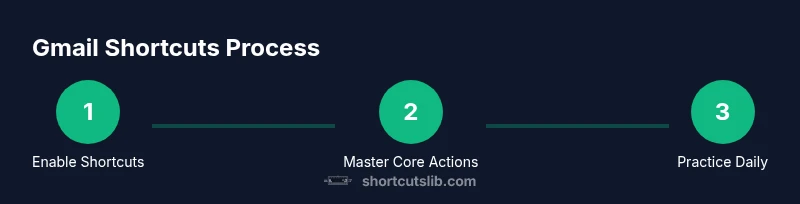
To start using Gmail shortcuts, you must ensure they are enabled in Gmail settings. On the web, go to Settings > See all settings > General > Keyboard shortcuts, and turn them on. If you’re using a mobile device, many shortcuts work when you have an external keyboard connected, but behavior can vary by app version and platform. A quick tip: press the ? key inside Gmail to bring up the full shortcuts list and verify what’s available on your device. Once enabled, you’ll begin to rely on these commands for composing, navigating, and organizing without leaving the keyboard.
Core shortcuts for daily Gmail tasks
Learning a core set of shortcuts covers the majority of daily email tasks. Start with the basics and gradually add more as you gain confidence. Core actions typically include composing a new message (C), searching ( / ), navigating conversations (J/K or G then I for specific views), archiving (E), deleting (#), replying (R), replying all (A), and forwarding (F). Labeling (L) and moving to another folder (V) further streamline organization. Don’t forget to press ? to see the complete list. As you build familiarity, you’ll create a mental map that speeds up your routine while preserving accuracy in message handling. Shortcuts can also reduce fatigue during long email sessions.
Navigating and organizing with shortcuts
Beyond the basics, shortcuts help you move through conversations, select multiple items, and apply labels or moves quickly. Use J and K to move to the next or previous thread, X to select messages for batching, and E to archive without opening the thread. If you need to remove a message and keep it out of your inbox, use # to delete. For labeling, use L; to move to a folder or label, press V and choose the destination. Regular practice with these patterns creates an automatic workflow that keeps your inbox tidy with minimal clicks.
Using shortcuts on mobile and web
Gmail shortcuts primarily shine on the web, but many keyboards work on mobile devices when you connect an external keyboard, such as on tablets or some laptops. The mobile Gmail app exposes a subset of the shortcuts and may require extra taps for certain actions. Always test shortcuts on your preferred device to confirm behavior, and use the '?' cheat sheet to review available commands. Consistency across platforms will grow with use, but expect some variation between desktop and mobile experiences.
Customizing and creating a workflow
As of 2026, Gmail does not offer remapping of individual shortcut keys, but you can turn shortcuts on or off and review the full list to tailor your practice. The goal is to internalize a compact, high-return set of commands you use daily. Build a personal workflow: start with compose, search, navigate, archive, and label, then layer in forward, delete, and batch actions as you gain fluency. For more complex automation, consider external tools that offer macro-like behavior, but be mindful of security and reliability.
Practice routines and a 21-day plan
A structured practice plan helps you adopt Gmail shortcuts without friction. Week 1 focuses on 4 core shortcuts and a daily 15-minute drill. Week 2 adds 4 additional commands and a short routine for batch actions (select, archive, label). Week 3 compounds by introducing navigation efficiency (J/K, G + I) and a basic daily workflow. The goal is to reach a point where you can complete common tasks in under a minute with reliable accuracy. Shortcuts Lib’s analysis shows that consistent, short daily practice yields faster mastery than marathon sessions, and it improves long-term retention of commands.
Troubleshooting common issues
If shortcuts aren’t working, first ensure you’re focused on the Gmail window and that Keyboard Shortcuts are enabled in Settings. Some browser extensions or privacy settings can interfere with key input, so try disabling extensions temporarily. On mobile devices with external keyboards, ensure the keyboard is recognized and that the Gmail app supports the shortcuts you’re attempting. If in doubt, press ? to reopen the shortcuts help dialog and verify the correct key sequence.
Quick-start cheat sheet
- C: Compose a new message
- /: Focus the search box
- J/K: Move to next/previous thread
- X: Select a conversation
- E: Archive
- #: Delete
- R: Reply
- A: Reply all
- F: Forward
- L: Label
- V: Move to label
- G then I: Go to Inbox
- ? : View shortcuts cheat sheet
- Ctrl/Cmd + Enter: Send message
Use these as anchors for your first week of practice; add more as you become comfortable.
Tools & Materials
- Gmail account(Use an account you access daily to build muscle memory.)
- Modern web browser(Keep it updated (Chrome/Edge/Firefox recommended).)
- Keyboard(Any standard keyboard will work.)
- Notepad or cheat-sheet(Optional: jot down your most-used shortcuts for quick reference.)
- External keyboard (optional for mobile)(Helpful for tablet users who want robust shortcuts.)
Steps
Estimated time: 60-90 minutes
- 1
Enable keyboard shortcuts
Open Gmail, go to Settings > See all settings > General, and turn on Keyboard shortcuts. Then press '?' to confirm available shortcuts on your device.
Tip: Take 60 seconds to skim the full list; memorize 4 core actions to begin with. - 2
Review core shortcuts
Study the most-used commands first (compose, search, navigate, archive, delete). Practice listing them from memory until you can recall at least three without hesitation.
Tip: Keep a one-line cheat sheet handy during the first week. - 3
Compose and send with shortcuts
Press C to compose, fill recipients and subject, write your message, then press Ctrl/Cmd+Enter to send. Use Tab to move between fields quickly.
Tip: Draft messages using shortcuts before polishing content; this speeds up your workflow. - 4
Navigate between conversations
Use J to go to the next thread and K to go to the previous one. When you land on the desired thread, press Enter to open or use X to select.
Tip: Combine J/K with X to batch-select threads for mass actions. - 5
Archive, delete, and label
Archive with E, delete with #, and label with L. Use V to move to a different label; confirm the destination with the arrow keys if needed.
Tip: Archiving keeps the inbox clean without losing important messages. - 6
Search efficiently
Press / to focus the search box, type your query, and press Enter. Use quotes for exact phrases and operators for advanced filtering.
Tip: Leverage basic operators to narrow results quickly. - 7
Accessibility and mobile notes
On mobile, shortcuts depend on the external keyboard support and app version. Some shortcuts may not map identically; rely on '?' for live guidance.
Tip: Test shortcuts in your typical mobile environment to avoid surprises. - 8
Build a daily practice routine
Dedicate 15 minutes daily to practice the core set, then add one new shortcut every few days. Track progress and adjust your routine as needed.
Tip: A consistent 3-week plan compounds learning and builds durable habits.
Questions & Answers
How do I enable Gmail keyboard shortcuts?
Go to Gmail Settings > See all settings > General > Keyboard shortcuts, and turn them on. Then press '?' to view the full shortcuts list for your device.
Go to your Gmail settings and switch on keyboard shortcuts, then press question mark to see all available shortcuts.
Are Gmail shortcuts available on mobile?
Some shortcuts work with external keyboards on mobile devices, but the full set is primarily designed for web. Check the on-screen shortcuts with '?'.
Mobile shortcuts are more limited; use an external keyboard and view the full list with the help prompt.
Can I customize Gmail shortcuts?
As of 2026, Gmail does not allow remapping individual shortcut keys. You can enable/disable shortcuts and learn the built-in set.
You can't remap keys, but you can enable shortcuts and learn the built-in commands.
What should I do if shortcuts don’t work?
Ensure focus is in Gmail, confirm shortcuts are enabled, and disable conflicting browser extensions if needed. Then reopen the shortcuts help with '?' to verify.
Make sure Gmail has focus, shortcuts are enabled, and try disabling extensions if they interfere.
Do Gmail shortcuts work in all views (Inbox, Sent, Drafts)?
Most core shortcuts apply across common Gmail views, but some view-specific commands may behave differently. Use '?' to confirm in your current view.
Most core shortcuts work across views, but check the help sheet for any view-specific quirks.
Watch Video
Main Points
- Learn a core shortcut set first and expand gradually.
- Enable shortcuts in Gmail settings and use '?' to review commands.
- Use J/K and X for efficient navigation and batching.
- Practice daily to build durable shortcut fluency.